 Echolot
MCP requests
Call an MCP server's tools, read its resources, get its prompts or send any JSON-RPC method, saved as requests with checks.
An MCP request is a saved call to one of the workspace's MCP servers: a tool call, a resource read, a prompt, or any JSON-RPC method. Save the calls you make often, add checks, and run them in the runner like any other request.
Try a call from the MCP Servers page
The quickest way to start is on the server itself:
- Open the MCP Servers page and pick a server, such as Alpenglow MCP, which points to
https://demo.echolot.dev/mcp. - Choose Check if it hasn't been checked yet. The page lists the server's Tools, Resources and Prompts.
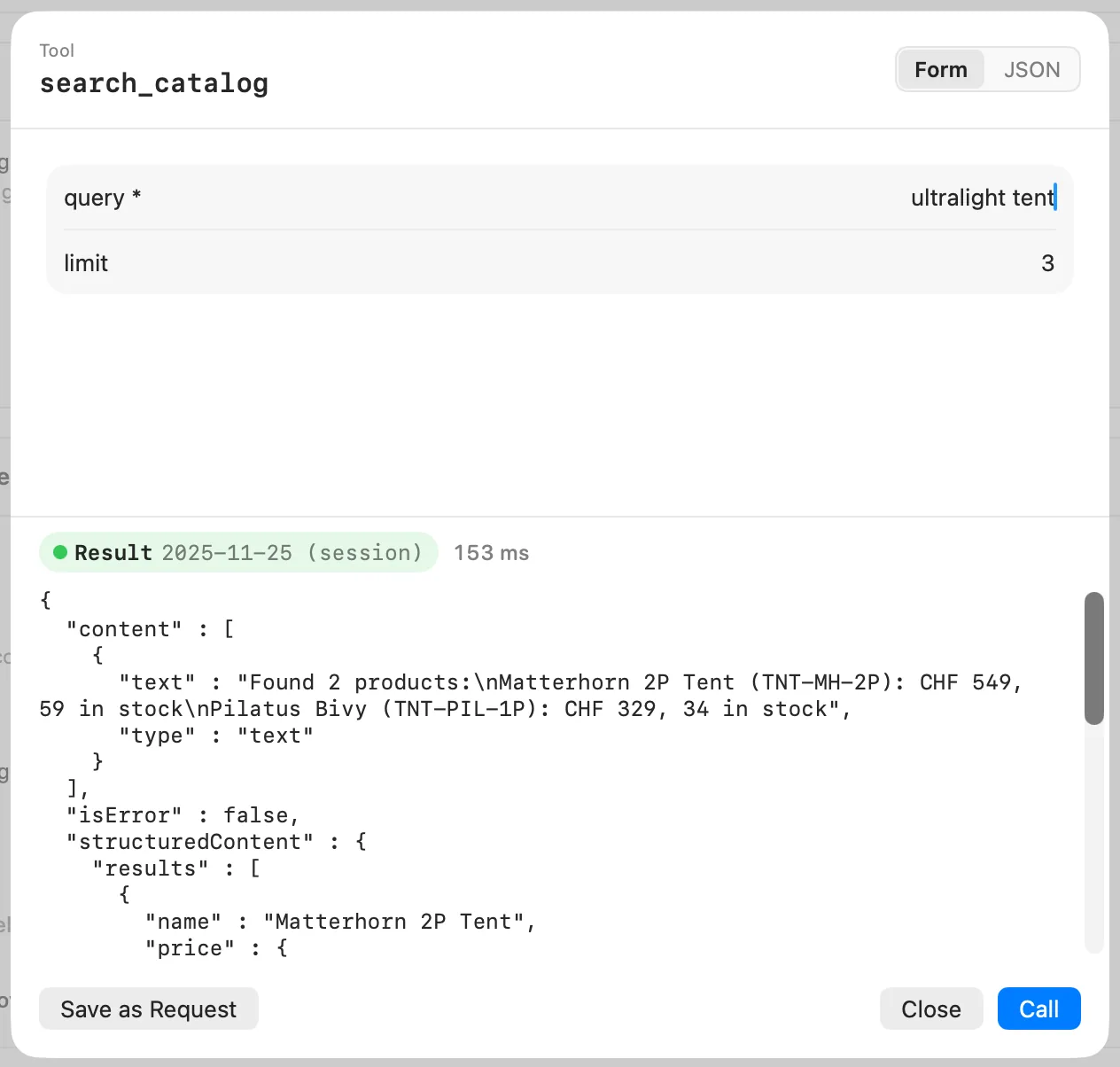
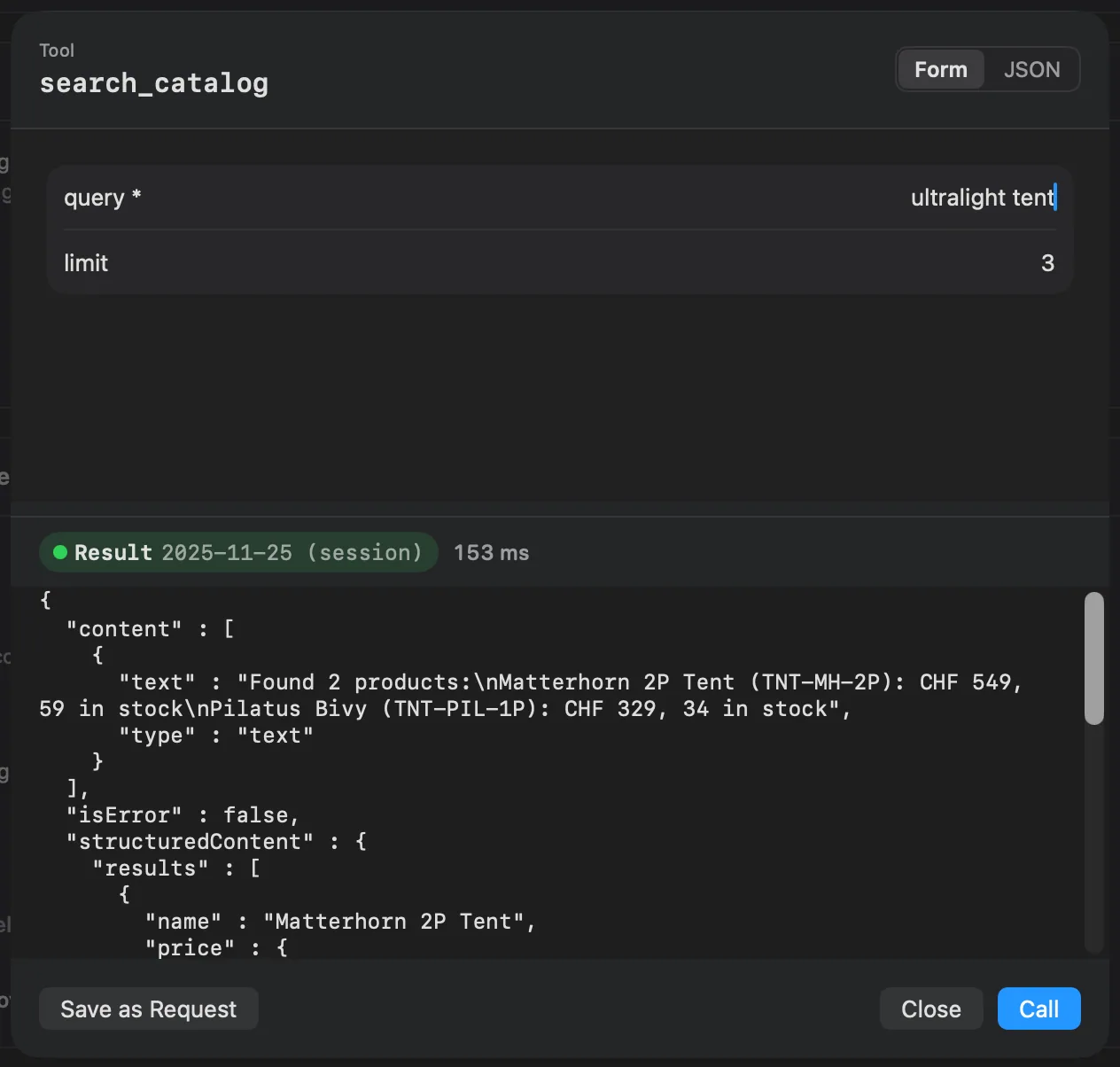
- Click a tool, resource or prompt. A sheet opens with its arguments.
- Fill them in, as a Form built from the input schema or as JSON, and choose Call.
- The result appears below, with Result or Error and the time it took.
- Choose Save as Request to keep the call, with its arguments, as an MCP request.
Create an MCP request
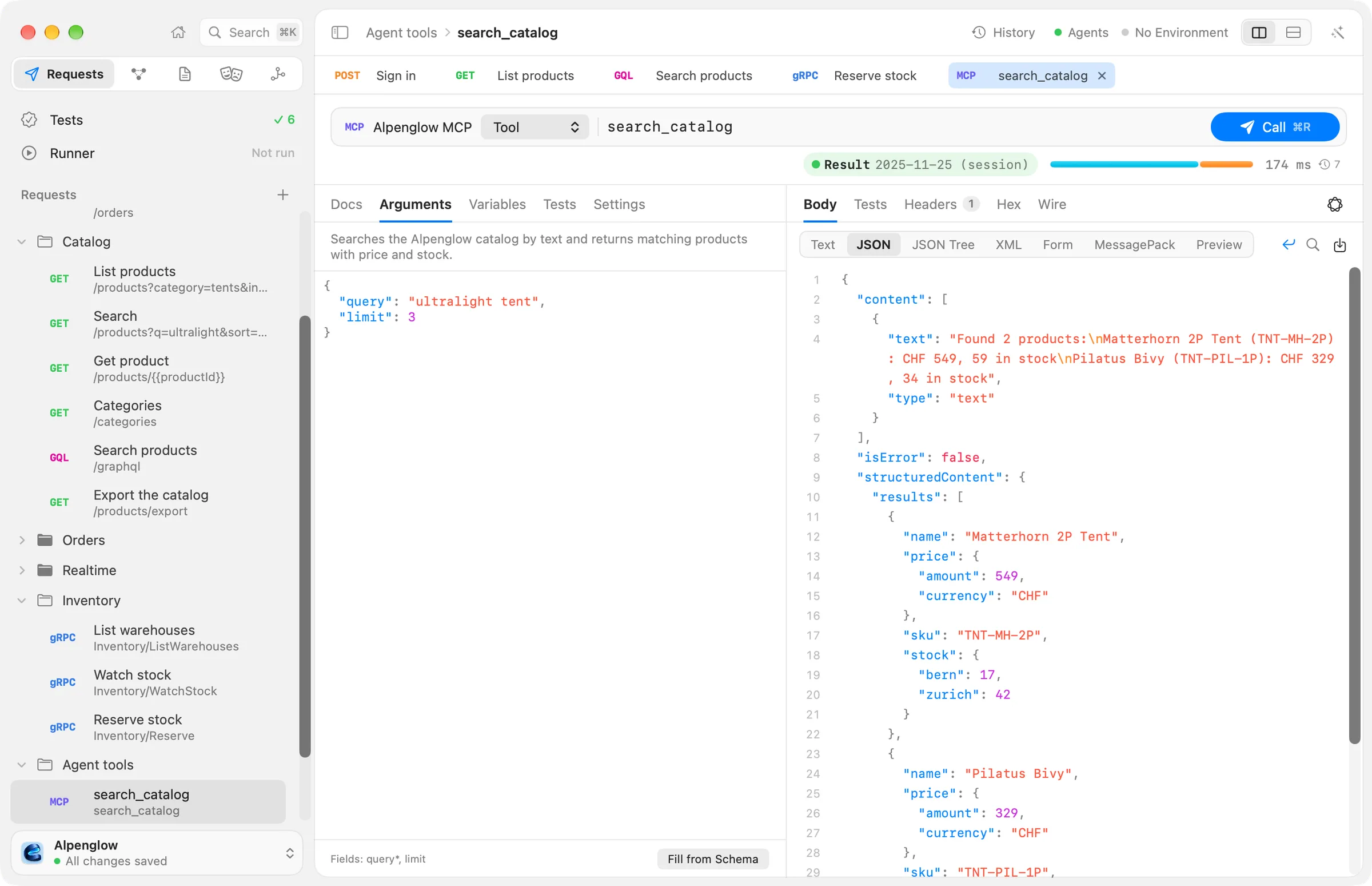
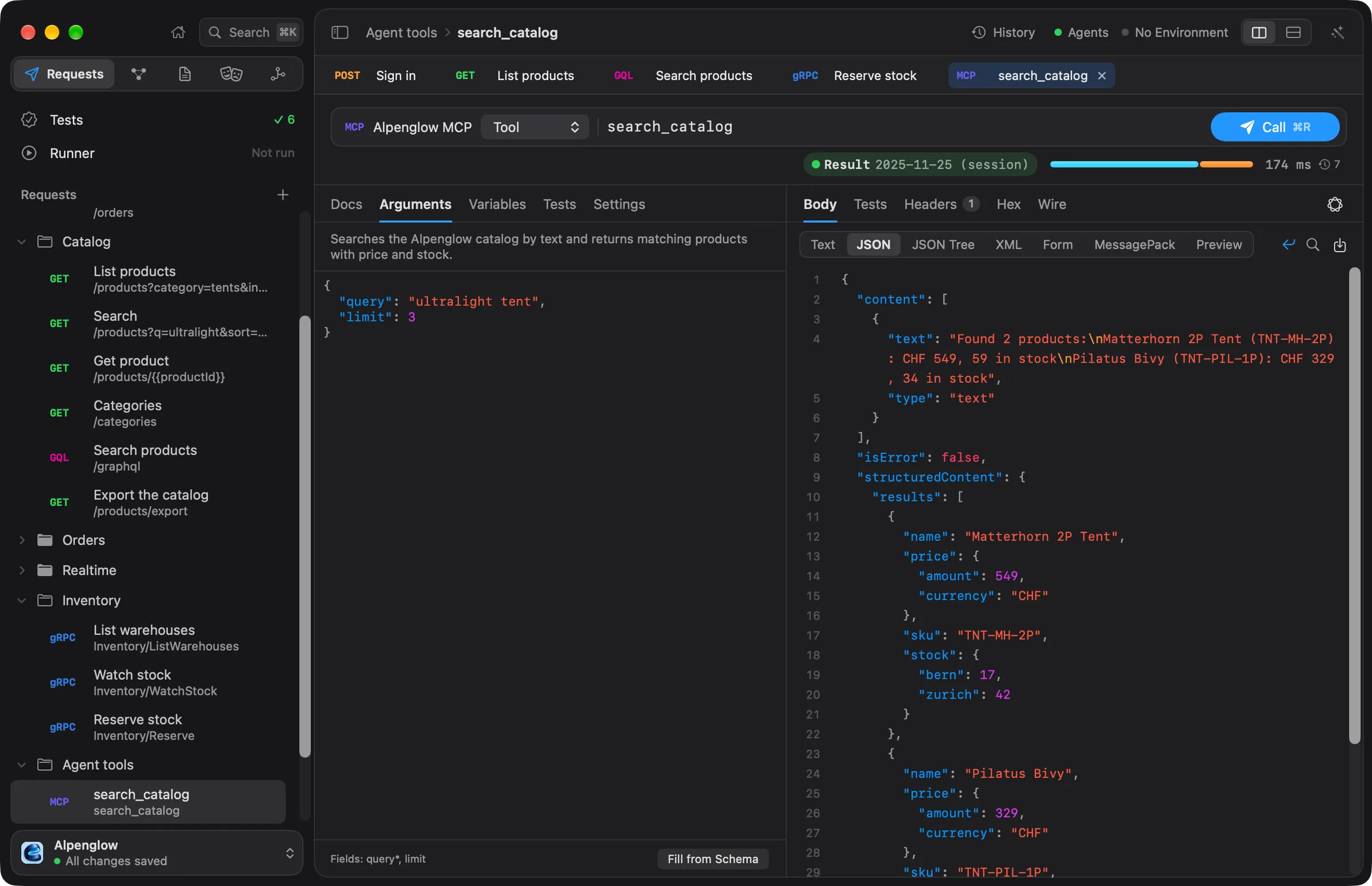
Choose New MCP Call from the + menu beside Requests in the sidebar. The editor's bar holds the call:
- Pick the server from the menu at its start. MCP Servers… in the same menu opens the MCP Servers page.
- Pick what to call: Tool, Resource, Prompt or Method.
- Type the target: the Tool name, the Resource URI, the Prompt name, or a JSON-RPC method such as
ping. Names from the server's latest check are offered as you type, under From the Server. - Choose Call (⌘R). While it runs, Cancel (⌘.) stops it.
| Operation | What it sends | What the arguments are |
|---|---|---|
| Tool | tools/call with the tool's name | The tool's arguments |
| Resource | resources/read with the URI | Not used |
| Prompt | prompts/get with the prompt's name | The prompt's arguments |
| Method | Any JSON-RPC method | The method's params |
The editor has these tabs: Docs, Arguments, Variables, Tests and Settings. MCP requests have no headers, auth or scripts of their own: the server's connection settings, its headers and its sign-in live on the MCP Servers page. See adding servers.
Arguments
The Arguments tab holds a JSON object, with {{variables}}:
{
  "query": "ultralight tent",
  "limit": 3
}
When the server's latest check knows the tool, the tab shows its description above the editor and its fields
below, such as Fields: query*, limit; a star marks a required field. Fill from Schema replaces the arguments
with every field of the tool's input schema, to start from.
The Alpenglow workspace has two calls in Agent tools: search_catalog, with the arguments above, and
order_status, which looks up {"order_id": "ord_7Hk2Lw"}.
Results
The response pane shows the result as JSON in the Body tab, like any response. The badge in the response summary reads Result in green or Error in red, with the protocol version the server speaks. Point at it to see who answered, or what went wrong.
A call can fail in two ways, and Echolot keeps them apart:
- The server answers with an error: a tool result marked as an error, or a JSON-RPC error. The badge reads Error, and the body holds what the server said.
- The call never gets an answer: the server can't be reached, doesn't start or breaks the protocol. The response pane says why. Check the server on the MCP Servers page: its message log shows every message of the last check.
Every call is kept in History.
Checks for MCP
In the Tests tab:
- MCP error equals
falsepasses when the call succeeded. A failure shows the server's message. - Tool output schema checks the result's
structuredContentagainst theoutputSchemathe tool declares. It fails when the tool declares none, or the result has nostructuredContent. - JSON value checks any value of the result, such as
$.structuredContent.results.lengthis greater than0, or$.content[0].typeequalstext.
See scripts and tests for every check and comparison.
Mac App Store edition
The App Store edition calls MCP servers over HTTP. Servers that run as a local program (stdio) stay in the workspace, but calls to them need the direct download or the command-line tool.
Compare the editionsFrom the command line
echolot run runs saved MCP requests with their checks, and echolot mcp check inspects a server. See
echolot mcp.