 Echolot
History
Find any response a workspace received, see who sent it, compare two responses, and clear what you no longer need.
Echolot keeps every exchange a workspace makes: each request sent and the response it got, with who sent it. Yours, the Runner's, flows' and agents' all land in the same place. Use history to go back to an earlier response, to find the request that returned some value, or to see what an agent did.
Open the History page
- View › History (⌘Y).
- History in the page header. Click it again to go back to the page you came from.
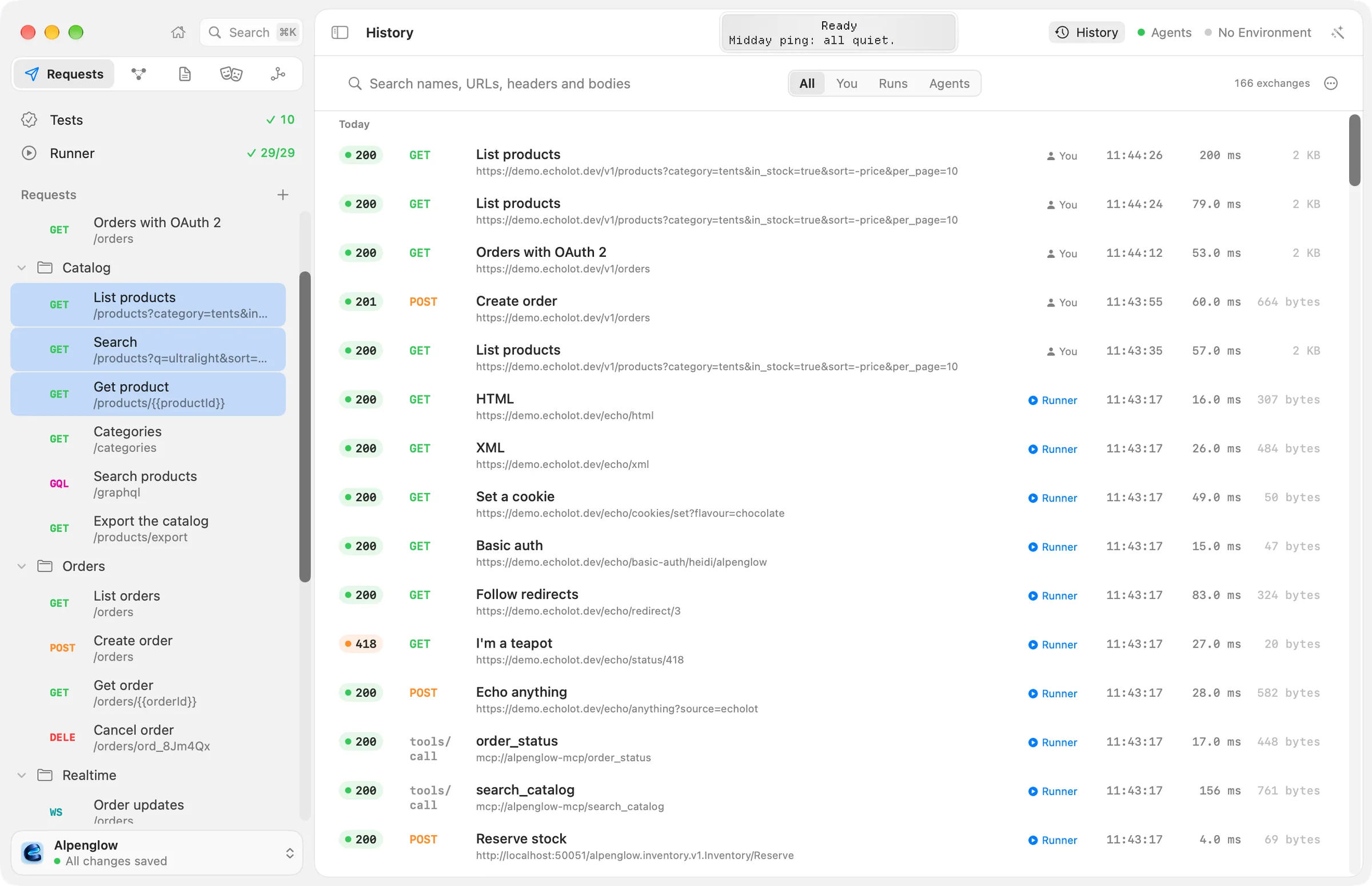
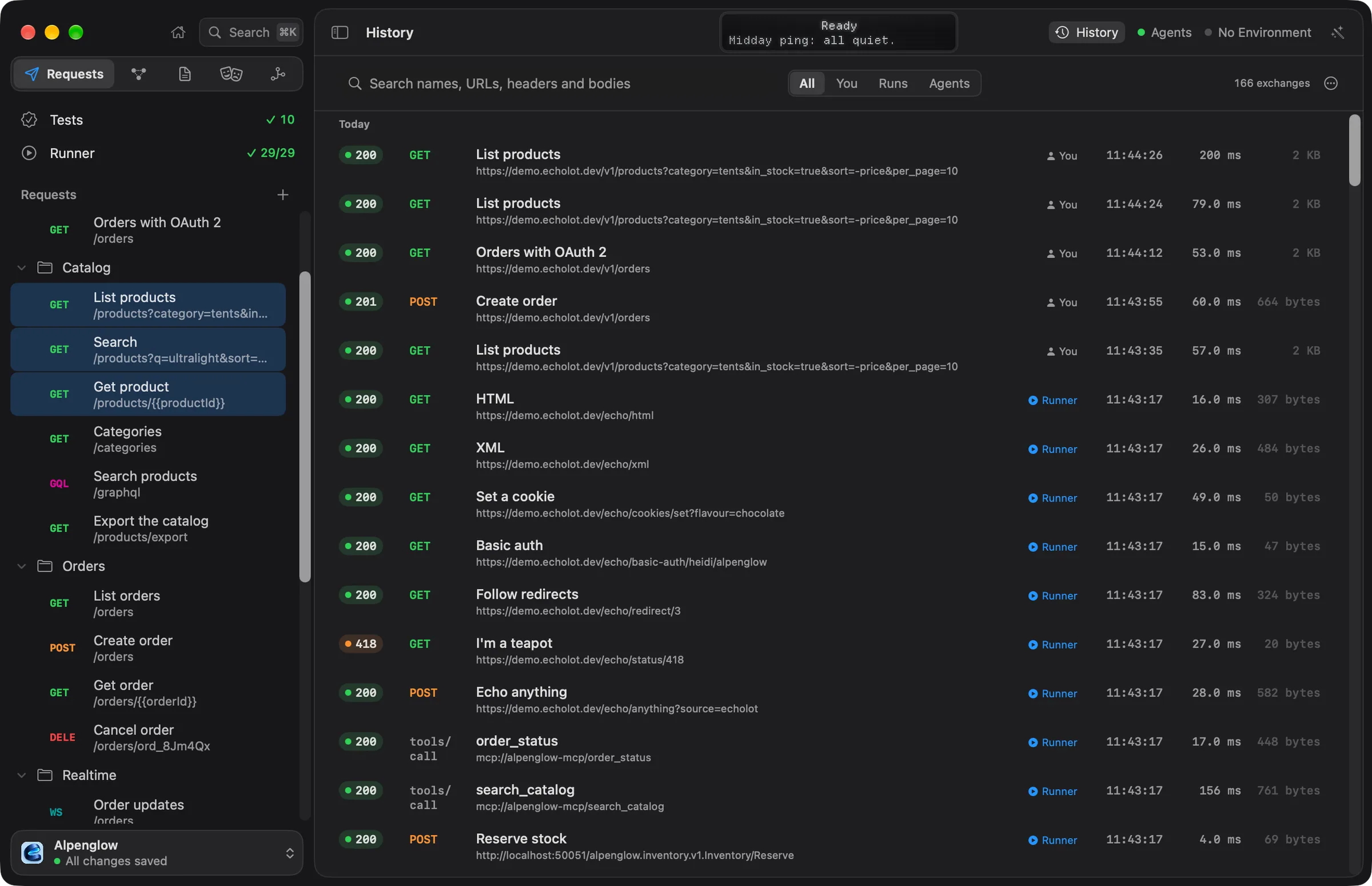
The page lists exchanges by day, newest first. Each row shows the status (or Failed for a send that got no response), the method, the request's name, its address, who sent it, and when. unsaved marks an exchange of a request that was never saved; deleted, one whose request has been deleted since.
What is recorded
- Every send of every request kind, from the request page, the Runner, flows, Quick Send, Shortcuts, the Assistant and external agents.
- Sends that failed without a response, with their error.
- WebSocket, Socket.IO and MQTT sessions, once they close: the connection and the log of every message.
Sends Echolot makes for its own use, such as fetching a GraphQL schema or a spec, are not recorded. The command-line tool keeps no history.
Who sent an exchange shows on its row:
| Shown | Sent by |
|---|---|
| You | You, from the app. |
| Runner | A run in the Runner. |
| Flow: name | A flow. |
| Agent | The built-in Assistant. |
| The client's name | An external agent through Echolot's MCP server, such as Claude Code. |
Search and filter
Type in Search names, URLs, headers and bodies. Two characters search names and addresses; three or more search bodies too. Matches are found anywhere in the text, not only at the start of a word.
Sent by narrows the list: All, You, Runs (the Runner and flows) or Agents (the Assistant and external agents). The count beside it says how many exchanges, or matches, there are.
What search covers:
- The first 256 KB of each text body: JSON, XML, HTML, text, form data, event streams and the like. Images, archives and other binary bodies are not searched.
- No body text at all while encryption is on: then search finds names, addresses and headers only.
- Never secret values: they are masked in what history lists and searches, so search can't be used to guess one.
Look at an exchange
Click a row to select it; ↑ and ↓ move through the list.
- Space shows quick look: the status, when it was sent, how long it took, its size and type, who sent it, the environment and the request, with buttons to show it, copy its address or compare it.
- ↩ or a double-click opens it. An exchange of a saved request opens in that request, on that response. An exchange without a saved request opens in a sheet with its response headers and body.
Control-click a row for:
| Command | What it does |
|---|---|
| Show in Request | Opens the request on this response. |
| Show Exchange | Opens the exchange in a sheet. |
| Compare with Previous Response | Compares it with the request's response before it. |
| Add to OpenAPI Spec… | Documents the response in a spec. See specs from traffic. |
| Save as Mock Example… | Saves the response as a named example in the spec its request follows. See mocks. |
| Copy URL | Copies the address. |
| Delete | Removes this exchange from history. |
A request's own history
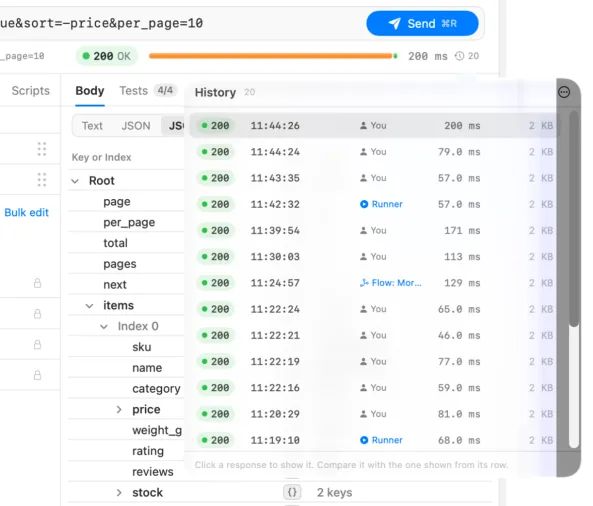
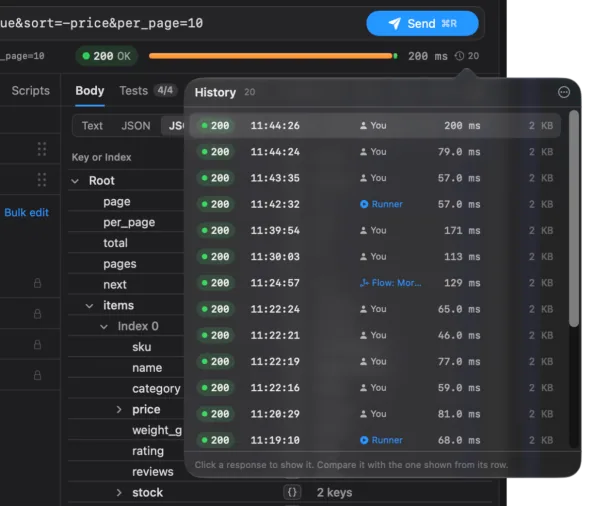
On the request page, the clock button in the response pane's strip shows how many responses the request has. Click it for the list: status, time, who sent it, duration and size.
- Click a response to show it in the response pane. A bar over it says Past response, when, and who sent it, with Compare with Latest and Show Latest.
- Rest on a row and click the arrows to compare it with the response shown.
- ⋯ › Clear History of This Request… asks first, then removes the request's past responses. The request stays as it is.
Compare two responses
Compare from a request's history list, from Compare with Latest, or with Compare with Previous Response on the History page. The sheet shows the two responses side by side at the top, the older marked − and the newer +, and the lines that changed between them with three lines around each change.
- Body compares the bodies. It says "The bodies are identical, byte for byte." when nothing differs, and "The bodies differ only in their formatting." when only the layout does.
- Status & Headers compares the status line and the headers.
The counts at the bottom say how many lines were added and removed. Up to 20,000 changed lines are shown.
How long history is kept
History keeps the newest responses of each request. Choose how many in Settings › Storage › History per request: 10, 25, 50 (the default), 100 or 200. Older entries go first. The newest response of each request keeps its body, so it shows again after a restart.
Bodies are stored separately and have their own size limit (Keep response bodies up to, 5 GB by default). Above it, the least recently used bodies are removed, so an old entry may say "This body is no longer stored." See storage and encryption.
Clear history
- One exchange: Delete in its context menu.
- One request's: Clear History of This Request… in its history list.
- All of a workspace's: ⋯ › Clear History… on the History page. It asks first: "Clear all history of this workspace?" Requests stay as they are; their past responses go.
Clearing history never touches requests or workspace files.
Where history lives
Each workspace has its own history, kept in Echolot's storage on your Mac, never in the workspace folder. It isn't shared through Git, and a teammate's history is their own. Agents read history through Echolot, with credential headers and secrets masked.
If history can't be opened, the page says "History is not available" and why. Sends still work; nothing is recorded until the file can be opened.