 Echolot
External agents
Let Claude Code, Claude Desktop, Cursor, VS Code, Codex and other MCP clients work with a workspace through Echolot's MCP server, with your approval.
Echolot has an MCP server of its own. Through it, AI clients such as Claude Code, Claude Desktop, Cursor, VS Code and Codex can list your saved requests, send them, read the responses, add checks and run folders, with the same tools the app uses. While the workspace is open in Echolot, their calls run in the app: you approve anything that could change data, see every call, and secret values never reach the agent.
How it works
A client starts echolot mcp serve with the path of a workspace. What happens next depends on the app:
- The workspace is open in Echolot and agents are on. The command connects to the app, and the client's calls run in the workspace's window. Calls that need approval ask you in a sheet, and every call shows under Agents in the page header.
- Otherwise (the app is closed, the workspace isn't open, or agents are off), the command serves the workspace on its own. Nobody can be asked, so what would ask is refused. See On its own.
Each open window serves its workspace on 127.0.0.1 only, on a port the system picks, and only to callers that
present a random token made for that session. The command finds the window through a private file in Echolot's
Application Support folder. Nothing listens on your network.
Turn agents on
Open Settings › Agents and turn on Let agents use open workspaces. It is off until you turn it on. The same switch is in the Agents popover in a workspace window's page header.
Open the workspace in Echolot. The dot beside Agents in the page header turns green while the window serves the workspace; with clients connected it shows how many.
Connect a client, as below. You do this once per workspace and client.
A workspace can also turn agents off for itself: Workspace Settings › Agents › Agents may use this workspace. Then clients get nothing from it, through the app or on their own.
Connect a client
Click Agents in the page header. Under Connect a client there is a button for each client:
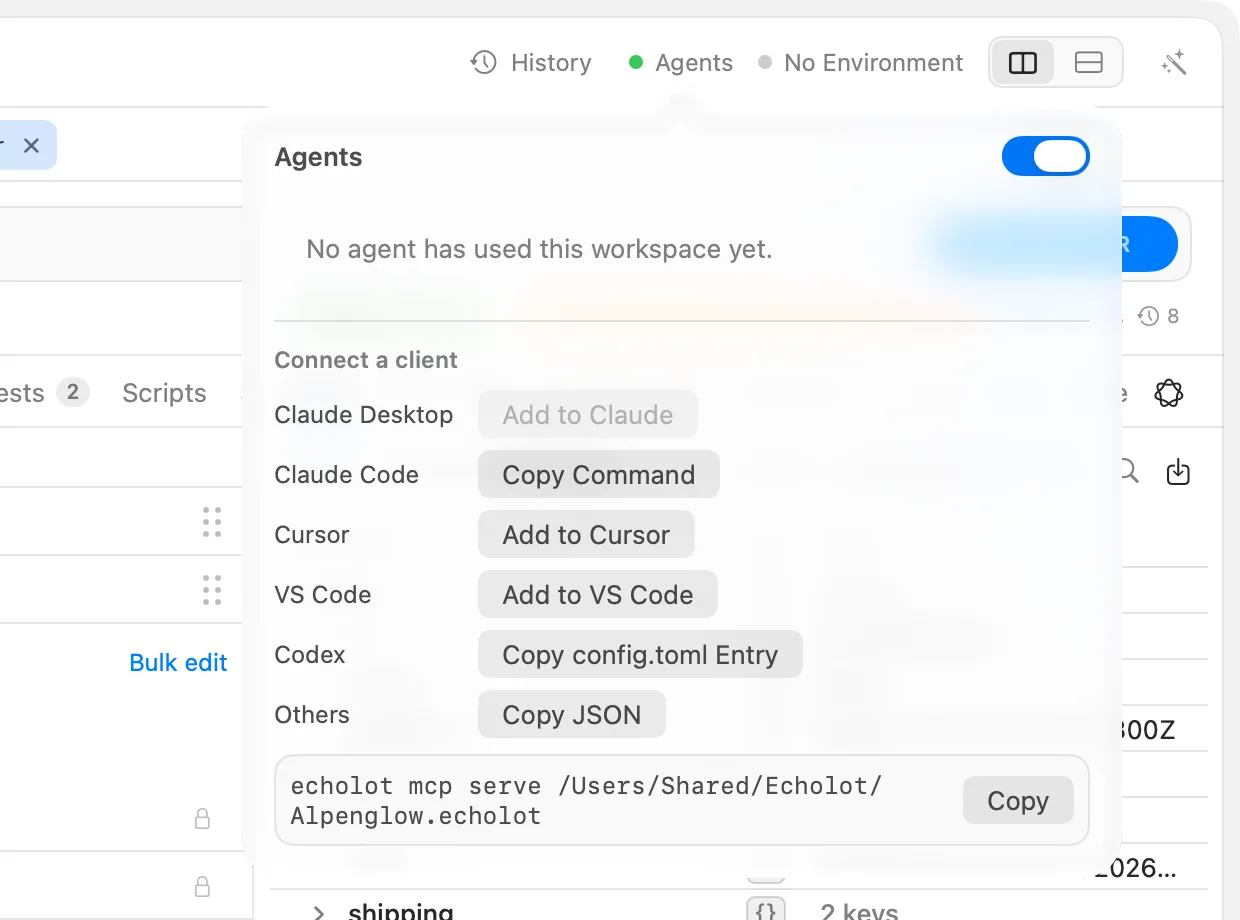
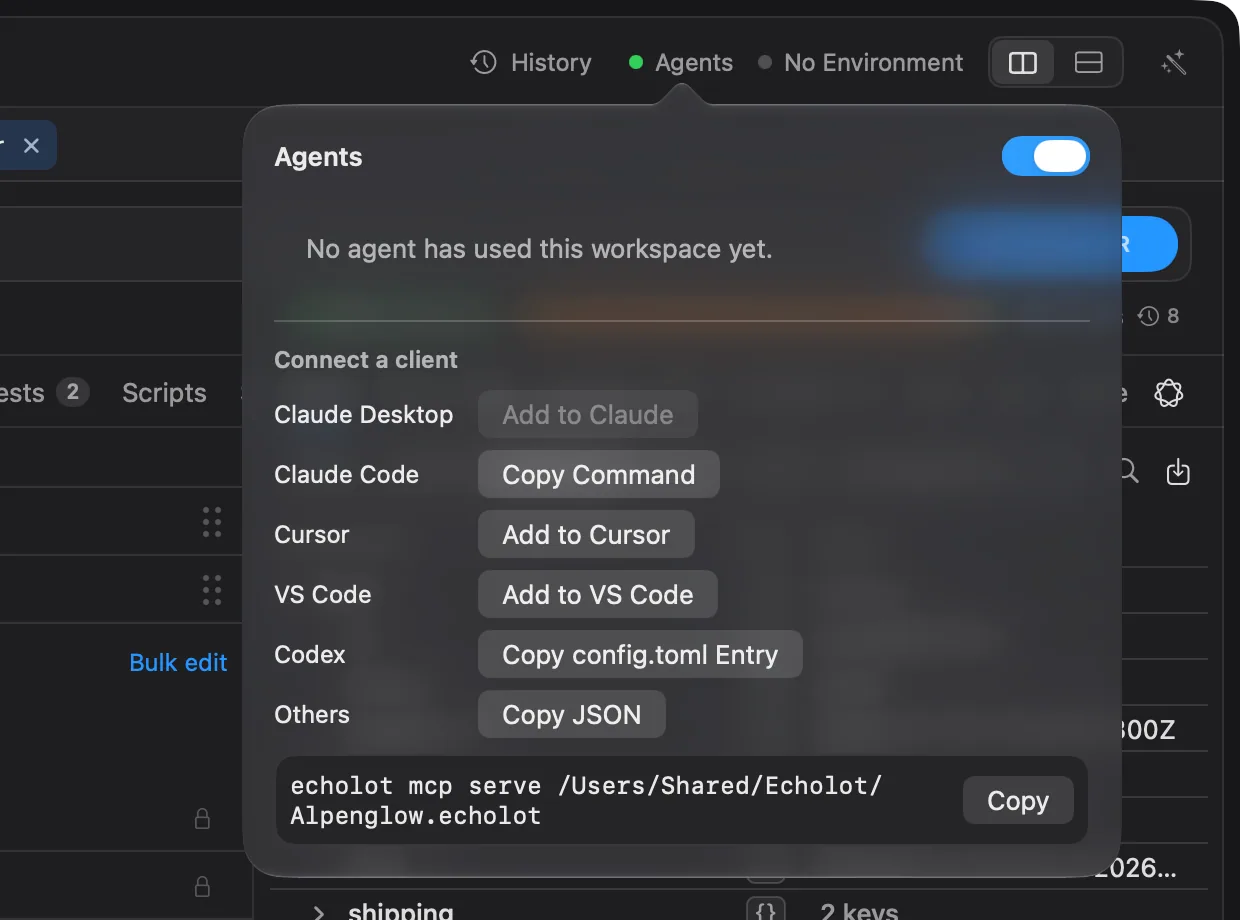
| Client | Button | What it does |
|---|---|---|
| Claude Desktop | Add to Claude | Builds a Claude Desktop extension for this workspace and opens it in Claude Desktop, which asks you to confirm. Direct download only. |
| Claude Code | Copy Command | Copies a claude mcp add command. Paste it in Terminal. |
| Cursor | Add to Cursor | Opens Cursor's prompt to install the MCP server. |
| VS Code | Add to VS Code | Opens VS Code's prompt to install the MCP server. |
| Codex | Copy config.toml Entry | Copies an entry to paste into Codex's config.toml. |
| Others | Copy JSON | Copies an mcpServers entry, the format most MCP clients read. |
Below them is the command itself with Copy, for any client that asks for a command and its arguments.
The server is named echolot- and the workspace's name in the client. For the Alpenglow workspace, the Claude Code
command looks like this (the path to echolot is the tool inside the app):
claude mcp add --scope user echolot-alpenglow -- /Applications/Echolot.app/Contents/Helpers/echolot mcp serve ~/Alpenglow.echolotand the Codex entry like this:
[mcp_servers.echolot-alpenglow]
command = "/Applications/Echolot.app/Contents/Helpers/echolot"
args = ["mcp", "serve", "/Users/you/Alpenglow.echolot"]
From Terminal, echolot mcp setup <client> -w <workspace> prints the same setup for claude-code,
claude-desktop, cursor, vscode and codex. See echolot mcp.
Mac App Store edition
The App Store edition has no command-line tool inside the app, and no Claude Desktop extension. Install the command-line tool on its own (Get the Command-Line Tool in Settings › Agents and the Agents popover leads to the downloads); clients run it, and while the workspace is open in Echolot their calls still run in the app. The buttons copy the command or the snippet, or open the client's own install prompt; they never write into other apps' folders.
Compare the editionsClaude Desktop in one click
Direct download only
The Claude Desktop extension (.mcpb) carries the command-line tool, so it is in the direct download only.
Settings › Agents › Claude Desktop lists your recent workspaces. Add to Claude next to one turns agents on, builds an extension for that workspace and hands it to Claude Desktop, which asks you to confirm. Once Claude Desktop has it, the row says Added; to update the extension later, Control-click Added and choose Add Again.
If Claude Desktop isn't installed, the section says so with a Get Claude Desktop link, and Add to Claude puts the extension in the Finder instead.
Toolsets
Every tool an agent can see costs it room in its context, so Echolot offers its tools in groups. Choose them in Settings › Agents › Tools for agents. Requests is always on; Requests and Flows are on until you change them. These boxes choose which tools agents see, not what they may do without asking: every tool still asks before it changes data or reaches a new host. For the built-in Assistant, Settings › Assistant › Ask before decides what it asks about.
| Toolset | What agents can do with it |
|---|---|
| Requests | List, read, create and send requests; responses, history, GraphQL, mocks running |
| Flows | Run the flows offered to agents, answer what they ask |
| Workspace | Make, rename, move, duplicate and delete folders and requests; folders' auth; workspace variables; save gathered data as files |
| Environments | Make, change and delete environments |
| Specs | Read, write and lint OpenAPI specs; link folders to them and apply changes |
| Mocks | Make, change and delete mock servers and their routes, with fake data; requests from routes; save responses as examples |
| MCP servers | Add, change, check and delete MCP servers |
| History | Open, compare and delete past exchanges |
| Flow editing | Read, draw and delete flows; try one once, after you approve it |
With the default toolsets, an agent gets tools to list, read, create, update and send requests, run folders with
their checks, read responses piece by piece, look at history, check GraphQL queries, copy a request as cURL or code,
import, lint specs, start and stop mocks and run the flows offered to agents. It also gets two prompts,
debug_request and write_tests.
When you change the toolsets, open windows start serving again with the new set; reconnect your clients to get it.
Never offered, in any toolset: changing the agent rules, the proxy, certificates, the workspace's auth, folder settings beyond their auth, scripts (request, folder and mock scripts), and auth that fetches or signs with secrets (OAuth 2.0, AWS, JWT and the like). Those are yours alone.
Agents can give requests and folders bearer, basic or API key auth, and make requests keep values from
their responses (a sign-in's token for the requests after it): create_request and update_request take auth and
captures, and save_folder_auth sets what a folder's requests inherit. Credentials must be {{variables}}; an
agent that writes a password or token itself is refused, so they never land in a file. A captured value whose name
looks like a credential (token, password, key…) is kept as a secret.
Agents start the flows offered to them (marked with a sparkle in the Flows list) through tools of their own, each
after your approval of the flow as it is now; see Running flows. With Flow
editing on, try_flow runs any other flow once, the one an agent is drawing included: you see what it sends, saves
and runs and approve that run every time, whatever the rules, and Allow for This Session covers only that version
of the flow.
See what agents do
The Agents popover in the page header shows, while the window serves the workspace:
- Each client that has called, with its number of calls and failures and when it was last seen. Turn its switch off to refuse that client's calls from now on, and any approvals it has waiting.
- Recent calls: the latest calls with their tool, client, time, duration and any error.
Until a client calls, it says No agent has used this workspace yet. When agents are off, it explains that clients still work on their own, without your approvals.
Every send an agent makes is also in the workspace's history under the client's name.
Approvals
When a client wants to do something the rules ask about, a sheet comes up in the workspace's window: Client wants to send a request that may change data, with the request as it would go out, secrets masked. Choose Allow Once, Allow for This Session (the same call again without asking until the window closes) or Deny. A question nobody answers within five minutes is denied. The sheet is the same one the Assistant uses.
What asks, with no workspace rules:
| Action | Default |
|---|---|
| Read requests and environments | Allow |
| Safe sends (GET, GraphQL queries, MCP reads) | Allow |
| Other sends | Ask |
| Sends to protected environments | Ask, always |
| Sends to new hosts | Ask, always |
| Changes to the workspace | Ask |
| Deleting | Ask |
A new host is one that none of the workspace's requests or environments used when the window started serving. Data an agent read could leave through it, so it always asks, as do sends to a protected environment.
Workspace rules
Workspace Settings › Agents (from the workspace menu at the foot of the sidebar, Workspace Settings…) sets
rules for this workspace. They are saved in workspace.toml, so they travel with it through Git, and they apply to
external agents and to the Assistant.
- Agents may use this workspace: off, agents get nothing from it.
- What agents may do: a rule for each action in the table above: Default (with what the default is), Allow, Ask or Refuse. Sends to protected environments and to new hosts can only Ask or Refuse.
- Hosts and limits:
- Allowed hosts: hosts agents may send to, separated by commas or spaces.
- Sends per session: the most sends an agent may make in one session. Empty means no limit.
- Sends per minute: the most sends an agent may make in a minute. Empty means no limit.
A stricter rule always applies. A looser one that came with the file (from a teammate, through Git) applies on your Mac only once you trust it: until then, the Agents popover says which actions the workspace's rules would allow without asking, and agents still ask. Choose Trust These Rules to accept them. Rules you set in Workspace Settings yourself are trusted.
What agents never get
- Secret values. Echolot replaces every secret's value in everything an agent receives, errors included, in plain, JSON, URL-encoded and Base64 form. Agents see secret variables by name only.
- Credentials in history. Past exchanges reach agents with their credential headers masked and without the wire capture.
- Your secrets on someone else's host. An agent's send that redirects to a host the workspace doesn't use drops its credential headers on the way.
On its own
When the app doesn't have the workspace open, or with --headless, echolot mcp serve serves the workspace itself
and the policy decides alone:
--policy | Runs | Refused |
|---|---|---|
standard (the default) | Reads and safe sends | Other sends, changes, deletes, protected environments, new hosts |
readonly | Reads | Every send, changes and deletes |
permissive | Reads, all sends, changes | Deletes, protected environments, new hosts |
Secrets resolve from this Mac's Keychain and from ECHOLOT_SECRET_… variables and never reach the agent. --toolsets
picks the groups (all for every one), --env the environment calls use when they name none, and --http 0 serves
Streamable HTTP on 127.0.0.1 with a token instead of standard input and output. The workspace's own rules tighten
the policy; --trust-workspace-policy lets them loosen it too. See echolot mcp.
echolot mcp serve ~/Alpenglow.echolot --policy readonly --toolsets requests,historyTroubleshooting
- The client connects but nothing asks you, and changes are refused. The command is serving on its own: open the workspace in Echolot and turn on Settings › Agents › Let agents use open workspaces, then reconnect the client.
- The client gets no tools at all. Agents may use this workspace is off in Workspace Settings › Agents, or you turned the client's switch off in the Agents popover.
- A tool the agent needs is missing. Turn on its toolset in Settings › Agents › Tools for agents and reconnect the client.
- Add to Claude is dimmed. The build has no command-line tool inside; the release from echolot.dev has one.