 Echolot
Running and triggers
Run a flow by hand, on a schedule, from a webhook, as a tool for AI agents or from the command line, and allow the triggers that start flows without you.
A flow runs when something starts it: you, with the Run button; an AI agent, when you offer the flow as a tool; a
schedule; a webhook; or echolot flow run in a terminal or CI. Whatever starts it, every request goes through the
same path as a send from the request page.
Run by hand
- Open the flow on the Flows page.
- Click Run in the toolbar, or press ⌘R.
- When the flow has inputs, the sheet Run with the flow's name asks for them. Each field shows the input's name, type and whether it is required, and starts with its default. Leave a field empty to use the default, then click Run.
The flow is saved first, so the run uses what is on the canvas. It runs with the window's active environment. Run is unavailable while the flow has errors; its tooltip says "Fix the flow's problems first".
When a protected environment is active, the button reads Run in Production… (with that environment's name) and Echolot asks once before the run starts. Requests inside the run don't ask again.
The run view
While the flow runs, its blocks show their state on the canvas, and the Run log opens under it:
| On the canvas | Means |
|---|---|
| Border in the accent colour | The block is running, or waiting for you. |
| Green border | The block finished. |
| Red border | The block failed. |
The run log lists, in order:
- each block as it finishes, with its time;
- lines from Log blocks and
console.login Evaluate blocks; - test results from Assert blocks and
pm.test, with Tests passed/total in the header; - errors, in red;
- how the run ended:
Finished in 1.2 s,Stopped in …orFailed in …with the reason.
Click a line to select its block. Select any block to see its Last run in the inspector, with its Input and Output values by port. Clear empties the log and the canvas states; the close button hides the log, and Run Log in the toolbar shows it again.
Stop (⌘.) takes the place of Run while a run is going. It ends the run, closes the request in flight and takes away any question on screen.
When a run fails and the Mac's on-device model is available, a button in the log's header explains the failure from the log.
Earlier runs
The window keeps the last 20 runs of the open flow, including runs that a schedule or webhook started. They are listed under Runs of in the sidebar (with how each ended, when it started and how long it took) and in the Runs menu in the toolbar. Click one to show it on the canvas again: block states and each block's Last run. Clear the Canvas in the Runs menu removes them from the canvas.
Run records stay in the window. The requests a flow sends are in the workspace's history like any other send.
Triggers
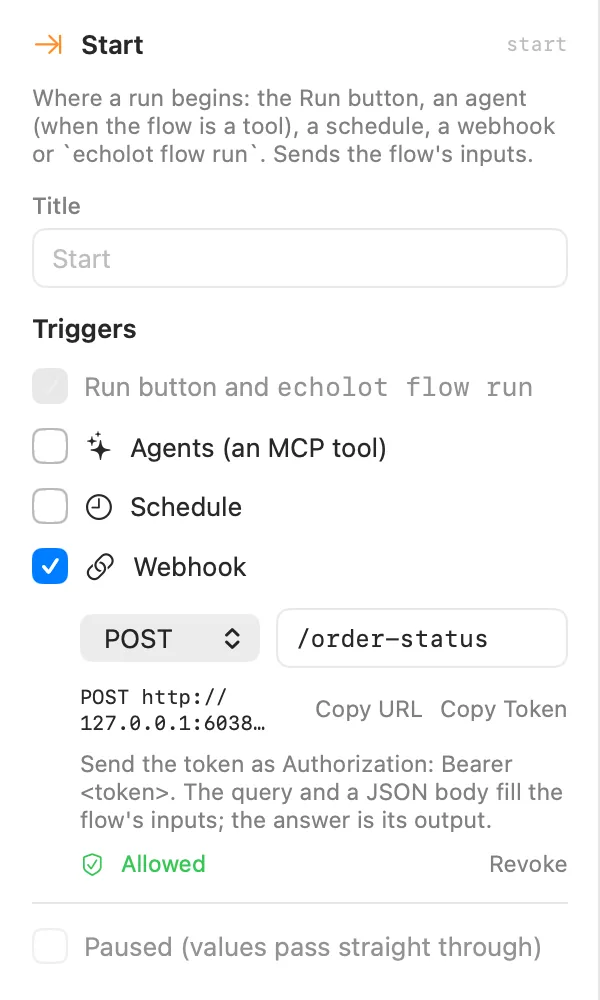
Select the Start block to see the flow's Triggers in the inspector. Run button and echolot flow run is
always on. Tick the others to add them:
- Agents (an MCP tool)
- Schedule
- Webhook
The Start block shows a small icon for each trigger that is on, and the sidebar shows them under the flow's name.
Allow a trigger
Agents, schedules and webhooks start flows when you aren't at the canvas, so each one also needs your permission for this flow. Under each ticked trigger, click Allow. The trigger then shows Allowed and a Revoke button.
The permission is for the flow as it is now: the flow itself, the requests it sends with the folders above them, the workspace's variables, auth, proxy and certificates, and the flows it runs. Change any of these, whether on the canvas, in Git or by an agent, and the trigger stops until you allow it again. It then says "The flow changed since you allowed it." and offers Allow Again. A flow can't allow itself: the permission is kept in Echolot on your Mac, not in the workspace. A flow with errors never starts from a trigger.
Changes to environment values (a fresh token, say) don't take the permission away.
Agents: a flow as an MCP tool
Offer a flow to AI agents and it becomes one tool of Echolot's MCP server: the agent calls one tool, the flow does the requests, and the secrets stay in Echolot.
- Select the Start block and tick Agents (an MCP tool).
- Tool name is
flow_and the flow's file name with underscores (flow_place_test_order) unless you type another: up to 64 letters, digits,_and-. - Write What the tool does, for the model. It starts as the flow's description.
- Click Allow.
- Turn on Settings › Agents and connect your client. See AI agents.
The tool's arguments are the flow's inputs, and its result is what the Output block received. Place a test order
is offered as place_test_order. The flow appears in the tool list while the Flows toolset is on (it is by
default). Agents can start only flows that are offered and allowed.
When an agent starts a flow, Echolot asks you once, before the run, with what the flow will do: which requests it sends to which addresses, which variables and secrets it saves, which files it writes, which tools and flows it runs, and where it asks a person. Inside the run, what you approved runs without asking again; protected environments, new hosts and deletes still ask, and so does anything the agent's own rules refuse.
People blocks in a flow an agent started go to the agent's client: it shows the message, code and link, or asks for the values. An Approve block is always yours: when the agent answers one, Echolot asks you first.
The Assistant runs flows the same way.
Schedule
Run a flow by itself, every so many minutes or on a calendar.
- Select the Start block and tick Schedule. It starts at every 60 minutes.
- Choose Interval and fill in Every … minutes, or choose Set times (cron) and type a cron line (minute, hour, day, month, weekday). A schedule is one or the other, and runs at most once a minute.
- Click Allow.
Once allowed, the inspector shows Next run with its date and time. Scheduled runs happen while the workspace's
window is open, with the window's active environment at the time of the run, and start with the inputs' defaults. A
run missed while the Mac slept or the window was closed runs once when Echolot next looks; a flow still running isn't
started again. A failed scheduled run shows a notification. To run schedules without the app, use
echolot flow serve.
Cron lines use five fields in your Mac's time zone: minute (0–59), hour (0–23), day of the month (1–31), month (1–12
or jan–dec) and weekday (0–7 or sun–sat; 0 and 7 are Sunday). Each field takes *, numbers, ranges
(1-5), lists (1,15) and steps (*/15, 8-18/2). When both the day and the weekday are restricted, either
matching is enough.
| Cron line | Runs |
|---|---|
0 6 * * * | Every day at 6:00 (Morning stock check). |
0 7 * * 1-5 | Weekdays at 7:00. |
*/15 8-18 * * * | Every 15 minutes from 8:00 to 18:45. |
0 9 1 * * | The first of each month at 9:00. |
People blocks can't ask anyone during a scheduled run, so they fail there.
Webhook
Start a flow when something sends a request to a local address.
- Select the Start block and tick Webhook.
- Choose the method (
GET,POST,PUT,PATCHorDELETE;POSTby default) and the path, starting with/. The path starts as/and the flow's file name. - Click Allow.
Once allowed, the inspector shows the address, such as POST http://127.0.0.1:52817/order-status, with Copy URL
and Copy Token. Echolot listens on this Mac only (127.0.0.1) while the window is open. The port is picked once per
workspace and kept.
Callers must send the workspace's token, which Echolot makes the first time and keeps in the Keychain. Any of these works:
- the header
Authorization: Bearer <token>; - the header
X-Echolot-Token: <token>; - the query parameter
?token=<token>.
curl -X POST http://127.0.0.1:52817/order-status \
  -H "Authorization: Bearer <token>"
Order status on webhook signs in, gets the order and answers with it. The query and the keys of a JSON body fill
the flow's inputs of the same names; other keys are left out. An input named body gets the whole body. So a flow
with an input order takes ?order=ord_7Hk2Lw or {"order": "ord_7Hk2Lw"}. The run uses the window's active
environment.
| Answer | When |
|---|---|
200 with the output as JSON | The run passed. The body is what the Output block received, or null. |
401 | The token is missing or wrong. |
404 | No allowed flow answers that method and path; the error lists the ones that do. |
413 | The body is larger than 8 MB. The flow is not run. |
500 | The run failed. The body has error and the run's id. |
503 | The run was stopped. |
A webhook run stops after two minutes. People blocks can't ask anyone there, so they fail.
Background runs
Runs that schedules and webhooks start in the app show up under Runs of the flow while it is open, and a failed one shows a macOS notification with the flow's name and the error. They run with your authority, like a run you start, but only for flows you allowed.
Run from the command line
The echolot command runs the same flows without the app. In CI, this is how a flow becomes a release gate.
# List the flows, their inputs and problems
echolot flow list -w Alpenglow.echolot

# Run one; exits with an error when the run or one of its tests fails
echolot flow run morning-stock-check -w Alpenglow.echolot --env staging --no-input

# Pass inputs as name=value (a flow made from the Paginate and export template)
echolot flow run export-products -w Alpenglow.echolot --input pages=5

# Run schedules and answer webhooks until Ctrl-C
echolot flow serve -w Alpenglow.echolot --port 4100
flow runprints each block as it finishes, then the output.--jsonprints the run record instead. People blocks ask in the terminal; with--no-inputthey fail the run, which is what CI needs. Notify blocks print their text.flow serveruns the scheduled flows when due and answers webhooks on port 4100 (--port 0picks a free one).--sharelistens on every network interface, for containers. The token comes from--token, elseECHOLOT_WEBHOOK_TOKEN, else a new one it prints.- On the command line you started the run yourself, so the flows need no Allow:
flow serveruns every flow with a schedule or webhook and no errors.
Every option is on echolot flow.
Direct download only
The command-line tool comes inside the direct download (Echolot › Install Command-Line Tool…). With the App Store edition, install it on its own from the zip on the releases page.
Compare the editionsBlocks
Every kind of block a flow can hold, with its settings and ports, and how values, templates and conditions work between them.
Templates
Start a flow from a ready-made template (device sign-in, refresh token, paginate and export, smoke monitor, seed and clean up) in the app or with echolot flow new.