 Echolot
Flows
Chain your saved requests, MCP servers and Echolot's tools into small programs on a canvas, and run them by hand, on a schedule, from a webhook or as a tool for agents.
A flow is a small program you draw: blocks joined by links. Each block does one thing: send a saved request, pick a value out of a response, branch, loop, ask you something, save a variable or write a file. Use flows for the jobs you otherwise do by hand in several steps: sign in with a device code, page through results, seed and clean up test data, check an API every morning, or give an AI agent one tool that does five requests.
Flows live in the workspace, one file per flow in the flows folder, so you review and share them in Git like your
requests. Every request a flow sends goes through the same path as a send from the request page: variables, auth,
scripts, checks, proxies and history all apply.
The Flows page
Choose Flows in the module switcher at the top of the sidebar, or press ⌘5. The sidebar
lists the workspace's flows. Under each name you see how it starts: manual, agent tool, every hour,
scheduled or webhook. A warning sign next to a flow means it has problems to fix before it can run.
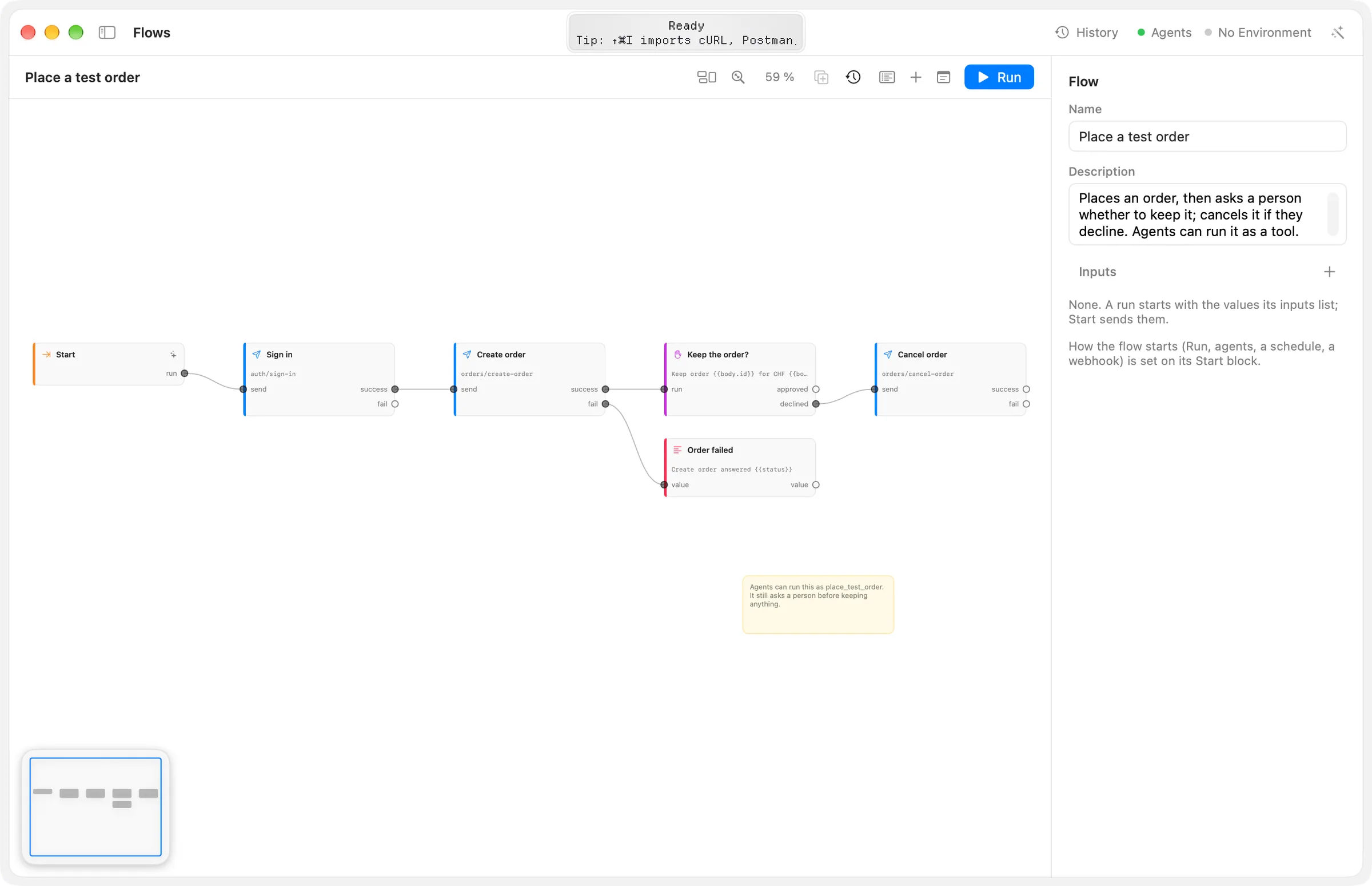
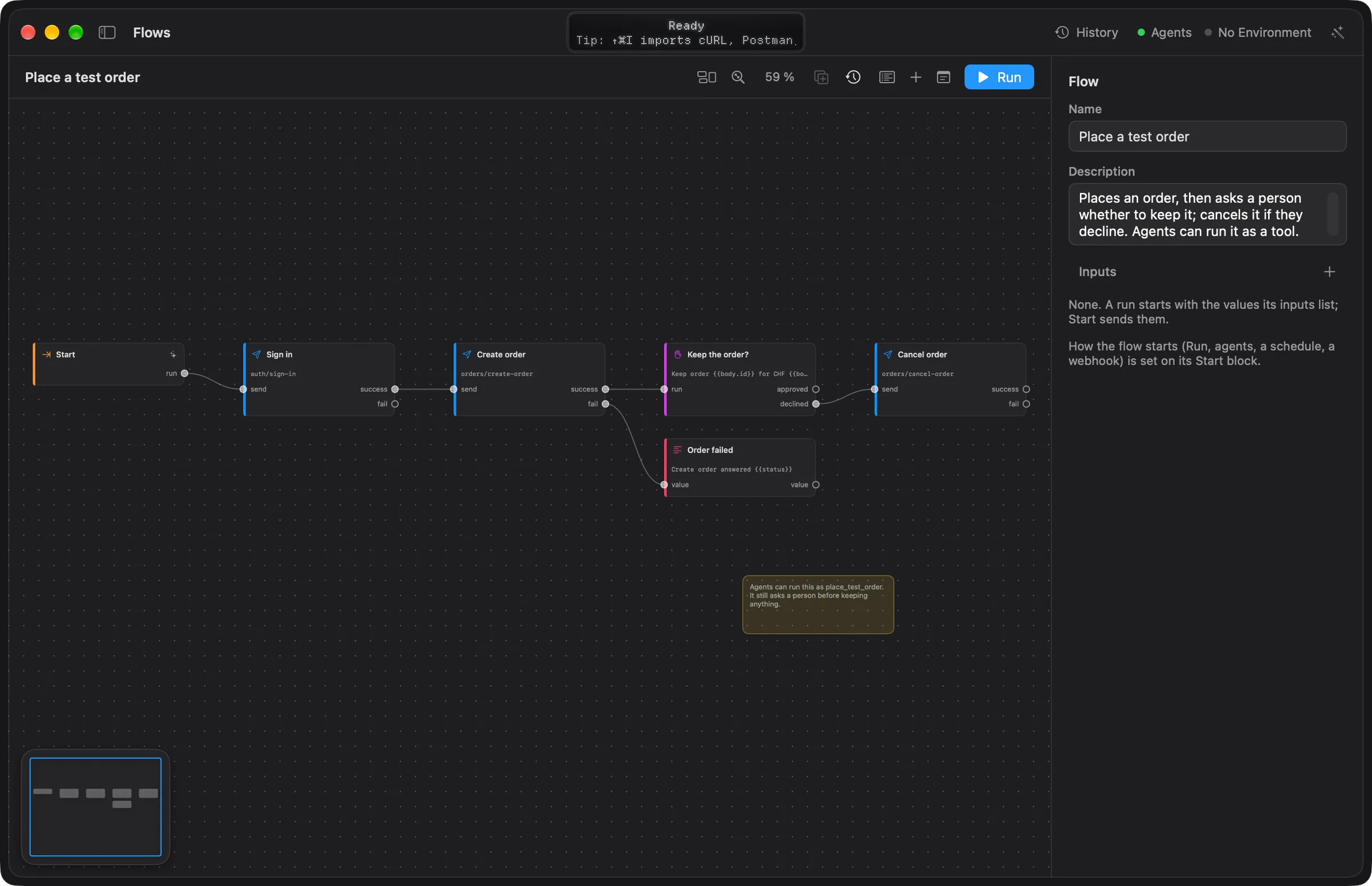
The page has three parts:
- The toolbar above the canvas: the flow's name (with Edited while a change is not saved yet), the problems count, Tidy Up, Fit, the zoom level, Duplicate, Runs, Run Log, Block, Note and Run.
- The canvas in the middle, with a small map of the whole flow in its bottom-left corner. Click the map to move the view there.
- The inspector on the right. With nothing selected it shows the flow itself: Name, Description and Inputs. With one block selected it shows that block's settings.
While a flow is open, the sidebar also lists Runs of the flow (this window's runs, newest first) and the workspace's Requests, ready to drag onto the canvas.
Create a flow
- In the sidebar, click + next to Flows.
- Choose Empty Flow for a Start block linked to an Output block, or pick one under From a Template (see templates).
- The new flow opens on the canvas. Rename it in the inspector under Name.
When the workspace has no flows yet, the page offers a New Flow button instead.
To delete a flow, select it and click − next to Flows, or Control-click it and choose Delete…. Echolot asks first and moves the file to the Trash. Flows that run the deleted one stop working.
Build on the canvas
Add blocks
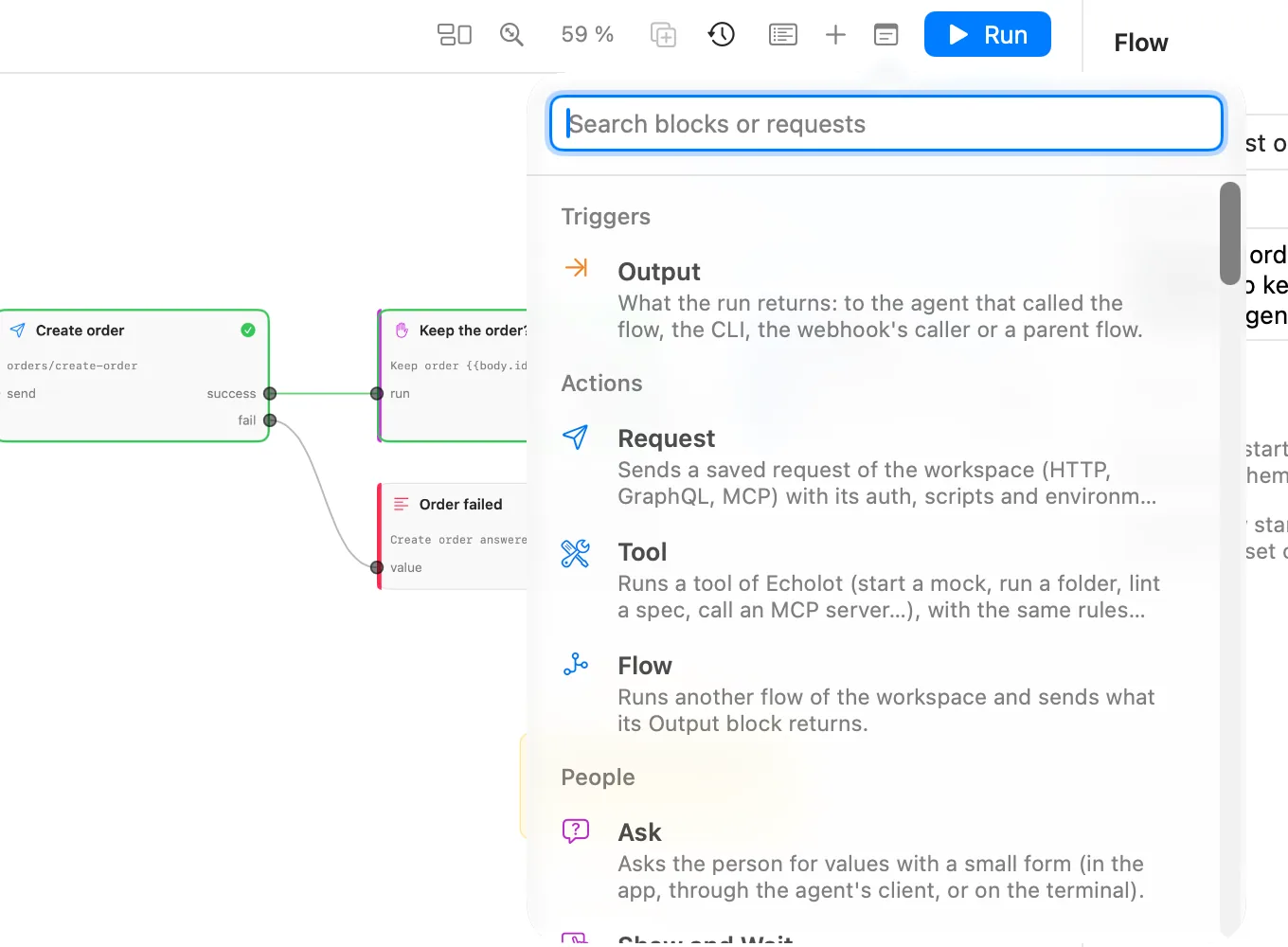
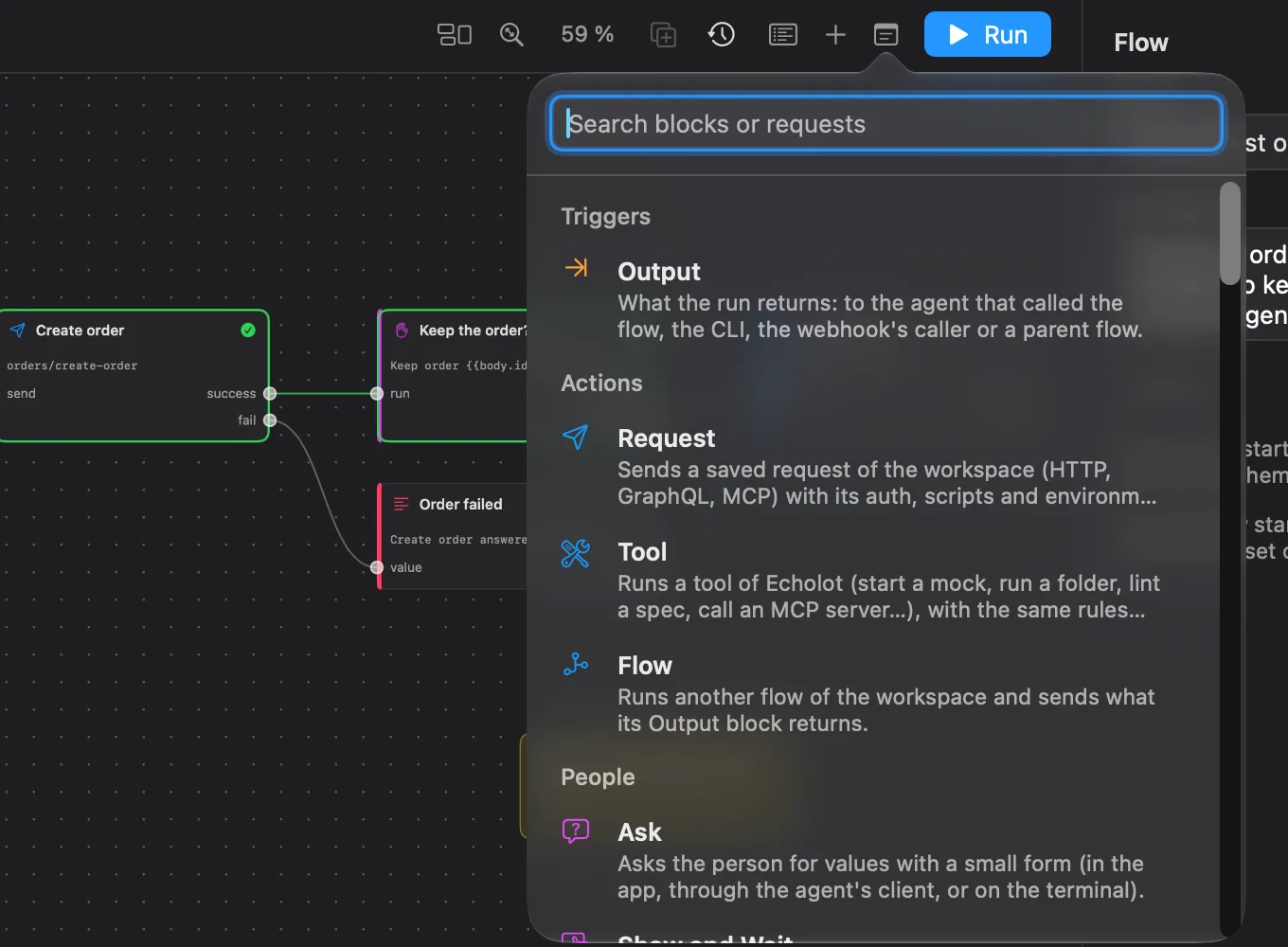
- Click Block in the toolbar, or press ⇧⌘B. The block picker opens: type to search, then click a block kind. Press ↩ to add the first match. The new block lands in the middle of the view and is selected.
- The picker also lists the workspace's saved requests under Requests. Picking one adds a Request block that already sends it.
- Drag a request from Requests in the sidebar onto the canvas. It becomes a Request block where you let go. Control-click a request and choose Add to Flow to put its block to the right of the flow.
Every kind of block, with its settings and ports, is on Blocks.
Link ports
Inputs sit on the left edge of a block, outputs on the right. A value leaves an output, travels along the link and arrives at an input; a block runs once every linked input has a value.
- Drag from an output to an input to link them. The port under the pointer lights up when the link would attach. You can also start from an input and drag to an output.
- An input takes one link. Linking another output to it replaces the old link. An output can feed many inputs.
- Let a new link go over empty canvas and the block picker opens there. It lists only the blocks that can take the link, and the block you pick arrives already linked.
- To move a link, drag it away from the input it ends at and drop it on another input. Drop it over empty canvas to break it.
- Point at a link to show a button in its middle that breaks it.
Select, move and arrange
- Click a block to select it. ⇧-click or ⌘-click adds blocks to the selection or removes them.
- Hold ⇧ or ⌘ and drag on empty canvas to draw a selection box. Blocks it touches join the selection.
- Drag a block to move it. Press Esc to clear the selection.
- The arrow keys select the nearest block in that direction, and the view follows it. With nothing selected, they start at Start.
- Tidy Up arranges the blocks in columns, in the order they run.
- Duplicate (⌘D) copies the selected blocks with the links between them.
- ⌫ deletes the selected blocks with their links, or the selected link.
The inspector of a selected block has Delete Block. With several blocks selected it shows how many and Delete Blocks. A flow has exactly one Start block: it is never copied or duplicated, can't be paused, and its inspector has no Delete Block.
Pan and zoom
- Drag on empty canvas, or scroll with two fingers or a mouse wheel, to pan.
- Pinch, or hold ⌘ and scroll, to zoom. The view zooms from 20 % to 250 %, and the toolbar shows the level.
- Fit (⌥⌘0) shows the whole flow. It never zooms out below 50 %, so text stays readable; a larger flow starts at its left edge.
Copy and paste
Edit › Copy (⌘C), Cut (⌘X) and Paste (⌘V) work on the selected blocks and the links between them. Pasted blocks get new ids and become the selection. In the same flow they land beside the originals; in another flow, in the middle of the view. You can paste into a flow of another workspace too. The copied blocks are JSON text, so you can also paste them into a message or an issue.
Notes
Click Note in the toolbar to add a sticky note and type into it. Notes sit behind the blocks and don't run.
- Drag a note to move it, and drag the grip in its bottom-right corner to resize it.
- Double-click a note, or Control-click it and choose Edit Note…, to change the text.
- Control-click and choose Delete Note to remove it.
Templates use notes to say which requests to pick.
Undo and saving
Every change on the canvas and in the inspector is undoable with Edit › Undo (⌘Z) and Redo (⇧⌘Z): adding, moving, linking, deleting, settings, notes and Tidy Up.
You don't save flows yourself. Echolot writes the file a moment after your last change; Edited shows next to the name until then. If a save fails, Echolot says why and offers Retry, Discard Changes (back to the file on disk) and Keep Editing. Your edits stay on the canvas until they are saved.
Problems
Echolot checks the flow as you edit it. The toolbar shows the number of problems; click it for the list, and click a problem to select its block. A block with a problem shows a warning sign, and its inspector lists the problems.
Errors stop the flow from running: no Start block, a required setting left empty (such as a Request block with no request), a request or flow that doesn't exist, or links that go round in a circle. Warnings don't, for example a block that nothing is linked into and so never runs. To do something again, use Repeat, For Each or Poll instead of a circle of links.
Inputs and outputs
Inputs are the values a run starts with. Add them in the inspector with nothing selected: click + next to
Inputs, type the name and choose its type (any, text, number, bool, object, list or secret). The
Start block gets one output per input, plus run, which sends all inputs as one object.
Inputs come from the Run sheet, the --input option of echolot flow run, an agent's tool call, or a
webhook's query and JSON body. Text is converted to the input's type: 3 to a number, true or yes to a bool, JSON
text to an object or a list. A secret input is hidden in the run log and in what agents see.
A default value, a description and whether an input is required are set in the flow's file (the [[inputs]] table:
default, description, required; see workspace files). The Run sheet shows the
description as the field's placeholder and fills in the default.
The Output block holds what the run returns: to the agent that called the flow, to echolot flow run, to the
webhook's caller, or to a parent flow's Flow block. A flow has at most one Output block.
Run a flow and watch it
Click Run or press ⌘R. A flow with inputs first opens a sheet to fill them in; empty fields use the input's default. The flow is saved, then runs with the window's active environment. Run is unavailable while the flow has errors.
During the run:
- Each block's border shows its state: running or waiting for you, passed (green) or failed (red).
- The Run log opens under the canvas. It lists each block as it finishes with its time, log lines, test results (Tests 3/3 in the header) and how the run ended. Click a line to select its block.
- Blocks that ask you something (Ask, Show and Wait, Approve) open a sheet. See People blocks.
- Stop (⌘.) replaces Run and ends the run. A question on screen goes away.
After the run, select a block to see its Last run in the inspector: how long it took and, under Show, its Input and Output values by port. Use it to find the path to a value for a Select block or a template.
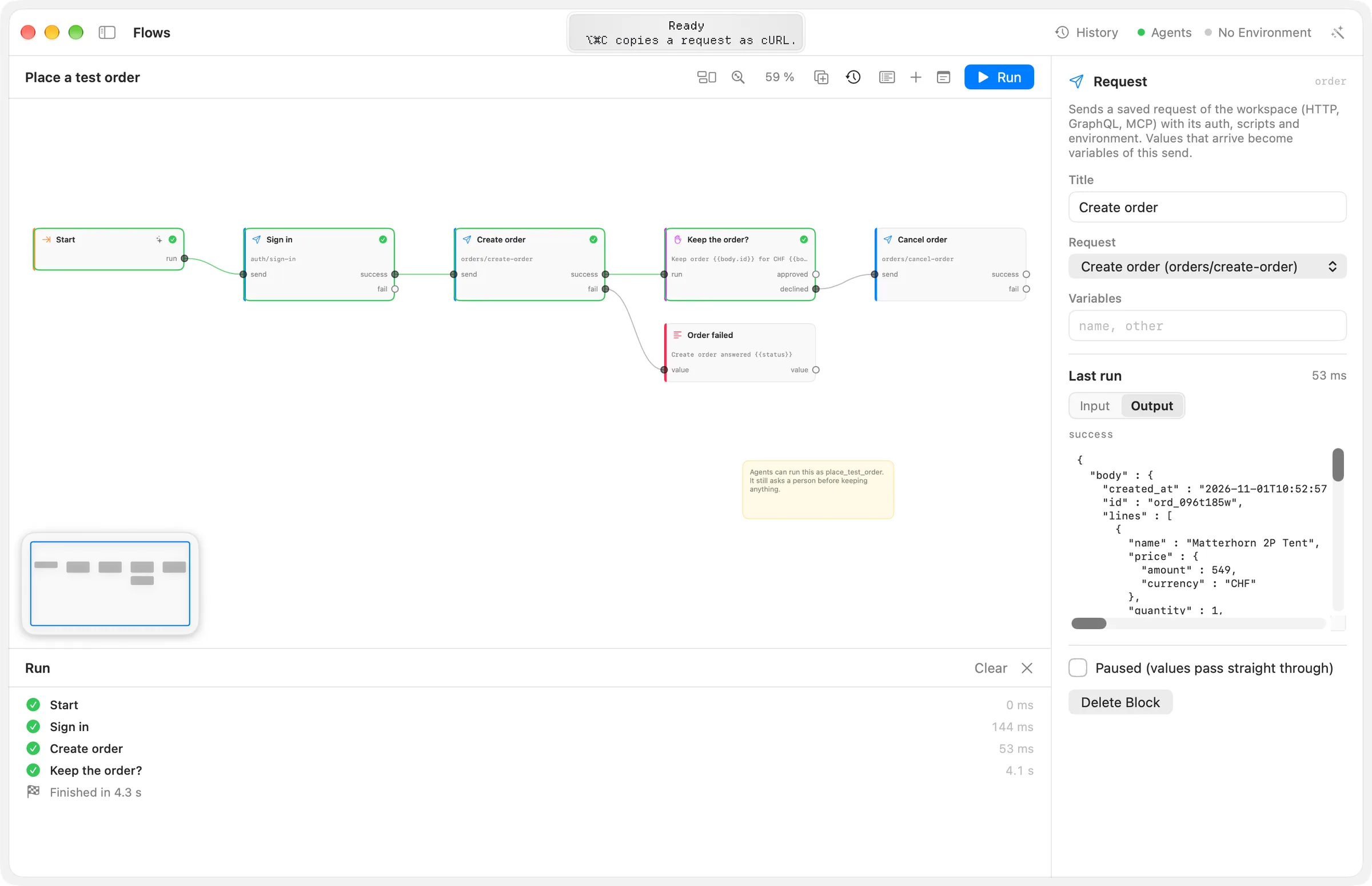
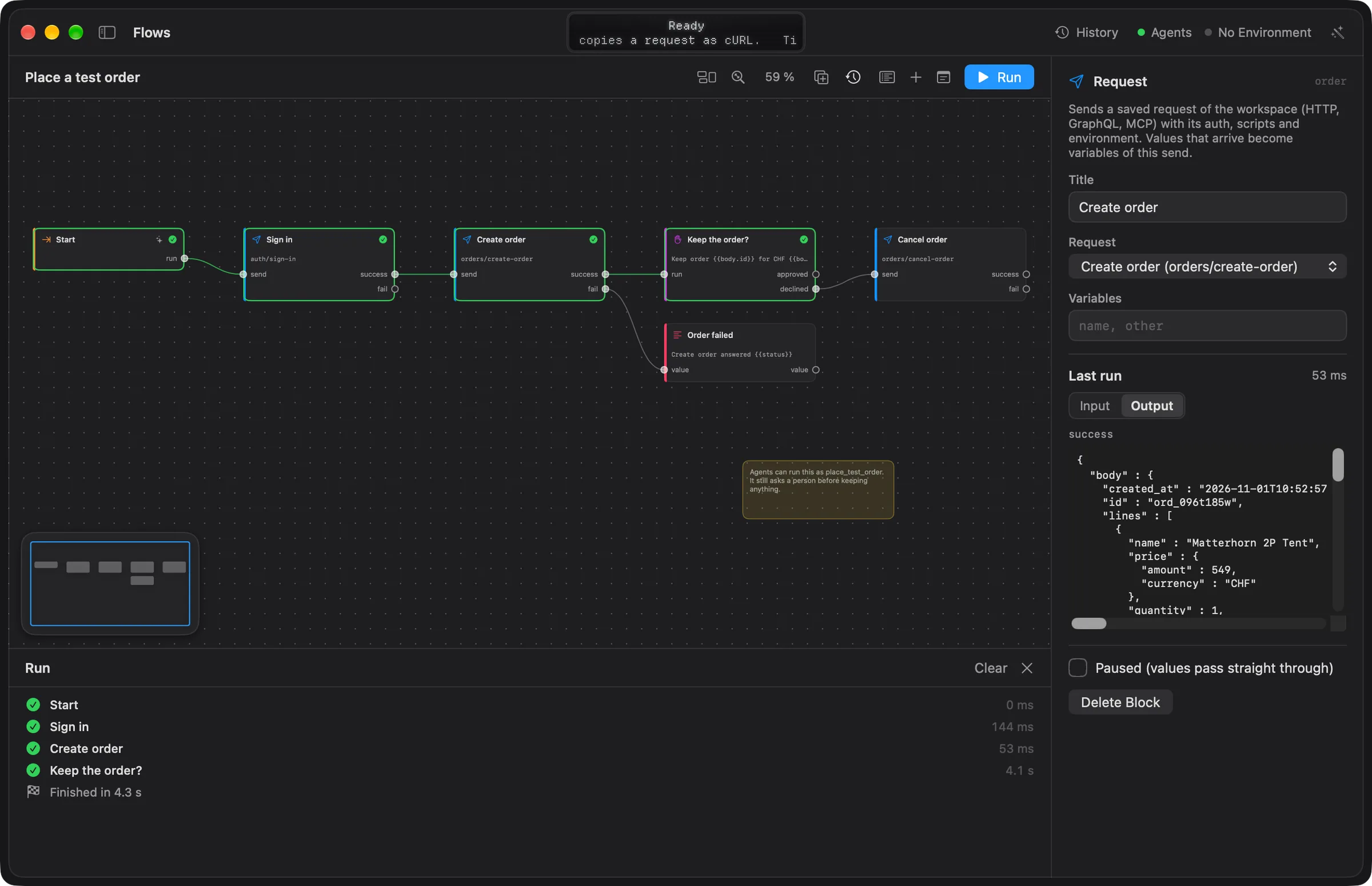
Earlier runs stay in the window: click one under Runs of in the sidebar, or choose it from Runs in the toolbar, to show it on the canvas again. Clear the Canvas in that menu, or Clear in the run log, removes the run states. When a run fails and the Mac's on-device model is available, a button in the run log's header explains the failure.
With a protected environment active, the button reads Run in Production… and Echolot asks once before the run starts.
More on running, schedules, webhooks, agents and the command line: Running and triggers. For a guided example, follow Automate with flows.
Keyboard shortcuts
| Shortcut | Action |
|---|---|
| ⌘5 | Show the Flows module |
| ⌘R | Run the flow |
| ⌘. | Stop the run |
| ⇧⌘B | Add a block |
| ⌘D | Duplicate the selected blocks |
| ⌥⌘0 | Fit the whole flow |
| ⌘C, ⌘X, ⌘V | Copy, cut, paste blocks |
| ⌫ | Delete the selection |
| ⌘Z, ⇧⌘Z | Undo, redo |
| Arrow keys | Select the nearest block in that direction |
| Esc | Clear the selection |