 Echolot
Templates
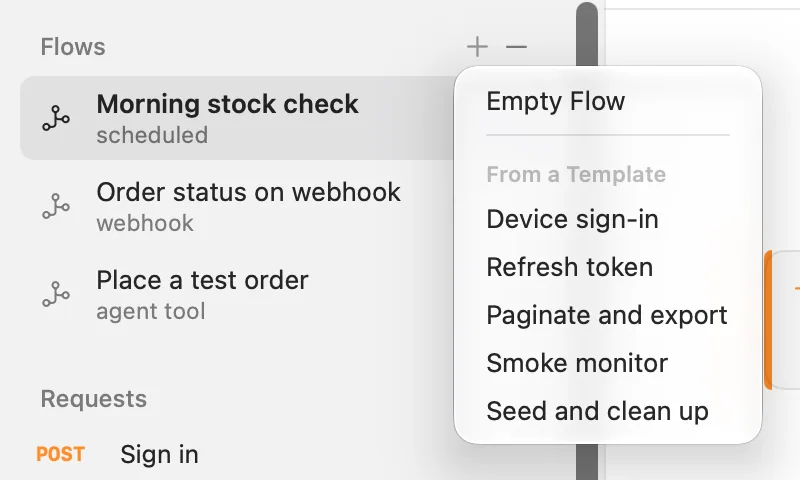
Start a flow from a ready-made template (device sign-in, refresh token, paginate and export, smoke monitor, seed and clean up) in the app or with echolot flow new.
Templates are ready-made flows for jobs that come up in most APIs. A template brings the blocks, the links between them and a note on the canvas. It doesn't know your API, so its Request and Poll blocks have no request yet: the flow shows a problem for each until you pick one, and the note says what to pick.
Create a flow from a template
In the app:
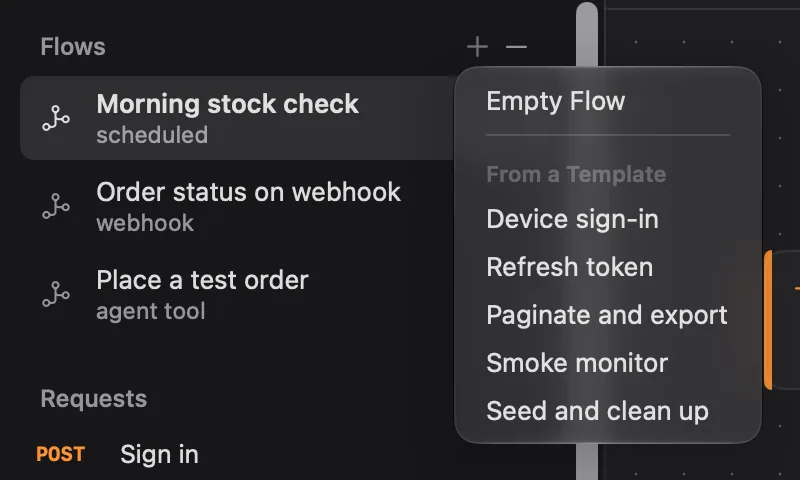
- On the Flows page, click + next to Flows in the sidebar.
- Under From a Template, choose a template. Point at it to read what it does.
- The flow opens with the template's name and fits in the view. Rename it under Name in the inspector.
- Read the note, then select each Request or Poll block and choose its Request. When the problems count in the toolbar is gone, the flow can run.
On the command line:
# List the templates
echolot flow new

# Create a flow from one
echolot flow new "Export products" --template paginate-and-export -w Alpenglow.echolot
echolot flow new writes flows/export-products.flow.toml and prints its path. Without --template, it creates an
empty flow: a Start block linked to an Output block. Pick the requests in the app, or in the flow's file. See
echolot flow.
Agents can create flows from templates too, through Echolot's MCP server.
Device sign-in
device-sign-in. Signs in with the OAuth 2.0 device grant (RFC 8628): asks for a device code, shows you the code and
the link, polls the token endpoint until you approve, and saves the access and refresh tokens as secret variables.
| Block | Kind | What it does |
|---|---|---|
| Ask for a device code | Request | Sends the request that answers device_code, user_code, verification_uri, interval and expires_in. Pick this request. |
| Codes | Select | Picks those five values out of the body (code is $.body.device_code). |
| Show the code | Show and Wait | Shows Open {{verification_uri}} and enter the code. This goes on by itself once you have approved it., the user code with Copy Code, and the link with Open in Browser and a QR code. |
| Wait for approval | Poll | Sends the token request every {{interval}} seconds until it answers 200 with an access_token, for up to {{expires_in}} seconds. Its variable code is the device code. Pick this request. |
| Save the tokens | Set Variable | Saves accessToken and refreshToken as secrets in the environment. |
| Done | Template | Signed in; the tokens are in the Keychain. |
| Output | Output | Returns that text. |
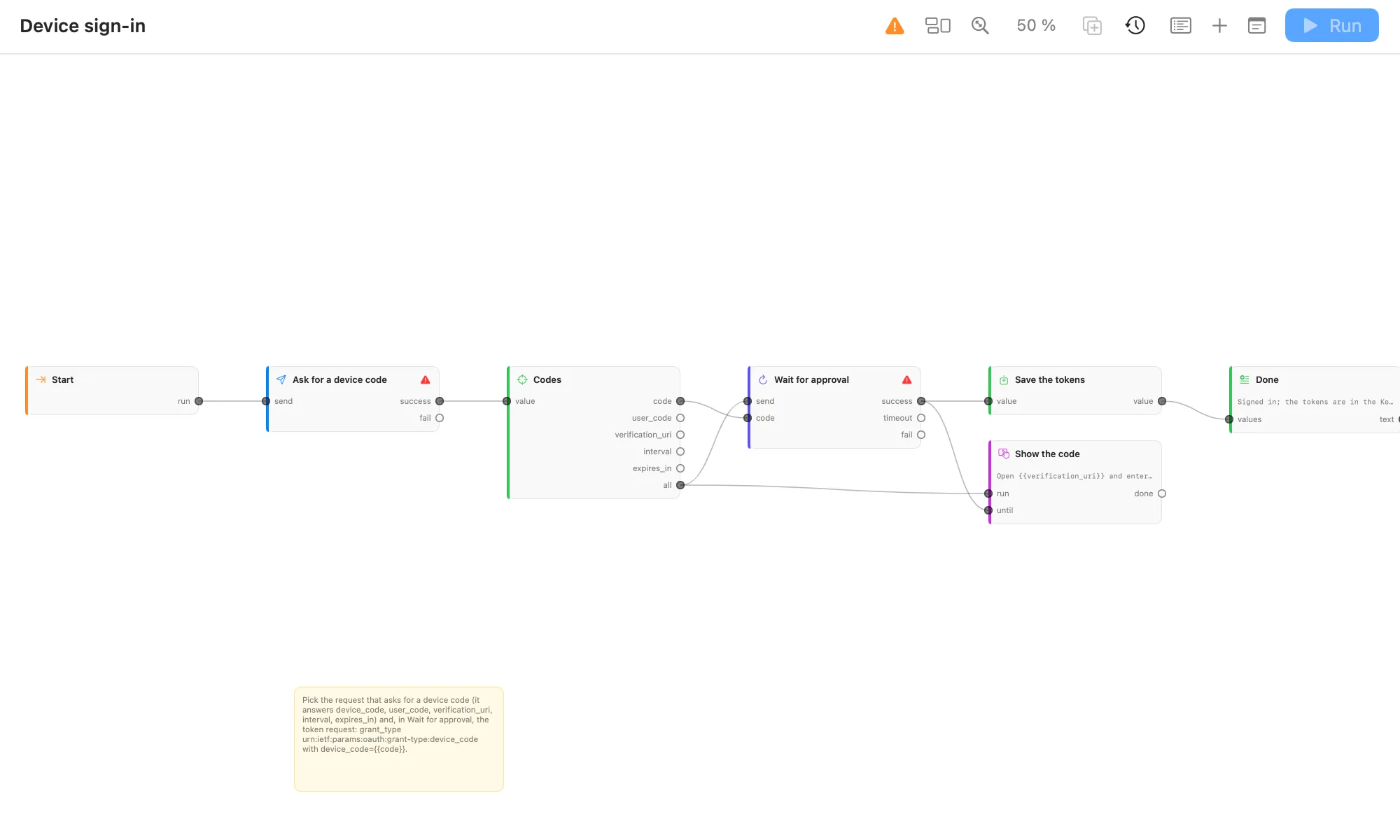
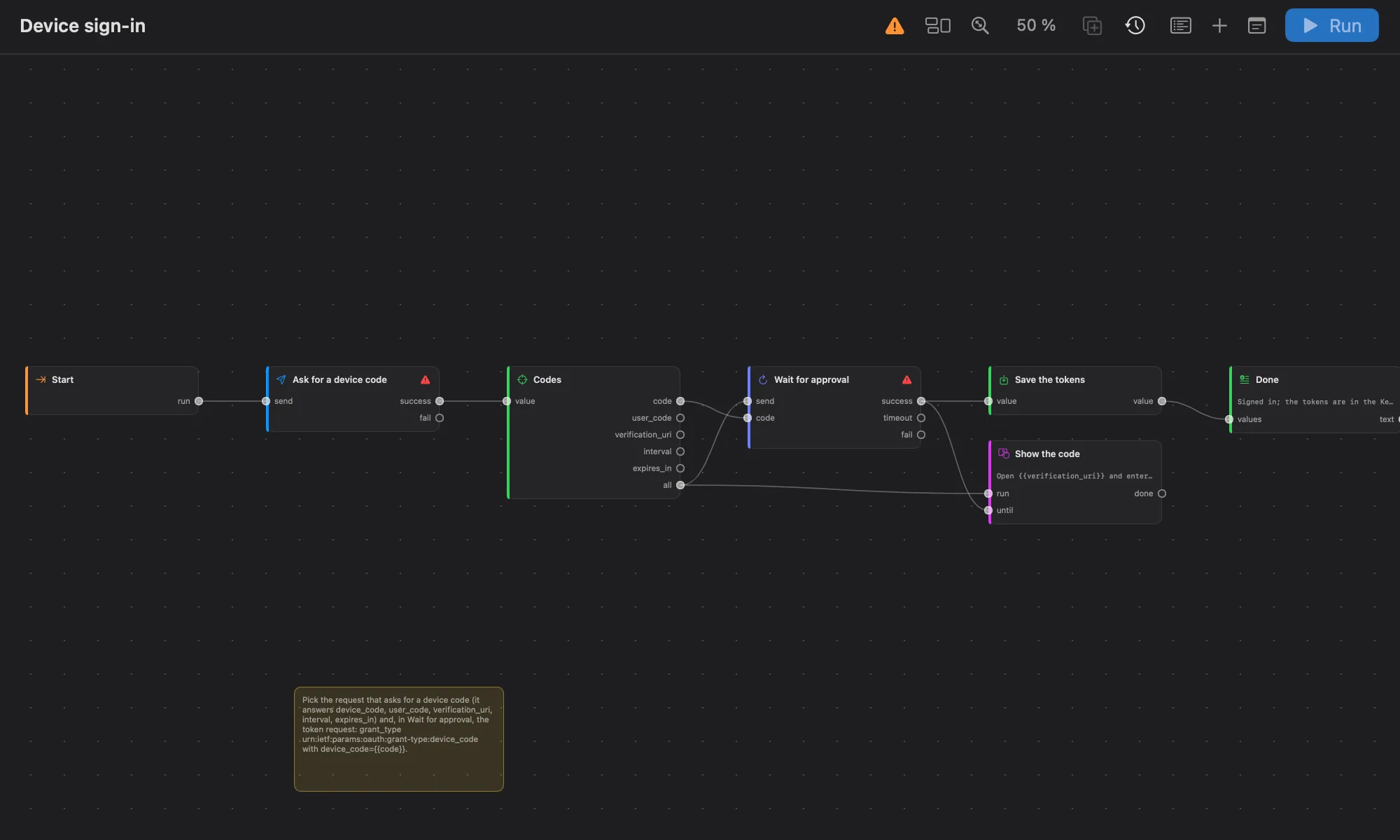
Show the code and Wait for approval run side by side: the sheet stays open while Poll sends, and closes by itself
when Poll succeeds (its success is linked to the sheet's until).
The token request sends grant_type urn:ietf:params:oauth:grant-type:device_code with device_code={{code}}. Your
other requests then use {{accessToken}}. Because the tokens are saved to the environment, run the flow with an
environment chosen.
Refresh token
refresh-token. Gets a new access token with the refresh token and saves both as secret variables. Give it a
schedule on the Start block to keep the token fresh.
| Block | Kind | What it does |
|---|---|---|
| Refresh the token | Request | Sends the token request: grant_type=refresh_token with refresh_token={{refreshToken}}. Pick this request. |
| Save the tokens | Set Variable | Saves accessToken and refreshToken as secrets in the environment. A response without a new refresh token keeps the old one. |
| Valid for | Select | Picks $.body.expires_in. |
| Output | Output | Returns how many seconds the new token is valid. |
| Say it failed | Notify | When the request fails: The token could not be refreshed and The server answered {{status}}. Sign in again. |
Paginate and export
paginate-and-export. Sends a request once per page, gathers the items of every page into one list and writes it to
exports/items.json in the workspace folder. Its input pages (a number, default 3) says how many pages to fetch.
| Block | Kind | What it does |
|---|---|---|
| Each page | Repeat | Runs {{pages}} times. |
| Page number | Evaluate | return { page: index + 1 };, so the pages are 1, 2, 3… |
| Fetch the page | Request | Sends the request with {{page}} set, for example ?page={{page}}. Pick this request. |
| Items | Select | Picks $.body, the list on one page. |
| All pages | Collect | Gathers the lists of every page. |
| One list | Evaluate | return pages.flat(); joins them. |
| Export | Write File | Writes exports/items.json as JSON. |
| Output | Output | Returns the file's path. |
When the list is not the whole body, change the path in Items. With Alpenglow's Catalog › List products,
add &page={{page}} to its address and set Items to $.body.items: the demo API returns the products under
items.
Smoke monitor
smoke-monitor. Sends a request every hour and checks that it answers 200 within two seconds; a notification says
when it doesn't. The schedule (every 60 minutes) is already on the Start block: click Allow there to start it,
or run it with echolot flow serve.
| Block | Kind | What it does |
|---|---|---|
| Send | Request | Sends the request to watch. Pick this request. |
| Healthy | Assert | Checks Answers 200 (value.status === 200) and Within two seconds (value.time < 2000). |
| Output | Output | Gets the response when both checks pass. |
| Unhealthy | Notify | When a check fails: Smoke check failed and {{url}} answered {{status}} in {{time}} ms. |
| Failed | Notify | When the request fails: Smoke check failed and The request failed or did not answer with a 2xx status. |
Because Assert checks are tests, echolot flow run fails when the API is unhealthy, which makes the same flow a CI
check.
Seed and clean up
seed-and-clean-up. Creates one record per item of a list, logs what was made, then deletes each record again. Put
the checks that need the data where the log is.
| Block | Kind | What it does |
|---|---|---|
| Records | Value | [{"title": "First"}, {"title": "Second"}, {"title": "Third"}]. |
| Each record | For Each | Sends each record in turn. |
| Create | Request | Creates a record: each record's keys are variables of the send, so the request uses {{title}}. Pick this request. |
| Its id | Select | Picks $.body.id. |
| Made | Collect | Gathers the new ids. |
| Use the data | Log | Logs Seeded {{value}}. Replace it with what needs the data. |
| Each id | For Each | Sends each id in turn. |
| Delete | Request | Deletes the record, with {{id}} as its variable. Pick this request. |
| Deleted | Collect | Gathers what was deleted. |
| Count | Evaluate | return { deleted: gone.length }; |
| Output | Output | Returns how many were deleted. |
Change Its id when the new id is somewhere else in the response.
The flows in Alpenglow
The example workspace has three flows to look at alongside the templates:
- Place a test order: signs in, places an order, asks you with an Approve block whether to keep it, and cancels
it when you decline. It is offered to agents as
place_test_order. - Morning stock check: every day at 6:00, lists products and shows a notification when a tent runs low in Bern.
- Order status on webhook: answers
POST /order-statuswith an order.
Automate with flows builds one step by step.
Running and triggers
Run a flow by hand, on a schedule, from a webhook, as a tool for AI agents or from the command line, and allow the triggers that start flows without you.
The Assistant
Ask Echolot's built-in AI agent about your API, or have it send, test, document and fix things in your workspace while you approve what changes.