 Echolot
The Assistant
Ask Echolot's built-in AI agent about your API, or have it send, test, document and fix things in your workspace while you approve what changes.
The Assistant is an AI agent built into Echolot. You ask in plain words ("Why does Create order fail?", "Write checks for this request") and it works with your workspace through the same tools external agents get: it lists and reads requests, sends them, reads responses, writes checks, edits specs, starts mocks and runs flows. Every call it makes shows in the panel as it happens, and anything that could change data asks you first.
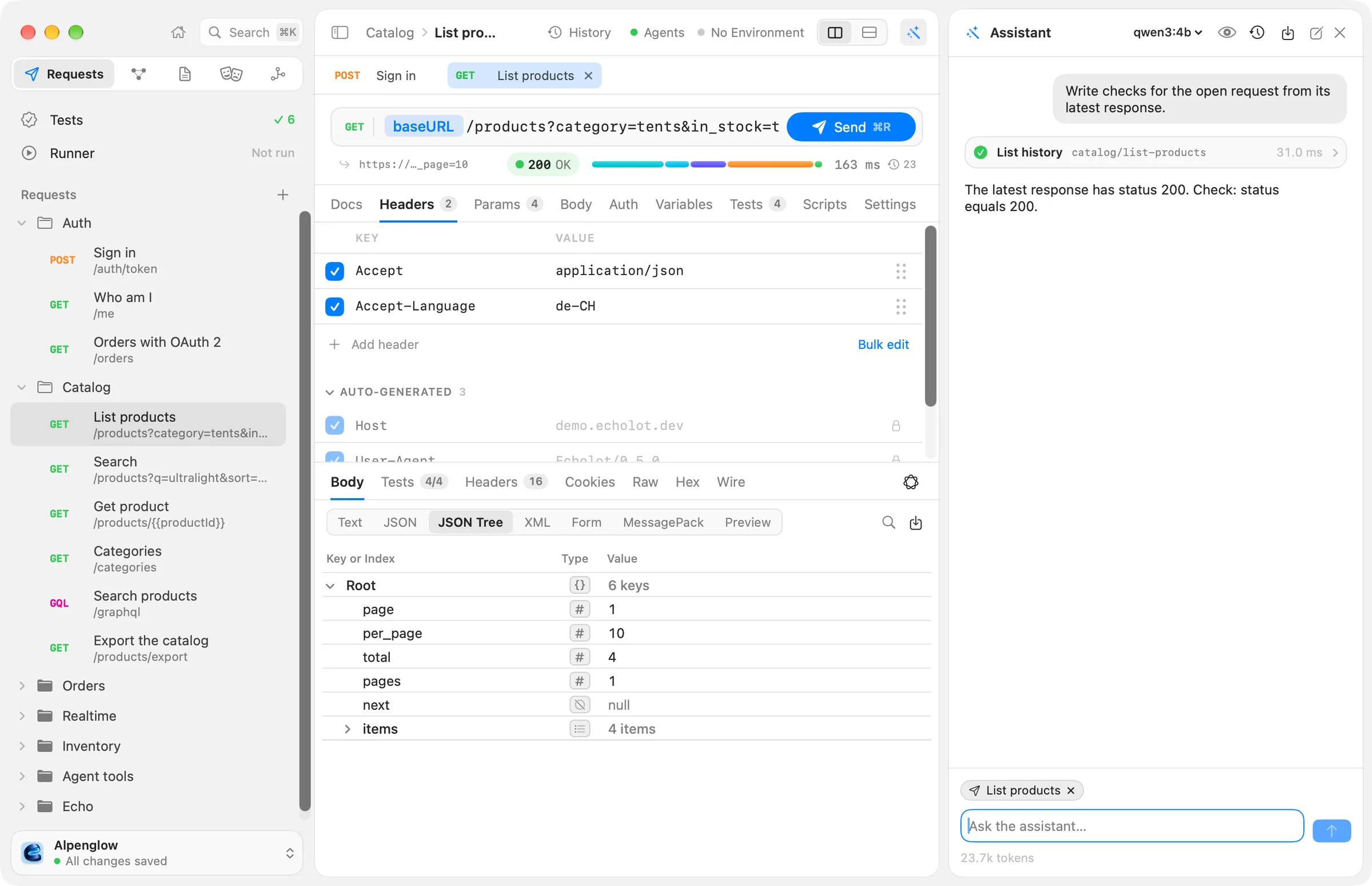
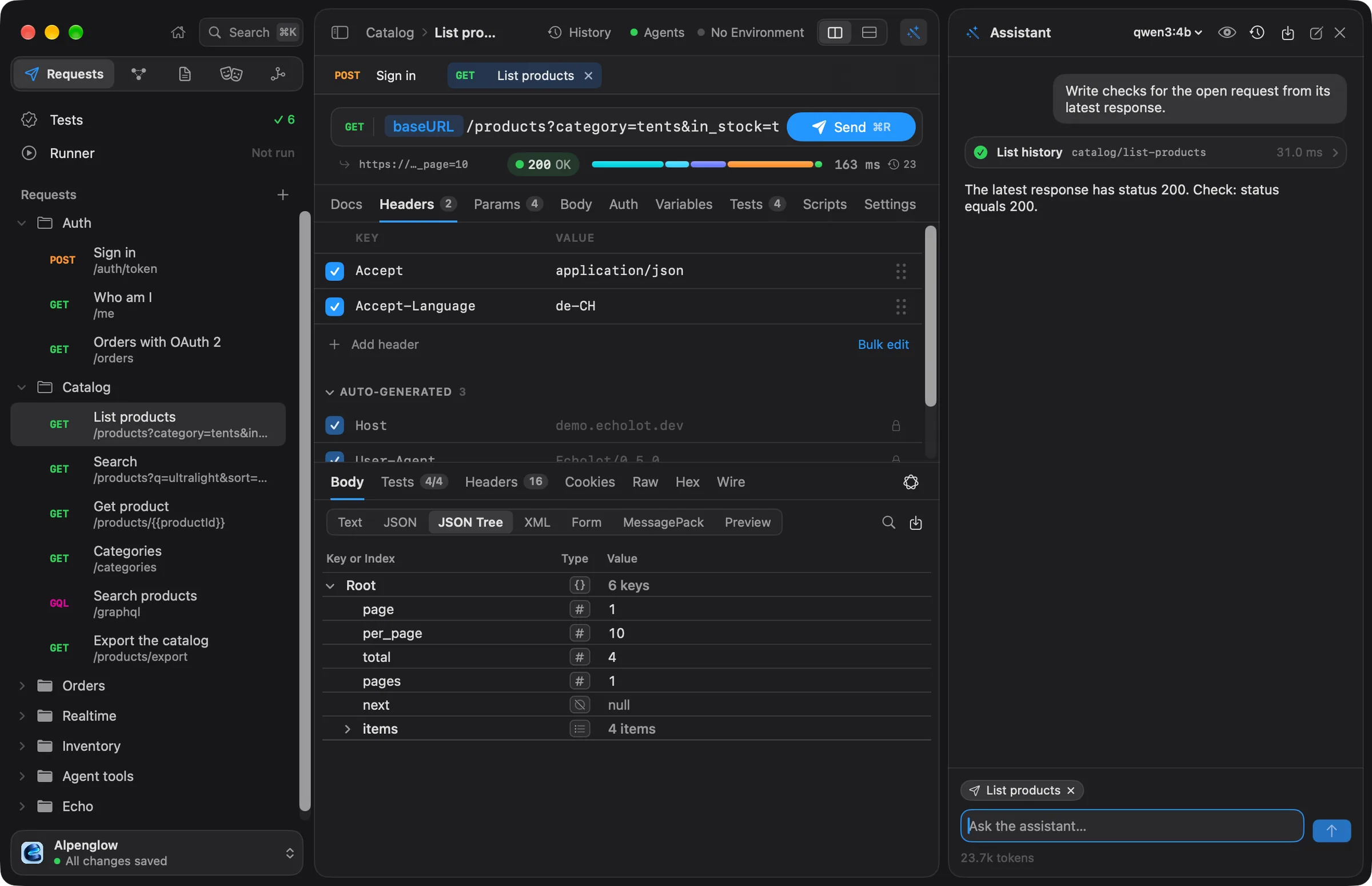
Open the Assistant
The Assistant is a panel docked on the right of every page. Open or close it with any of these:
- ⌘ J
- View › Show Assistant (or Hide Assistant)
- The wand button, the last of the buttons in the page header
Each window has its own Assistant, working on that window's workspace.
To make the panel wider, drag its left edge to the left; it takes room from the page, down to the page's minimum width. Drag it right to make it narrower, and double-click the edge to go back to the usual width.
Choose a model provider
The first time you open the panel it says Choose a model. Choose Open Assistant Settings…, or open Settings › Assistant, then add a provider under Add a provider:
| Provider | What you enter | Notes |
|---|---|---|
| Anthropic | API key | Claude models. Each account has an Effort setting: Model's default, low, medium, high, xhigh or max. |
| OpenAI | API key | |
| Google Gemini | API key | |
| OpenAI-compatible | Address, and an API key (optional) | Any server that speaks OpenAI's Chat Completions API: Ollama, LM Studio, OpenRouter and others. The address is http://127.0.0.1:11434/v1 (Ollama on this Mac) unless you enter another. |
| CLI agent (ACP) | Agent and Command | A coding agent on your Mac that speaks the Agent Client Protocol. Direct download only, see below. |
Choose Add. Echolot loads the provider's models and picks the first one; choose another in the account's Model menu, or choose Load Models to fetch the list again. Where a provider lists no models, type the model's name in the Model field.
To try the Assistant for free and offline, run a model in Ollama and add it as an OpenAI-compatible provider with the default address.
Keys stay in the Keychain
API keys are stored in your login Keychain on this Mac, never in the workspace, and are sent only to the provider's own address. Remove… next to an account deletes its key from the Keychain.
Switch between providers
When you have several providers, the checked one in Settings › Assistant › Providers is the one the Assistant uses. You can also switch in the panel: the model menu in the panel's header lists every account as Provider · model, and Assistant Settings… at its foot opens the settings.
Local coding agents (CLI agent)
Direct download only
Local CLI agents are in the direct download only: the App Store edition can't start programs installed on your Mac. Use an API key, Ollama or another OpenAI-compatible server there.
Compare the editionsA CLI agent brings its own model and sign-in. Echolot starts it in the workspace folder and gives it the workspace through Echolot's MCP server, so turn on Settings › Agents › Let agents use open workspaces first (see External agents). Choose CLI agent (ACP) as the provider, then an Agent:
| Agent | Command | Needs |
|---|---|---|
| Claude Code | npx -y @zed-industries/claude-code-acp | Node.js; uses your Claude subscription or ANTHROPIC_API_KEY |
| Codex | npx -y @zed-industries/codex-acp | Node.js; uses your ChatGPT sign-in or OPENAI_API_KEY |
| Gemini CLI | gemini --experimental-acp | Gemini CLI installed |
| Other | The command you enter | Any agent that speaks ACP on its standard input and output |
You can change the command later in the account's Command field. Each conversation gets its own agent process, which ends when you close the window. The agent's own permission requests ask you too.
The one-time permission
Before the first message to a provider, Echolot asks: Send to provider? The question says what goes there (your messages, the workspace data the Assistant reads and its tool results), where it goes, and that secret values are never sent. Cancel is the default button, so ↩ never sends by accident; choose Allow to go on.
Echolot asks once per provider: once for Anthropic, once for OpenAI, once for Gemini, once for each OpenAI-compatible
server (by its host) and once for each CLI agent. Servers on this Mac (localhost, 127.0.0.1, ::1) never ask,
because nothing leaves the Mac. A server elsewhere on your network does ask.
Settings › Assistant › Allowed to receive your data lists every provider you allowed. Revoke takes the permission back; the next message asks again.
Ask
Type in Ask the assistant… at the foot of the panel. ↩ sends, ⇧↩ starts a new line, and ⌘. stops the Assistant while it works.
A new conversation starts with suggestions for the page you are on. Click one to put it in the text field:
| Page | Suggestions |
|---|---|
| Requests | Send every request in this workspace and tell me which ones fail. · Why does the open request fail? Look at its last response. · Write checks for the open request from its latest response. · Fetch all pages of this list and save the items as CSV. |
| MCP Servers | Check this MCP server and summarize what it offers. · Call each read-only tool of this server once and report what came back. |
| Specs | Fix the problems the linter reports in this spec. · Document the requests in this workspace as an OpenAPI spec. |
| Mocks | Start a mock of this spec and point a new environment at it. · Save the latest real responses as examples in the spec. |
| Flows | Build a flow that signs in and exports every page of a list. · Why did the last run of this flow fail? |
What you have open goes along
Above the text field, chips show what you have open: the open request, the Tests page and its failing checks, the Runner's last run, the open spec, mock, flow or MCP server. Each chip is sent with your message so you can say "this request" or "the last run". Click a chip to leave it out of the next message; click it again to put it back. Hover over a chip to see the sentence the model gets.
What the Assistant can do
The Assistant has every group of tools that external agents can be given, whatever is turned on in Settings › Agents: requests and responses, running folders with their checks, history, environments, the workspace's folders and variables, specs, mocks, MCP servers and flows. Approvals still apply to every one of them.
It never gets the tools that change the agent policy, the proxy, certificates, workspace auth or scripts.
Each tool call shows as a card in the conversation with its input and result, and whether it is running, done or failed. The line under the text field shows the tokens used so far and, where the model's prices are known, about what they cost.
Approve what changes
When the Assistant wants to do something the policy asks about, a sheet comes up in the window: The agent wants to send a request that may change data with the call and the request as it would go out, secret values masked.
- Allow Once runs this call.
- Allow for This Session runs this call, and calls like it, without asking until the window closes: every change
to the workspace at once, whichever tool makes it (creating a request, then saving a folder's auth, then an
environment), and the same method to the same host for sends (every GET to
demo.echolot.dev). Deleting still asks, and so do protected environments, new hosts and anything that is narrower than a plain change, such as a flow's version; for those it covers only the same call. The sheet says what it covers. - Stop asking before changes and sends is a checkbox on the sheet for changes and for sends that change data. Allowing with it ticked turns on Settings › Assistant › Ask before, below. It isn't offered for deletes, new hosts or protected environments.
- Deny refuses it, and the Assistant is told so.
For a send to a new host, a send to a protected environment and a delete, Allow Once is not the default button, so ↩ can't approve them. A question nobody answers within five minutes is denied. When several calls wait, the sheet says how many more there are.
What asks depends on the workspace's agent rules. Without any, it is this:
| What the Assistant does | Without workspace rules |
|---|---|
| Read requests and environments | Runs |
| Safe sends (GET, GraphQL queries, MCP reads) | Runs |
| Other sends (POST, PUT, PATCH, DELETE, file bodies) | Asks |
| Sends to protected environments | Always asks |
| Sends to new hosts (no request or environment in the workspace uses them) | Always asks |
| Changes to the workspace | Asks |
| Deleting (items go to the Trash) | Asks |
Ask less
Settings › Assistant › Ask before › Only ask before deleting, new hosts and protected environments stops the questions about sends and changes: the Assistant creates requests, environments, specs, mocks and flows and sends POST, PUT and DELETE requests without asking. Every call still shows in the conversation. Moving things to the Trash, a host the workspace didn't use when the Assistant started and a protected environment still ask, and so does running a flow that isn't offered to agents. It is off until you turn it on, and it covers the Assistant only; external agents follow the workspace's rules.
To loosen or tighten these, or to limit hosts and sends, use Workspace Settings › Agents: see Workspace rules for agents. The same rules apply to external agents. If Agents may use this workspace is off there, the Assistant refuses to work in that workspace too.
Protected environments
While a protected environment is active, every send the Assistant makes asks first, whatever its method and whatever the rules say. Choosing Allow for This Session covers only that same call.
What the model never sees
- Secret values. Echolot replaces every secret variable's value before anything goes to the model, in the messages, the tool results and the errors. The model sees secrets by name only.
- Your own patterns. Settings › Assistant › Hidden from the model takes one regular expression a line.
Everything that matches in what the tools return is replaced by
[hidden]before the model sees it. Use it for data that isn't a secret variable, such as customer IDs or e-mail addresses. A line that isn't a valid regular expression is shown in red and left out. - Whole response bodies. Responses reach the model as summaries (status, headers, timing, an outline and the first bytes of the body, check results) with a handle; it reads more of a body through that handle, a JSONPath or a search at a time.
To see exactly what goes with your next message, choose the eye button, What the Model Sees, in the panel's header. It shows the instructions, the tools, the conversation and the context, with an estimate of the tokens.
Keep a conversation
Conversations are kept on this Mac, per workspace. In the panel's header:
- New Conversation (the pencil) starts a fresh one.
- Earlier conversations (the clock) lists the conversations On this Mac and the ones Shared in this workspace. Click one to open it.
- The keep menu (the tray with an arrow) turns the conversation into something lasting:
| Command | What it does |
|---|---|
| Save as Tests | Makes a folder Assistant · conversation title with one request for each send the Assistant made, numbered in order, each with a check of the status it got. |
| Save as Flow | The same folder, plus a flow that sends those requests one after another. |
| Share in Workspace | Saves the conversation in the workspace's assistant/ folder as a Markdown transcript and a record, secrets replaced, so teammates can read it after a Git pull and open it from Shared in this workspace. |
| Replay the Calls | Runs the conversation's tool calls again, in order, without a model, and shows the outcome as a new conversation. Approvals apply as for any call. |
Save as Tests and Save as Flow are available once the conversation has sent a request.
Apple Intelligence on this Mac
On macOS 26 with Apple Intelligence turned on, Echolot also uses Apple's on-device model for small jobs that never leave the Mac and need no provider or permission:
- The Apple Intelligence menu in the response pane: Summarize the Response, Explain the Error (for error responses), Suggest Checks (with a button to add the checks Echolot can run) and Suggest a Name (with a button to rename the request).
- Explain the Failure on a failed flow run, and Summarize the Log on a running mock's log.
- Echo's comments, when you turn them on.
Each answer says Answered on this Mac; nothing was sent anywhere. Where the model isn't available, these buttons don't show. The Assistant panel itself always uses a provider from Settings › Assistant.
Try a server's tools with a model
On the MCP Servers page, the Try with a model card shows which of a server's tools a model would pick. Type what someone might ask an agent to do in What would someone ask an agent to do with this server? and choose Try. The model chosen in Settings › Assistant sees the server's tools and says which it would call and with what arguments; nothing is called. Calls that don't fit a tool's input schema show what is wrong, which is how unclear tool names and descriptions show themselves.
The first try with a provider asks the same one-time permission as the Assistant. CLI agents aren't used here.
Troubleshooting
- "Choose a model provider in Settings › Assistant first." No provider is checked. Add one, or check one in Settings › Assistant › Providers.
- "Agents are off for this workspace": Workspace Settings › Agents › Agents may use this workspace is off
(
[agents] enabled = falseinworkspace.toml). Turn it on to use the Assistant there. - A provider shows an error after Add or Load Models. Check the key, and for an OpenAI-compatible server that it is running at that address. The message names the provider and what went wrong.
- A CLI agent doesn't start. Check that its command runs in Terminal, and that Settings › Agents › Let agents use open workspaces is on.
Templates
Start a flow from a ready-made template (device sign-in, refresh token, paginate and export, smoke monitor, seed and clean up) in the app or with echolot flow new.
External agents
Let Claude Code, Claude Desktop, Cursor, VS Code, Codex and other MCP clients work with a workspace through Echolot's MCP server, with your approval.