 Echolot
Privacy and security
Where Echolot keeps your data and secrets, what it sends and to whom, and what asks you before it happens.
Echolot has no account and no cloud. Your requests stay in files on your Mac, secrets stay in the Keychain, and nothing about you or your workspaces leaves the Mac unless you send it or turn something on. This page lists what Echolot does, and only that.
Your files
- Workspaces are folders of plain TOML files, wherever you save them. Echolot never uploads them.
- Echolot's own data (stored response bodies, history, crash reports, Assistant conversations) is in
~/Library/Application Support/Echoloton this Mac. Settings › About › Responses and history › Show in Finder opens it. The App Store edition keeps it in its own container; see Editions. - Personal choices, such as pane layouts and the scripts and servers you trusted, are kept in the app's settings on this Mac, never in the workspace.
Secrets stay in the Keychain
Secret values never go into workspace files, so you can commit a workspace to Git.
- Secret variables are stored only in your login keychain. The file names the variable; its value is in the Keychain. See Secrets.
- Imports move passwords, tokens and keys they find in auth and credential headers into secret variables, and the import report names them, never their values. See Importing.
- Exports never write secret values: secret variables go out by name only, and the export report counts any credential typed into a request in clear.
- Response captures that store a token into a secret variable write it to the Keychain only.
- Model keys for the Assistant, MCP sign-in tokens and the proxy password are in the Keychain too. A proxy password or certificate passphrase typed as plain text shows a warning with Move to Keychain.
- The command-line tool reads the same Keychain items. macOS asks once before another app or the other edition reads an item; choose Always Allow.
Credentials stay with their server
When a redirect leads to another origin (another scheme, host or port), Echolot drops the credentials before it
follows: Authorization, Cookie, common API key headers, the API key auth's header and any header holding a secret,
and the Digest, AWS and client certificate settings. A secret you set for one server is never handed to another by a
redirect.
Response bodies on disk
Responses stream to disk, and every send is kept in history on this Mac. Settings › Storage decides how much, and how it is stored:
| Setting | Meaning |
|---|---|
| Encrypt response bodies on disk | Bodies, wire captures and formatted copies are encrypted with a key kept in your login keychain, so nothing of a response is readable in Echolot's storage folder without it. Stored bodies are encrypted in the background; turning it off decrypts them. |
| Keep response bodies up to | Above this size, the least recently used bodies are removed. Bodies open in a tab are always kept. |
| History per request | How many responses each request keeps. |
While encryption is on, history search finds requests by name, address and headers, not by what their bodies say: history's search index is not encrypted, so it keeps no body text, and turning encryption on removes the body text it had. Workspaces are not affected. See Storage and encryption.
Protected environments
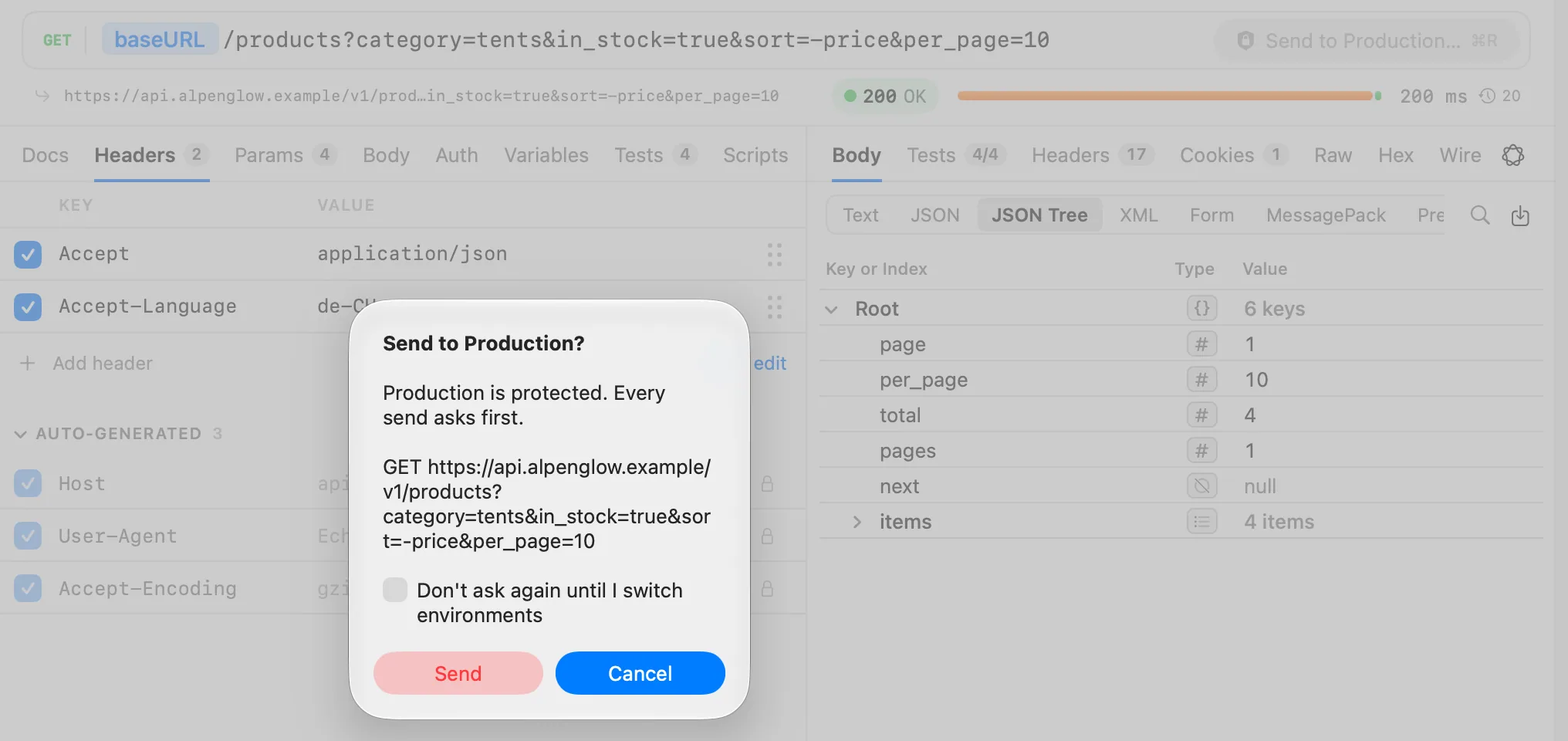
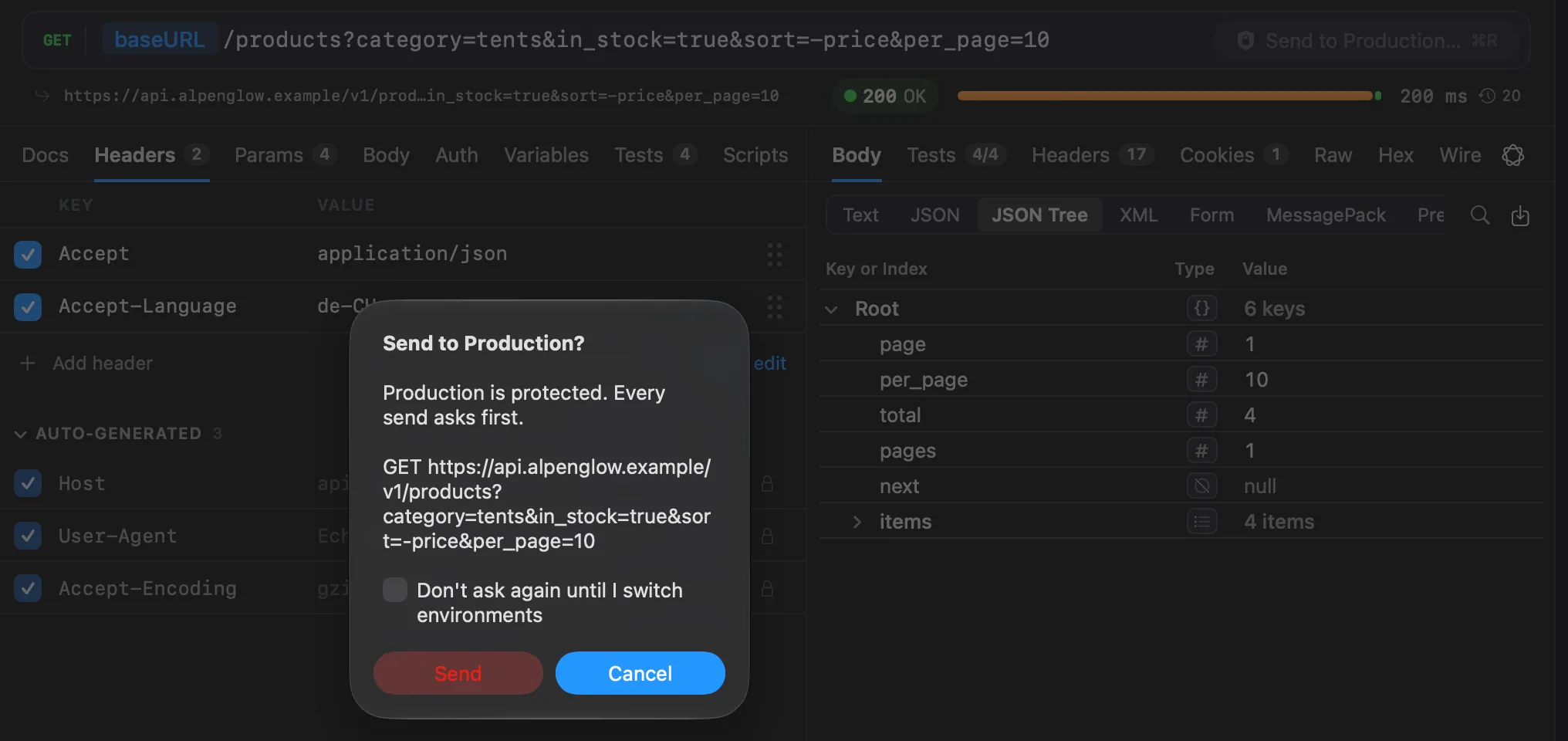
Mark an environment as protected (Production, say) and every send you start while it is active asks first: a request's Send (which then reads Send to Production…), connections, Runner runs, manual flow runs, Quick Send and Shortcuts actions, MCP calls and checks, Get Token, schema fetches and gRPC reflection. The question names the environment and shows what would go out, with secrets masked.
Cancel is the default button, so Return never sends to a protected environment by accident, and Esc cancels too. Don't ask again until I switch environments stops asking in that window until its environment changes; it is never saved. Agents always ask. See Protected environments.
Scripts and local programs
- Scripts (pre-request and test scripts) run in a sandbox inside Echolot. A script can send requests only through Echolot, with the same rules as your own sends.
- Scripts run only once you trust them on this Mac. Scripts you write in Echolot are trusted. Scripts that arrive
from elsewhere (an import, a
git pull, an edit outside Echolot) stop the send until you choose Review Scripts… and trust them. Trust is kept by the scripts' content, outside the workspace, so a workspace can never trust its own scripts. - MCP servers that run as a local program start only after you approve their command on the MCP Servers page (Trust and Check). Any change to the command, its arguments or its environment asks again.
The Assistant and model providers
The Assistant, and Echo's AI comments if you turn them on, use the model provider you choose in Settings › Assistant.
- Model keys stay in the Keychain on this Mac and are sent only to the provider's own address.
- The first message to a provider asks before anything is sent, once per provider (a compatible server by its host). The question says what goes to it: for the Assistant, your messages, the workspace data the Assistant reads and its tool results. Secret values are never sent.
- Echo's AI comments send only short facts about what happened (a kind of request, a status code, a duration): never names, addresses, headers, bodies, variables or secrets.
- Apple's on-device model and servers on this Mac (such as Ollama) never ask: nothing leaves the Mac.
- Settings › Assistant › Allowed to receive your data lists the providers you allowed, each with Revoke. A revoked provider asks again next time.
- The Assistant asks you before it changes data or reaches a new host, and works through the same tools and rules as external agents.
See Assistant.
External AI agents
Agents such as Claude Code, Cursor or Codex can use a workspace through Echolot's MCP server, only if you let them.
- Off by default. Settings › Agents › Let agents use open workspaces turns it on, and each workspace can turn agents off in Workspace Settings › Agents.
- On this Mac only. The server listens on standard input and output, or on
127.0.0.1with a token. Nothing reaches it from the network. - You approve. By default, reads and safe sends run; sends that may change data, new hosts and changes to the workspace ask you (Deny, Allow Once, Allow for This Session). Protected environments and new hosts always ask.
- Secrets never reach an agent. Agents refer to secrets by name. Everything an agent gets back, errors included, has secret values removed, as written, in JSON, percent-encoded and Base64. History an agent reads has credentials masked.
- Never offered. The agent policy, proxy, certificates, auth and scripts are not tools agents can use.
- Every call is recorded. History shows who sent each request, agents by name, and Agents in the window lists recent calls.
See Agents and Let an AI agent use your workspace safely.
Usage data and crash reports
Both are in Settings › Privacy: usage data is off by default, crash reports kept on this Mac are on.
- Share anonymous usage data. When on, Echolot tells its developers which features are used (sending a request, a run, an MCP check) with small facts such as the request kind and status code, and reports errors with their stack traces. Never URLs, headers, bodies, variables, secrets or responses. It goes to PostHog, the analytics service Echolot uses.
- Collect crash reports. On by default. macOS hands Echolot its crash and hang reports on the next launch and Echolot saves them on this Mac, so you can attach them to a bug report. They contain stack traces only, and are not sent anywhere. Show in Finder opens them.
Connections Echolot makes on its own
Besides the requests you send, Echolot connects to the network only for these:
| What | When | What it sends |
|---|---|---|
| Update checks (direct download) | Once a day if Check for updates automatically is on, or when you choose Check for Updates… | Asks GitHub for the list of releases. GitHub sees the app's version and your IP address. |
| Beta status (direct download, beta builds) | At launch and once a day | Fetches a small signed file from GitHub Pages, without cookies or stored credentials. It can end a beta build early or extend it. |
| Image previews in response trees | Only when the pointer rests on an image address in a JSON or XML tree | Fetches that image like a browser, without cookies or stored credentials, at most 10 MB. It is not recorded in history and runs no scripts. |
| Usage data | Only when turned on | See above. |
| Your model provider | Only when you use the Assistant or Echo's AI comments, after you allowed it | See above. |
The App Store edition makes no update or beta checks: the App Store handles its updates.