 Echolot
Install
Download Echolot, open it the first time, keep it up to date, put the command-line tool on your PATH, and remove it again.
Echolot comes as a direct download from echolot.dev. This page covers that edition. A Mac App Store edition is built from the same code; Editions compares the two.
Requirements
- macOS 15 or later.
- A Mac with Apple silicon.
- Some features need a newer macOS: Apple's on-device model for the Assistant needs macOS 26, and HTTP/3 needs macOS 27. Everything else works on macOS 15.
Download and install
Open echolot.dev and choose the download. It leads to the latest release on GitHub, where every release keeps its files:
| File | What it is |
|---|---|
Echolot-<version>.dmg | The app, in a disk image. Use this one. |
Echolot-<version>.zip | The same app, zipped. |
echolot-<version>-macos.zip | The command-line tool on its own, for a Mac without the app. |
Echolot-<version>.mcpb | An extension that connects Claude Desktop to a workspace. See Agents. |
Open the disk image and drag Echolot onto the Applications folder beside it.
Open Echolot from the Applications folder. The app is signed by its developer and notarized by Apple, so macOS only asks you once to confirm that you want to open an app downloaded from the internet.
First launch
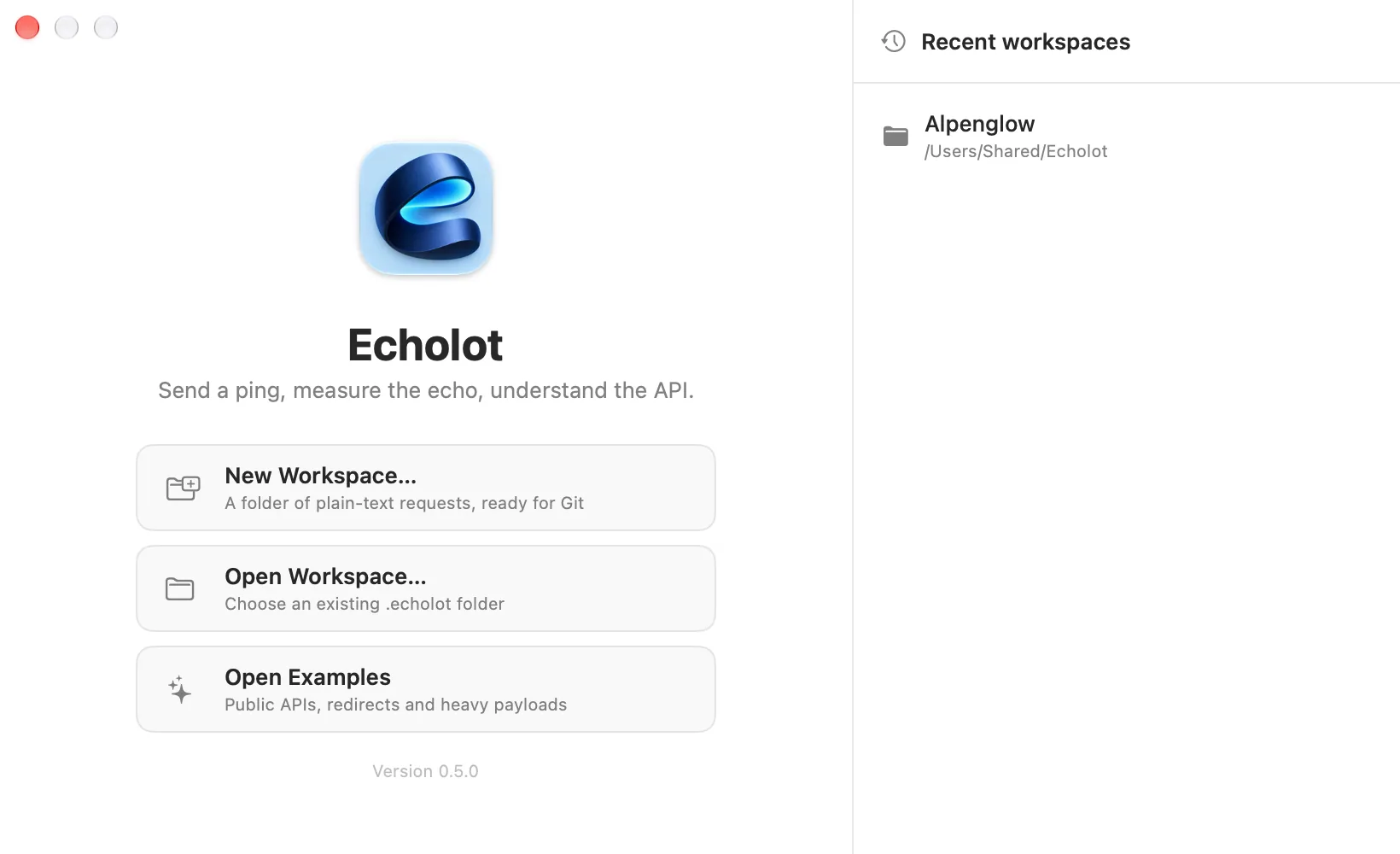
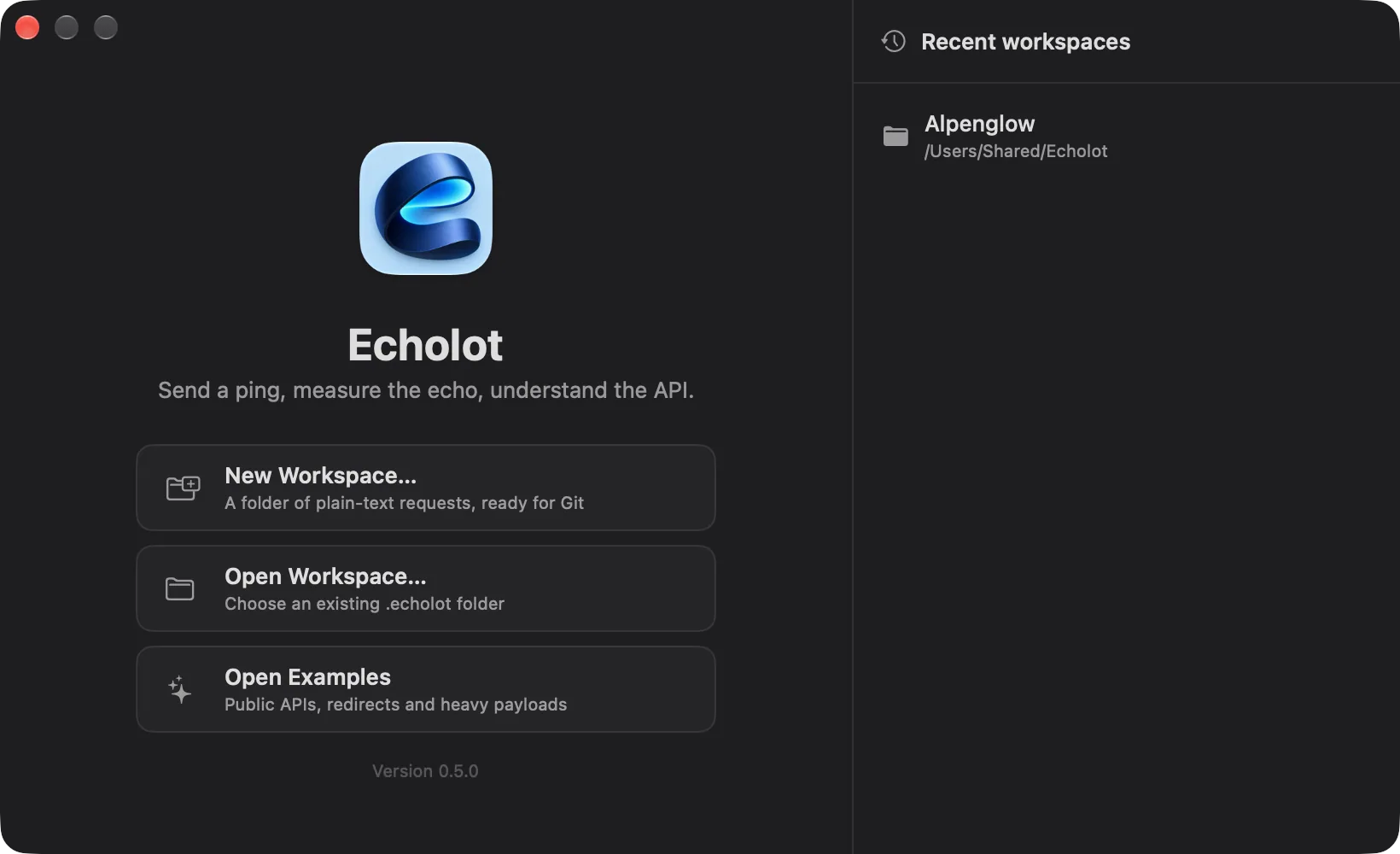
Echolot opens with its welcome window:
| Choice | What it does |
|---|---|
| New Workspace… | Creates a workspace: a folder ending in .echolot (the name starts as My API.echolot), wherever you save it. |
| Open Workspace… | Opens an existing .echolot folder. |
| Open Examples | Opens a ready-made workspace of example requests: public APIs, redirects and heavy payloads. Echolot creates it the first time, in its own data folder. |
Workspaces you open appear under Recent workspaces; click one to open it again. Each workspace opens in a window of its own, and windows come back with their workspace when you start Echolot again.
The first workspace window you open offers a one-minute guided tour; Help › Show the Tour starts it again. Echolot speaks your Mac's language when it has it, and you can change that in Settings.
From here, send your first request, or import a collection you already have.
Updates
The direct download updates itself. Once a day it asks GitHub whether there is a newer release, and asks you before installing it. Updates are signed: Echolot installs only updates signed by its developer. Installing an update replaces the app, and with it the command-line tool inside it.
- Echolot › Check for Updates… looks right away.
- Settings › General › Updates has the choices:
| Setting | Meaning |
|---|---|
| Check for updates automatically | Looks once a day. On by default. |
| Download and install updates automatically | Installs without asking. Needs the setting above. |
| Last checked | When it last looked, with Check Now. |
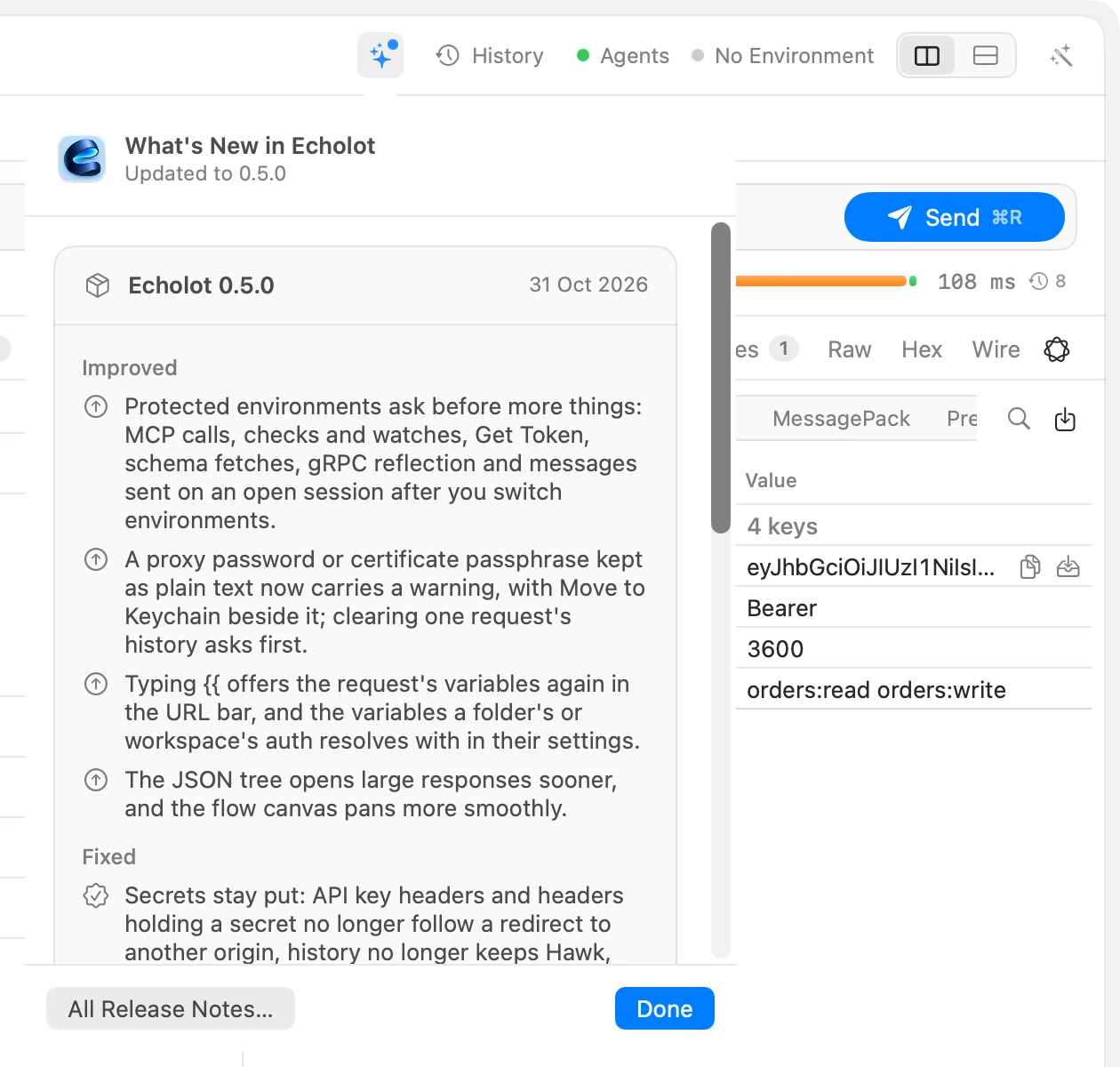
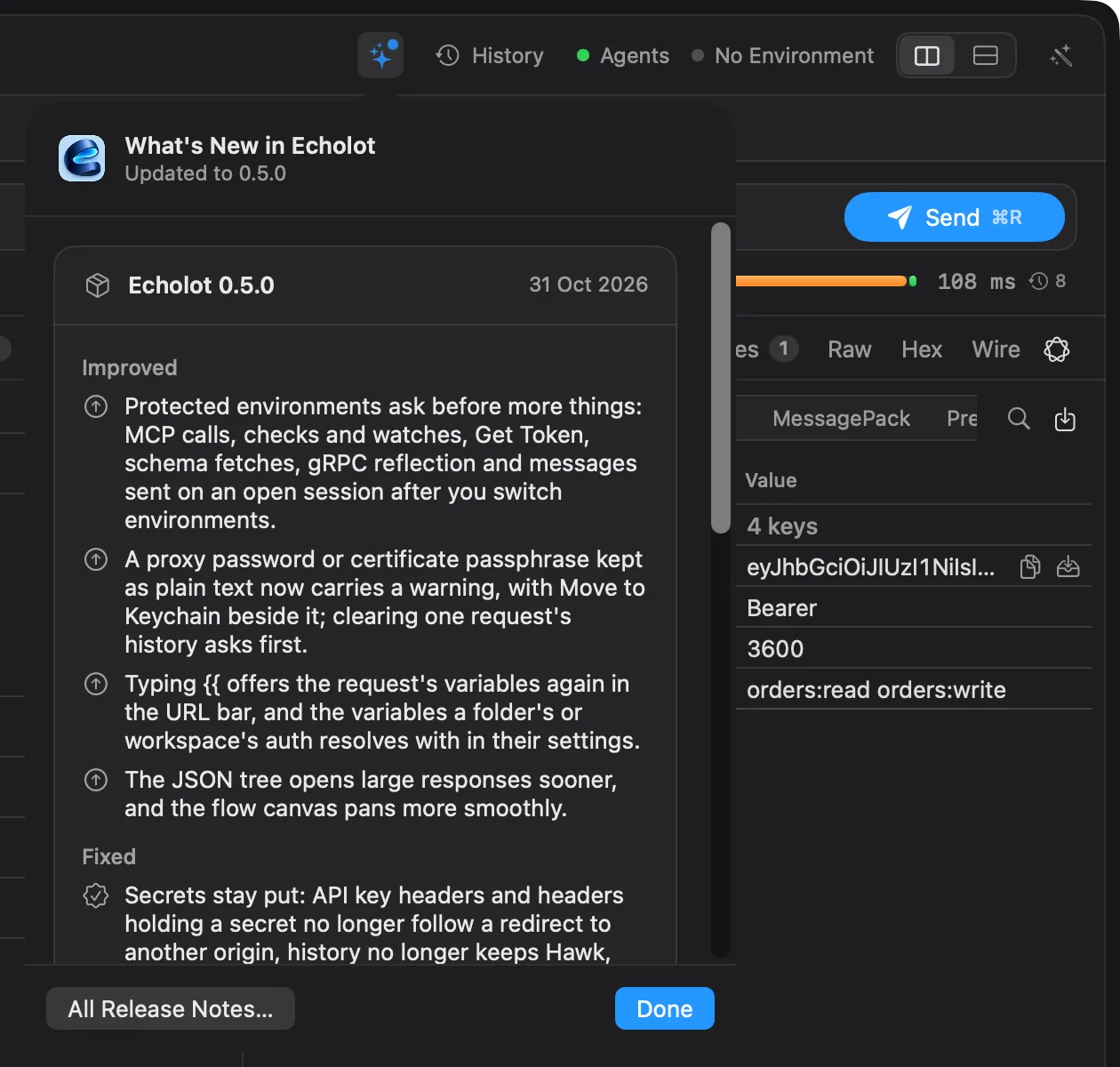
After an update, nothing opens by itself. A What's New button (sparkles, with a dot) appears first among the buttons at the top right of the window; click it to read the release notes, or choose Hide Until the Next Update. Help › What's New in Echolot shows the notes of every release at any time, and so does What's new.
Mac App Store edition
The App Store keeps the App Store edition up to date. It has no Check for Updates… item, and Settings › General › Updates says so.
Compare the editionsBeta builds expire
Echolot is in a public beta, and each released beta build of the app expires 30 days after its release. Echolot updates itself before then, so with automatic checks on you won't notice. The developer can also end a build earlier (for example one with a serious bug) or extend it, through a signed status file Echolot reads at launch and once a day.
When a build has expired, Echolot shows one alert, This beta has expired, before any window opens. It names the version and build, the day it ended, and says a newer beta is at echolot.dev. OK quits Echolot, after writing any unsaved edits. A build that expires while it runs shows the same alert. Download the latest release from echolot.dev and install it over the old one.
What stays untouched:
- Your workspaces. They are plain files, and the next build opens them as they are.
- The command-line tool never expires, inside the app or downloaded on its own, so CI keeps running.
- Quick Look previews of workspaces in the Finder keep working.
Shortcuts actions of an expired build fail with an error and send nothing.
Setting the Mac's clock back does not bring an expired build back. If the clock is more than a day behind a date Echolot has already seen, the alert says this Mac's date looks wrong: set the date and time, or get a newer build.
Direct download only
Only the direct download's beta builds expire. The App Store edition never does: its betas go through TestFlight.
Compare the editionsInstall the command-line tool
The direct download carries the echolot command-line tool inside the app. To use it in Terminal, put it on your
PATH:
- Choose Echolot › Install Command-Line Tool…, or open Settings › General and, under Command-line tool, choose Install Command-Line Tool….
- Echolot puts a link named
echolotin/opt/homebrew/binor/usr/local/bin. If neither folder can be written, macOS asks for an administrator's password. - Open a new Terminal window and type
echolot --help.
echolot --version
echolot send https://demo.echolot.dev/v1/products -i
Settings › General › Command-line tool shows where the bundled tool is and whether it is on your PATH, with
Reinstall and Remove. If a file named echolot that Echolot did not put there is in the way, Echolot asks
before replacing it, and the old file goes to the Trash. Because the link points into the app, the tool updates with
the app.
The tool and its commands are described in Command-line tool.
Mac App Store edition
The App Store edition has no command-line tool inside it. Install the tool on its own from the releases page
(echolot-<version>-macos.zip); see Command-line tool.
Uninstall
- If you installed the command-line tool, open Settings › General and choose Remove under Command-line tool first.
- Quit Echolot and drag it from the Applications folder to the Trash.
- To remove Echolot's own data as well (stored responses, history, crash reports and the Examples workspace), open
Settings › About and choose Show in Finder next to Responses and history before you delete the app,
then delete that
Echolotfolder. It is~/Library/Application Support/Echolot. - Secrets, model keys and the storage key are in your login keychain, in items whose names start with
Echolot(Echolot secret …,Echolot model API key). To remove them, open Keychain Access and search forEcholot. Delete secrets only if no copy of Echolot or of its command-line tool still needs them.
Your workspaces are not touched: they live wherever you saved them.