 Echolot
Settings
Every pane of Echolot's Settings, each option in it, what it does and its default.
Echolot's settings are for the app on this Mac: how it looks, the proxy, how much it keeps, the AI providers and whether agents may come in. Settings that belong to a workspace (its auth, variables, proxy, certificates and agent rules) live in Workspace Settings… in the workspace menu at the foot of the sidebar, and travel with the workspace; see Workspaces.
Open Settings with Echolot › Settings… or ⌘,. The panes are listed on the left. The search field above them (⌘F) keeps only the panes holding a matching setting; ↩ opens the first. Settings opens on the pane you used last.
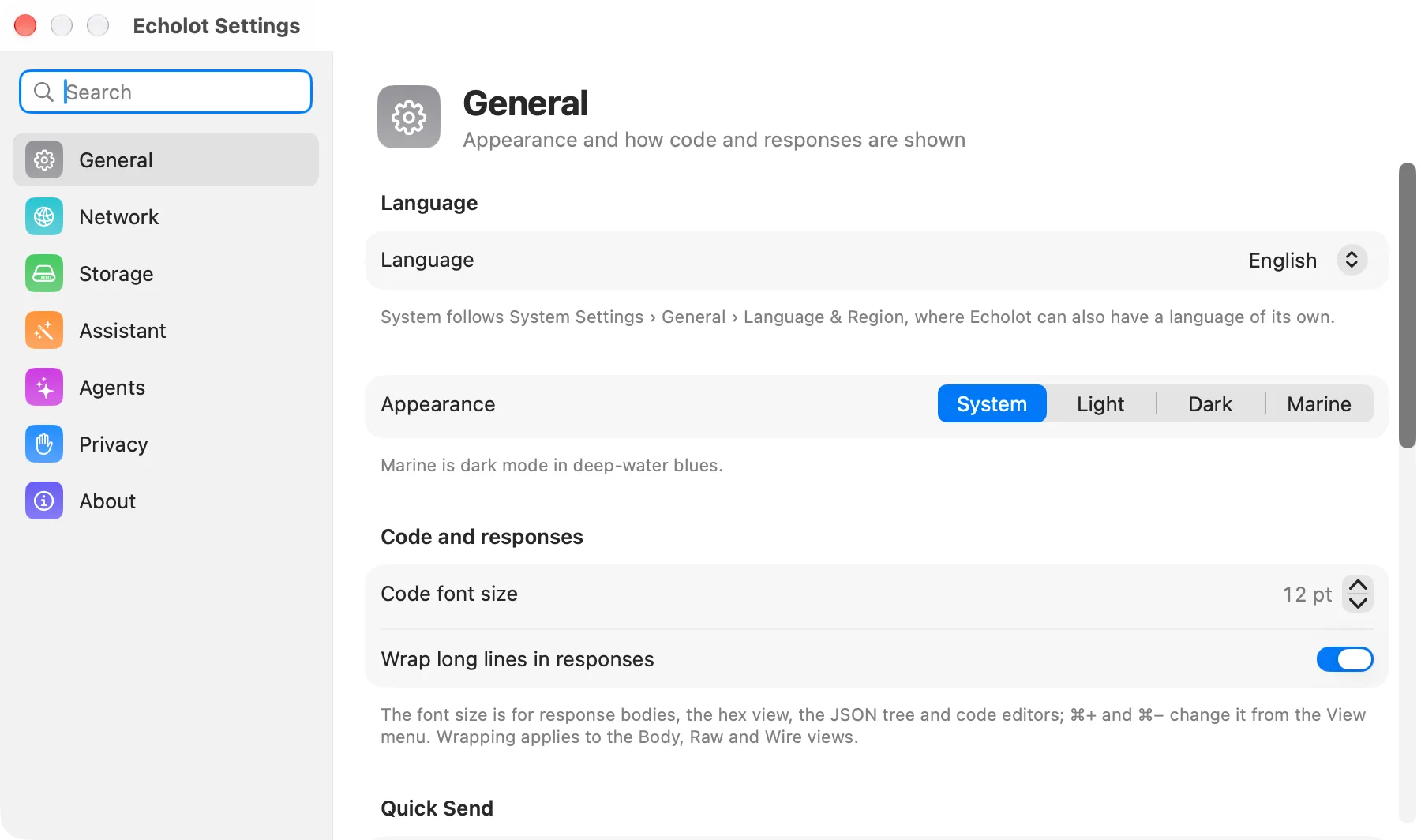
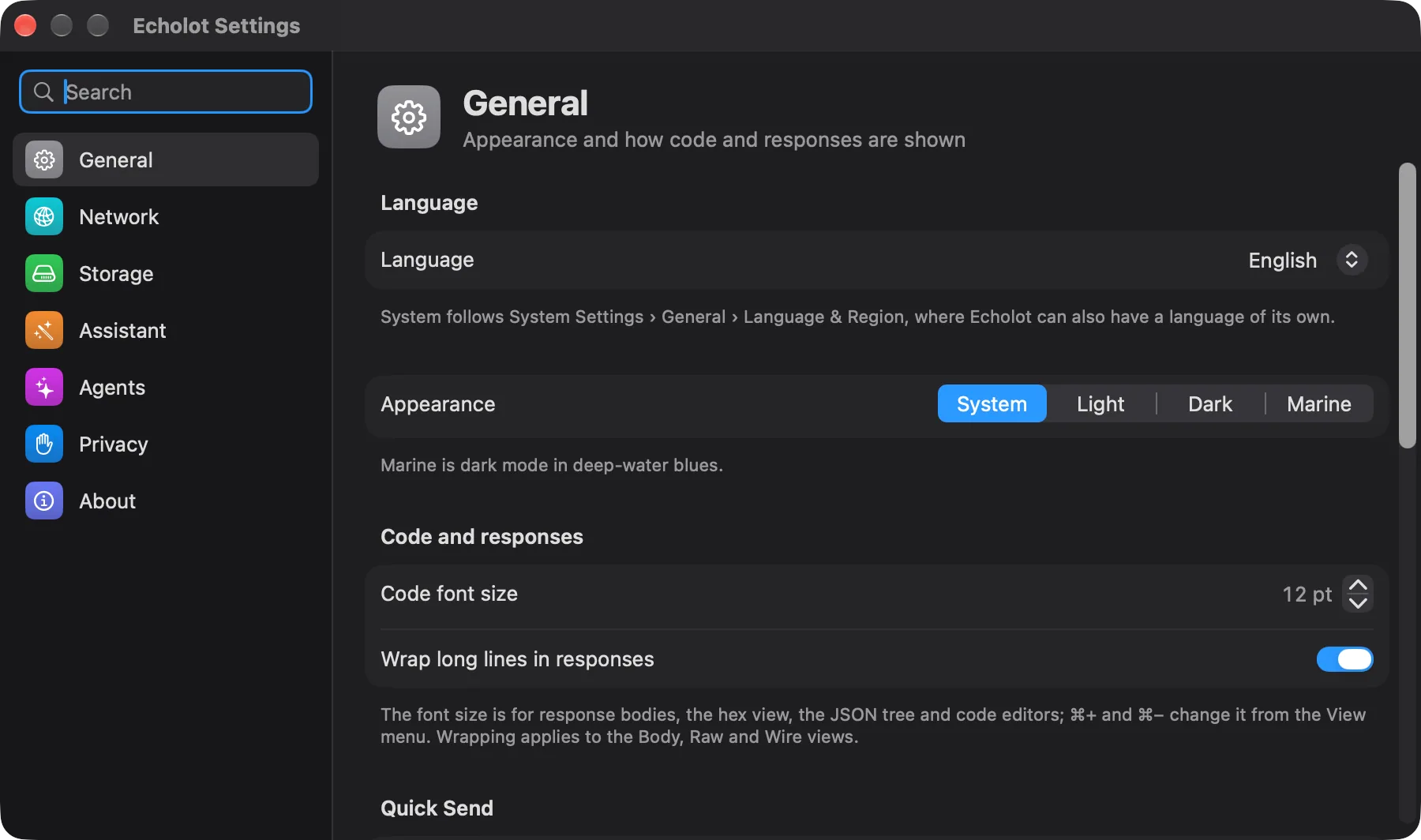
General
The language, the appearance, and how code and responses are shown.
| Setting | What it does | Default |
|---|---|---|
| Language | The language Echolot speaks: System follows System Settings › General › Language & Region, or choose one of Echolot's languages (they are listed in their own names). A new choice takes effect after a relaunch, and Relaunch Echolot appears under the setting. The section is shown once Echolot has more than one language. | System |
| Appearance | System, Light, Dark or Marine, for every Echolot window, whatever macOS uses. Marine is dark mode in deep-water blues. | System |
| Code font size | The size of response bodies, the hex view, the JSON tree and code editors, from 10 to 22 pt. View menu: ⌘+ and ⌘− change it too. | 12 pt |
| Wrap long lines in responses | Wraps long lines in the response's Body, Raw and Wire views instead of scrolling sideways. | Off |
Quick Send
| Setting | What it does | Default |
|---|---|---|
| Show Quick Send in the menu bar | A menu bar item and a shortcut that works in any app open a panel to send a saved request of your open and recent workspaces. See Quick Send. | Off |
| Shortcut | Click and press the keys to change it; Reset goes back to the default. Settings says when another app holds the keys. | ⌃⌥Space |
Echo
| Setting | What it does | Default |
|---|---|---|
| Show Echo's status screen in the page header | The small screen that tells what is going on in the window. See Echo. | On |
| Humor | Facts only, A little or Plenty. | A little |
| Let AI write some of Echo's comments | A model writes some lines: Apple's on-device model where the Mac has it, otherwise the model chosen in Settings › Assistant. Not available with Facts only. Written by shows which model, and asks its permission if needed. | Off |
Command-line tool
Direct download only
This section is in the direct download only. The App Store edition can't install the tool; install it on its own from the downloads page, see The command-line tool.
Compare the editions- Bundled tool: where the
echolottool inside the app is. - On your PATH: Not installed with Install Command-Line Tool…, or the link's path with Reinstall and
Remove. Installing puts an
echolotlink to the bundled tool in/opt/homebrew/binor/usr/local/bin, soecholot runandecholot mcp setupwork in Terminal. Where neither folder is writable, macOS asks for an administrator's password. A link to another copy of Echolot is marked in orange with Reinstall; a file Echolot didn't put there shows Replace…, which asks before replacing it.
Echolot › Install Command-Line Tool… does the same.
Updates
Mac App Store edition
In the App Store edition this section says The App Store keeps Echolot up to date.
Compare the editions| Setting | What it does | Default |
|---|---|---|
| Check for updates automatically | Looks for a new version once a day on GitHub and asks before installing it. | On |
| Download and install updates automatically | Installs updates without asking. Needs the setting above. | Off |
| Last checked | When Echolot last looked, with Check Now. |
Updates are signed, and Echolot installs only ones signed by its developer. Echolot › Check for Updates… looks right away. Builds you made yourself don't look for updates.
Network
The proxy requests go through.
| Proxy | What happens |
|---|---|
| System Settings (the default) | HTTP, HTTPS and SOCKS proxies from System Settings › Network, with their exceptions. Automatic proxy configuration (PAC) is not used. |
| None | Every request connects directly. |
| Manual | One HTTP, HTTPS (TLS to the proxy) or SOCKS5 proxy, set in the fields below. |
With Manual:
- Proxy: the proxy's address, such as
http://proxy:3128orsocks5://host:1080. - User name: optional.
- Password: kept in the Keychain. Available once there is a user name.
- Go direct to: hosts that skip the proxy, separated by commas, such as
localhost, *.internal.
A workspace can set its own proxy in Workspace Settings › Proxy, which comes first. HTTP/3 doesn't work through a proxy: such a request fails and says why. See Request settings.
Storage
How much of the responses and their history is kept. See Storage and encryption.
| Setting | What it does | Default |
|---|---|---|
| Encrypt response bodies on disk | Encrypts bodies, wire captures and formatted copies with a key kept in your login Keychain. Bodies already stored are encrypted in the background, and turned back when you turn it off; the line below shows the progress and how many bodies are encrypted. While it is on, history search finds requests by name, address and headers, not by what their bodies say. Workspaces are not affected. | Off |
| Keep response bodies up to | 1, 2, 5, 10, 20 or 50 GB. Bodies are stored once however often they arrive; above this size the least recently used ones are removed. Bodies open in a tab are always kept. The line below shows their size on disk; Remove Stored Bodies… removes every body open windows don't need, after asking. | 5 GB |
| History per request | 10, 25, 50, 100 or 200 responses kept in each request's history. Older entries go first; the newest response of each request keeps its body. | 50 responses |
Assistant
The agent built into Echolot: model providers and keys. See The Assistant.
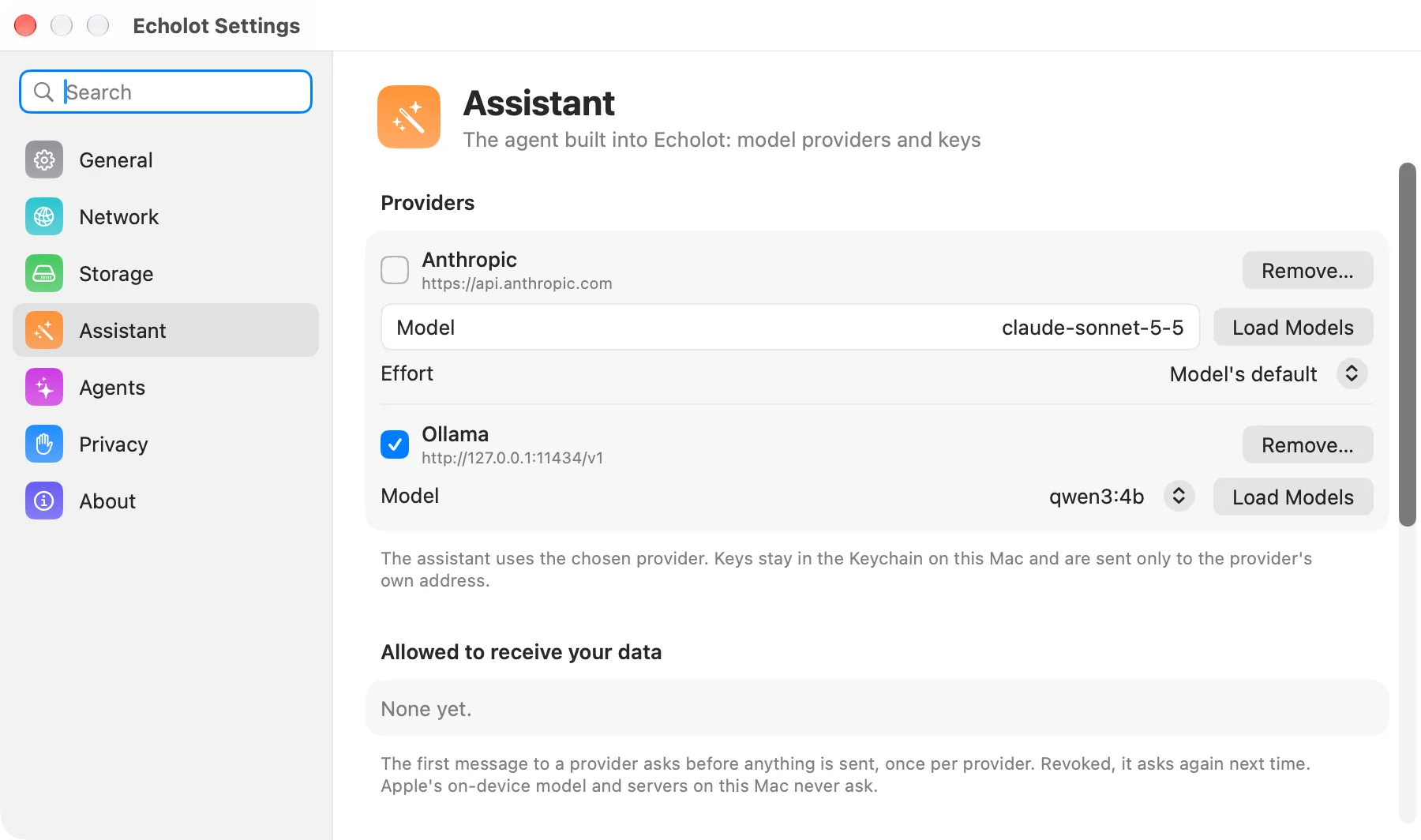
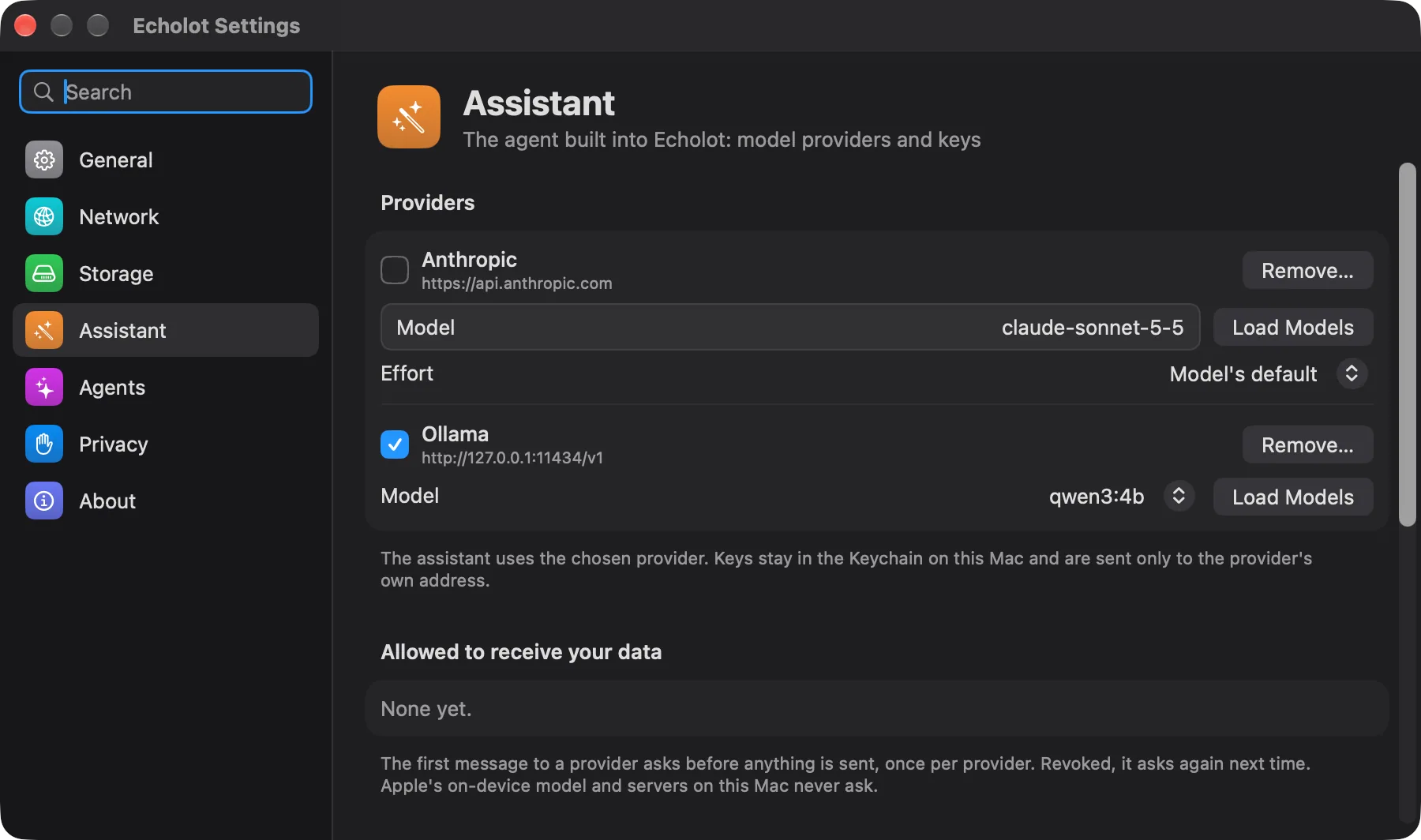
- Providers: every provider you added. The checked one is the one the Assistant uses. Each has a Model menu
(or field), Load Models to fetch the list again, and Remove…, which deletes its key from the Keychain.
Anthropic accounts also have Effort: Model's default,
low,medium,high,xhighormax. A CLI agent has its Command instead. - Allowed to receive your data: the providers you gave the one-time permission, and what it covers (The Assistant and Echo's comments, or Echo's comments alone). Revoke takes it back; the next message asks again. Apple's on-device model and servers on this Mac never ask.
- Hidden from the model: one regular expression a line. What matches in tool results is replaced by
[hidden]before the model sees it. Secret variables are always hidden; these are for the rest. - Add a provider: Provider (Anthropic, OpenAI, Google Gemini, OpenAI-compatible, or CLI
agent (ACP)), then API key, Address (OpenAI-compatible,
http://127.0.0.1:11434/v1when empty) or Agent and Command (CLI agent), and Add.
Keys stay in the Keychain on this Mac and are sent only to the provider's own address.
Direct download only
CLI agent (ACP) is in the direct download only: the App Store edition can't start programs on your Mac.
Compare the editionsAgents
Let AI agents work with your open workspaces. See External agents.
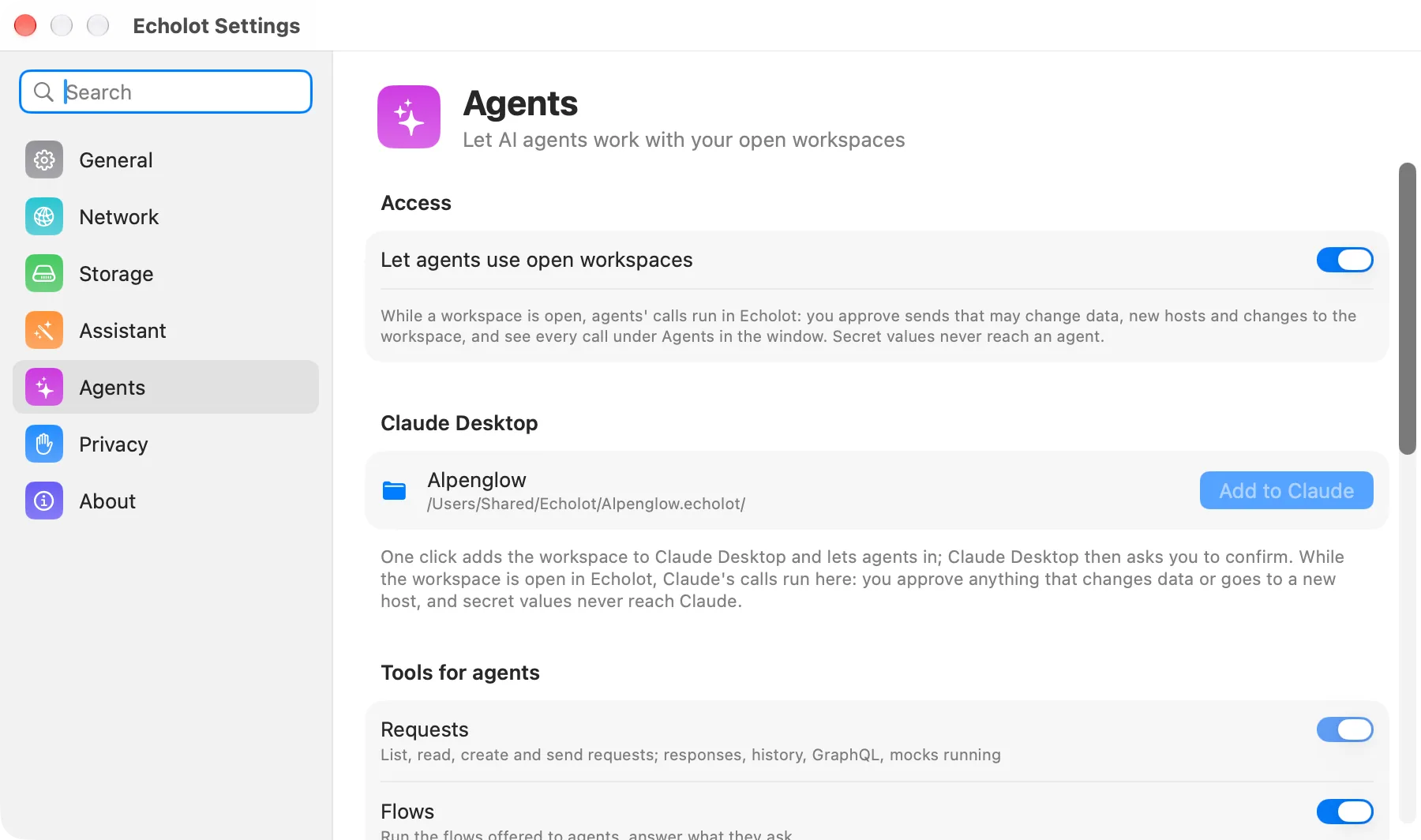
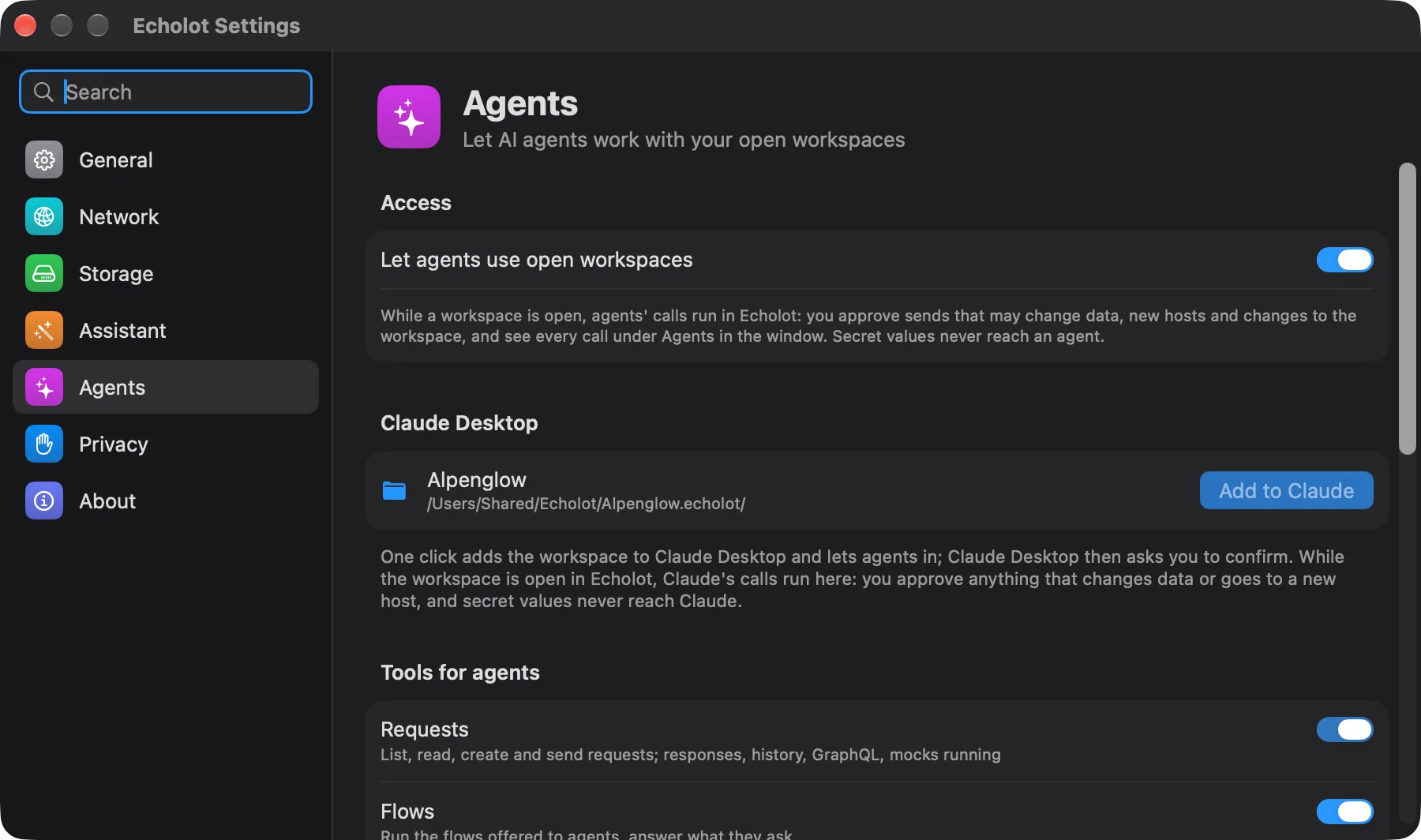
| Setting | What it does | Default |
|---|---|---|
| Let agents use open workspaces | While a workspace is open, agents' calls run in Echolot: you approve sends that may change data, new hosts and changes to the workspace, and see every call under Agents in the window. Secret values never reach an agent. | Off |
| Claude Desktop | Your recent workspaces, each with Add to Claude, which turns agents on and adds the workspace to Claude Desktop. Added when Claude Desktop has it. Direct download only. | |
| Tools for agents | The toolsets agents get: Requests (always on), Flows, Workspace, Environments, Specs, Mocks, MCP servers, History, Flow editing. | Requests and Flows |
| Other apps | Claude Code, Cursor, VS Code and Codex connect from the Agents button at the top of a workspace window. |
Mac App Store edition
Instead of the Claude Desktop section, the App Store edition shows Command-line tool: clients connect through
the echolot tool installed on its own, with Get the Command-Line Tool leading to the downloads. While the
workspace is open, their calls run in the app.
Privacy
What Echolot may collect, always off until you say so. See Privacy and security.
| Setting | What it does | Default |
|---|---|---|
| Share anonymous usage data | Tells Echolot's developers which features are used (sending a request, a run, an MCP check) with small facts such as the request kind and status code, and reports errors with their stack traces. Never URLs, headers, bodies, variables, secrets or responses. | Off |
| Collect crash reports | macOS hands Echolot its crash and hang reports on the next launch, and Echolot saves them on this Mac so you can attach them to feedback. Stack traces only. They are not sent anywhere. The count of saved reports is shown, with Show in Finder. | On |
| Update checks | Shows how often Echolot asks GitHub for the list of releases: Once a day, Only when you ask, or By the App Store. GitHub sees the app's version and your IP address, nothing about you or your workspaces. |
About
Version and where Echolot keeps its data.
- Version: the version and build, with What's New for the release notes.
- Website: echolot.dev. Releases: all releases and their notes.
- Responses and history: Show in Finder opens Echolot's own data folder: response bodies, history and crash reports. Workspaces live where you keep them; deleting this folder loses history only, never requests.
- Credits: Echo's font, Departure Mono by Helena Zhang, under the SIL Open Font License 1.1.
Mac App Store edition
The App Store edition keeps its data in its own container instead of the Application Support folder; Show in Finder opens it there.
Compare the editions