 Echolot
Workspaces
What a workspace is, how to create, open and switch workspaces, and which file holds what.
A workspace holds everything for one API or project: its requests and folders, environments, MCP servers, specs, mocks and flows. It is a folder of plain TOML files, one file per request, so you can read it, review it and keep it in Git.
Create a workspace
- Choose File › New Workspace… (⌥⌘N), or New Workspace… in the welcome window.
- Pick a place and a name. The name field starts as
My API.echolot. - Click Create.
Echolot makes the folder with a workspace.toml and an empty requests folder, and opens it in a window of its own.
The workspace's name is the folder's name without .echolot.
To try Echolot without making anything, choose Open Examples in the welcome window or the File menu: a ready-made workspace with requests to public APIs, redirects and large responses. The demo API has a fuller example, Alpenglow.
Open a workspace
- File › Open Workspace… (⌘O), or Open Workspace… in the welcome window. Choose an
.echolotpackage, or a plain folder that holds aworkspace.toml. - Double-click an
.echolotpackage in the Finder, or drag it onto Echolot in the Dock. - File › Open Recent lists the last ten workspaces you opened. Clear Menu forgets the list; the workspaces themselves stay where they are.
- From Terminal:
open "My API.echolot".
Each workspace opens in its own window. Opening a workspace that is already open brings its window to the front.
Echolot follows a workspace you move or rename in the Finder: it stays in Open Recent and reopens from its new place.
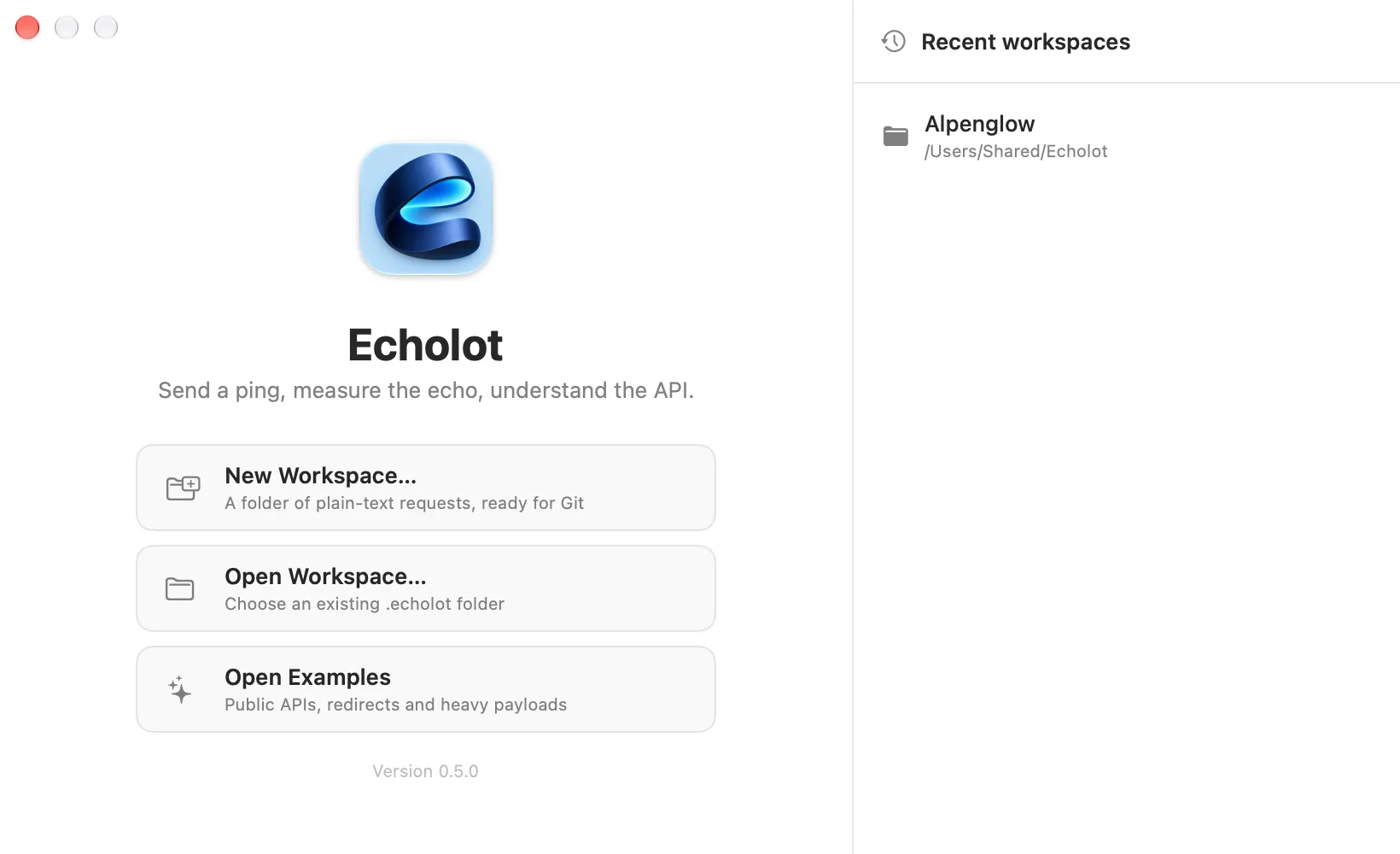
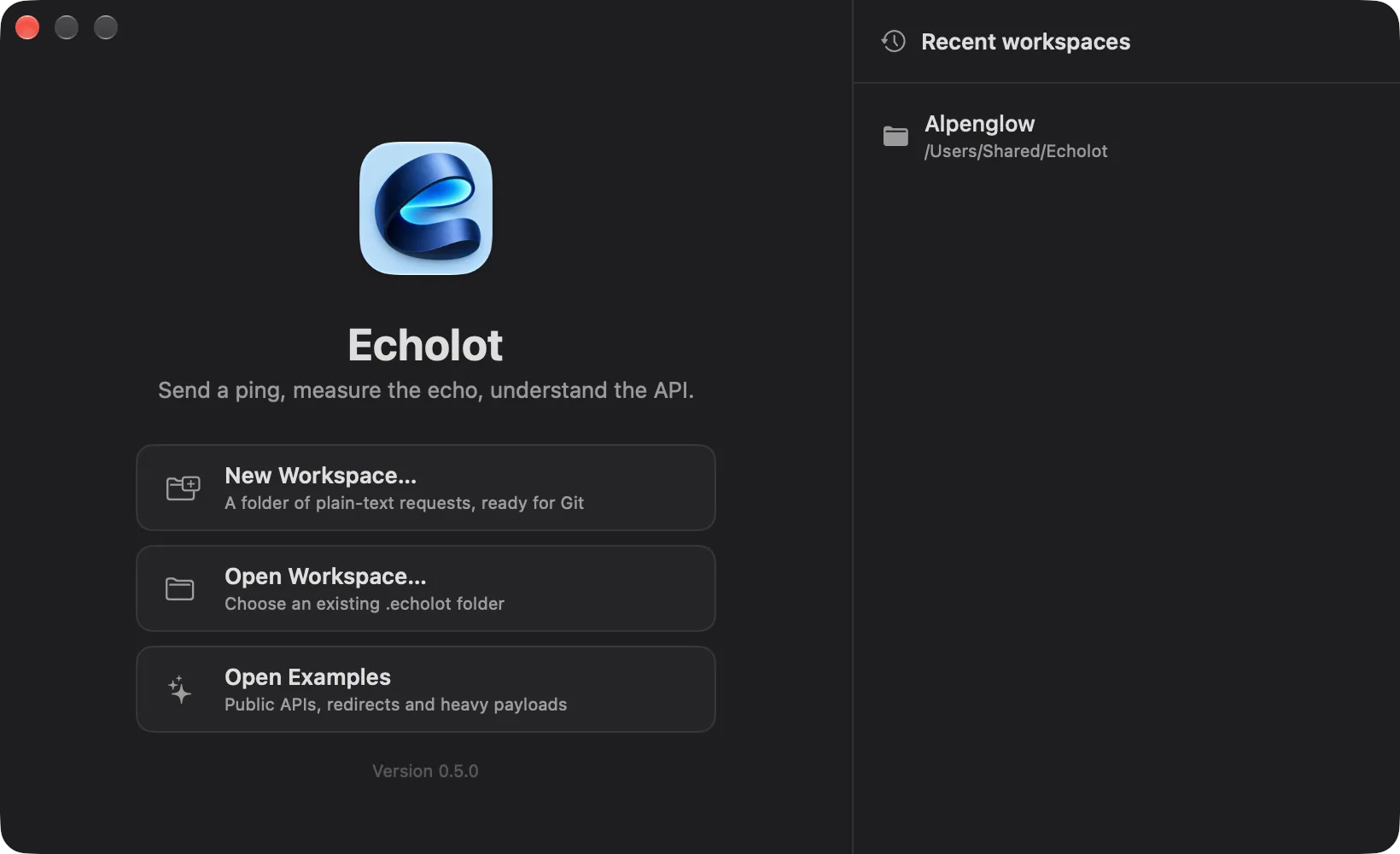
The welcome window
When no workspace is open, Echolot shows the welcome window. On the left: New Workspace…, Open Workspace… and Open Examples. On the right: Recent workspaces, each with the folder it lives in. Click one to open it.
Switch between workspaces
- File › Switch Workspace… (⌘P) shows a floating list of recent workspaces. Type to filter it, then press ↩.
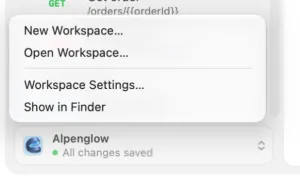
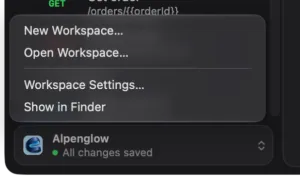
- The workspace switcher at the foot of the sidebar shows the workspace's name and whether everything is saved. Click it for Recent Workspaces, New Workspace…, Open Workspace…, Workspace Settings… and Show in Finder.
Saving
There is no Save command. Echolot writes each change to its file a moment after you stop typing. The workspace switcher shows where things stand:
| Shown | Meaning |
|---|---|
| All changes saved | Every edit is in the files. |
| Saving… | A write is under way. |
| 1 unsaved request (or more) | Edits wait to be written. A dot beside a request in the sidebar marks it. |
| Couldn’t save | A write failed. Echolot keeps the edit and tells you what went wrong. |
Closing a window or quitting Echolot writes what is left first. If an edit can't be written, Echolot asks before it lets it go.
Undo and redo
Every edit can be undone with Edit › Undo (⌘Z) and redone with Edit › Redo (⇧⌘Z): typing in a request, renaming, moving and deleting items, variables, environments, folder and workspace settings, specs, mocks and flows. Typing counts as one step until you pause. Undo belongs to the window, so it works the same on every page.
Nothing is deleted without asking
Every delete asks first: requests, folders, environments, MCP servers, specs and mocks. The red button in the question has no keyboard shortcut, so ↩ never deletes; Esc cancels. In the sidebar, ⌫ offers to delete a single request only; folders and several items are deleted from the context menu.
What you delete goes to the Trash in the Finder, never straight off the disk. To get it back, choose Edit › Undo, or move the files from the Trash into the workspace folder again.
In the Finder
An .echolot workspace is a package: the Finder shows it as one item with Echolot's icon, and a double-click opens
it. To see the files inside, Control-click it and choose Show Package Contents, or use Show in Finder in the
workspace switcher.
Press Space on a workspace in the Finder for Quick Look: its name, when it changed, and how many requests, folders, environments, variables and checks it has, with the names of its environments.
A workspace doesn't have to end in .echolot. Any folder with a workspace.toml opens, such as the root of a Git
repository.
What lives where
Alpenglow.echolot/
  workspace.toml               name, ID, workspace variables, default auth, agent rules, proxy, certificates
  environments/
    staging.toml               an environment: its name, whether it is protected, its variables
    production.toml
  requests/
    _folder.toml               the order of the top-level items
    _folder.pre.js             scripts for every request (and _folder.test.js)
    auth/
      _folder.toml             the folder's name, order, docs, auth and variables
      sign-in.req.toml         an HTTP request
      sign-in.body.json        its body, beside it
    catalog/
      search-products.gql.toml a GraphQL request
      search-products.graphql  its query
    inventory/
      list-warehouses.grpc.toml
    realtime/
      order-updates.ws.toml    WebSocket (.sio.toml Socket.IO, .mqtt.toml MQTT)
    agent-tools/
      search-catalog.mcp.toml  a saved MCP call
  mcp-servers/                 MCP servers, one file each
  specs/                       OpenAPI, GraphQL and .proto files
  mocks/                       mock servers, one file each, and their scripted routes
  flows/                       flows (.flow.toml)
Each request kind has its own file suffix: .req.toml (HTTP), .gql.toml (GraphQL), .grpc.toml, .ws.toml,
.sio.toml, .mqtt.toml and .mcp.toml. Scripts sit beside their request as <name>.pre.js and <name>.test.js.
The full format is in workspace files.
Some things never go into the workspace folder:
- Secret values. Secret variables are written by name only; their values stay in the Keychain on your Mac. See secrets.
- History and response bodies. They live in Echolot's own storage. See storage and encryption.
- Your choices on this Mac: the active environment, pane layouts, which scripts you trusted, and global variables.
So the workspace folder is safe to share, and a teammate who opens it starts from the same requests with their own secrets. See Git and teams.