 Echolot
Environments and variables
Use variables in requests, keep a set of values for each server in an environment, switch between them, and see which value wins.
A variable is a name for a value you use in many places: a base address, a user name, a token. Write it as
{{name}} in any field of a request, and Echolot puts the value in when it sends. An environment is a set of values
for one place you send to, such as Local, Staging or Production: switch the environment and every request goes there.
Use a variable
Type {{name}} in the address, a header, a parameter, the body, auth fields or the settings. In Alpenglow, every
address starts with {{baseURL}}:
{{baseURL}}/products/{{productId}}Type {{ in a field for a list of the variables the request can use, with dynamic values
such as {{$uuid}}, dates, hashes and values from other requests' responses. A variable can hold other variables:
baseURL may be https://{{host}}/v1.
A name the request can't resolve is marked in the field, and Echolot says why, such as
{{productId}} is not defined or the secret {{token}} has no value on this Mac.
Where variables are defined
Variables live at five levels, from the widest to the closest:
| Level | Where you edit it | Saved in |
|---|---|---|
| Global | Environments › Global | This Mac only, for every workspace. |
| Workspace | Environments › Workspace, or Workspace Settings… › Variables | workspace.toml |
| Environment | Environments › the environment | environments/<name>.toml |
| Folder | Folder Settings… › Variables | the folder's _folder.toml |
| Request | The request's Variables tab | the request's file |
Non-secret values are written into those files as you type them. Secret values never are: see secrets.
Which value wins
When the same name is defined at several levels, the closest one wins:
- The request's own variables.
- Its folder's, then the folders above it, from the nearest outwards.
- The active environment's.
- The workspace's.
- Global.
So the workspace holds the defaults, an environment changes what differs on its server, and a folder or a request can override both. A variable that is switched off (its checkbox cleared) is skipped, and the next level's value is used.
In Alpenglow, baseURL is https://demo.echolot.dev/v1 in the workspace. With Staging active it becomes
https://staging.alpenglow.example/v1, because Staging defines it too. With No Environment, requests use the
workspace's value and go to the demo API.
Values a script sets while it runs (with pm.environment.set and the like) last for the window or the command that ran
it, and are never written to files. See scripts and tests.
Response captures are different: they save the value they take into a workspace or
environment variable.
Choose an environment
The environment menu sits in the page header of every page. It shows the active environment with a dot: green for an environment, red for a protected one, grey for No Environment.
Click it and choose an environment, or No Environment to use only the workspace's values. Manage Environments… opens the Environments page.
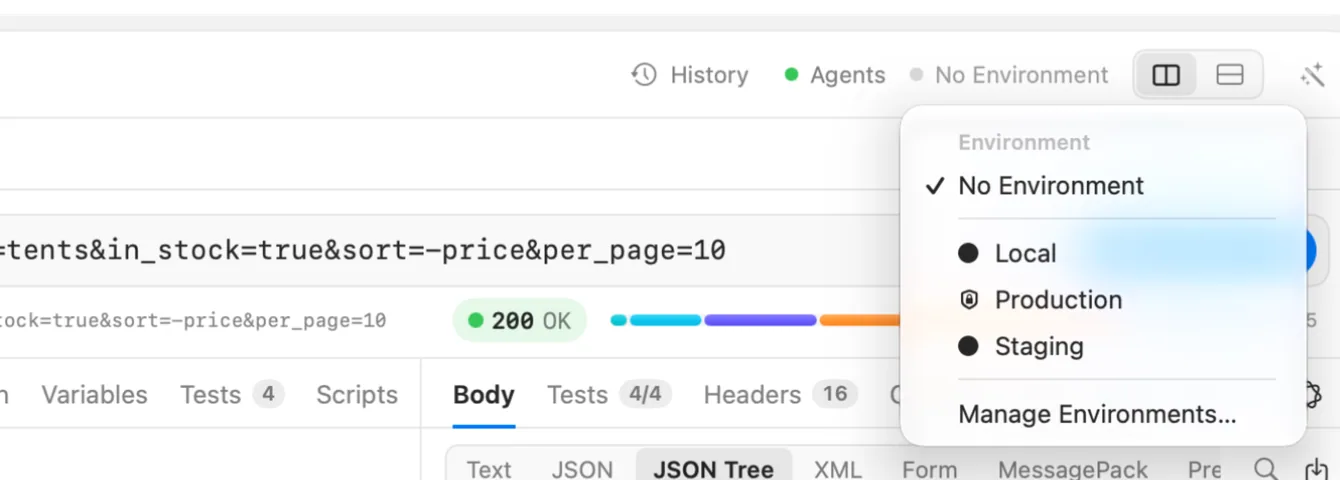
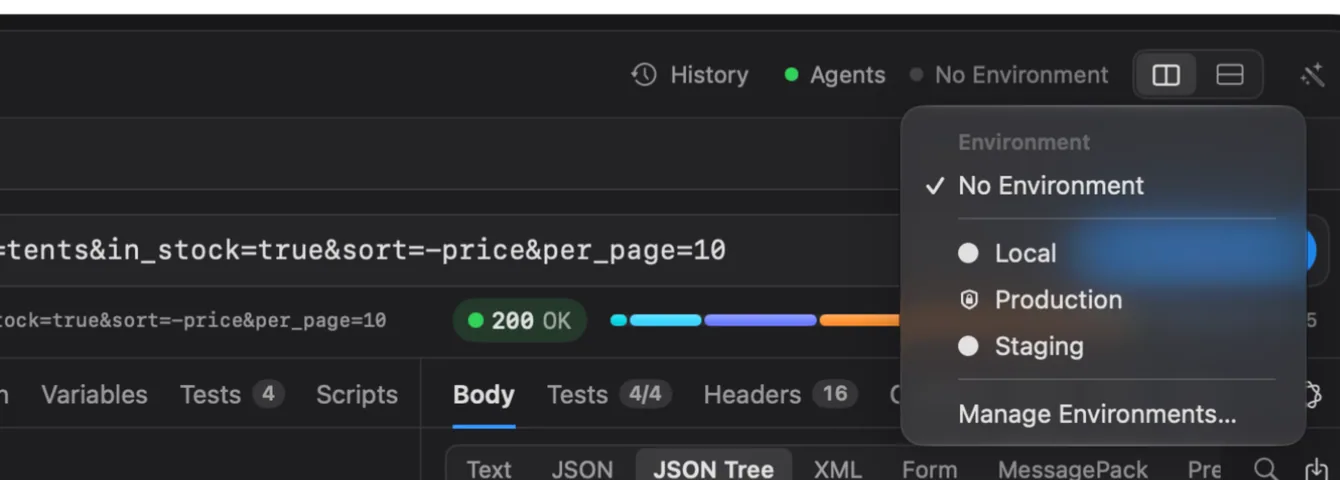
The choice belongs to the window and to this Mac. It is not written into the workspace, so choosing an environment changes no file, and each teammate picks their own. Echolot remembers it for the workspace and chooses it again the next time you open it.
The Runner, flows and Quick Send use the window's active environment
too. On the command line, choose one with --env:
echolot run Alpenglow.echolot --env staging--env takes the environment's file name without .toml, or its name.
The Environments page
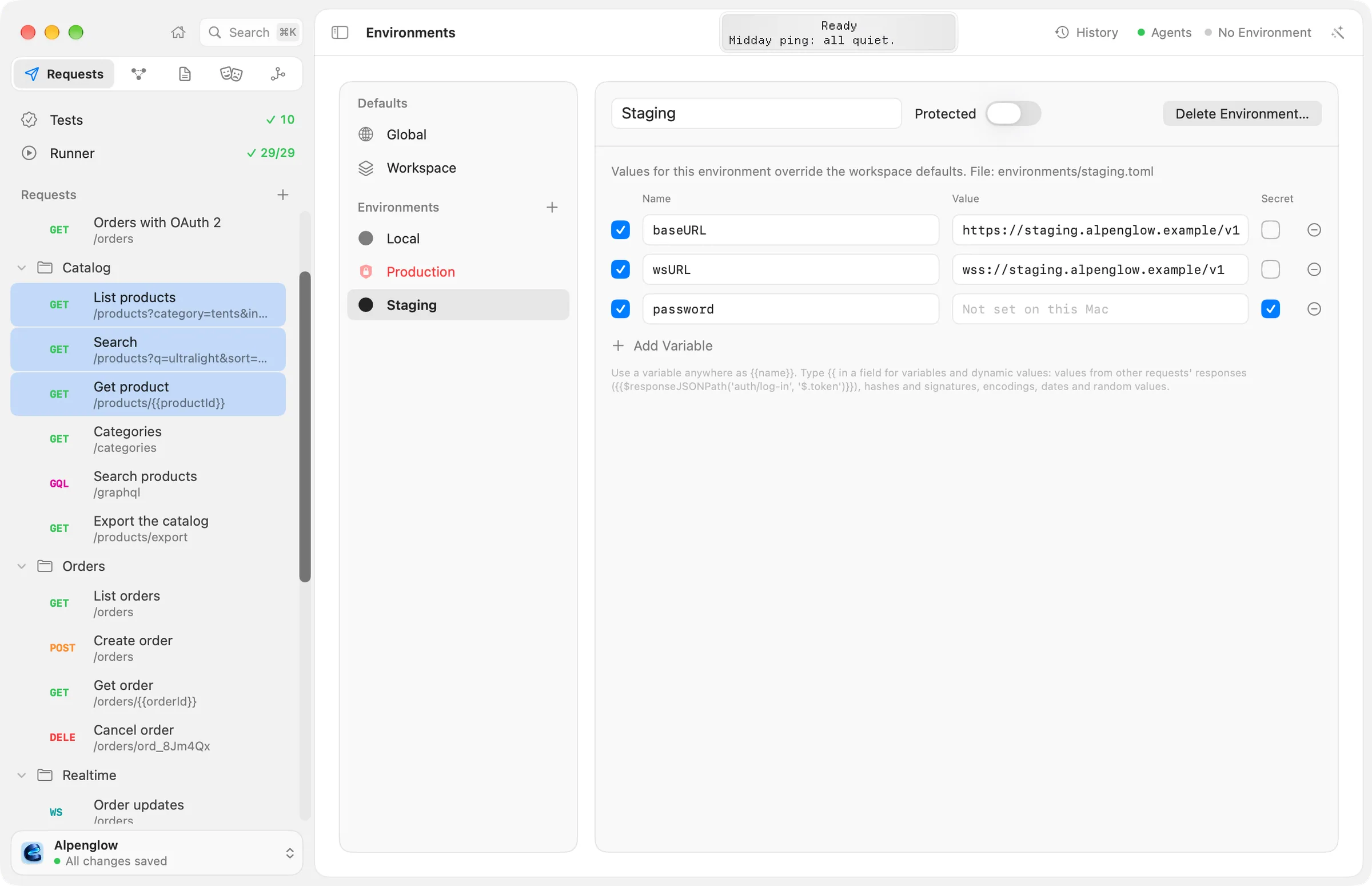
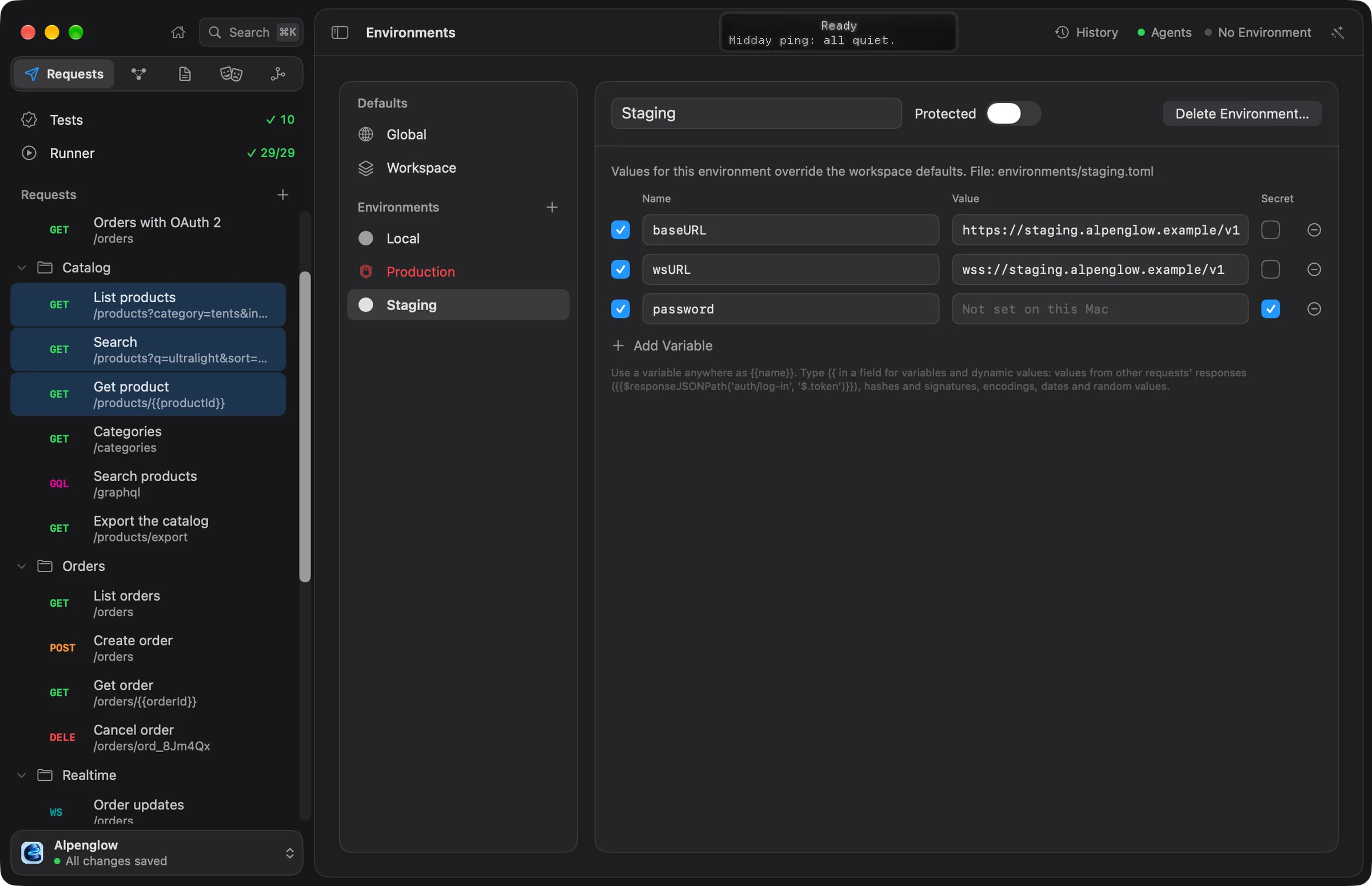
Open it with View › Environments (⌥⌘E), or Manage Environments… in the environment menu. On the left:
- Defaults: Global and Workspace.
- Environments: one row each. Active marks the one the window uses, and a shield marks a protected one.
Select a row to edit its variables on the right.
Add an environment
- On the Environments page, click + beside Environments (Add Environment).
- A new environment called
New Environmentopens. Type its name in the name field and press ↩. - Add the variables that differ on this server.
Each environment is a file in environments/. The page shows its name under the variables:
File: environments/staging.toml.
Edit variables
Each row has:
| Column | What it does |
|---|---|
| Checkbox | Switches the variable on or off without removing it. |
| Name | The name you write in {{…}}. |
| Value | The value. For a secret, a field that stores the value in the Keychain. |
| Secret | Keeps the value in the Keychain on this Mac, never in the file. See secrets. |
| − | Removes the variable. |
Click Add Variable for a new row. Echolot saves the table a moment after you stop typing, and every change can be undone with Edit › Undo.
An environment only needs the variables that differ from the workspace. Everything else comes from the workspace's defaults.
Rename, protect or delete an environment
At the top of an environment:
- The name field renames it. The file keeps its name, so anything that refers to the file still finds it. An
environment added on this page starts as
New Environment, so its file isnew-environment.tomlwhatever you call it later;--envtakes the name too. - Protected makes every send to it ask first. See protected environments.
- Delete Environment… asks, then moves its file to the Trash. If it was active, the window switches to No Environment.
Global variables
Global holds variables for every workspace on this Mac, such as your own user name. They are the widest level: any workspace, environment, folder or request with the same name overrides them. They are not part of any workspace, so teammates and the command-line tool don't see them.
See where a value comes from
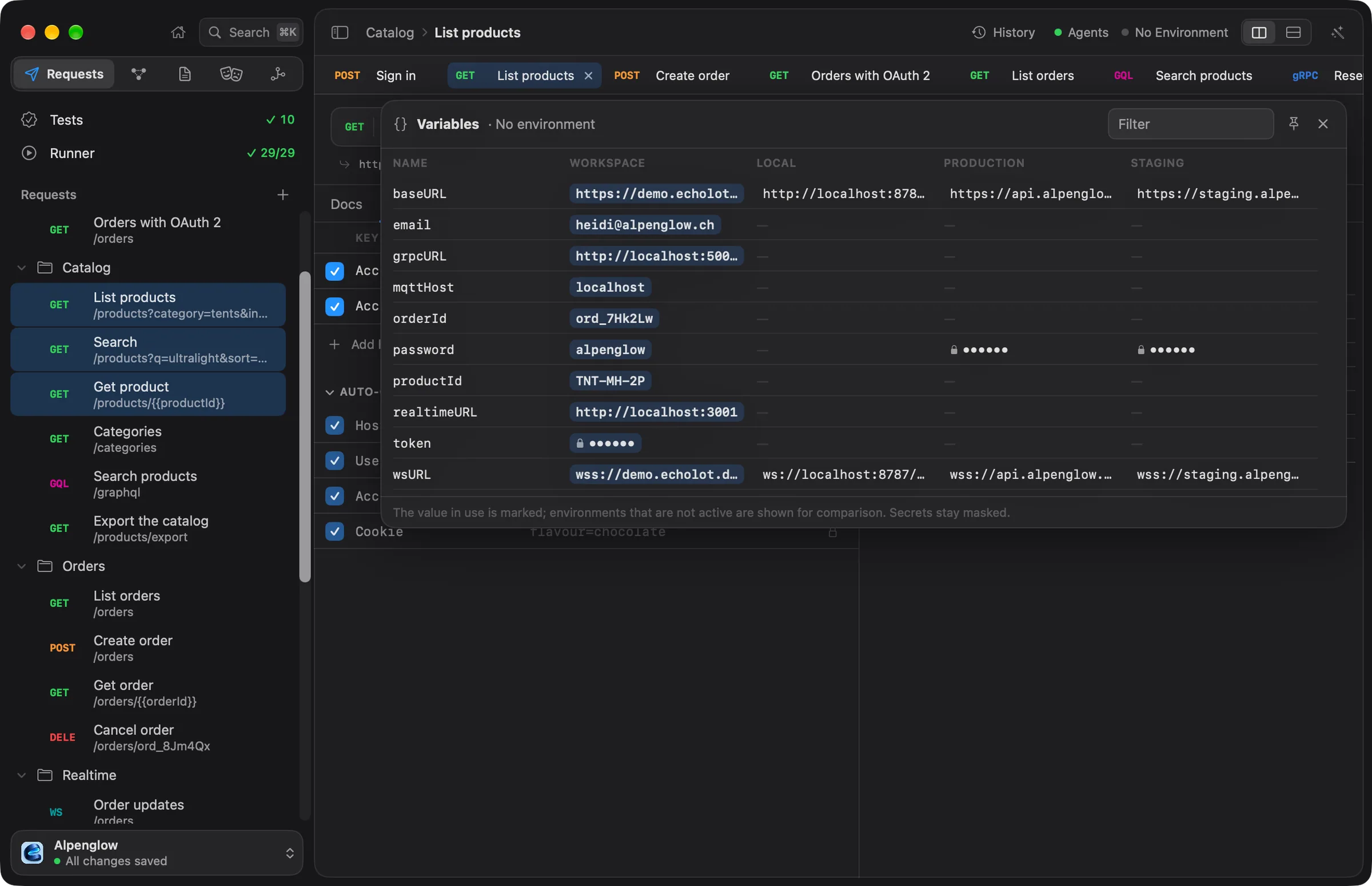
View › Show Variables (⌥⌘V) opens the Variables panel: every variable the current request can see, in columns for Global, Workspace, each environment, the request's folders and the request. The value in use is marked; environments that are not active are shown for comparison. Secrets stay masked. Click a column's title to go where it is edited. Pin the panel to keep it as a column beside the page.
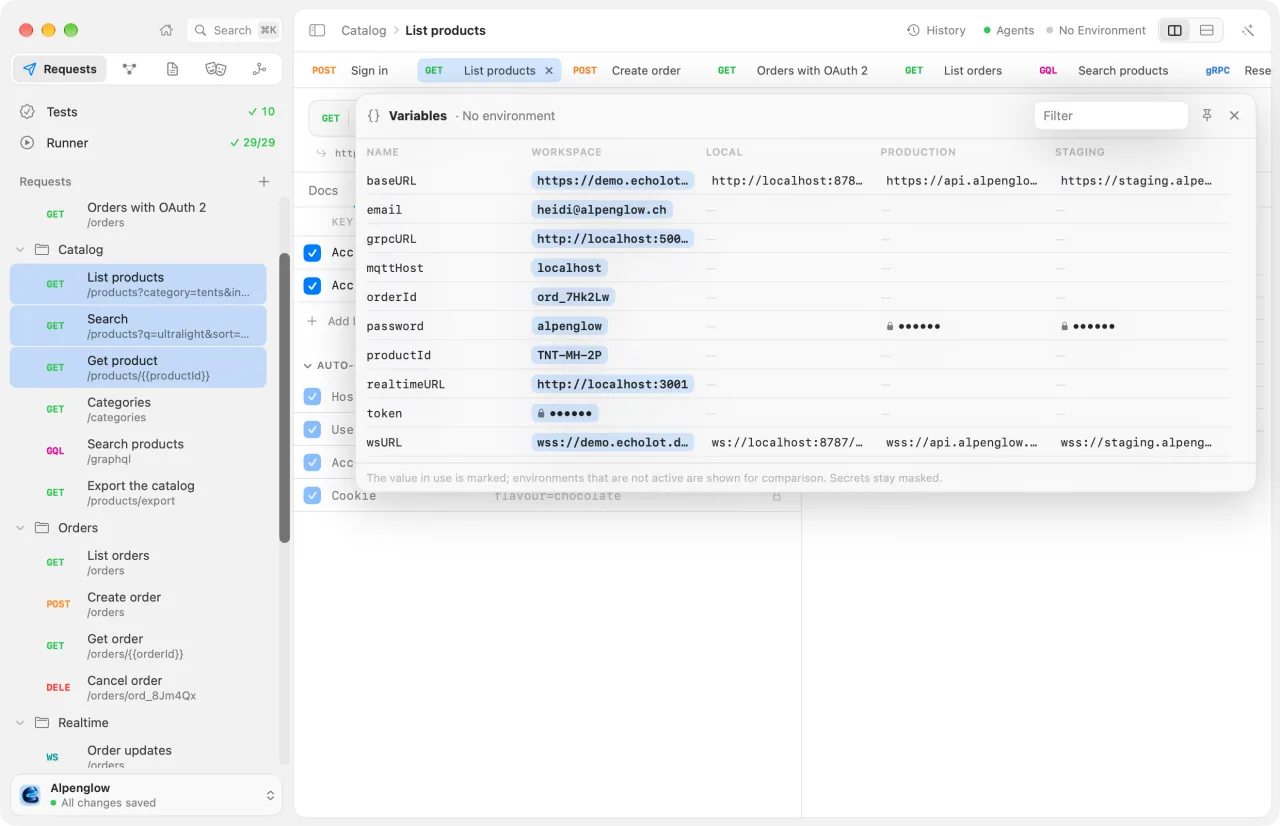
Rest the pointer on a {{variable}} in a request field for quick look: its value, which level it comes from, and
All Variables… to open the panel at it.