 Echolot
Response captures
Keep values from a response, such as a token or an ID, in variables after every send, so every other request reads the latest one.
A capture keeps a value from a request's response in a variable, after every send. Capture the access token from a
sign-in response into {{token}}, and every request that uses {{token}} sends the latest one, with no copying.
When the token is refreshed, they all get the new one.
Captures are saved with the request, so they work for everyone who has the workspace, in the Runner and in flows as well as when you click Send.
Store a value from the response
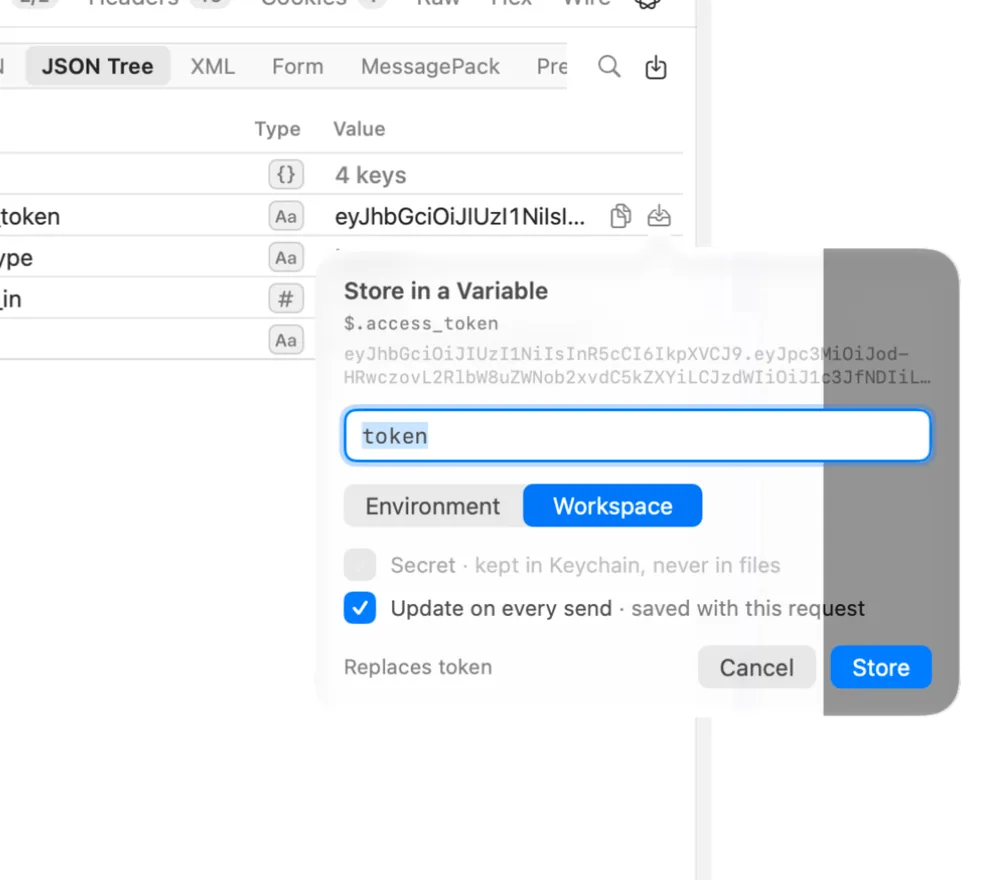
The quickest way to make a capture is from the response itself:
- Send the request. In the Alpenglow example, send Auth › Sign in.
- In the Body tab, choose JSON Tree (or Form, MessagePack or XML for those bodies).
- Rest the pointer on the value, such as
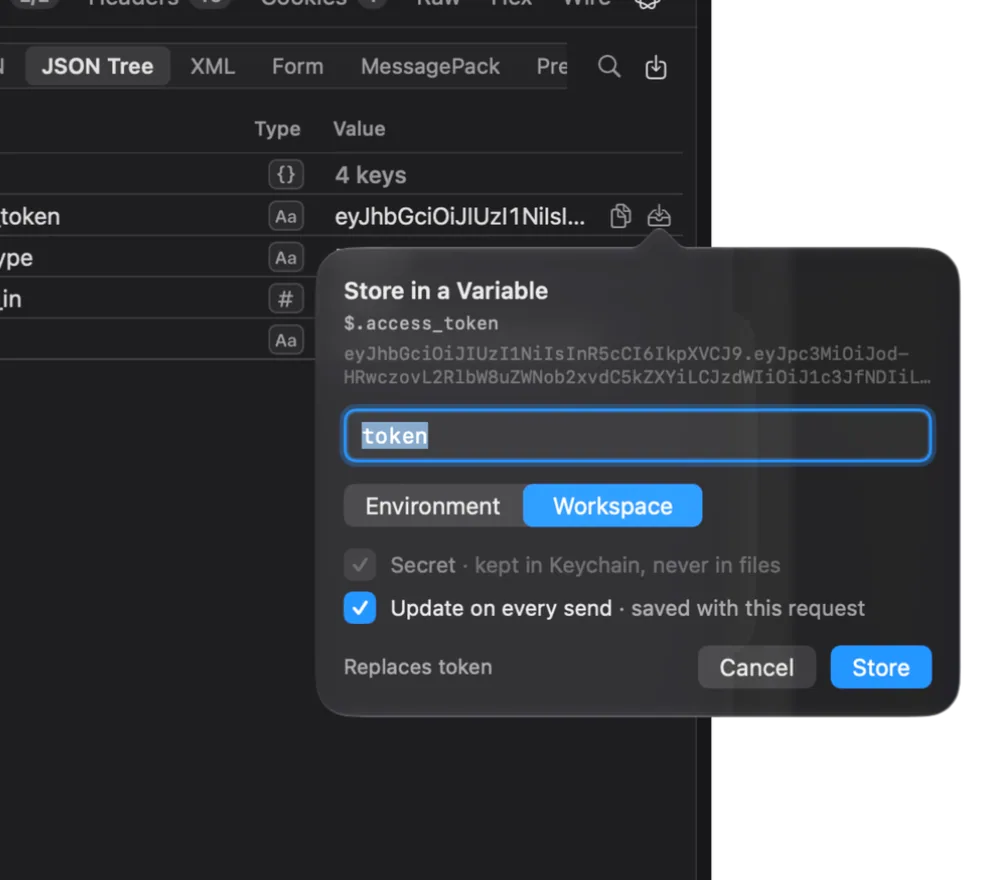
access_token, and click Store in a Variable…. - Type a Variable name, or keep the one suggested from the path. Names already in use are offered as you type; picking one replaces that variable (the panel says Replaces token).
- Under Save to, choose the window's environment (Environment “Staging”) or Workspace.
- Tick Secret to keep the value in the Keychain only, never in files. It starts ticked for names that look like
credentials (
token,secret,password,apiKeyand the like). - Leave Update on every send ticked to make it a capture of the request, saved with it. Untick it to store the value once.
- Click Store.
Edit captures
A request's captures are in its Variables tab, under From the Response, below the request's own variables. Each row is one capture:
| Column | What it holds |
|---|---|
| Checkbox | Whether the capture runs. |
| Variable | The variable's name, without braces. |
| From | Where in the response the value is read. |
| Path or Name | A JSONPath, an XPath, or a header or cookie name. |
| Saved To | Environment (the one chosen for the window when the request is sent) or Workspace. |
| Secret | Kept in the Keychain on this Mac, never in workspace files. A variable that is a secret already stays one. |
Click Add Value for a new row, and the − button to remove one. After a send, each row shows a green tick when it saved its value, or an orange warning with the reason when it didn't.
Where values come from
| From | Path or Name | Example |
|---|---|---|
| JSON | A JSONPath into a JSON body. | $.access_token |
| Form | A JSONPath into a URL-encoded body, read as an object. | $.access_token |
| MessagePack | A JSONPath into a MessagePack body, read as JSON. | $.access_token |
| XML | An XPath into an XML body. | /auth/token |
| Header | A response header, by name. | Location |
| Cookie | A cookie the response sets, by name. | session |
| Status | The status code. | |
| Body | The whole body, as text. |
Environment or workspace
- Environment writes the variable in the environment chosen for the window at the time of the send. Use it for values that differ per server, such as a staging token and a production token. With no environment chosen, nothing is saved and the row says to choose one or save to the workspace.
- Workspace writes a workspace variable, the same whatever environment is chosen.
An environment's value wins over the workspace's for the same name, so a capture into the workspace is hidden when the chosen environment has a variable of that name. See Environments.
Secrets
A captured secret is written to the Keychain only. The workspace file names the variable but never holds its value, so you can commit the workspace. Turn Secret on for every token, session ID or key you capture. See Secrets.
In Alpenglow, Auth › Sign in captures $.access_token into the workspace secret token, and the Orders
folder sends it as a Bearer token.
When nothing is captured
A capture leaves its variable as it was, and says why after the send, when:
- the response's status is 400 or more: values are only kept from responses below 400, so a failed sign-in never overwrites a good token,
- the path finds nothing in the response,
- the body is larger than 32 MB,
- it saves to the environment and no environment is chosen,
- the write isn't allowed: when an AI agent sends the request, its policy decides whether it may change variables. See Agents.
Captures or response values
Dynamic values such as
{{$response('auth/sign-in', '$.access_token')}} read one request's latest response directly, and send it first if
it has none. A capture copies the value into a variable instead, which suits a value that many requests use or that
several requests can refresh. Both read the same JSONPath and XPath.