 Echolot
HTTP requests
Create, send and save HTTP requests, and find your way around the request page.
A request is one saved call to an API: its method, URL, headers, body, auth and settings, kept as a file in your workspace. This page covers HTTP requests from start to finish. The other kinds of request (GraphQL, gRPC, WebSocket and SSE, Socket.IO, MQTT and MCP calls) use the same page with different tabs; see request kinds at the end.
Create a request
- Choose File › New Request (⌘N). The request is added to the folder you have selected in the sidebar, named New Request, and opens in a tab.
- Or click the + menu beside Requests in the sidebar and choose New Request. The same menu creates the other kinds and folders, and imports files.
- Or right-click a folder in the sidebar and choose New Request to put it straight into that folder.
- To start from a cURL command, create a request and paste the command into the URL field. Echolot fills in the method, URL, headers, body, auth and settings from it. Options it can't take show as cURL notes under the URL bar; click them to read what was left out.
Rename a request with Edit › Rename or by right-clicking it in the sidebar. Edit › Duplicate (⌘D) makes a copy beside it.
The request page
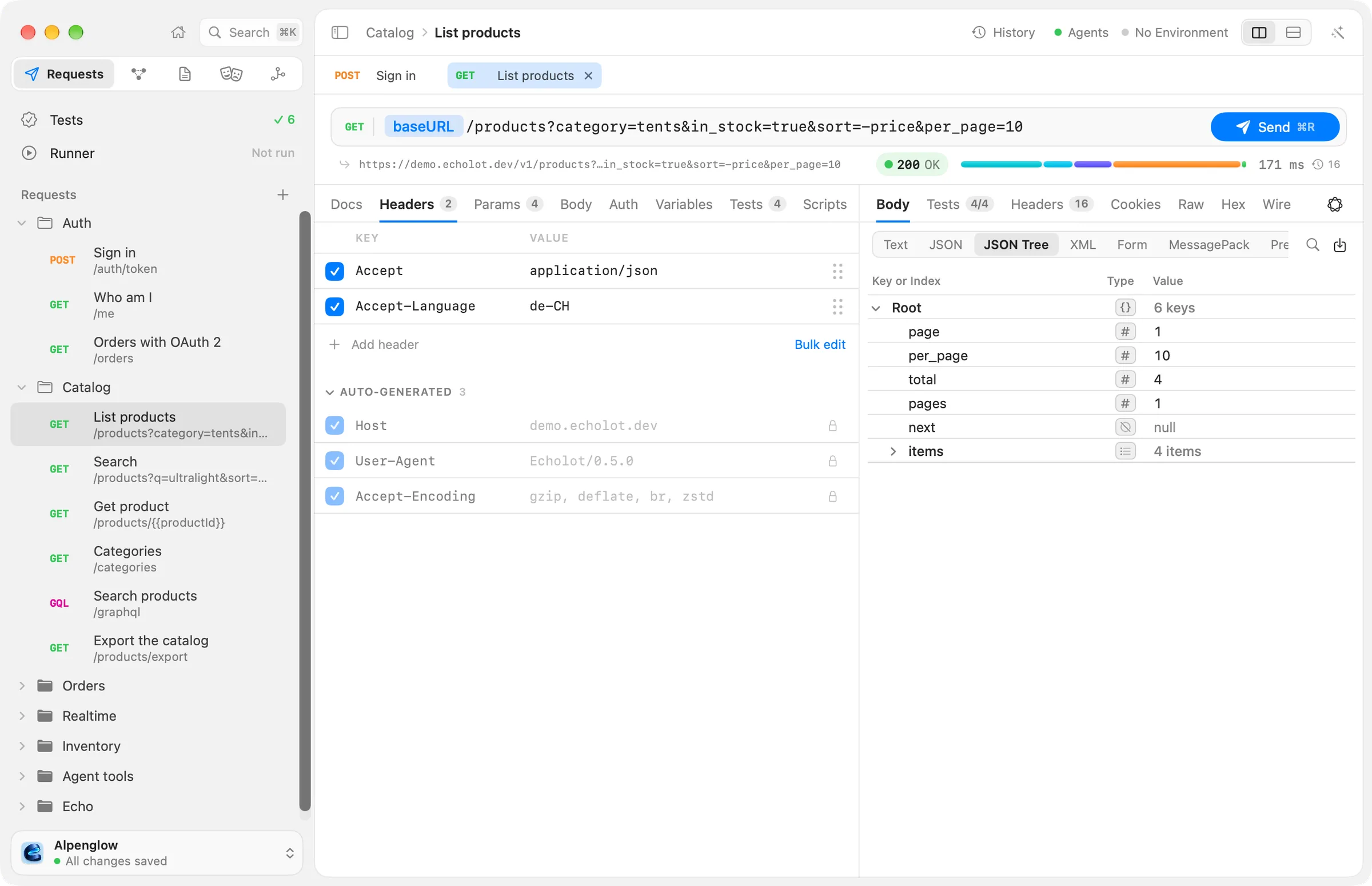
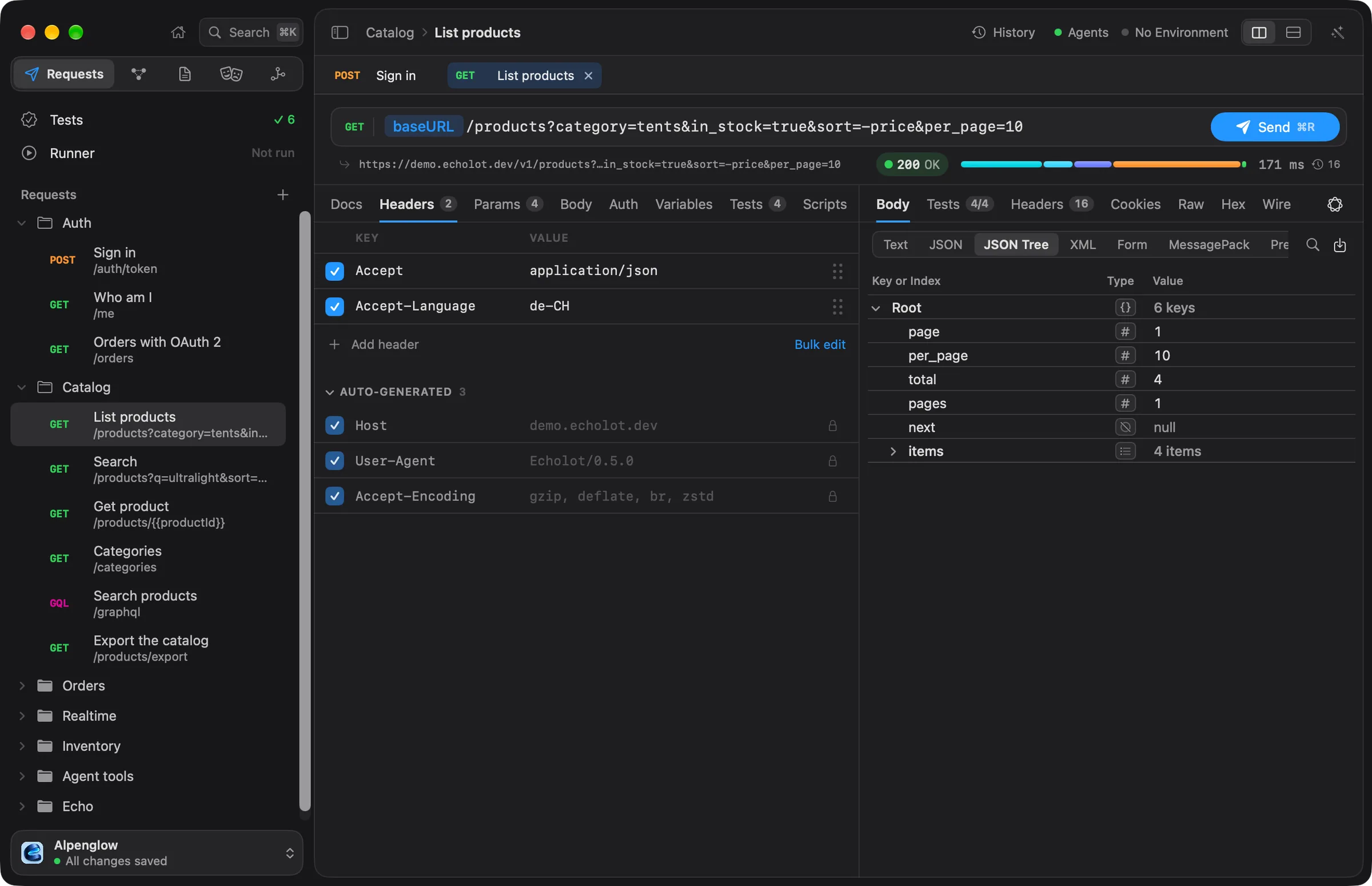
From top to bottom:
- The URL bar: the method, the URL and Send.
- The line under it: the URL as it will be sent, with every variable filled in from the current environment (secrets stay masked), and on the right, after a send, the status, a timeline of the exchange and its time.
- Two panes: the request's tabs on one side, the response on the other.
The request's tabs are Docs, Headers, Params, Body, Auth, Variables, Tests, Scripts and Settings. A tab that holds something shows a dot or a count, so you can see at a glance that a request has three headers or a body.
The panes sit side by side, or one above the other. Choose View › Panes to switch between Side by Side and Stacked; the choice is kept for each kind of request. Drag the divider to resize the panes, and choose View › Panes › Reset Pane Sizes to go back to the default sizes. A window too narrow for both panes side by side stacks them by itself.
Method and URL
Click the method badge to choose GET, POST, PUT, PATCH, DELETE, HEAD or OPTIONS.
Type the URL into the field beside it. Use {{variables}} anywhere in it, such as {{baseURL}}/products. When you
type {{, a list opens with the variables in scope and the dynamic values. A
variable shows as a pill; rest the pointer on it to see its value, and double-click it to change it. Variables come
from environments, the workspace and folders.
If something in the URL can't be resolved, the line under the URL bar says 1 problem (or how many). Click it to see which variables are missing. Unresolved tokens are sent as written.
When the request reads another request's response (for example with {{$response('auth/sign-in', '$.access_token')}})
and that request has no response yet, the line says Sends “Sign in” first: Echolot sends that request before
this one.
Query parameters
The Params tab shows the URL's query as rows of KEY and VALUE. The two stay in step: edit a row and the
URL changes; type ?page=2 into the URL and a row appears.
- Click Add parameter to add one.
- Untick a row to stop sending it. Unticked parameters stay with the request but leave the URL.
&,#and spaces you type in a name or value are percent-encoded for you.
Headers
The Headers tab lists the headers you set, in the order you set them, with their names' case kept as written.
- Click Add header and type a name. Echolot completes header names with a note on what each is for, and offers the usual values once you pick one.
- Untick a header to keep it without sending it.
- Drag a row by its handle to reorder it, or right-click it for Move Up, Move Down and Remove.
- Click Bulk edit to edit every header as text, one
Name: valueper line. A line starting with//is a header that is switched off.
Below your headers, AUTO-GENERATED lists what Echolot adds when it sends: the headers your auth, your body's
type and the cookie jar produce, and the ones every HTTP request needs. They are shown exactly as they go out, with
credentials masked. Rest the pointer on one to see where it comes from. To send your own value instead, add a header
with the same name, or right-click the row and choose Replace with My Own. An Authorization header you write
yourself is sent instead of the one the Auth tab would add.
To stop Echolot adding headers of its own, turn on Raw mode in the Settings tab.
Body, auth and settings
- Body: JSON, URL-encoded and multipart forms, GraphQL, text, XML, HTML, or a file. See Request body.
- Auth: Basic, Bearer, API keys, OAuth 2.0, AWS Signature and more, or the folder's auth. See Authentication.
- Settings: the HTTP version, redirects, cookies, TLS, the timeout and raw mode. See Request settings.
- Variables: values only this request uses, and values it keeps from its response. See Response captures.
- Tests and Scripts: checks on the response, and JavaScript before and after the send. See Scripts and tests.
- Docs: notes on what the request is for, for you and your team.
Send and cancel
Click Send, or press ⌘R. Pressing ↩ in the URL field and ⌘↩ send too. Request › Send does the same from the menu bar.
While the request runs, Send turns into Cancel: click it or press ⌘. to stop. The response streams into the response pane as it arrives, so you can read the start of a large body before the end has come.
When the window's environment is protected, the button reads Send to Production… (with the environment's name) and every send asks first. See Protected environments.
Other actions on the current request are in the Request menu:
| Menu item | Shortcut | What it does |
|---|---|---|
| Copy as cURL | ⌥⌘C | Copies the request as a curl command. |
| Generate Code… | ⌥⌘G | Shows the request as code: cURL, Swift (URLSession), JavaScript (fetch, axios), TypeScript (fetch), Python (requests, httpx), Go (net/http), Kotlin (OkHttp), Java (HttpClient), C# (HttpClient), PHP (cURL) or Rust (reqwest). |
| Export Exchange as HAR… | Saves the latest exchange as a HAR file. | |
| Find in Body | ⌘F | Searches the response body. |
Generate Code… fills in the request's variables. Scripts don't run, and secrets appear as they are, so take care where you paste the code. Open Templates Folder in that sheet shows the templates the code comes from.
Tabs
Each request you open gets a tab above the editor.
| Action | How |
|---|---|
| Next tab | Tabs › Show Next Tab, ⇧⌘] |
| Previous tab | Tabs › Show Previous Tab, ⇧⌘[ |
| Close the tab | File › Close Tab, ⌘W |
| Reopen the last closed tab | Tabs › Reopen Closed Tab, ⇧⌘T |
Saving
There is no Save command: every edit saves itself to the request's file a moment after you make it, and every edit can be undone with Edit › Undo (⌘Z). Closing a tab or quitting waits until the last edit is written.
If the file changes on disk while you have edits Echolot hasn't written yet (after a git pull, say), a bar says
This request changed on disk. Choose Keep Mine to keep your edits and write them over the file, or
Use Theirs to drop your edits and load the file. See Git and teams.
The response at a glance
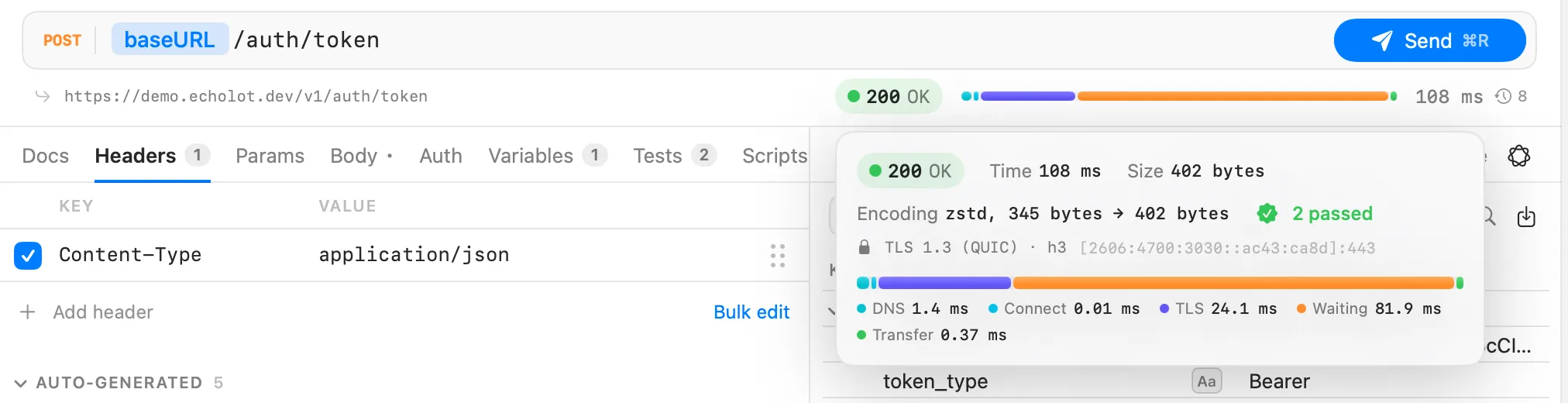
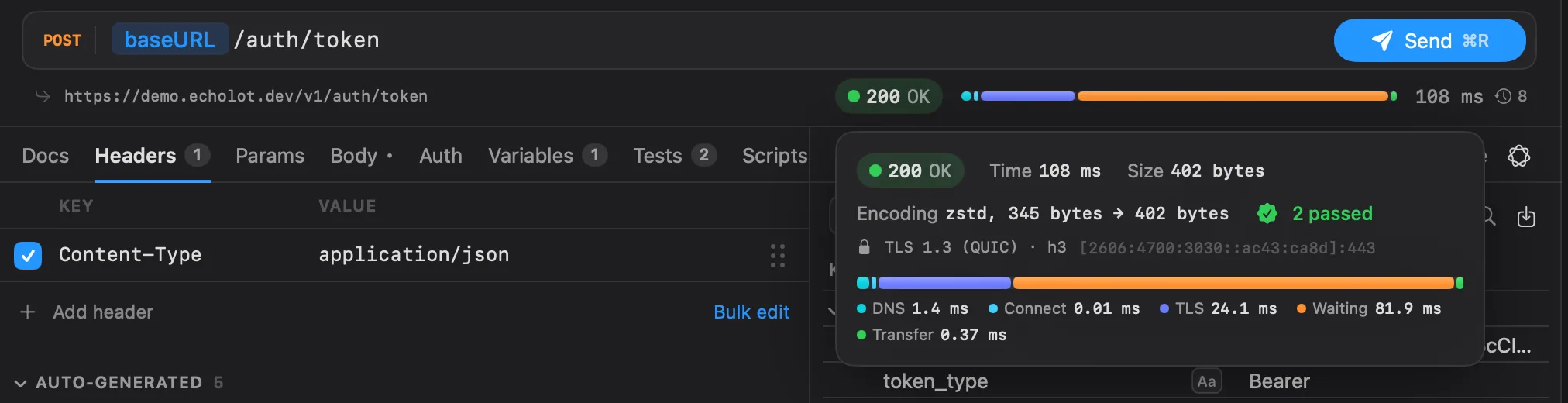
After a send, the line under the URL bar shows the status (green for 2xx, and so on), a bar of the exchange's phases and the total time. Rest the pointer on that line for the details: size, compression, redirects, checks, TLS, the server's address and how long each phase took.
The response pane has the body in several views, the headers, cookies, the raw message, a hex view and the bytes on the wire. The clock button with a count at the end of the line opens this request's earlier responses. See Responses.
Before the first send, the response pane says Send a ping.
Request kinds
The same request page sends every protocol Echolot speaks. Create them from File or the sidebar's + menu.
| Kind | Menu item | Page |
|---|---|---|
| HTTP | New Request | This page |
| GraphQL | New GraphQL Request | GraphQL |
| gRPC | New gRPC Request | gRPC |
| WebSocket | New WebSocket Request | WebSocket and SSE |
| Server-Sent Events | New Request (an HTTP request whose server streams events) | WebSocket and SSE |
| Socket.IO | New Socket.IO Request | Socket.IO |
| MQTT | New MQTT Request | MQTT |
| MCP | New MCP Call (sidebar + menu) | MCP requests |
To send many requests in a row, with checks and data files, use the Runner.