 Echolot
Request settings
Choose the HTTP version, redirects, cookies, decompression, TLS checks, the timeout and raw mode for a request, and set proxies and certificates.
The Settings tab holds how a request travels: which HTTP version, whether it follows redirects, keeps cookies, checks certificates, and how long it may take. Proxies and certificates are set for the whole workspace or the app, further down this page.
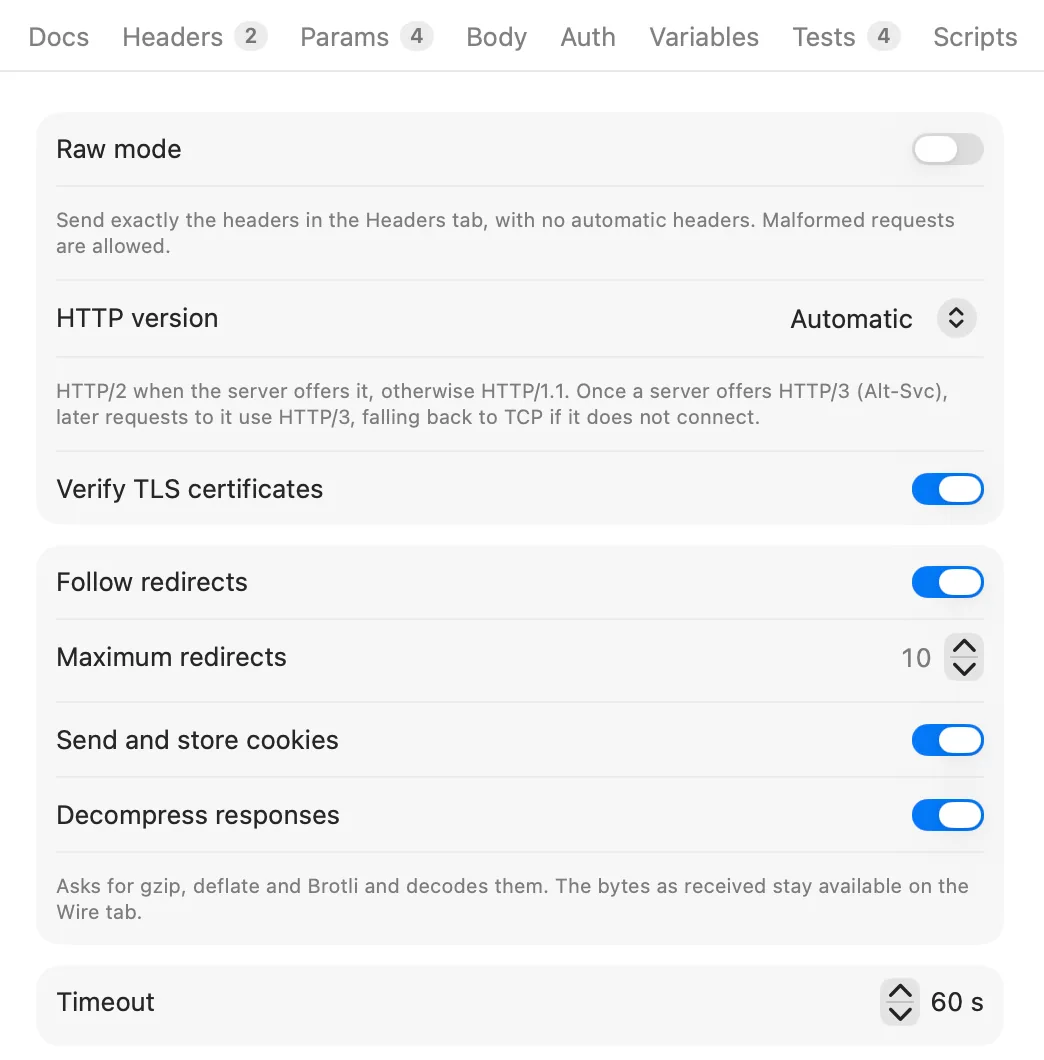
The Settings tab
| Setting | Default | What it does |
|---|---|---|
| Raw mode | Off | Sends exactly the headers in the Headers tab, with nothing added. |
| HTTP version | Automatic | Automatic, HTTP/1.1, HTTP/2 or HTTP/3. |
| Verify TLS certificates | On | Checks the server's certificate on https:// addresses. |
| Follow redirects | On | Follows 3xx responses, up to Maximum redirects. |
| Maximum redirects | 10 | From 1 to 50. |
| Send and store cookies | On | Sends the cookies the window's jar holds for the address, and keeps the ones the response sets. |
| Decompress responses | On | Asks for compressed responses and decodes them. |
| Timeout | 60 s | The time the whole exchange may take, from 1 second to an hour, in steps of 5 seconds. |
Only the settings you change are saved in the request's file. The tab shows a dot when any setting differs from its default, and reads Settings (Raw) while raw mode is on. Reset to Defaults puts every setting back.
In the request file the settings look like this:
[settings]
http-version = "http2"
follow-redirects = false
timeout = 10.0
HTTP version
| Choice | What Echolot sends |
|---|---|
| Automatic | HTTP/2 when the server offers it, otherwise HTTP/1.1. Once a server offers HTTP/3 (with an Alt-Svc header), later requests to it use HTTP/3, falling back to TCP if it doesn't connect. |
| HTTP/1.1 | HTTP/1.1 only. |
| HTTP/2 | HTTP/2 only: over TLS, or over plain http:// with prior knowledge (h2c). |
| HTTP/3 | HTTP/3 over QUIC only. |
HTTP/3 has limits:
- It needs macOS 27 or later. On an older Mac, the tab says so and a request set to HTTP/3 can't be sent; Automatic stays on HTTP/2 and HTTP/1.1.
https://addresses only.- No proxies (the system's included), no custom CA files and no client certificates. A request set to HTTP/3 that needs one of these is refused with the reason. On Automatic, such requests stay on TCP.
- Raw mode can't be used with HTTP/3.
On Automatic, when a response offers HTTP/3, its details card shows HTTP/3 offered. If the next request's QUIC connection fails, Echolot sends it over TCP instead, forgets the offer, and the details card says why. Nothing is sent twice.
Two more cases switch versions by themselves:
- NTLM needs HTTP/1.1. On Automatic, NTLM requests go over HTTP/1.1; on HTTP/2 or HTTP/3 they are refused.
- When a server resets an HTTP/2 request with
HTTP_1_1_REQUIRED, Echolot talks HTTP/1.1 to that server from then on. A request that is safe to repeat is sent again over HTTP/1.1 at once; any other request stops with an error saying so, and goes over HTTP/1.1 when you send it again.
The response's details card shows the version that was used, next to the TLS version.
Redirects
With Follow redirects on, Echolot follows 301, 302, 303, 307 and 308 responses to http:// and
https:// addresses:
303becomes aGET(aHEADstays aHEAD), without the body.301and302turn aPOSTinto aGET, as browsers do.307and308keep the method and the body.
Every hop is recorded. The details card shows 3 redirects (or how many); click it to see each hop's status, method, address and time, and the final address. Try it with Echo › Follow redirects in Alpenglow.
A redirect to another origin drops your credentials: the Authorization and Cookie headers, API key headers,
headers that hold a secret, signing (Digest, AWS, Hawk, EdgeGrid, NTLM) and the client certificate. See
Credentials stay with their origin.
With Follow redirects off, the 3xx response is the response.
Cookies
Each window has a cookie jar. With Send and store cookies on, a request sends the jar's cookies that match its address, and the cookies its response sets go into the jar. Turn it off for a request that should neither send nor keep any.
The response's Cookies tab shows what was Sent with the request, what was Set by the response, and what is Stored in this window. Remove one cookie with its button, or all of them with Clear All. See Responses.
The jar follows the browser rules: a response can't set a cookie for a whole public suffix such as .com or
.co.uk. Try Echo › Set a cookie in Alpenglow, then any other request to demo.echolot.dev.
Decompress responses
With Decompress responses on, Echolot sends Accept-Encoding: gzip, deflate, br, zstd (unless you set that header
yourself) and decodes gzip, deflate, Brotli and Zstandard responses. The
Body tab shows the decoded body; the bytes as they came stay on the Wire tab, and the body's save menu offers
Save Encoded Body…. The details card says, for example, br, 12 KB → 48 KB.
Turn it off to see a response exactly as the server compressed it, or to send no Accept-Encoding header.
Verify TLS certificates
Leave this on unless you are testing against a server whose certificate your Mac doesn't trust and you can't add its CA. With it off, the details card shows an orange open lock, and its popover says Certificate verification is off.
A better way for a private CA is to trust it for that host: see Certificates.
Timeout
The timeout is the total time the exchange may take, from connecting to the last byte. When it runs out, the request stops with The request timed out and the connection is closed.
Raw mode
Raw mode is for sending a request byte for byte as you wrote it, including a malformed one, to test how a server
handles it. Echolot leaves out the headers it adds to every request (Host, User-Agent, Accept,
Accept-Encoding, Cookie, Content-Length and framing) and doesn't check that the request is well-formed. Under
AUTO-GENERATED, the Headers tab says Raw mode: Echolot adds no headers; only the ones above are sent.
For a request that sends only your own headers, also set Auth to No Auth and write your own Content-Type
if the body needs one. Raw mode writes HTTP/1.1, so it can't be used with HTTP/3.
Retries
Echolot keeps connections open and reuses them, which saves the DNS, connect and TLS time; the details card says Reused connection when it does. Sometimes a server has closed a kept-open connection just as a request goes out. Then:
- A request that is safe to repeat is sent again on a new connection: a
GET,HEAD,OPTIONS,TRACE,PUTorDELETE, or any request with anIdempotency-Keyheader. The details card says it was sent again. - Any other request (a
POSTwithoutIdempotency-Key, say) is not sent again, because the server may have acted on it. It stops with The connection closed before any response arrived; the server may have applied the request.
Echolot never retries in any other case.
Proxies
Requests go through the proxy chosen in Settings › Network by default:
| Proxy | Meaning |
|---|---|
| System Settings | The HTTP, HTTPS and SOCKS proxies from System Settings › Network, with their exceptions. Automatic proxy configuration (PAC) is not used. |
| None | Every request connects directly. |
| Manual | An HTTP, HTTPS (TLS to the proxy) or SOCKS5 proxy, such as http://proxy:3128 or socks5://host:1080, with an optional user name and password (kept in the Keychain), and hosts to reach directly under Go direct to (localhost, *.internal). |
A workspace can set its own proxy, which goes with it to teammates and the command-line tool:
- Open Workspace Settings… from the workspace switcher at the foot of the sidebar.
- Choose the Proxy tab and turn off Use the app's proxy setting.
- Choose System Settings, Environment (HTTPS_PROXY…) (reads
HTTPS_PROXY,HTTP_PROXYandNO_PROXY), None or Manual. - For Manual, fill in Proxy (it takes variables, such as
{{proxy}}), User name and Password, and Go direct to. Write the password as a secret variable,{{proxy_password}}: workspace files never hold secrets. A literal password offers Move to Keychain.
HTTP/3 never goes through a proxy. See Workspaces.
Certificates
For a host that uses a private certificate authority, or that wants a client certificate (mutual TLS), add a rule in the workspace:
- Open Workspace Settings… and choose the Certificates tab.
- Click Add Host and type the host, such as
api.example.com, or*.internalfor every subdomain. - Next to Trust CAs, click Choose… and pick one or more PEM files. They are trusted besides the system's.
- For a client certificate, choose the file next to Client certificate: a PEM file or a
.p12(.pfx). For a PEM certificate whose file has no key, choose the Private key file too. - If the key or
.p12has a passphrase, write it as a secret variable in Passphrase, such as{{p12_passphrase}}.
The first rule that matches a host counts. Files inside the workspace are saved as paths relative to it, so the rule works for everyone who has the workspace. Each rule's certificates are used only for its host: a redirect to another host never presents the first host's client certificate.
Mac App Store edition
The App Store edition can read only files you picked. CA files, client certificates and keys you choose here stay readable for later sends. A rule a teammate made, pointing at files outside the workspace, needs you to give the app those files once: the send stops and the response pane offers Allow Access….
Compare the editionsApp-wide settings
The proxy is the one request setting with an app-wide default (Settings › Network). Every other setting starts from the defaults in the table above for each request, and the request's file keeps what you change. To change settings for many requests at once, select them in the sidebar and use Edit N Requests… for their headers, parameters and auth, or edit the files.
Authentication
Sign requests in with Basic, Digest, Bearer, API keys, OAuth 1.0, OAuth 2.0, AWS Signature, JWT, Hawk, Akamai EdgeGrid or NTLM, and share auth through folders.
Responses
Read a response's status, timing, body, headers, cookies and wire bytes, search large bodies, compare responses and save them.