 Echolot
Responses
Read a response's status, timing, body, headers, cookies and wire bytes, search large bodies, compare responses and save them.
Everything a server sends back shows in the response pane: the body in the view that suits it, the headers, the cookies, the message as it came, its bytes in hex and on the wire. The status and timing sit in the line under the URL bar. Bodies are written to disk as they arrive, so a response of hundreds of megabytes opens as fast as a small one.
Status, time and size
After a send, the line under the URL bar shows:
- the status, coloured by its class (2xx, 3xx, 4xx, 5xx); a request that didn't get a response shows Failed or Cancelled instead,
- a bar for each phase of the exchange, growing while the request runs,
- the total time.
Rest the pointer on the line and a card opens with the details:
| In the card | What it says |
|---|---|
| Status | The status code and reason. |
| Time | The total time of the exchange. |
| Size | The body's size; while a body arrives, how much has come out of how much. |
| Encoding | The compression and the sizes before and after decoding, such as br, 12 KB → 48 KB, or that it couldn't be decoded. |
| 3 redirects | The redirects followed; click for each hop's status, method, address and time. |
| Checks | How many of the request's checks passed. |
| Reused connection | The request went on a connection kept open from an earlier one: no DNS, connect or TLS time. |
| TLS | The TLS version and protocol, such as TLS 1.3 · h2. Click it for the certificates: subject, Issuer, Valid dates and Names. An orange open lock means verification was off. |
| HTTP/3 offered | The server offered HTTP/3 with Alt-Svc; see HTTP version. |
| Address | The server's IP address and port. |
| Timeline | DNS, Connect, TLS, Waiting (until the first byte of the response) and Transfer, each with its time. |
When a request was sent again (on a new connection, or over HTTP/1.1), the card says why. When it failed, the card shows the error.
The response tabs
| Tab | What it shows |
|---|---|
| Body | The body, in the view you choose. |
| Events | Server-Sent Events and other event streams, one event per row. See WebSocket and SSE. |
| Tests | The results of the request's checks and script tests, with a count such as 3/4. |
| Console | What the request's scripts logged; only when scripts ran. See Scripts and tests. |
| Headers | The response headers, with a count. |
| Cookies | The cookies sent and set, and the window's cookie jar. |
| Raw | The response as one HTTP message: status line, headers, a blank line and the body. |
| Hex | The body's bytes. |
| Wire | The bytes sent and received, exactly as they went over the connection. |
Body views
Choose a view in the row at the top of the Body tab:
| View | What it shows |
|---|---|
| Text | The body as it arrived, coloured by its content type. |
| JSON | The JSON pretty-printed. |
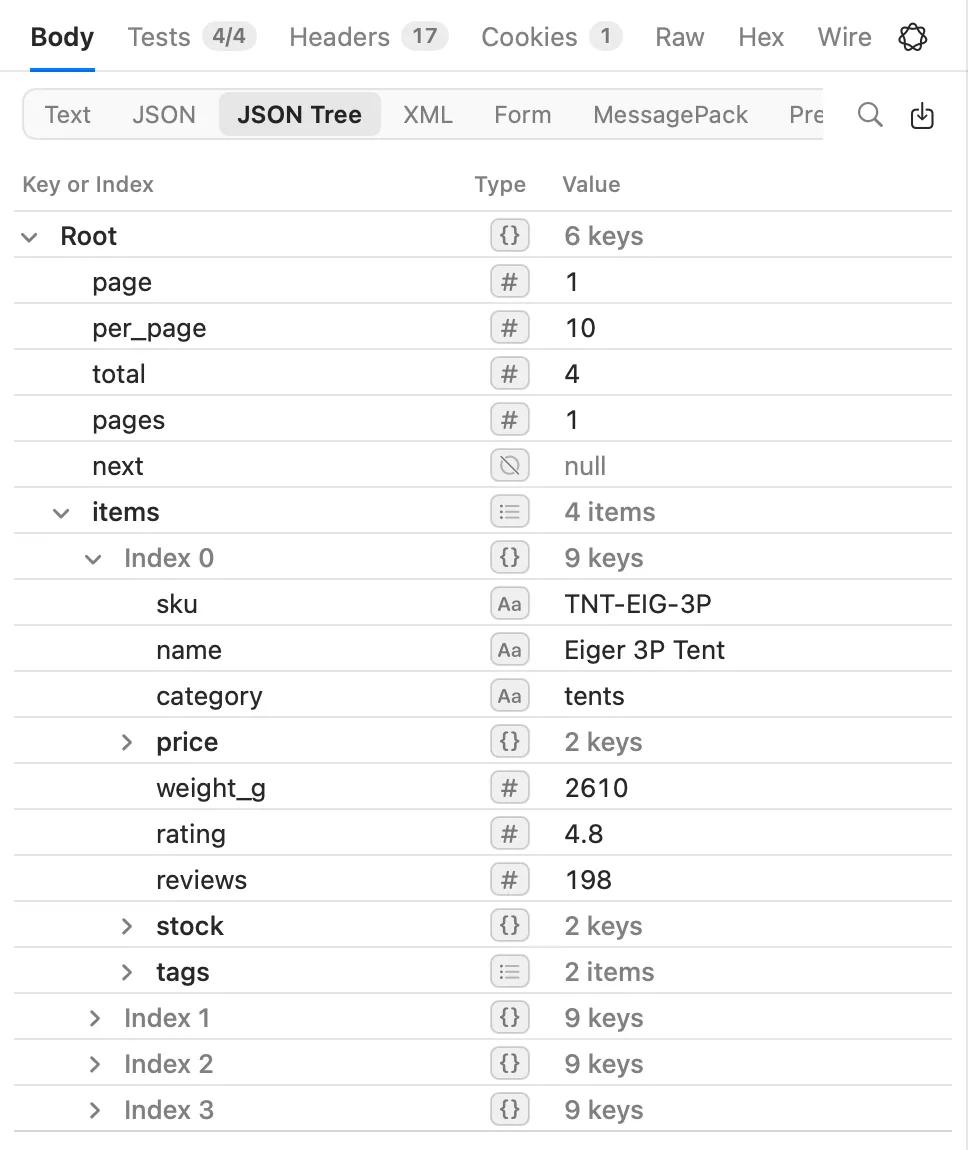
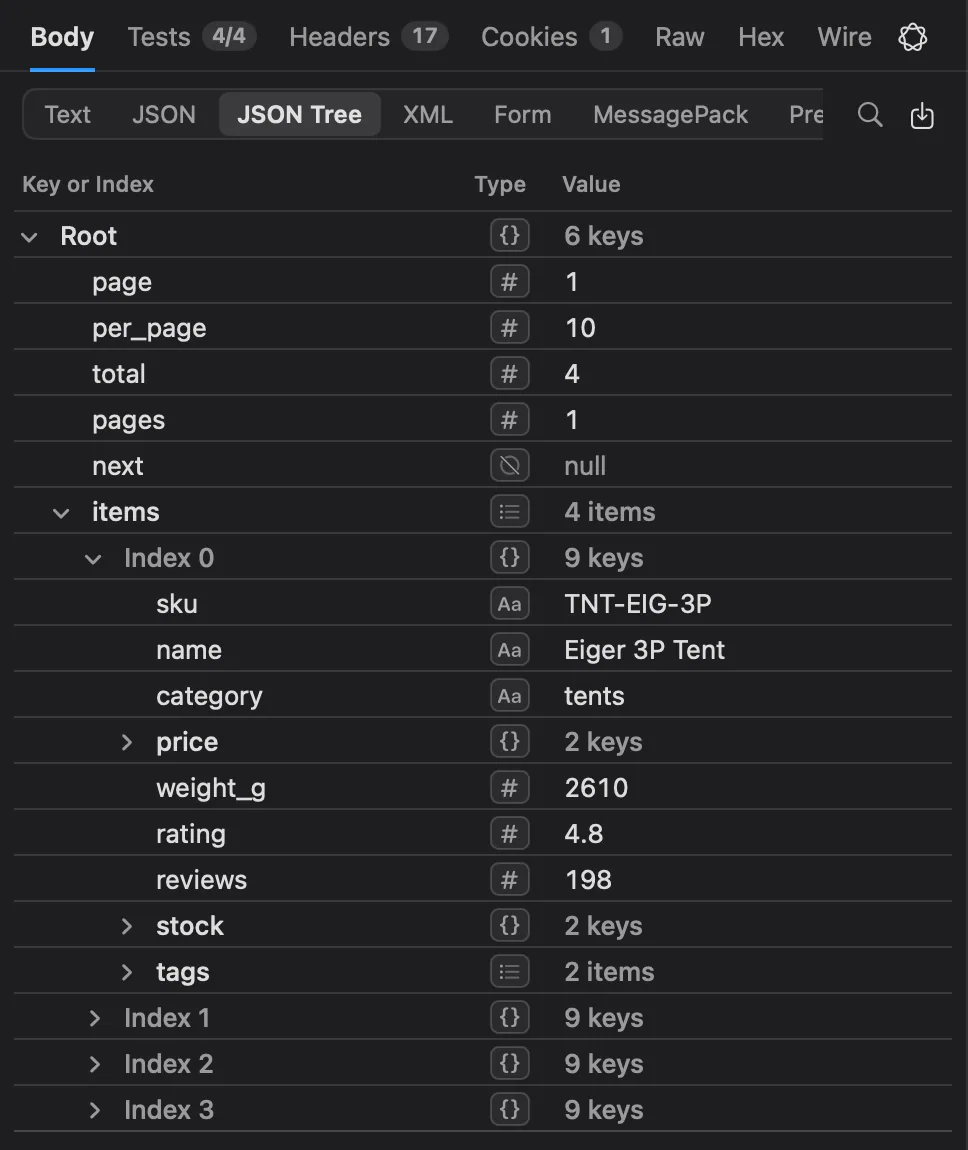
| JSON Tree | The JSON as a tree to expand and collapse. |
| XML | XML as a tree of elements, attributes and text. |
| Form | A URL-encoded body read as a tree. |
| MessagePack | A MessagePack body read as a tree. |
| Preview | Images, PDFs, audio and video, through Quick Look. |
Every view is offered for every body, so a response sent with the wrong content type can still be read as what it is. The content type picks the view a response opens in, and Echolot remembers the view you choose for each kind of body: after you choose JSON Tree for one JSON response, the next ones open in the tree.
HTML and scripts are never run or rendered. Preview and Open in Default App show them as text.
Long lines scroll sideways in the text views. Click the wrap button, or choose View › Wrap Long Lines, to wrap them. View › Bigger Code (⌘+), Smaller Code (⌘-) and Actual Code Size (⌘0) change the size of code everywhere.
JSON and XML trees
The trees show each value's key or index, its type and its value; a collapsed object or array shows how many items
it holds. An array of more than 1,000 items is split into ranges such as [0 … 999], so even a huge array opens at
once.
Rest the pointer on a value for its buttons:
- Open in browser, for a value that is a web address,
- Copy Value,
- Store in a Variable…, which keeps the value in a variable and, if you like, updates it after every send. See Response captures.
Right-click a row for more:
- In the JSON tree: Copy Path (the JSONPath to the value, such as
$.items[0].sku), Copy Value and Add Assertion, which adds a check to the Tests tab that the value equals what it is now. - In the XML tree: Copy XPath and Copy Value.
Rest the pointer on a value that is an image address and a thumbnail opens beside it. The image is fetched like a
browser fetches a picture: without your cookies or credentials, up to 10 MB, and not recorded in history.
data:image/… values are shown without any request. Rest on a value that looks like a date (Unix time in seconds,
milliseconds, microseconds or nanoseconds, or an ISO 8601 timestamp) and it shows as a readable date.
The XML tree takes bodies up to 50 MB, and Form and MessagePack up to 64 MB. For larger ones, use Text and find.
Find
Press ⌘F (Request › Find in Body) or click the magnifying glass.
- In Text and JSON, type what to find. Aa matches case; .* makes it a regular expression. The bar
says where you are, such as
3 of 1,204. Press ↩ or ⌘G for the next match and ⇧⌘G for the previous one. Up to 10,000 matches are marked; the count shows+when there are more. - In JSON Tree, Form and MessagePack, the bar takes a JSONPath such as
$.items[0]and goes to that value. It says Not found when nothing is there.
Press Esc to close the bar.
Large responses
Echolot never holds a body in memory. It streams to a file as it arrives, and the viewers read only the part on screen:
- The first lines show while the rest is still arriving. While a body downloads, the details card shows how much has come.
- JSON starts pretty-printing as soon as the body starts, and follows it as it grows.
- JSON Tree builds only the rows you expand.
- Find searches the whole body on disk.
Try it with Catalog › Export the catalog in Alpenglow: 40,000 products, about 14 MB.
Bodies are kept on disk up to the size set in Settings › Storage › Keep response bodies up to; above it, the least recently used are removed, except bodies open in a tab. An older response whose body was removed says This response's body is no longer stored. See Storage and encryption.
Headers
The Headers tab lists the response headers in the order they came. Rest the pointer on a row, or select it and press Space (↑ and ↓ to move), to see the value in full, what the header is for and what its value says. Right-click a header for Copy Value, Copy Header and Add Check, which adds a check on that header to the Tests tab.
Cookies
The Cookies tab has three parts:
- Sent with the request: the cookies that went out, and where each came from.
- Set by the response: each
Set-Cookie, with its attributes, and a warning when the jar refused it. - Stored in this window: everything in the window's cookie jar. Remove one with its button, or all with Clear All.
When Send and store cookies is off for the request, the tab says so. See Cookies.
Raw, Hex and Wire
- Raw shows the response as one message: status line, headers, a blank line, then the decoded body (its first 64 MB; the Body tab has all of it).
- Hex shows the body's bytes: offsets, 16 bytes a row in two groups, and their ASCII. Select bytes with the mouse or with the arrow keys and ⇧; copying gives hex pairs, or text when you selected in the ASCII column.
- Wire shows the bytes exactly as they crossed the connection: choose Sent or Received. You see the headers as framed and a compressed body before decoding. Up to 1 MB in each direction is kept; the tab says when it shows only the first part.
Save and share
Click the save button at the top right of the Body tab:
- Save Body… writes the body to a file (decoded).
- Open in Default App opens it in the app your Mac uses for its type.
- Save Encoded Body… writes the body as it came, still compressed; only for compressed responses.
- Export Exchange as HAR… writes the request and response as a HAR file.
To share the request rather than the response, use Request › Copy as cURL (⌥⌘C) or Request › Generate Code… (⌥⌘G). See HTTP requests.
Earlier responses and comparing
Every send is kept in history. The clock button with a count, at the end of the line under the URL bar, opens this request's responses: each with its status, time, who sent it (you, a run or an agent), duration and size.
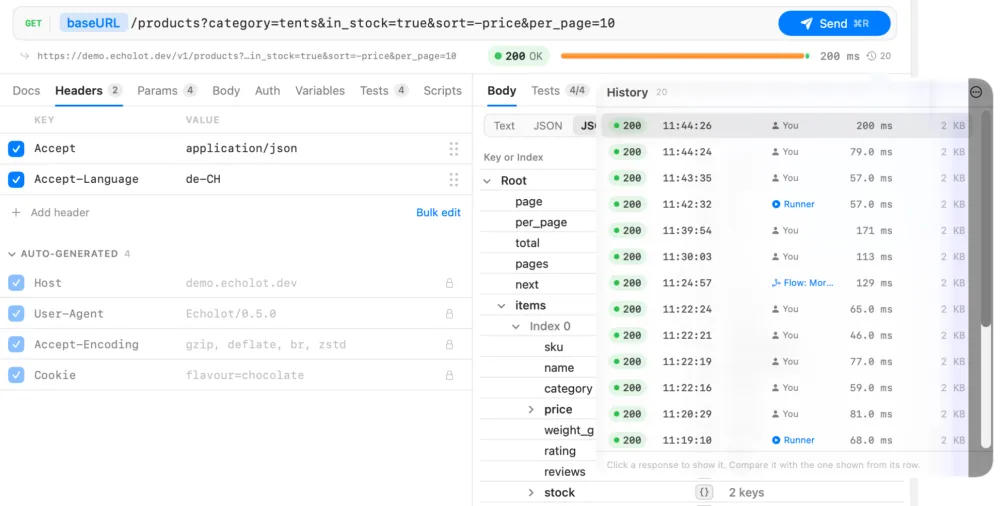
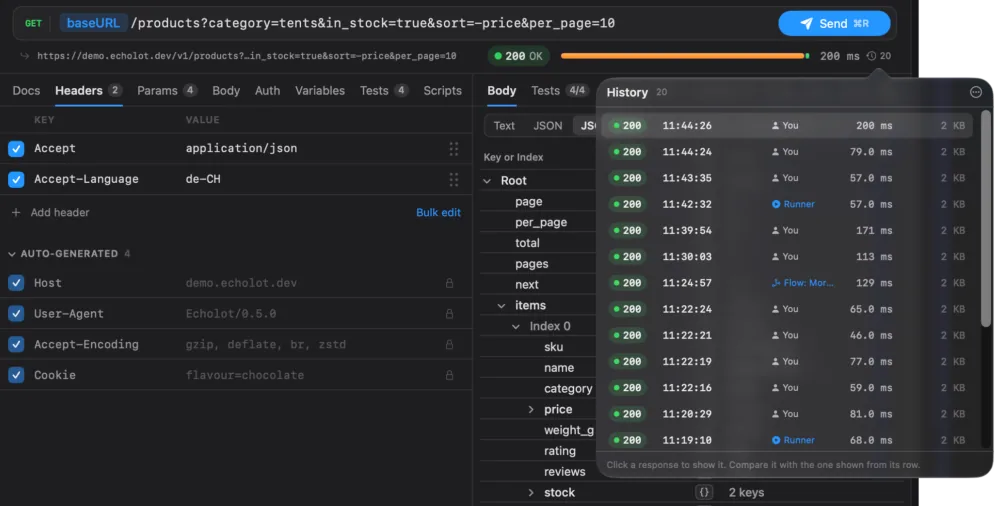
- Click a response to show it. A bar above the response pane says Past response; Show Latest goes back.
- To compare two responses, show one, then hover another in the list and click its compare button, or click Compare with Latest in the Past response bar. The comparison shows what was added and removed.
- Clear History of This Request… in the list's menu deletes this request's history.
See History for the whole workspace's history.
When a request fails
When no response came, the pane shows the error, such as The request timed out, and Try Again. Two other buttons can appear:
- Review Scripts…, when the request's scripts came from outside Echolot and need your trust before they run. See Scripts and tests.
- Allow Access…, in the App Store edition, when the request names a file the app may not read yet.
Request settings
Choose the HTTP version, redirects, cookies, decompression, TLS checks, the timeout and raw mode for a request, and set proxies and certificates.
Dynamic values
Fill requests with values worked out at send time, such as timestamps, UUIDs, hashes, encodings, files and values from other requests and their responses.