 Echolot
Runner
Run a folder, a few requests or the whole workspace with their checks, as often as you like or once per row of a data file.
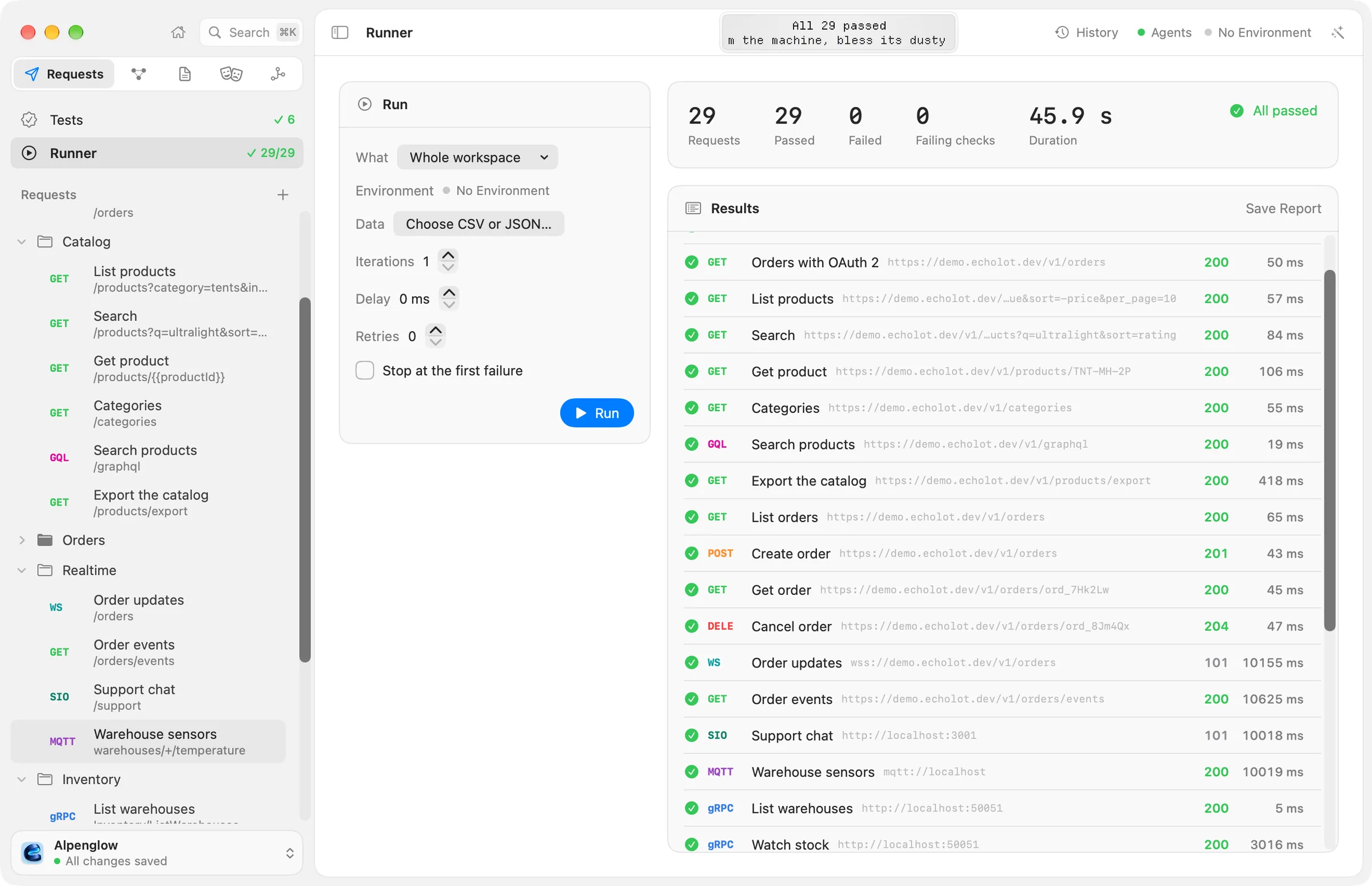
The runner sends requests one after another and tells you which ones passed. A request passes when it gets an answer and every check from its Tests tab and scripts holds. Use it to try a whole API after a change, to run the same requests for many inputs, or to make a report.
Start a run
There are several ways in:
- Right-click a folder in the sidebar and choose Run Folder, or a request and choose Run Request. The run starts at once and the Runner page opens.
- Select several folders or requests in the sidebar, right-click them and choose Run N Items.
- Choose Run Workspace in the command palette.
- Open the Runner page, set up the run and choose Run. The Runner is in the sidebar under Tests, or choose View › Runner (⌥⌘R).
On the Runner page, the Run card holds the settings:
| Setting | What it does |
|---|---|
| What | Whole workspace, a folder from Folders, or a single request from One request |
| Environment | The environment the requests resolve against, as in the rest of the window |
| Data | Choose CSV or JSON… for a data file: one iteration per row |
| Iterations | How often to run everything, from 1 to 1000. With a data file it says One per data row |
| Delay | A pause between requests, from 0 to 60,000 ms in steps of 100 |
| Retries | Extra attempts for a request that fails, from 0 to 5 |
| At a time | How many iterations run side by side, from 1 to 32. Shown when there is more than one iteration |
| Stop at the first failure | Ends the run at the first request that fails |
Choose Run (⌘R) to start, and Stop (⌘.) to end a run early. While a protected environment is active the button reads Run in Production… (with that environment's name), and the run asks before it sends anything. See protected environments.
What runs, and in which order
Requests run in their order in the sidebar: a folder's requests from top to bottom, folders inside it in place. Each request is sent exactly as if you sent it yourself: the same variables, auth, scripts and checks. Later requests can use the responses of earlier ones in the same run, through response values and variables that scripts or captures set. For example, a run of the Alpenglow workspace sends Auth › Sign in first, which captures the token that the Orders requests send.
Every kind of request can run:
- HTTP, GraphQL and gRPC requests and MCP calls are sent and checked like any other.
- WebSocket, Socket.IO and MQTT requests connect, send their saved messages, events or publishes that are switched
on for runs (and MQTT subscribes to its enabled filters), listen for 10 seconds, then close. The message log is
the response, so checks on the Body work on it. To listen for a different time, set
stream-limit(in seconds) in the request file's[settings]. - A server-sent events stream is kept for 10 seconds, then ended.
A pre-request script can skip a request with pm.execution.skipRequest(); the result says Skipped by a
pre-request script. A script can also jump with pm.execution.setNextRequest("Request name"), and end the run
with pm.execution.setNextRequest(null). A run that keeps jumping back is stopped after 10,000 sends in one
iteration.
Iterations and data files
Iterations runs everything that many times. {{$…}} values such as {{$uuid}} are new each time, and
pm.info.iteration says which iteration it is (from 0).
A data file makes the run data-driven: one iteration per row, each column a variable that the requests use like
any other, such as {{sku}}. Scripts read the row with pm.iterationData.get("sku").
- CSV: a header row with the variable names, then one row per iteration. Quotes, doubled quotes and line breaks inside quotes work.
- JSON: an array of objects, one object per iteration.
For example, skus.csv for a request to {{baseURL}}/products/{{sku}} with a check that $.sku equals {{sku}}:
sku,quantity
TNT-MH-2P,1
PCK-TIT-30,2
or the same as JSON:
[
  { "sku": "TNT-MH-2P", "quantity": 1 },
  { "sku": "PCK-TIT-30", "quantity": 2 }
]
The Data field shows the file's name and its number of rows. The cross beside it removes the file.
Parallel iterations
With more than one iteration, At a time runs several iterations side by side. The requests within one iteration stay in order, and each iteration keeps the variables its own scripts set, so one iteration's token never leaks into another. Leave it at 1 (one after another) when iterations depend on each other or the server limits how fast you may call it.
Retries, delays and stopping
- Retries sends a failing request again, up to that many times. A request fails when it gets no answer or a check fails. The result shows how many attempts it took, such as 3 attempts, and keeps the last one.
- Delay waits between requests, for servers with rate limits such as the demo API.
- Stop at the first failure ends the run when a request fails, after its retries. The summary then says Stopped at a failure.
Results
While the run goes, the list fills in and shows the request being sent. Above it are the counts: Requests, Passed, Failed, Failing checks and, at the end, Duration, with All passed or N failed.
Each row shows the request's kind or method, its name and address, the status and the time. With several
iterations, #2 says which iteration a row belongs to. Under a failed request are the checks that failed, each
with its message, or why there was no response. Click a row to open the request.
The page keeps the latest run while the window is open. Every exchange of a run is also in History, marked as coming from the runner.
Reports
After a run, Save Report in the Results card saves it as a file:
| Format | For |
|---|---|
| JUnit XML… | CI systems and test dashboards |
| JSON… | Your own tools |
| HTML… | A page to read or share |
| HAR (every exchange)… | Every request and response of the run, for a browser's developer tools or other HTTP tools |
The JUnit, JSON and HTML reports mask secrets in the addresses, check values and messages, script tests and logs they hold.
Run from the command line
echolot run runs the same workspace with the same settings, for CI and the terminal: iterations, data files,
delays, retries, parallel iterations and the same report formats. See echolot run and
running in CI.