 Echolot
MQTT
Connect to an MQTT 3.1.1 or 5.0 broker, subscribe to topics with a QoS, publish messages and follow them in the log.
An MQTT request connects to a broker, subscribes to topic filters and publishes messages. It stays connected while you work, and the log shows every message on the topics you follow. Echolot speaks MQTT 3.1.1 and 5.0.
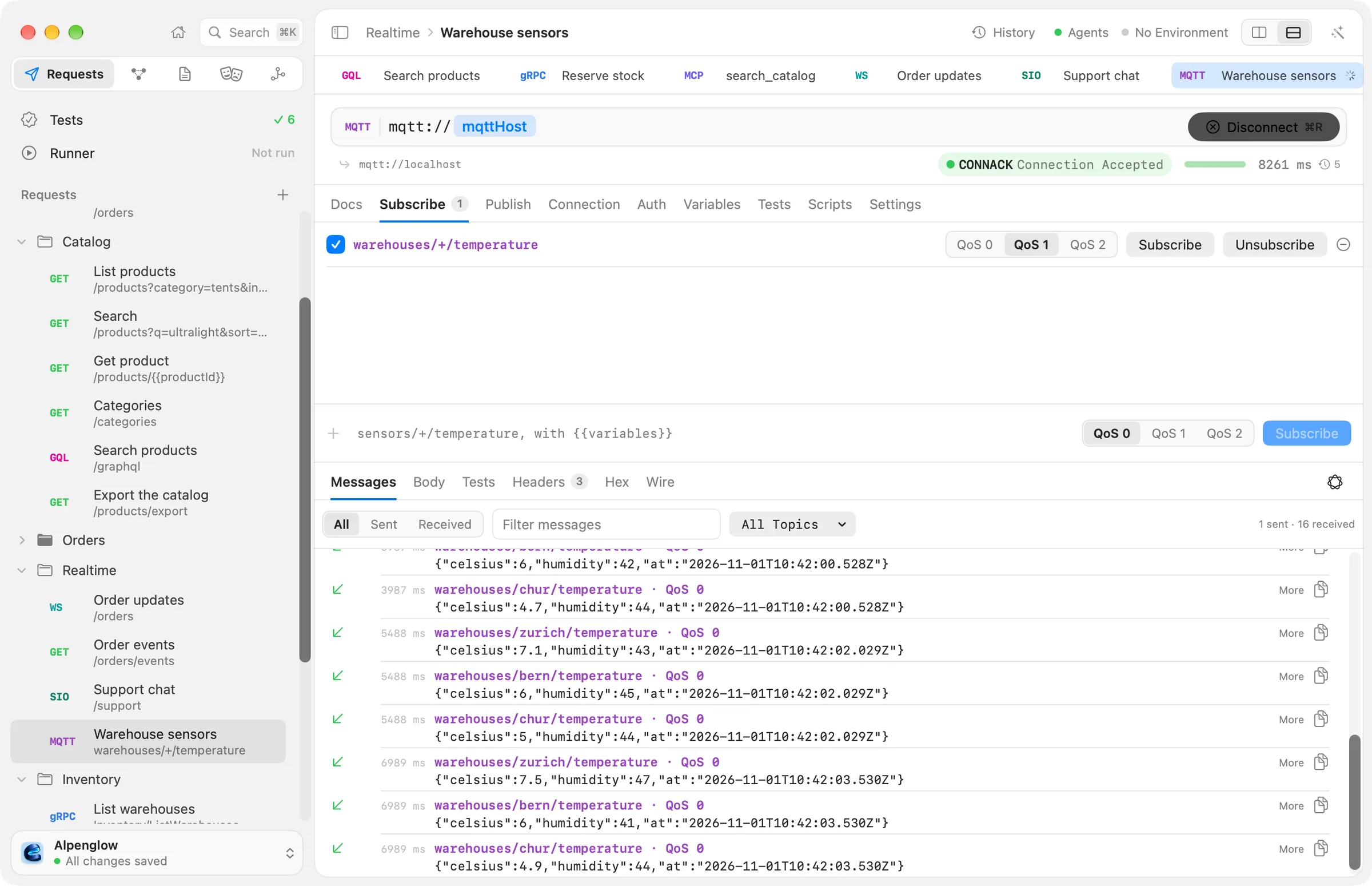
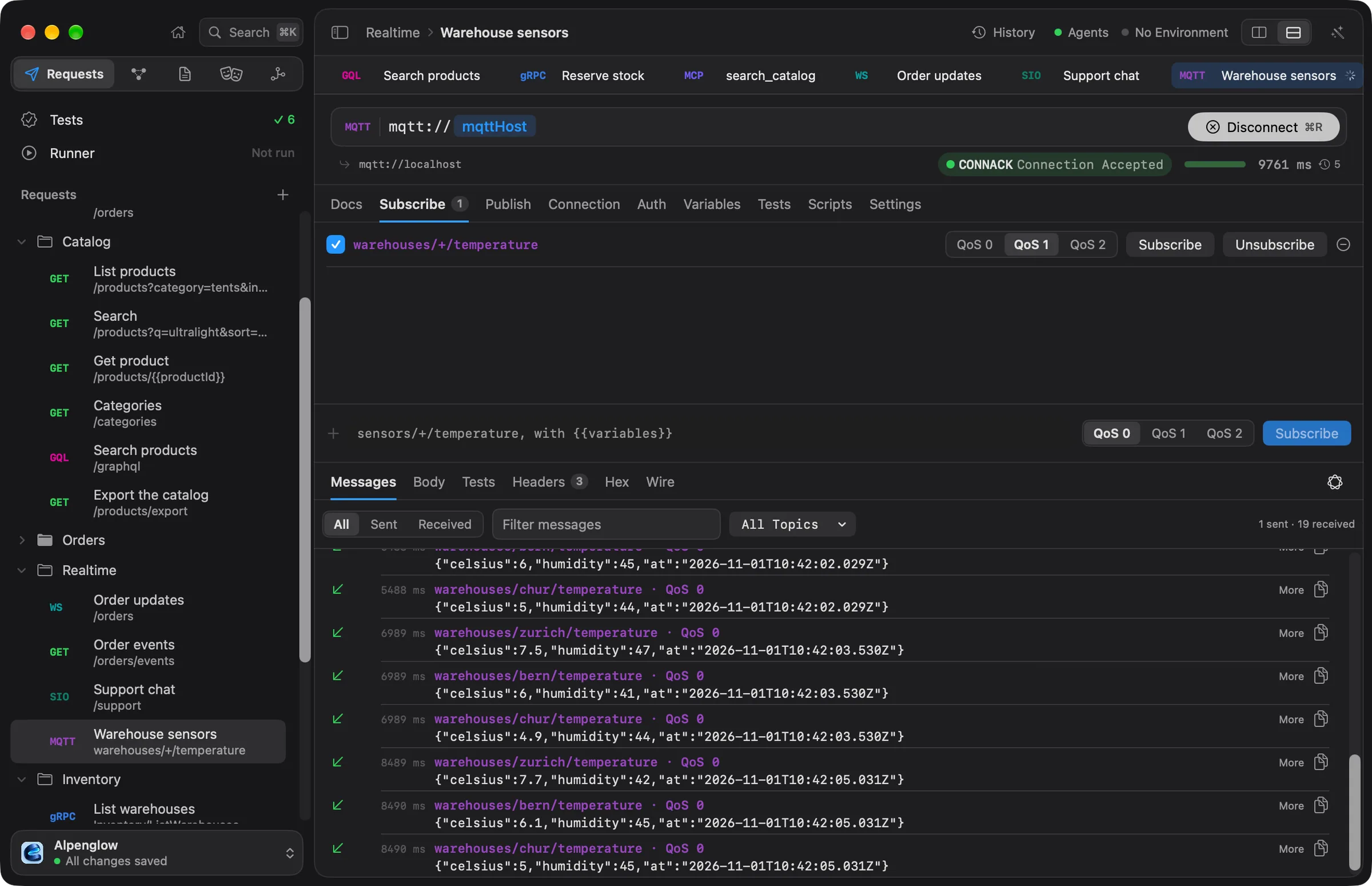
Try it with Alpenglow
Realtime › Warehouse sensors connects to a local broker on localhost, from the docs repository's
examples/servers folder (bun run realtime).
Connect
- Choose File › New MQTT Request, or New MQTT Request from the + menu beside Requests in the sidebar.
- Type the broker's address.
- Pick the protocol in the MQTT badge's menu before the address: MQTT 5.0 (the default) or MQTT 3.1.1.
- Choose Connect (⌘R). It reads Disconnect while connected.
| Address | Connects over | Default port |
|---|---|---|
mqtt://broker | TCP | 1883 |
mqtts://broker | TLS | 8883 |
ws://broker | WebSocket, path /mqtt unless the address has one | As for any ws:// address |
wss://broker | WebSocket over TLS, path /mqtt unless the address has one | As for any wss:// address |
{{variables}} work in the address: Alpenglow's sensors request uses mqtt://{{mqttHost}}.
The editor has these tabs: Docs, Subscribe, Publish, Connection, Auth, Variables, Tests, Scripts and Settings. Settings such as TLS verification, the proxy and certificates apply as for HTTP requests.
User name and password
MQTT's user name and password are the request's Basic auth, on the Auth tab. Put the password in a
secret variable, such as {{mqttPassword}}, so it stays in the Keychain and out of the
request file. Like any auth, it can be set once on a folder or the workspace. Other kinds of auth don't apply to
MQTT.
The connection
The Connection tab holds the rest of the CONNECT:
| Field | What it does |
|---|---|
| Client ID | The client's id, with {{variables}}. Empty uses echolot- and a random suffix |
| Clean start (5.0) or Clean session (3.1.1) | Start without the subscriptions and messages the broker kept for this client id. On by default |
| Keep alive | Seconds between pings; 0 for none. 60 by default |
| Will | Publish a will if the connection drops, with Will topic, Will payload, QoS and Retain: the message the broker publishes when this client goes away without saying goodbye |
Subscribe
The Subscribe tab lists the topic filters the request subscribes to:
- Type a filter in the field at the bottom, such as
warehouses/+/temperature.+matches one level and#the rest, as inlogs/#. - Pick QoS 0, QoS 1 or QoS 2.
- Choose Subscribe to subscribe once, or + to save the filter with the request.
Saved filters with Subscribe on connecting ticked are subscribed whenever the request connects: in the app, in runs, from the command line and for agents. While connected, each saved filter has Subscribe and Unsubscribe buttons. With MQTT 5.0, No local leaves out the messages this client publishes itself.
Publish
The Publish tab sends messages:
- Type the topic and the payload.
{{variables}}work in both. - Pick the QoS, and tick Retain to ask the broker to keep the message for later subscribers.
- Choose Publish.
Choose + to save the message with the request. Saved messages with Publish in runs ticked are published in order when the request runs without you. The runner and the command line connect, subscribe to the enabled filters, publish the enabled messages, listen for 10 seconds, then close.
The message log
The response pane's Messages tab shows the session: messages received and published, subscriptions and the broker's acknowledgements, newest last, each with its time and size.
- A message shows its topic, its QoS, whether it was retained, and its packet id.
- All Topics narrows the log to one topic.
- All, Sent and Received filter by direction; Filter messages finds messages by their text.
- More pretty-prints a JSON payload.
- The first line says which client id connected and with which protocol, and whether the broker kept a session from before. When the broker disconnects, the log says why, with MQTT's reason.
QoS 1 and 2 deliveries are acknowledged for you, both ways.
When the connection closes, the session is kept in History, with the log as the response body, so checks on the Body work on it.
MQTT 5.0
The broker's reason codes appear by name in the log and when a connection is refused, such as Success or Not authorized, in both versions. With MQTT 5.0 picked:
- No local on a subscription leaves out this client's own messages.
- Clean start replaces 3.1.1's Clean session.
- A saved message can carry a content type (
content-typein the request file), sent as the Content Type property.
From the command line
echolot mqtt subscribe and echolot mqtt publish talk to a broker from the terminal, with the password in
ECHOLOT_MQTT_PASSWORD. See echolot mqtt.