 Echolot
Request body
Send JSON, forms, multipart uploads, GraphQL, text, XML, HTML or a whole file as the body of an HTTP request.
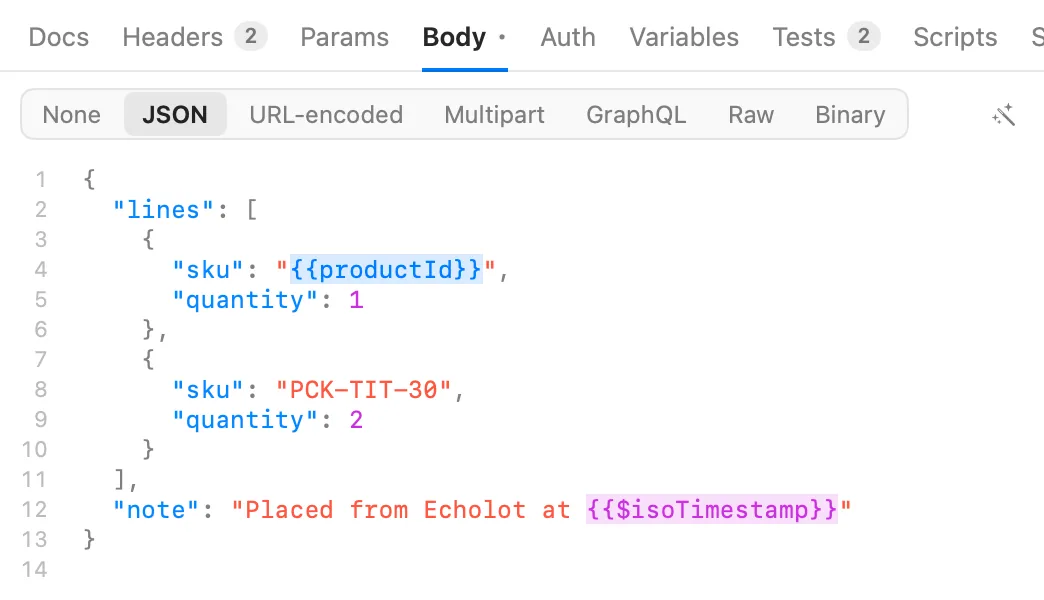
The Body tab sets what a request sends after its headers. Choose the type in the row at the top of the tab; the editor below changes to match. The tab shows a dot when the request has a body.
Body types
| Type | What it sends | Content-Type Echolot adds |
|---|---|---|
| None | No body. | None |
| JSON | The text in the editor. | application/json |
| URL-encoded | Name and value pairs, as a web form posts them. | application/x-www-form-urlencoded |
| Multipart | Text fields and files, as a web form with a file upload posts them. | multipart/form-data with its boundary |
| GraphQL | The query text as it is. | application/graphql |
| Raw | Text, XML or HTML, chosen in a second row of chips. | text/plain, application/xml or text/html |
| Binary | A file, byte for byte. | None |
The Content-Type shows under AUTO-GENERATED in the Headers tab. To send another one, add your own
Content-Type header; it replaces Echolot's. The length and framing headers are worked out when the request is sent.
Every text body can hold {{variables}} and dynamic values, filled in at send time:
{
  "lines": [{ "sku": "{{productId}}", "quantity": 1 }],
  "note": "Sent at {{$isoTimestamp}}"
}
JSON
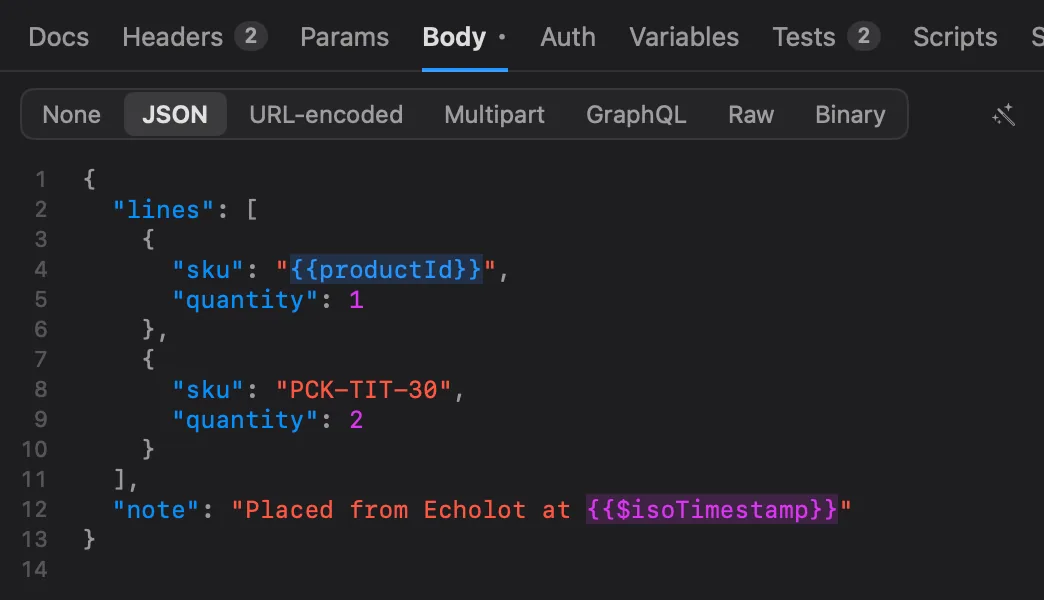
Type or paste JSON into the editor. It has line numbers, syntax colours and the {{ list for variables.
Click Beautify to indent the JSON. Variables stay as written, so {{productId}} in a string or as a bare value is
left alone. In a narrow pane the button shows only its wand.
To try it, open Orders › Create order in the Alpenglow example and look at its body, or send Echo › Echo anything, which returns the body it received.
URL-encoded
The fields sit in a table of KEY and VALUE, like headers:
- Click Add field to add one. Ticked fields are sent; unticked ones are kept but not sent.
- Click Bulk edit to edit all fields as text, one
Name: valueper line, with//in front of a field that is switched off.
Echolot encodes the names and values when it sends them, and what a variable inserts is encoded too, so a +, &
or space in a value arrives as that character.
Multipart
Each row is one part of the form:
- Tick the box to send the field.
- Type its name.
- Choose Text or File.
- For Text, type the value. It may hold
{{variables}}. - For File, click Choose… and pick the file. A field without a name takes the file's name, without its extension. The part carries the file's name as its filename.
- For Text, type the value. It may hold
- Optionally type a content type for the part, such as
image/png. Left empty (type (auto)), a file gets one from its extension (.json,.png,.pdfand so on, otherwiseapplication/octet-stream) and a text field gets none.
Click Add Field for another row, and the − button to remove one. Files stream from disk when the request is sent, so a large upload never has to fit in memory.
GraphQL
GraphQL sends the query text as the body with Content-Type: application/graphql, for servers that take a query
that way. For a full GraphQL client, with variables, completion from the schema, the schema explorer and
subscriptions, create a New GraphQL Request instead. See GraphQL.
Raw: text, XML and HTML
Choose Raw, then Text, XML or HTML in the row beside it. The editor colours XML and HTML, and the Content-Type follows your choice.
Binary: a file
Choose Binary, then Choose File…, and pick the file to send. The tab shows its name, size and path; Choose Another File… replaces it. The file is read from disk every time the request is sent, whatever its size, so the request always sends the file as it is now. Until you choose a file, nothing is sent.
Mac App Store edition
The App Store edition can read only files you picked. A file you choose in the Body tab stays readable for later sends. When a request names a file the app was never given (one a teammate chose on their Mac, for example), the send stops and the response pane offers Allow Access…: pick the file and the request is sent again.
Compare the editionsWhere bodies are saved
A typed body is saved in its own file next to the request, such as create-order.body.json beside
create-order.req.toml, so it reads well in Git. A binary body is saved as the file's path. See
Workspace files.
Large bodies
Binary and multipart files stream from disk when the request goes out, so uploads of any size send without being loaded into memory. Responses are a separate matter: they are written to disk as they arrive and stay fast in the viewers even at hundreds of megabytes. See Responses.