 Echolot
Authentication
Sign requests in with Basic, Digest, Bearer, API keys, OAuth 1.0, OAuth 2.0, AWS Signature, JWT, Hawk, Akamai EdgeGrid or NTLM, and share auth through folders.
The Auth tab says how a request proves who it is. Choose a Type, fill in its fields, and Echolot adds the credentials each time the request is sent. Set auth once on a folder or the workspace and every request inside it can use it.
Keep credentials out of files
Every field takes {{variables}}. Put passwords, tokens and keys in secret variables,
which live in the Keychain, and write {{password}} in the field. That way the request file holds no secret and
you can commit it.
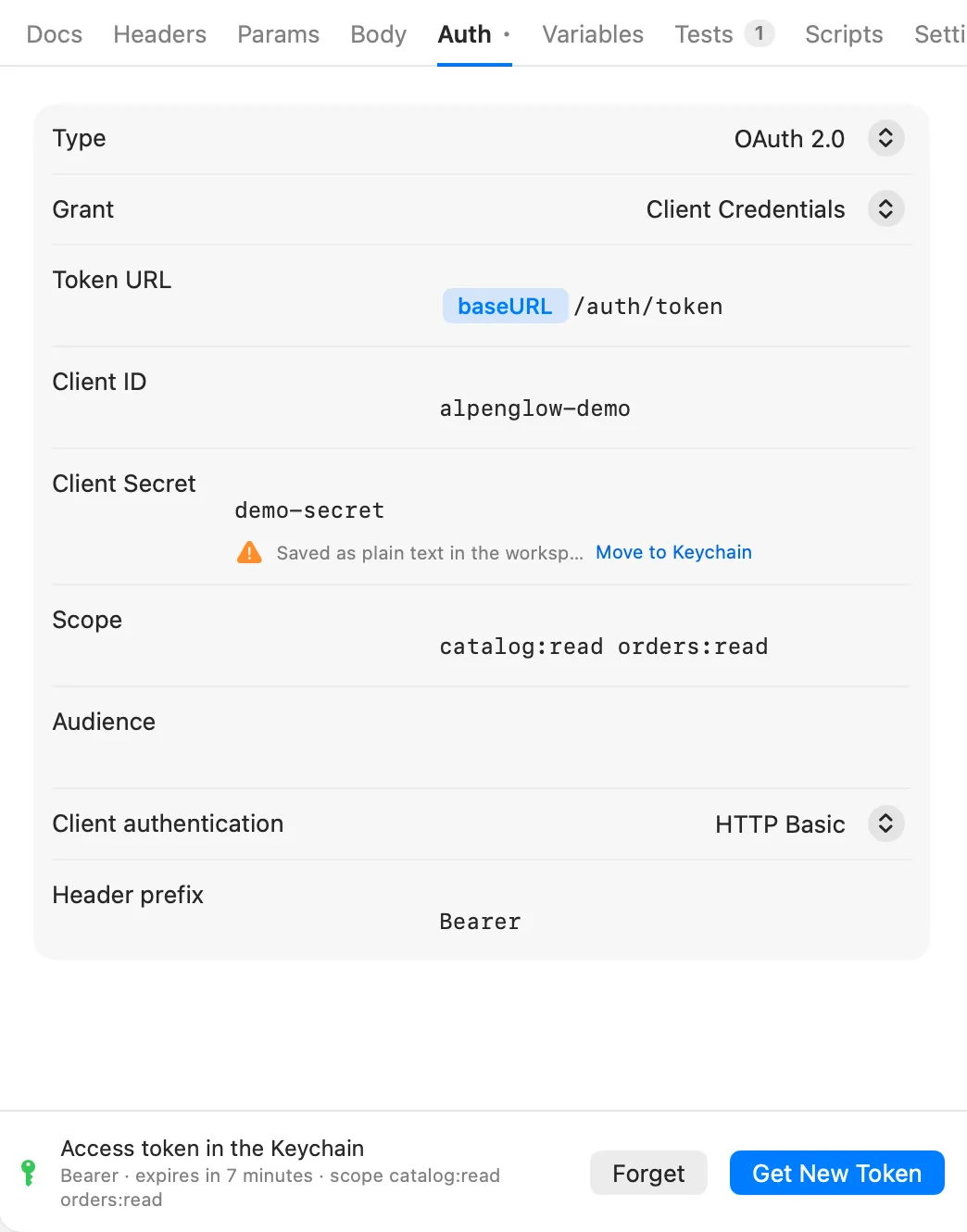
When you type a literal value into a credential field, a warning appears under it: Saved as plain text in the
workspace file. Click Move to Keychain and Echolot stores the value as a secret variable of the workspace and
writes {{name}} in its place.
The credentials Echolot adds are masked where the request page shows them: in the AUTO-GENERATED headers and the URL preview under the URL bar.
Inherit from folders and the workspace
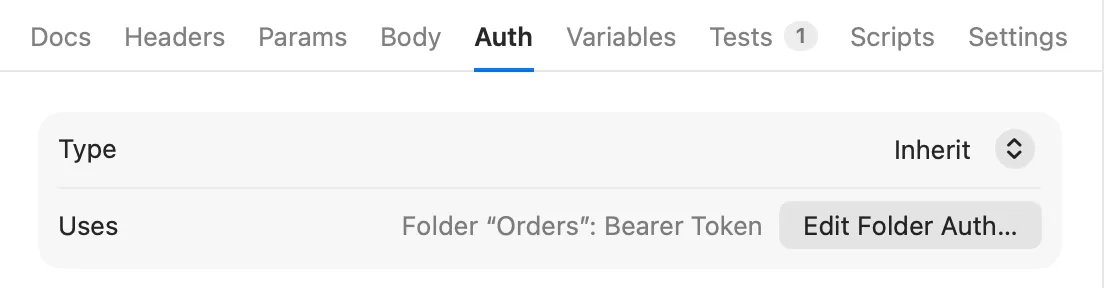
Inherit is the default. A request that inherits uses the auth of the nearest folder above it that sets one,
then the workspace's. Under Uses, the tab says which one applies, such as Folder “Orders”: Bearer Token, with a
button that opens it: Edit Folder Auth… or Edit Workspace Auth…. When nothing above sets auth, the request
sends none.
A request with auth of its own keeps it, and its Auth tab also shows a Workspace auth row with the workspace's auth and a button to open it: Workspace Auth…, or Set Up Workspace Auth… when the workspace has none yet. Workspace Auth… is in the command palette too (⌘K).
To set auth for many requests at once:
- In the sidebar, right-click a folder and choose Folder Settings…. For the workspace, use Workspace Auth… from a request's Auth tab or the command palette, or click the workspace switcher at the foot of the sidebar and choose Workspace Settings….
- Open the Auth tab and choose a type. A folder can inherit too; the workspace can't. Under the settings, the tab says how many requests set to Inherit use this auth.
- For OAuth 2.0, sign in right there: the token bar at the bottom works as in a request (see OAuth 2.0), and every request that inherits the auth uses that token. Get Token saves the auth first. The bar shows the folder's or workspace's own token only once its auth is saved, so it never shows or forgets a token that belongs to the auth above.
- Click Done.
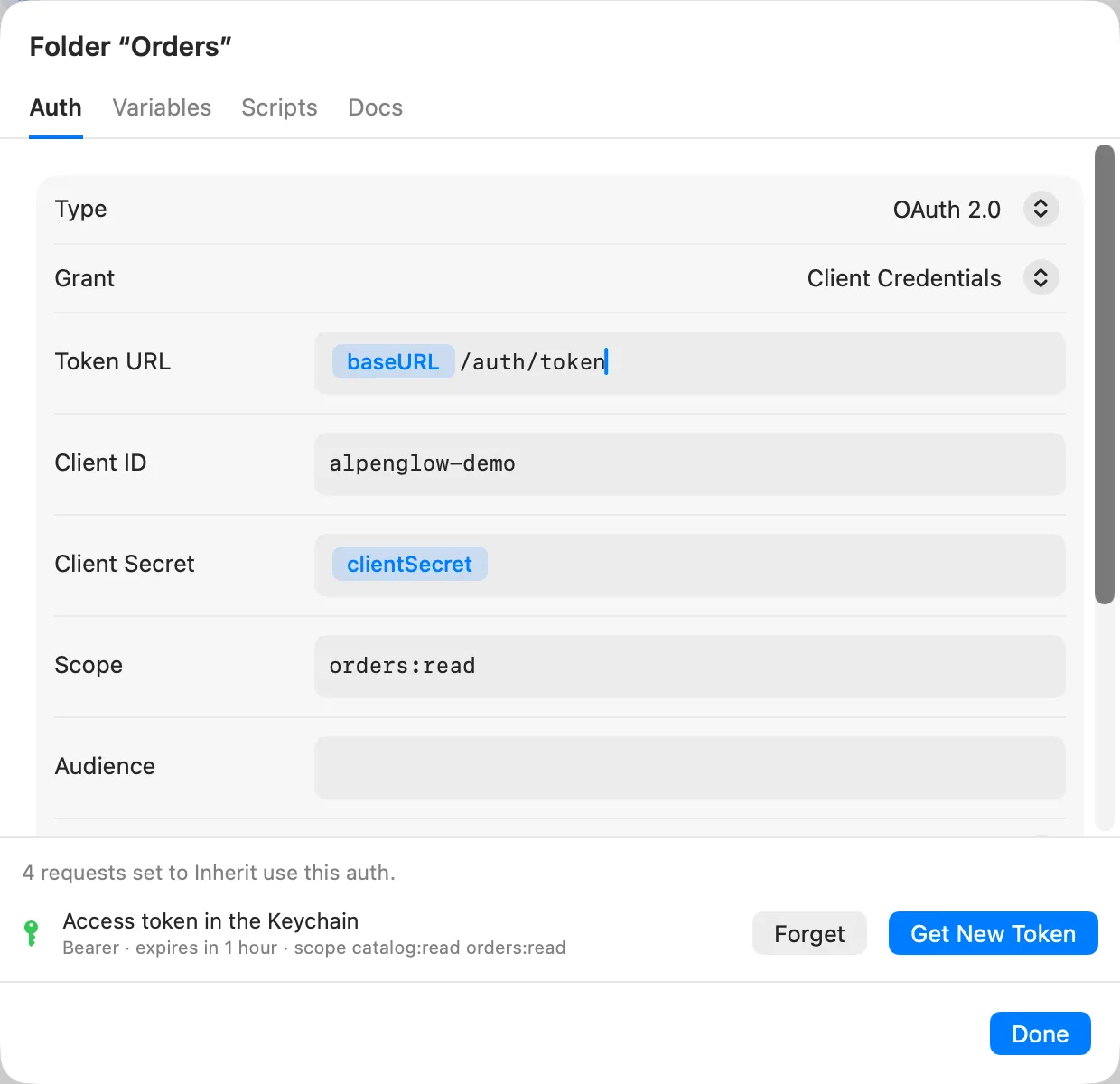
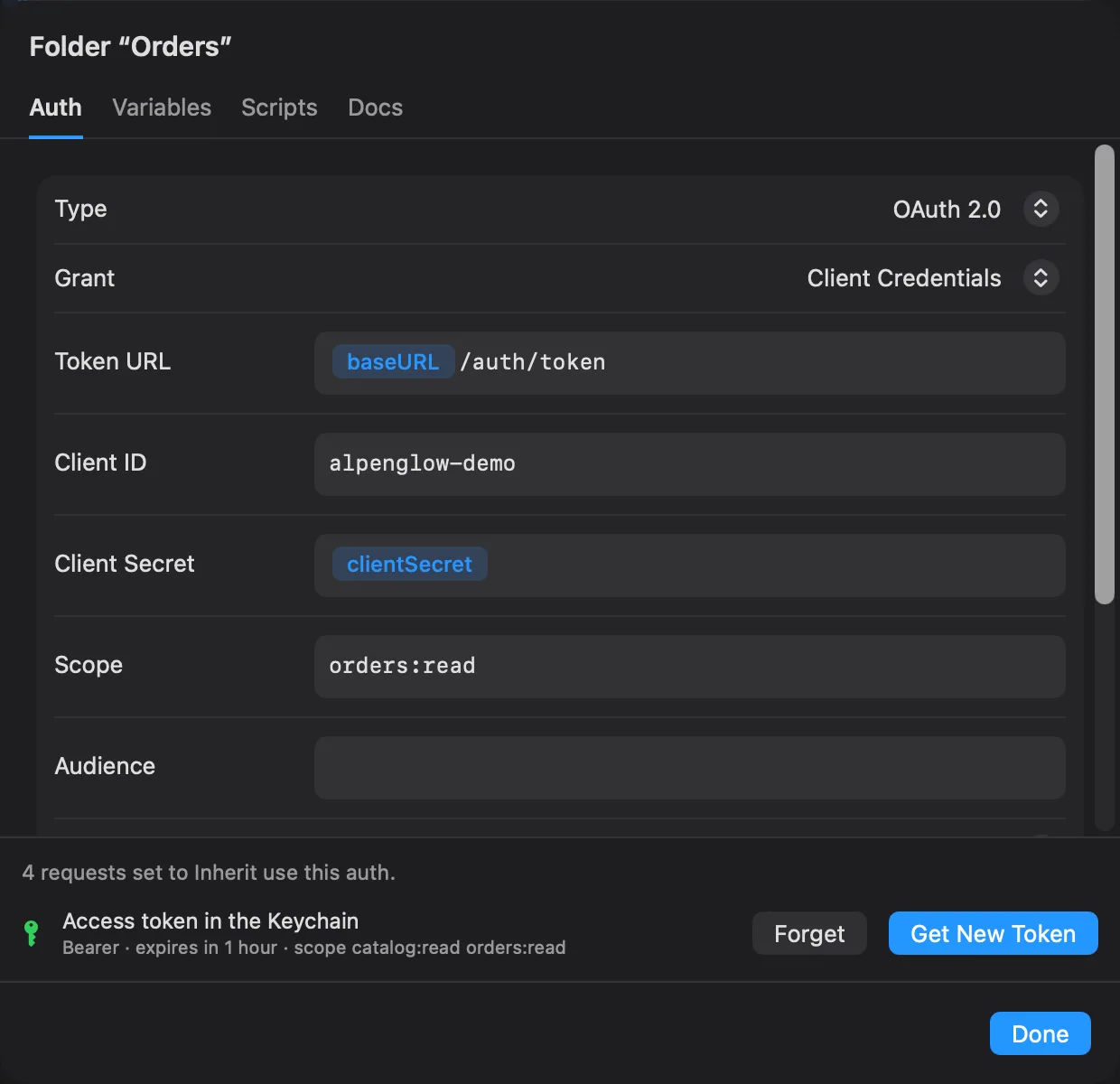
In the Alpenglow example, the Orders folder sets Bearer Token with {{token}}, and every order request
inherits it. Auth › Sign in fills {{token}} from its response with a
capture.
Choose a type
| Type | What Echolot does |
|---|---|
| Inherit | Uses the folder's or the workspace's auth. |
| No Auth | Sends no credentials, even when a folder sets some. |
| Basic | Adds Authorization: Basic … from a username and password. |
| Digest | Answers the server's Digest challenge. |
| Bearer Token | Adds Authorization: Bearer <token>. |
| API Key | Adds a key as a header or a query parameter. |
| OAuth 1.0 | Signs each request with OAuth 1.0, using a token you already have. |
| OAuth 2.0 | Gets an access token and sends it as a bearer token, or in the address. |
| AWS Signature | Signs each request with AWS Signature Version 4. |
| JWT Bearer | Signs a new JSON Web Token for each send. |
| Hawk | Signs each request with Hawk. |
| Akamai EdgeGrid | Signs each request with EG1-HMAC-SHA256. |
| NTLM | Answers the server's NTLM challenge. |
An Authorization header you add yourself in the Headers tab is sent instead of the one the Auth tab would
add.
Basic
Fill in Username and Password. Echolot sends them Base64-encoded in the Authorization header. Try it with
Echo › Basic auth in Alpenglow.
Digest
Fill in Username and Password. The first send goes without credentials; when the server answers 401 with a Digest challenge, Echolot answers it once with a second request. Both show in the exchange as hops.
Bearer Token
Fill in Token, usually {{token}}. Prefix is Bearer by default; change it for a server that wants another
word, or clear it to send the token alone.
API Key
Fill in Key (the header or parameter name, X-API-Key by default) and Value, then choose where it goes under
Add to: Header or Query.
OAuth 2.0
Echolot gets the access token for you and adds it as Authorization: Bearer <token>.
| Field | Meaning |
|---|---|
| Grant | Authorization Code, Client Credentials, Device Code or Password (legacy). |
| Authorization URL | Where you sign in (Authorization Code). |
| Device URL | Where the device code comes from (Device Code). |
| Token URL | Where tokens come from. |
| Username, Password | The person's own sign-in (Password). The password can be moved to the Keychain like any other credential. |
| Client ID, Client Secret | The client's credentials. Public clients leave the secret empty. |
| Scope | The scopes to ask for, separated by spaces, such as read write. |
| Audience | For servers that want one. |
| Redirect URI | Authorization Code. Empty means automatic: a loopback address, http://127.0.0.1:<port>/callback, on a free port. |
| PKCE (S256) | Authorization Code. On by default. |
| Client authentication | How the client ID and secret reach the token URL: HTTP Basic (default) or In the body. |
| Add token to | Header (default) or URL: the token as a query parameter, named under Parameter (access_token by default). Addresses end up in logs and history, so use URL only for APIs that take nothing else. |
| Header prefix | The word before the token in the header, Bearer by default. |
At the bottom of the tab, the token bar shows whether there is a token. Click Get Token:
- Authorization Code opens your browser at the authorization URL. Sign in there; Echolot catches the redirect and says Finish signing in in your browser… until you do.
- Device Code shows Sign in on another device with a code. Click Open (with the page's host name), enter the code there and approve; Echolot waits with Waiting for approval….
- Client Credentials asks the token URL directly. You don't need to click Get Token for this grant: the first send gets a token by itself.
- Password (legacy) sends the username and password to the token URL, and also needs no click: the first send gets a token. Use it only for older APIs that require it. The grant is deprecated because the password itself leaves your Mac, so prefer Authorization Code when the server offers it.
Echolot doesn't offer the implicit grant, which is deprecated too. Most servers that still offer it also offer Authorization Code, which is what an imported implicit grant becomes; check that the server accepts it.
Once there is a token, the bar says Access token in the Keychain, with its type, when it expires, whether it refreshes automatically and its scope. Get New Token replaces it; Forget deletes it.
How tokens are kept and used:
- Tokens are stored in the Keychain, never in workspace files.
- A token belongs to the request, folder or workspace that sets the auth, and to the environment and settings it was issued for: switching environments, or changing the token URL, client ID, scope or another setting that decides who the token is for, uses or gets a token of its own and never sends one issued for something else. Requests that inherit OAuth from a folder share its tokens. Forget deletes the tokens of every environment.
- When a token has expired, the next send refreshes it with its refresh token. A Client Credentials or Password token is fetched again. Otherwise the send stops with This request needs an OAuth token: get one in the Auth tab first. or The OAuth token expired and could not be refreshed: get a new one in the Auth tab.
To try it, send Auth › Orders with OAuth 2 in Alpenglow: it uses Client Credentials against the demo API.
Advanced
Most servers need none of this, so it's folded away under Advanced. It opens by itself when something in it is set.
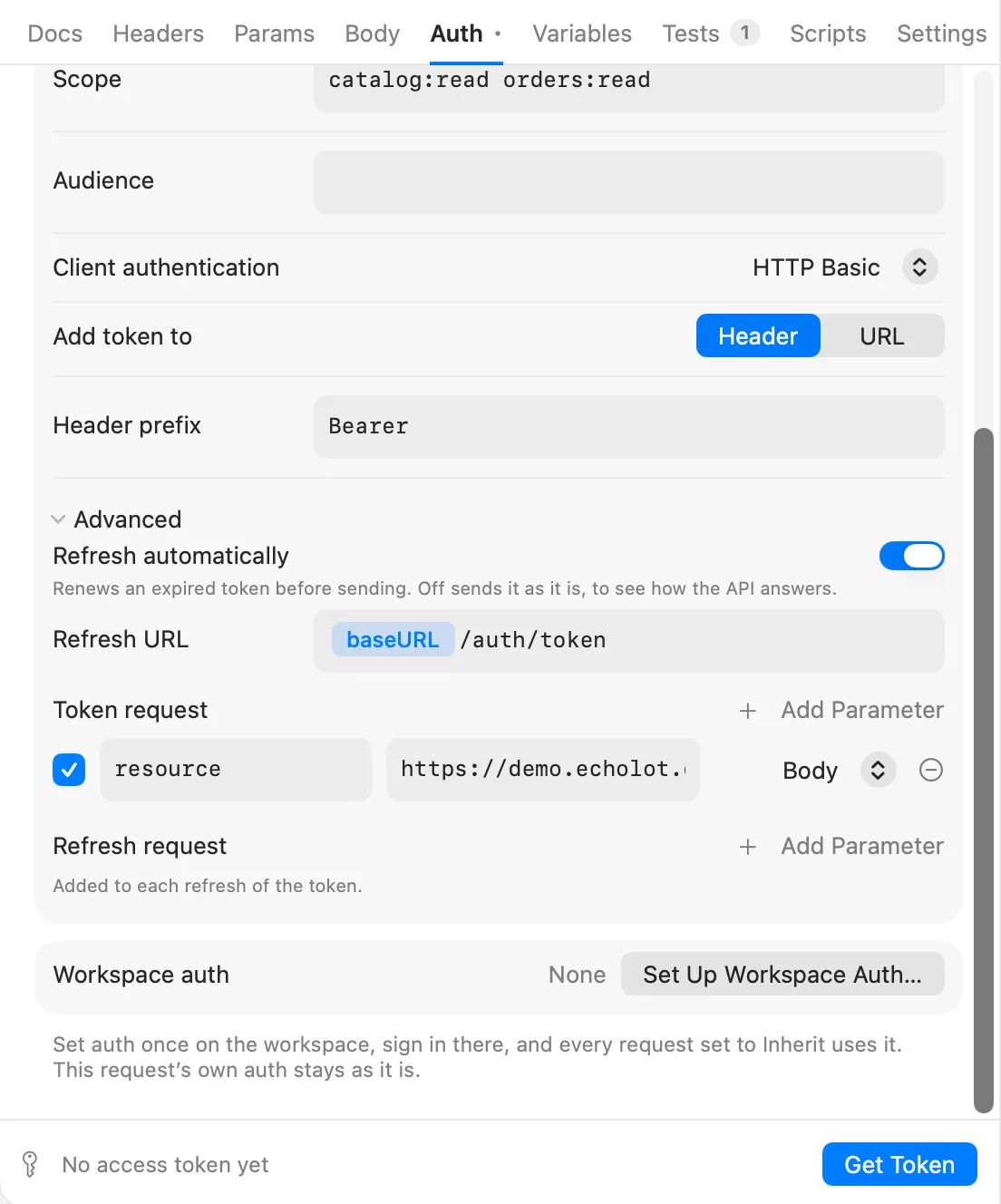
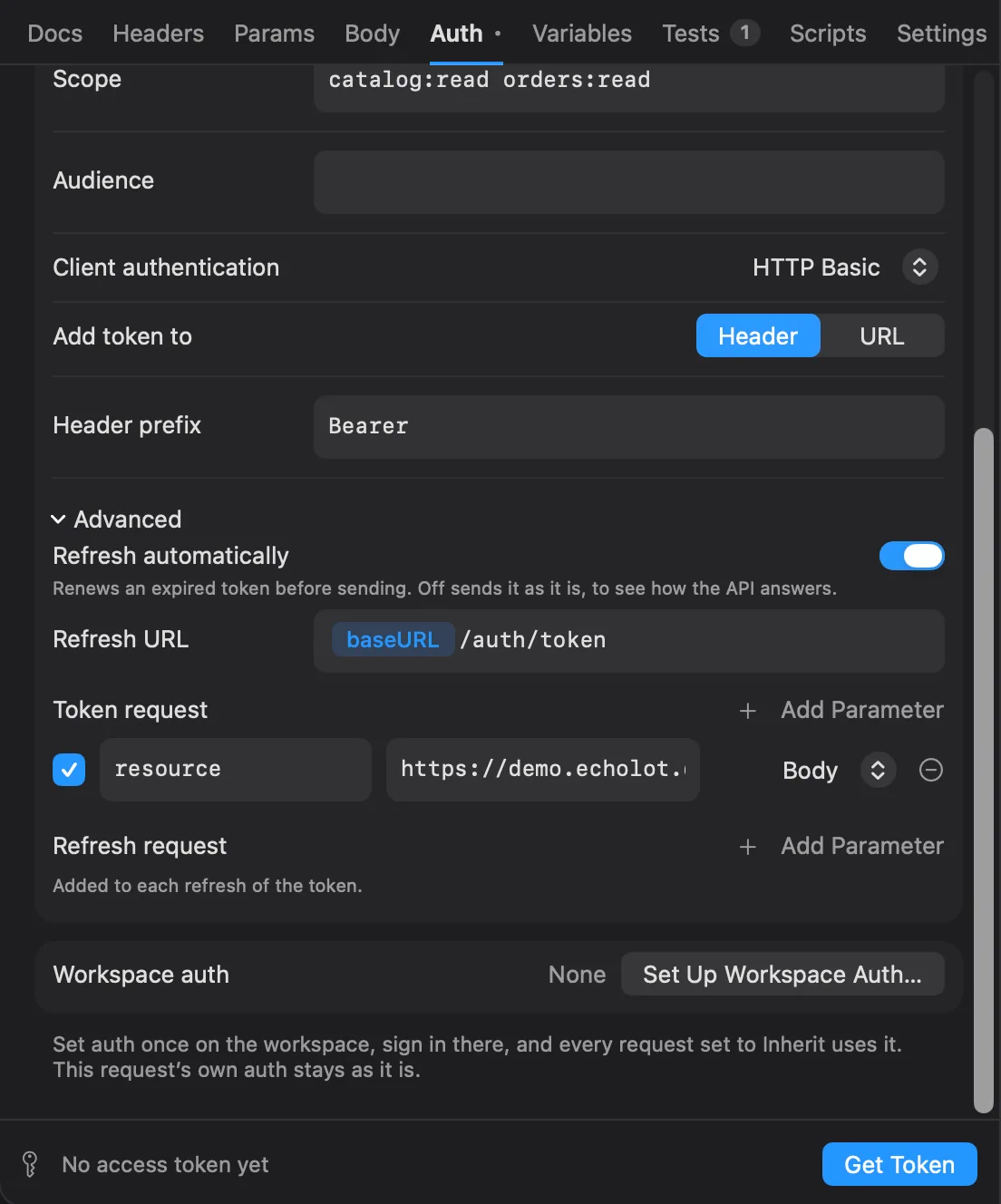
- Refresh automatically is on by default. Turn it off to send an expired token as it is, and see how the API answers one. A first token is still fetched for Client Credentials and Password.
- Refresh URL is for servers whose refresh endpoint isn't the token URL. Empty means the token URL.
- Authorization request, Token request and Refresh request add parameters for servers that want more than
the standard fields: Google's
access_type = offline(so it gives a refresh token),resourcefor Azure AD, a tenant or an API version. Each row has a key, a value (variables work, so secrets can stay in the Keychain) and, for the token and refresh requests, where it goes: Body, Header or URL. A parameter with the same name as a standard one replaces it. The authorization request's parameters go into the sign-in address, or into the device authorization request for Device Code. They never replace thestateor the PKCE challenge.
OAuth 1.0
For APIs that still use OAuth 1.0: NetSuite, Magento and Adobe Commerce, X's v1.1 endpoints, and Jira or Confluence Server application links, among others. Echolot signs each request with a token you already have. It doesn't run the three-legged flow that gets one, and Postman doesn't either.
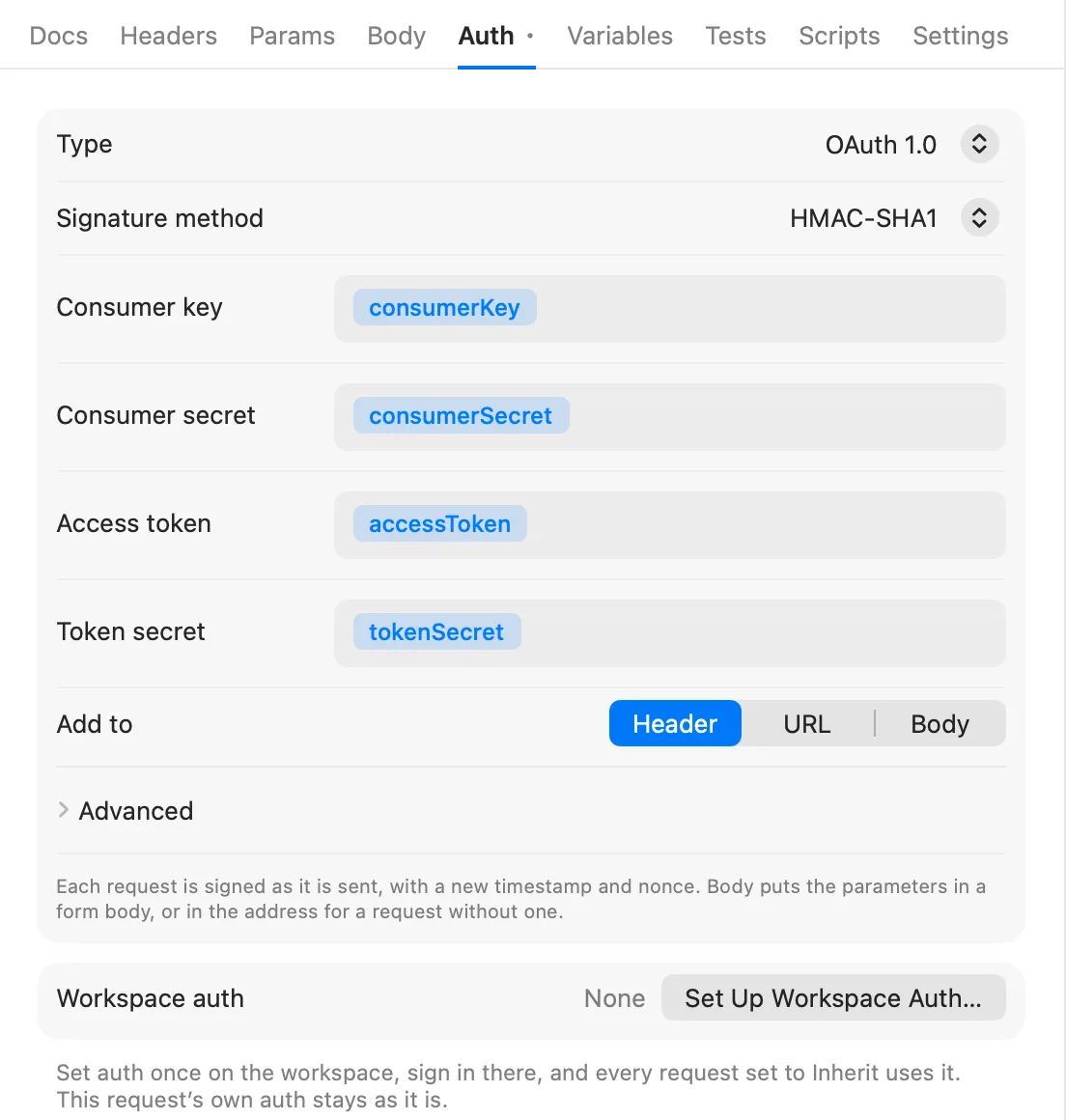
- Choose the Signature method: HMAC-SHA1 (the most common), HMAC-SHA256, HMAC-SHA512, RSA-SHA1, RSA-SHA256, RSA-SHA512 or PLAINTEXT.
- Fill in Consumer key, then Consumer secret, or for RSA a Private key (paste it, or click Choose PEM File… to put it straight into the Keychain).
- Fill in Access token and, except for RSA, Token secret. Leave them empty for a request made before there is a token.
- Under Add to, choose Header (
Authorization: OAuth …, the default), URL or Body. Body signs into a form body, or into the address for a request without one. - Advanced has Realm, Callback URL and Verifier (for the steps of the three-legged flow you make by
hand), Add oauth_version="1.0" (on by default) and Hash the body into the signature (
oauth_body_hash, for bodies that aren't forms).
Each request is signed as it is sent, with a new timestamp and nonce, over the method, the address, its query and a form body's fields.
AWS Signature
Fill in Access key ID, Secret access key, Region (us-east-1 by default) and Service (execute-api
by default; s3, lambda, es and so on). Session token is only for temporary credentials. Each request is
signed as it is sent, with the time, host and body it goes out with.
JWT Bearer
Echolot signs a new token for every send.
- Choose the Algorithm: HS256, HS384 or HS512 (HMAC with a secret), RS256, RS384, RS512, PS256, PS384 or PS512 (RSA private key), or ES256 or ES384 (elliptic curve private key).
- For HMAC, fill in Secret; tick Secret is Base64 when the provider gave it to you that way. For a private key, paste it into Private key, or click Choose PEM File…: the key goes straight into the Keychain and the field refers to it by name. Keys can be PKCS #8, PKCS #1 or SEC 1 PEM.
- Write the Claims as JSON. They can hold variables:
{"sub": "{{userID}}"}. - Add Header fields such as
kidif the server needs them.algandtypare set for you. - Add “iat” (issued at) is on by default. Expires after adds
expthat many seconds ahead (300 by default); 0 adds none. Claims you set yourself in the JSON are kept as written. - Under Add to, choose Header (with a Prefix,
Bearerby default) or Query (with a Parameter name,tokenby default).
Hawk
Fill in ID and Key, choose the Algorithm (SHA-256 or SHA-1), and add App data (ext) if the server wants it. Tick Hash the body into the signature to include the payload hash. Each request is signed with the time, a nonce, the method, the path, host and port.
Akamai EdgeGrid
Fill in Client token, Client secret and Access token. Headers to sign is a comma-separated list, usually empty. Body bytes signed limits how much of a POST body is hashed (131072 by default).
NTLM
Fill in Username and Password, and Domain and Workstation if your server needs them. Echolot speaks NTLMv2: it answers the server's challenge on the same connection, and the 401s stay in the exchange as hops.
NTLM authenticates a connection, not a request, so it needs HTTP/1.1. With the HTTP version on Automatic, Echolot uses HTTP/1.1 for NTLM requests; with HTTP/2 or HTTP/3 chosen, the send is refused. See Request settings.
Credentials stay with their origin
When a redirect leads to another origin (a different scheme, host or port), Echolot doesn't carry your credentials there. It drops:
- the
Authorization,Proxy-AuthorizationandCookieheaders, - common API key headers (
X-API-Key,Api-Key,Apikey,X-Auth-Token,X-Access-Token,Private-Token,X-Functions-Key), the header your API Key auth uses, and any header whose value holds a secret variable, - Digest, AWS Signature, OAuth 1.0, Hawk, EdgeGrid and NTLM signing, and the client certificate chosen for the first host.
The certificates and proxy of the new host apply to the hop that goes there. See Request settings.
Protected environments
Get Token sends a request too. When the window's environment is protected, it asks first, like Send. See Protected environments.