 Echolot
The window
A tour of Echolot's window, its sidebar, pages, tabs and panels, with the shortcuts for each.
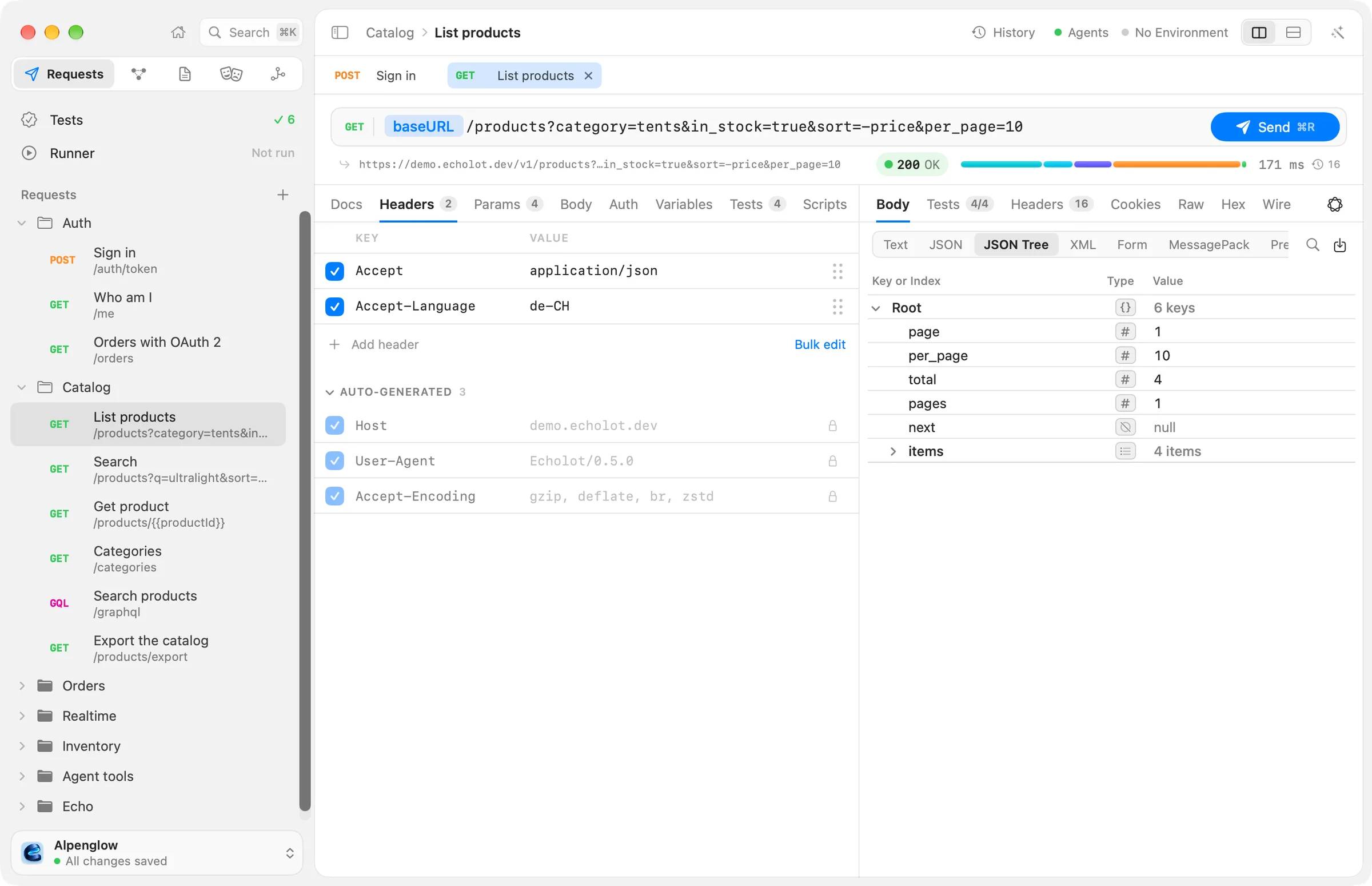
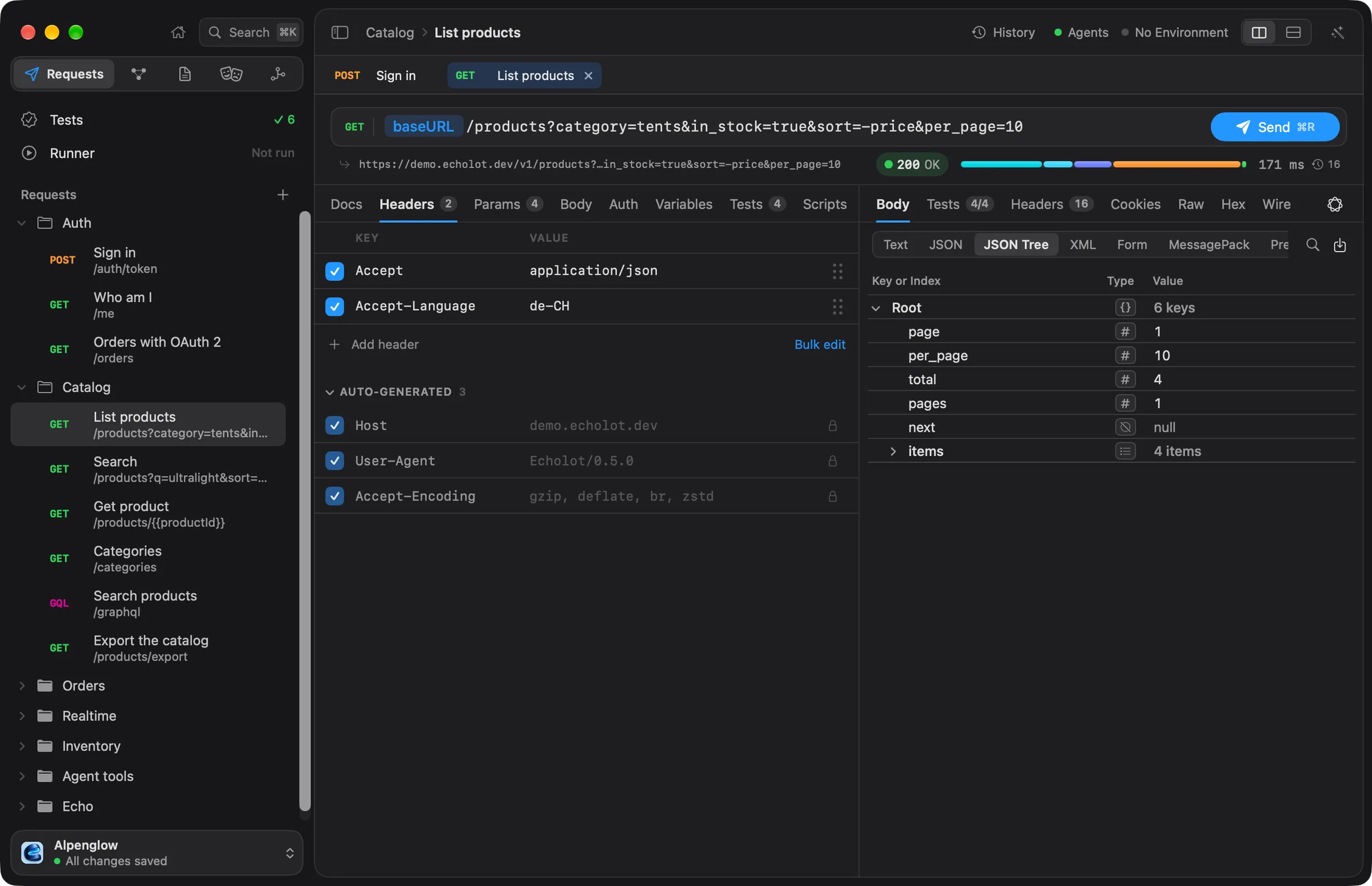
Each workspace opens in a window of its own. The window has two parts: the sidebar on the left, and the content panel on the right, which shows one page at a time under its page header.
The welcome window
When no workspace window is open, Echolot shows its welcome window: New Workspace…, Open Workspace…,
Open Examples, and your recent workspaces. Below the name it shows the version, with a What's New link.
Workspaces you open from the Finder (a double-click on a .echolot folder) go straight to a workspace window.
The sidebar
From top to bottom:
- Home and Search, beside the window's buttons. Home (⇧⌘H) is the workspace's overview: counts of requests, folders, environments, variables and checks, your recent requests, the latest responses, how the tests stand, and the environments, with the Sonar card on top, which plots every send of the last hour, day, week or month by how long it took. See Home and Sonar. Search opens the command palette (⌘K).
- The module switcher, which picks what the sidebar lists. Each module has its own page.
- The module's lists.
- The workspace switcher at the foot.
⌘B (View › Hide Sidebar) hides and shows the sidebar. Drag its right edge to make it wider or narrower.
Modules
| Module | Shortcut | The sidebar lists | Read more |
|---|---|---|---|
| Requests | ⌘1 | Tests and Runner, with how they stand, then your folders and requests | Requests |
| MCP Servers | ⌘2 | The workspace's MCP servers | MCP Servers |
| Specs | ⌘3 | OpenAPI documents and .proto files | Specs |
| Mocks | ⌘4 | Mock servers | Mocks |
| Flows | ⌘5 | Flows | Flows |
Switching to a module returns to what it showed last. Clicking a row in a list opens it on the module's page.
The requests tree
In the Requests module, the + button next to Requests adds a request of any kind (HTTP, GraphQL, WebSocket, Socket.IO, MQTT, gRPC, or an MCP call), a folder, or imports and exports. Folder and request rows have their own menus (right-click), with New Request, New Folder, Folder Settings…, Rename, Duplicate, Move Up, Move Down, Show in Finder and Move to Trash….
- Drag rows to reorder them or to move them into folders. A gap opens where they will land, and resting on a closed folder opens it.
- Select several rows with ⌘ or ⇧ and right-click for Run N Items, Edit N Requests…, New Folder with N Items, Move To and Move N Items to Trash….
- Paste a cURL command, a collection or a spec into the sidebar to import it, or drop files onto the window.
- Edit › Duplicate (⌘D) and Edit › Rename work on the selected row.
- A dot beside a request means it has changes not yet written.
- A warning sign beside a request means its latest send failed: no response, a status of 400 or more, or a gRPC status other than OK. Rest the pointer on it to read what went wrong. A later success clears it.
Nothing is deleted without asking, and deleted items go to the Trash. More in Folders.
The workspace switcher
The workspace's name, with its save state underneath: All changes saved, Saving…, or Couldn’t save. Click it for your recent workspaces, New Workspace…, Open Workspace…, Workspace Settings… and Show in Finder. File › Switch Workspace… (⌘P) lists the recent workspaces in a floating panel instead; type to filter, Return to open.
The page header
The strip at the top of the content panel names the page. On a request, it shows the request's folders and name. On the right are the window's buttons:
| Button | What it does |
|---|---|
| What's New (sparkles) | Appears after an update with the new release notes. |
| History | Every response, with who sent it: you, a run or an agent (⌘Y). See History. |
| Agents | Lets external AI agents use this workspace through Echolot's MCP server. See Agents. |
| Environment | Picks the active environment, or No Environment; Manage Environments… opens the Environments page. A protected environment shows a shield. See Environments. |
| Layout | On a request: side by side or stacked. See Panes. |
| Editor | On a spec: the visual or the text editor. |
| Assistant (wand) | Opens the Assistant (⌘J). |
The header stands in for a title bar: drag it to move the window, and double-click it to do what System Settings › Desktop & Dock sets for a title bar (zoom, by default).
Pages
Besides the module pages, the View menu opens these:
| Page | Shortcut |
|---|---|
| Home | ⇧⌘H |
| Tests: every request's checks | ⌥⌘T |
| Runner: run folders or the workspace | ⌥⌘R |
| Environments | ⌥⌘E |
| History | ⌘Y |
View › Show Variables (⌥⌘V) opens the variables panel: every variable across the workspace, its folders and environments, with the value in use marked and secrets masked. Pin it as a column beside the content, or let it float.
Help › Help for This Page opens the page of these docs about the page you are on.
Tabs
Requests you open become tabs above the request page.
| Action | Shortcut |
|---|---|
| Close Tab | ⌘W |
| Close Window | ⇧⌘W |
| Tabs › Show Next Tab | ⇧⌘] |
| Tabs › Show Previous Tab | ⇧⌘[ |
| Tabs › Reopen Closed Tab | ⇧⌘T |
⌘W closes the tab on screen, never the window, as in a browser.
The request page
The request page has two panes: the request editor and the response.
- The request header across the top: the method, the address and Send (⌘R or ⌘↩). With a protected environment active, Send reads Send to environment… and asks first. Sessions (WebSocket, Socket.IO, MQTT) have Connect and Disconnect instead.
- The editor's tabs depend on the kind of request. An HTTP request has Docs, Headers, Params, Body, Auth, Vars, Tests, Scripts and Settings. See Requests.
- The response's tabs: Body, Tests, Headers, Cookies, Raw, Hex and Wire, plus Console when scripts ran, Events for a stream, Messages for a session, and Schema for GraphQL. See Responses.
Pane layouts
Panes sit Side by Side or Stacked (the response below). Choose with the Layout button in the page header, or View › Panes. Each kind of request keeps its own layout and its own divider position, on this Mac only: an HTTP request can sit side by side while WebSocket requests stack. Drag the divider to resize; View › Panes › Reset Pane Sizes puts every kind back. When the window is too narrow for side by side, the panes stack until there is room.
The Request menu
| Item | Shortcut |
|---|---|
| Send | ⌘R |
| Cancel | ⌘. |
| Copy as cURL | ⌥⌘C |
| Generate Code… | ⌥⌘G |
| Export Exchange as HAR… | |
| Find in Body | ⌘F |
| Command Palette… | ⌘K |
View › Bigger Code (⌘+), Smaller Code (⌘-) and Actual Code Size (⌘0) change the size of response bodies, trees and code editors. View › Wrap Long Lines wraps them.
The command palette
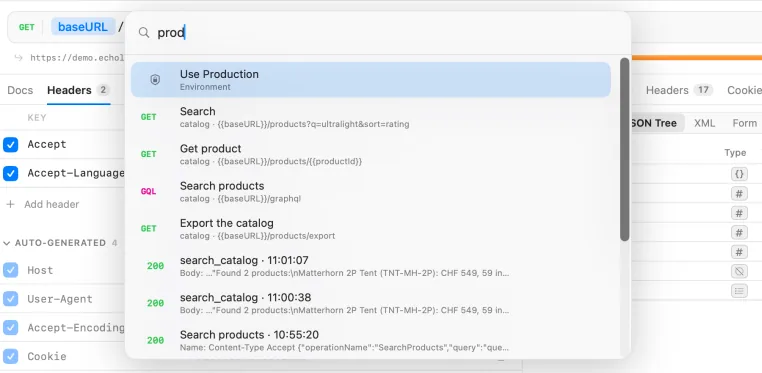
⌘K, or Search in the sidebar, opens a search over the whole workspace. Type a few letters and press Return on a result:
- Requests, shown with their folder and address.
- Actions: Go to any page, New Request and the other kinds, New Folder, New Spec, Import…, Export Workspace…, Workspace Settings…, Show Variables, Run Workspace, and on a request Send, Copy as cURL, Generate Code…, Toggle Layout and Reset Pane Sizes.
- Environments: Use environment switches to it.
- Responses: from three characters on, it also searches the responses in history.
The Assistant panel
⌘J (View › Show Assistant), or the wand at the end of the page header, opens the Assistant on the right of any page. It is the AI agent built into Echolot: it can send requests, write checks and build flows, specs and mocks, and asks you before it changes anything. Set up a model in Settings › Assistant. See Assistant.
Echo
Echo is a small status screen in the middle of the page header. It tells what is going on: sends and their timing, errors, runs, flows, mocks, agents and the active environment, with a joke now and then. Click it for a report of the session. It is off by default: turn it on in Settings › General › Echo with Show Echo's status screen in the page header. See Echo.
Settings
Echolot › Settings… (⌘,) has the panes General, Network, Storage, Assistant, Agents, Privacy and About, and a search field that finds a setting by name. See Settings. Settings for one workspace or folder are in Workspace Settings… (Auth, Variables, Scripts, Agents, Proxy, Certificates) and Folder Settings… (Auth, Variables, Scripts, Docs).
All keyboard shortcuts are listed in Keyboard shortcuts.