 Echolot
Specs
Keep OpenAPI documents and .proto files in the workspace, read their outline and problems, and turn them into requests.
The Specs page is where you design and keep an API's contract: OpenAPI documents (OpenAPI 3.0 and 3.1, and Swagger
2.0) and the .proto files of gRPC services. Echolot checks a spec as you edit it, turns it into requests that stay in
step with it, and serves it as a mock before the API exists.
Open it with Specs in the sidebar's module switcher, or ⌘3.
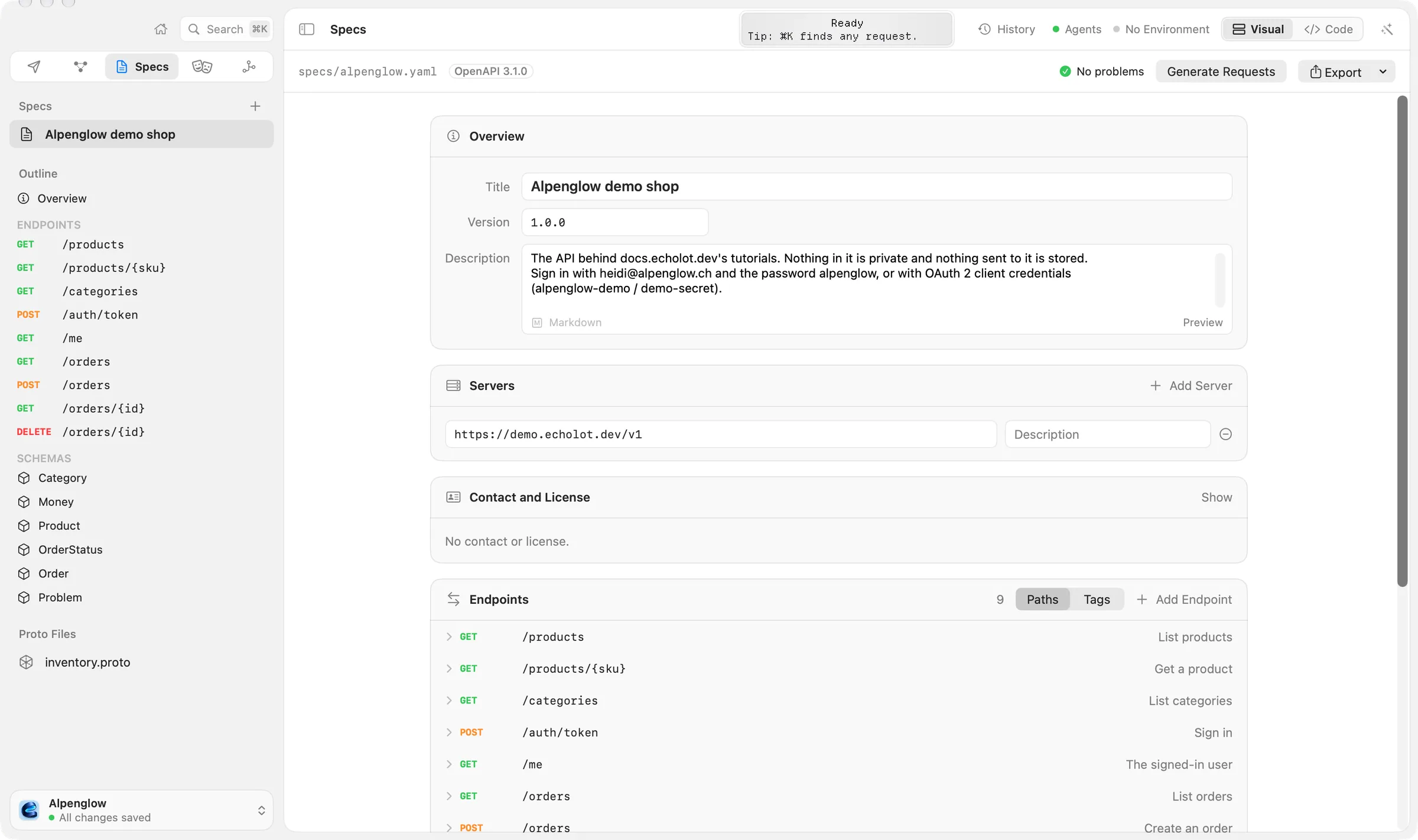
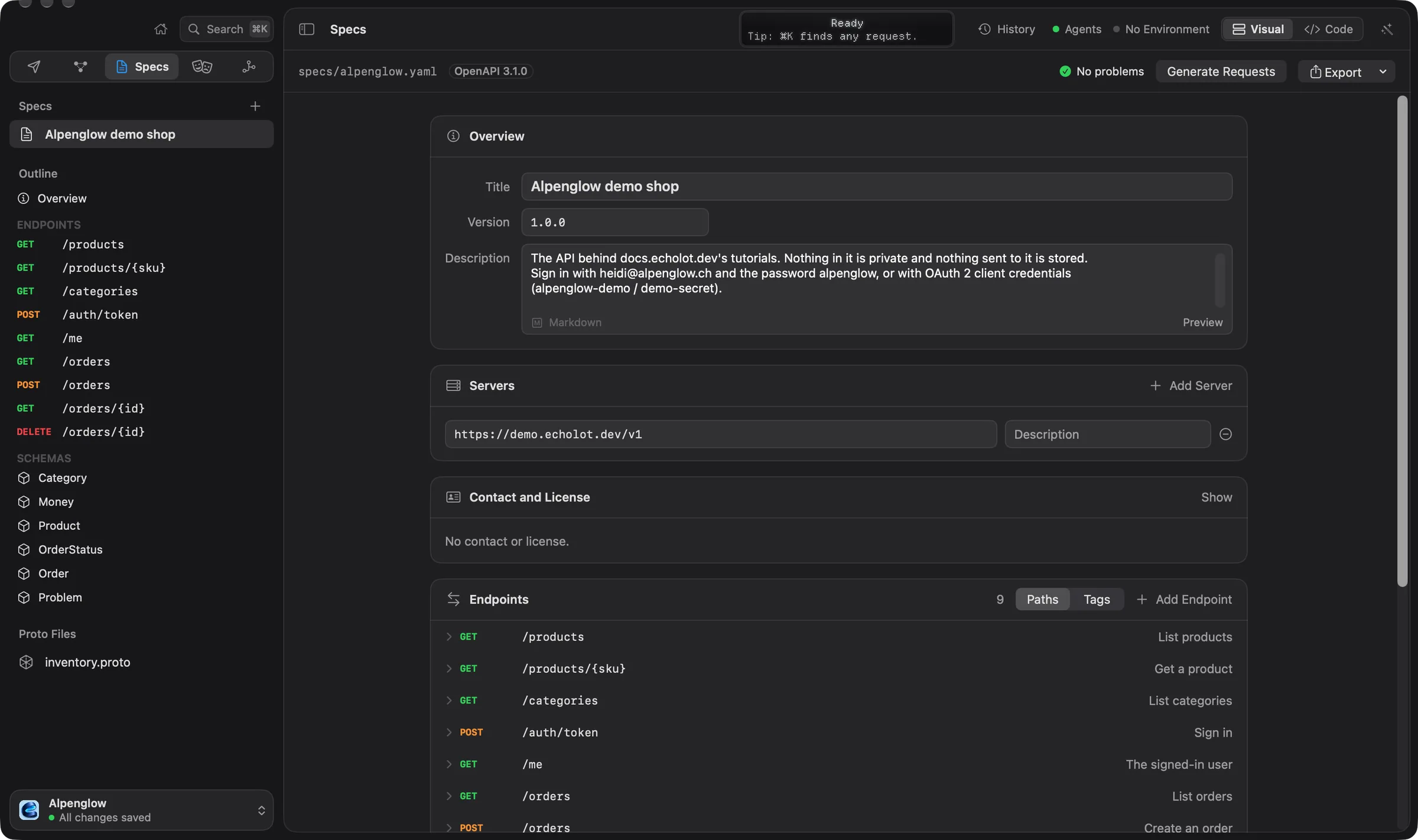
Specs in the workspace
Specs are files in the workspace's specs folder, so they go into Git with everything else. The Alpenglow example has
three: alpenglow.yaml (the shop's OpenAPI document), shop.graphql and inventory.proto. The Specs page lists
OpenAPI documents under Specs and .proto files under Proto Files. GraphQL schemas in the folder are used by
GraphQL requests and aren't listed here.
The + in the sidebar's Specs header adds one:
| Item | What it does |
|---|---|
| New Spec | Starts an OpenAPI 3.1 document titled New API and opens it in the visual editor. |
| New Spec from Responses… | Writes a spec from requests you've sent and the responses they got. See Spec from Responses. |
| Add Spec File… | Copies an OpenAPI or Swagger document (YAML or JSON) from your Mac into the specs folder. |
| New Proto File | Starts a .proto file from a small example service. See .proto files. |
| Add Proto File… | Copies a .proto file into the specs folder. |
Importing an OpenAPI document with File › Import… is different: it makes requests from it, not a spec to edit.
Right-click a spec for Generate Requests, Show in Finder, Export (As YAML… or As JSON…) and Delete…. Delete asks first and moves the file to the Trash; files it refers to stay, and so do mocks of it.
The outline
Click a spec to open it. Under the list, the sidebar shows its outline:
- Overview, the title, version and description.
- ENDPOINTS, every operation with its method and path. Deprecated ones are struck through. Rest the pointer on one for its summary.
- SCHEMAS, the reusable schemas.
- Files, when the spec refers to other files (see Specs split across files).
Click an entry to open it: in the visual editor its card opens and scrolls into view; in code, the editor goes to its line.
Visual and code
The Editor switch in the page header picks how you see the open spec:
- Visual: cards for the overview, servers, endpoints and schemas, edited with fields and menus.
- Code: the document as YAML or JSON, with line numbers.
Both edit the same text, and Echolot saves it shortly after each change. Editing a spec covers both.
Problems
Echolot lints the spec as you edit. The bar above the editor shows No problems, or the number of errors and warnings. A red count of errors also sits beside the open spec in the sidebar.
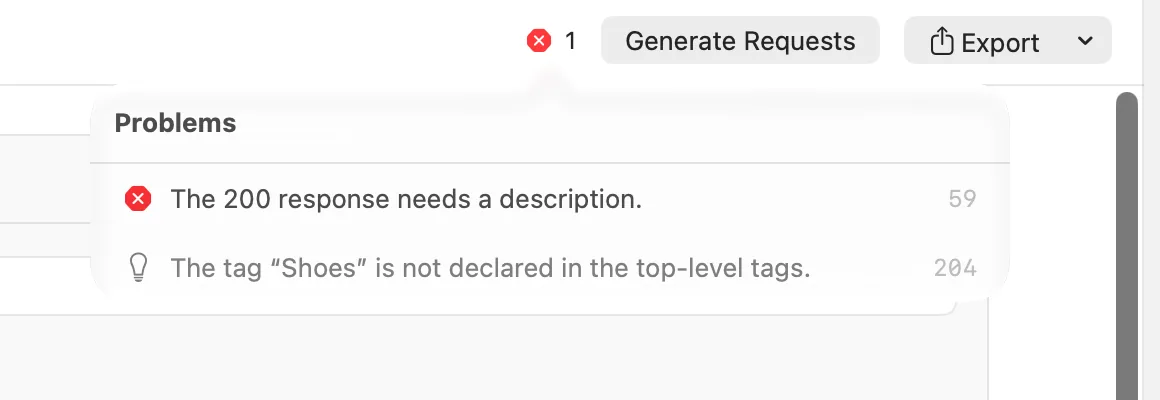
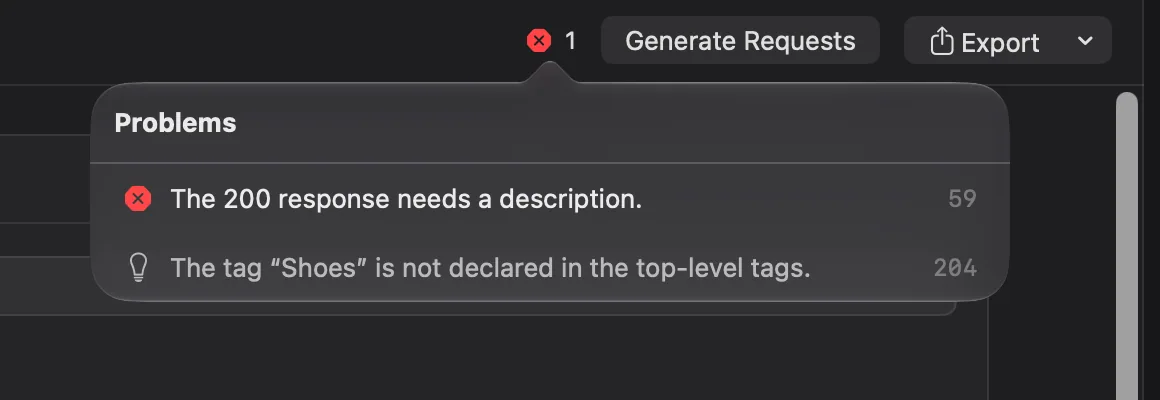
Click it for the list: errors first, then warnings and hints, each with its line. Choose one to go to that line. When the list is empty it says the document follows the OpenAPI specification and every reference resolves.
What lint looks for, among other things:
- An
openapiversion Echolot reads,infowith a title and a version, and paths that start with/. - Path parameters that are in the path and marked
required: true, and parameters that aren't defined twice. - A description on every response, and operation IDs that are used once.
- Tags declared at the top, security schemes that are defined, arrays with
items, and enums with values. - References that point to something, in this file or another one in
specs. - No
servers: requests made from the spec then start with{{baseUrl}}, which you set yourself.
The command-line tool runs the same lint in CI: see echolot spec.
Specs split across files
A spec can bring in parts of other files with $ref, such as $ref: schemas/pet.yaml#/Pet. The files must be inside
the workspace's specs folder. The sidebar lists them under Files: click one to open it in Code. In the code
editor, rest the pointer on a $ref to see what it points to, and ⌘-click it to go there, in this file or
the other.
Echolot reads the parts together wherever it uses the spec: lint, generating requests, mocks. When you export the spec, the files it refers to are written into the one file you save.
Exporting
Export in the bar above the editor (Export as YAML… or Export as JSON…) saves the spec as one file outside the workspace, with the files it refers to written into it. Unsaved edits are saved first, so the export is what the editor shows.
Requests that follow the spec
Generate Requests in the bar above the editor makes a folder named after the spec, with a request for every endpoint, and opens the first. The folder follows the spec: when the spec changes, you can apply the changes to its requests without losing what you edited in them.
Once a folder follows the spec, the button becomes Requests, a menu with Check “folder” for Changes… for each folder that follows it, and Generate Another Folder. Checking opens OpenAPI Sync, which lists what is New in the spec, Changed in the spec and Gone from the spec. Tick the changes you want and click Apply 1 Change (or Apply 3 Changes, and so on). Your edits always stay; where you and the spec changed the same thing, yours is kept. When an operation is gone, its request moves to the Trash, unless you edited it: then it stays and stops following the spec. Unlink stops the folder following the spec and leaves its requests as they are.
A folder can also follow a spec from outside the workspace, a file or a URL: right-click the folder in the Requests
sidebar and choose Link to OpenAPI Spec…. The command-line tool checks and applies changes with echolot spec check and echolot spec apply.