 Echolot
Editing a spec
Design an OpenAPI document in the visual editor or as YAML, with lint as you type, saving and undo.
You edit a spec in two ways, and switch between them at any time with Editor in the page header: Visual for cards and fields, Code for the YAML or JSON itself. Both change the same text. The text is what Echolot keeps: a visual edit changes only the lines of the part you edited, so your comments, ordering and formatting stay, and a Git diff shows exactly what changed.
To start a spec, choose + › New Spec in the sidebar's Specs header. Echolot writes an OpenAPI 3.1 document
titled New API into the specs folder and opens it in the visual editor.
The visual editor
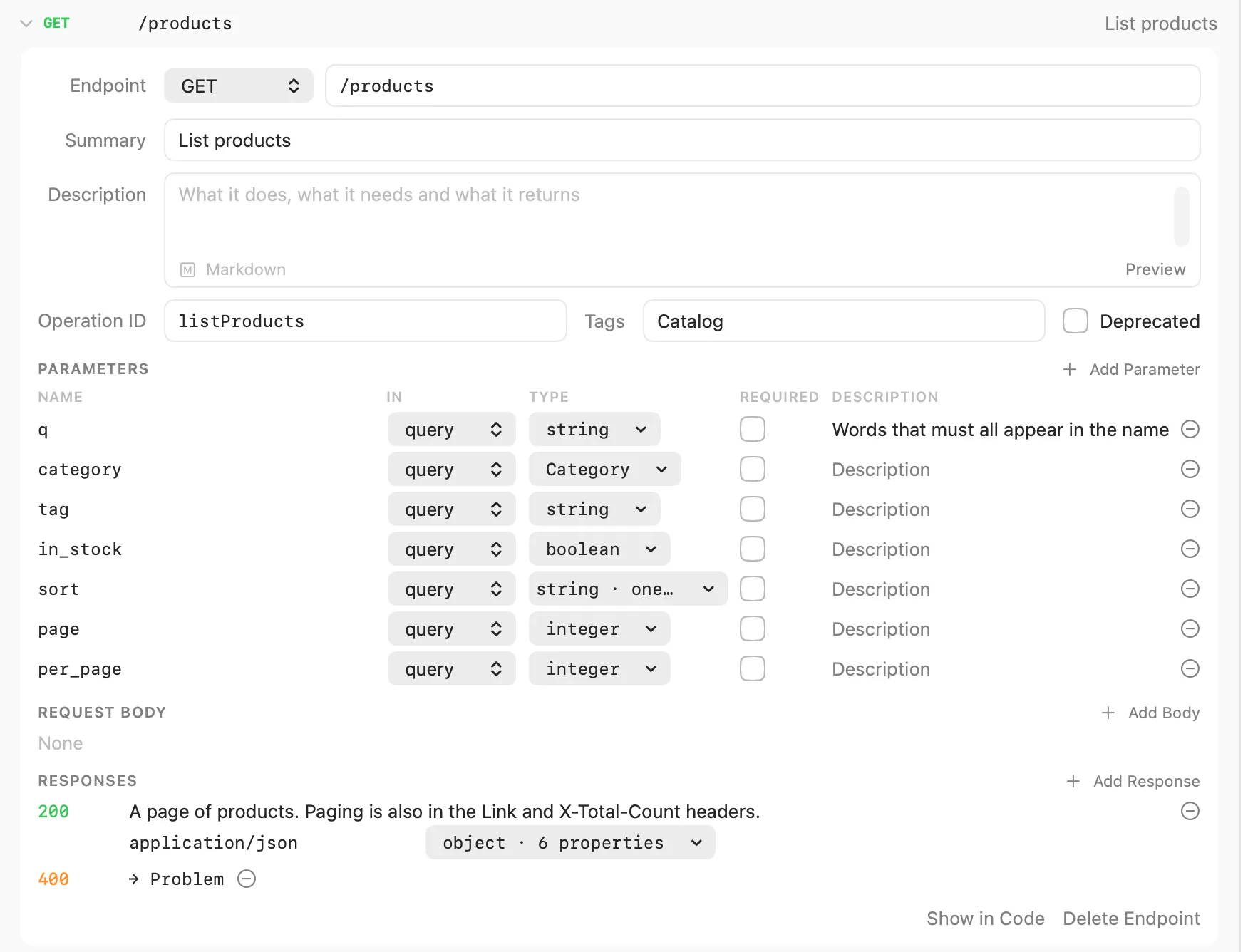
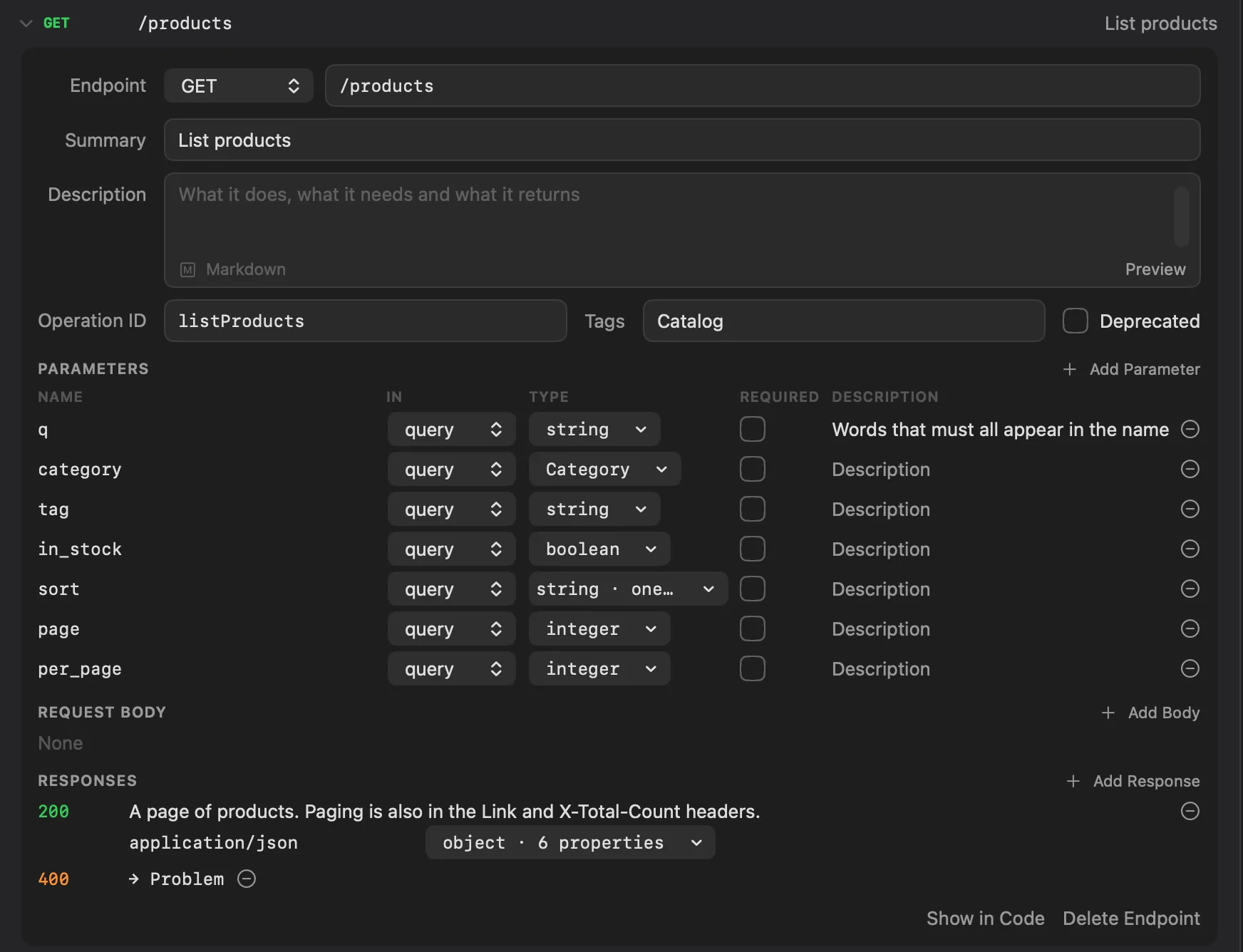
Fields in the visual editor change the document when you finish editing them: press ↩ or move to another field. Description fields take Markdown, and ↩ starts a new line in them; the button beside one shows the description as it will read.
The page has these cards:
| Card | What you edit |
|---|---|
| Overview | The API's Title, Version and Description. |
| Servers | The servers' URLs and descriptions. Add Server adds one; the − removes one. Without servers, requests made from the spec start with {{baseUrl}}, which you set yourself. |
| Contact and License | Show opens the contact name, email and URL, the license and its URL, and the terms of service. |
| Endpoints | Every operation. Group by lists them by Paths or by Tags (the ones without a tag under Untagged). Click one to open it. |
| Schemas | The reusable schemas, which bodies and responses can refer to by name. Click one to open it. |
Adding an endpoint
Click Add Endpoint in the Endpoints card. In the New Endpoint sheet, choose the method, type the path (such
as /products/{sku}), and optionally a summary and a tag, then click Add Endpoint. Echolot defines the path's
parameters for you and adds a body and a success response to start from. A method and path that already exist are
refused.
An open endpoint has:
| Part | What you edit |
|---|---|
| Endpoint | The method and the path. Changing them moves the operation. |
| Summary, Description | A short name, such as List products, and what it does, needs and returns. |
| Operation ID, Tags | The ID code generators use, and tags separated by commas. |
| Deprecated | Marks the operation deprecated. |
| Parameters | Each parameter's name, where it goes (In: path, query, header or cookie), its type, Required and description. Add Parameter adds one. When the path names a parameter that isn't defined, a button such as Add {sku} defines it. Parameters marked PATH-WIDE are defined for every method of the path. |
| Request Body | Add Body adds a JSON body; each media type has a schema and the body can be Required. Remove Body takes it out. |
| Responses | One row per status code, with its description and, after Add Body, its media types and schemas. Add Response adds the next common code not used yet (200, 201, 204, 400, 401, 403, 404, 409, 422, 500, then default). Edit the code to change it. An operation needs at least one response. |
The type of a parameter, a body or a property is a menu: a reusable schema, string, integer, number,
boolean or object, an Array of any of those, or None. A schema the menu can't express is shown as it is
written and kept until you choose something else.
At the bottom of an open endpoint are the first problem lint found in it (rest the pointer on it for all of them) and three buttons: Open Request (when a request follows this operation), Show in Code and Delete Endpoint.
Adding a schema
Click Add Schema in the Schemas card, give it a name such as Product, and click Add. An open schema has a
Name, a Description and its Properties: each with a name, a type, Required and a description. Add
Property adds one.
The schema says where it is used (Used in 3 places, or Not used yet). Renaming it changes every reference to it. Delete Schema asks first when the schema is in use, since those references would point to nothing. A schema that isn't a plain object is described and edited in code: Show in Code takes you there.
Swagger 2.0
Swagger 2.0 documents open in the visual editor to read, and you edit them in Code. Echolot designs OpenAPI 3.
The code editor
Switch Editor to Code to edit the YAML or JSON directly. Lint runs as you type, after a short pause: errors and warnings are underlined on their line, and resting the pointer on one shows the message.
On a $ref, rest the pointer to see what it points to; ⌘-click it to go there. A reference to another file
opens that file. Files a spec refers to always open in code.
When the text doesn't parse, the visual editor says The visual editor needs a document that parses., with the line and the error. Fix in Code goes to that line.
Saving
There is nothing to save by hand. Echolot writes the spec shortly after each change, and when you switch to another spec, leave the page or close the window. Running mocks of the spec pick up the change.
If the file can't be written (for example, it became read-only), Echolot says The spec could not be saved and keeps your edits in the editor:
| Button | What it does |
|---|---|
| Retry | Tries to write the file again. |
| Save a Copy… | Writes the edits to a file you choose. |
| Discard Changes | Goes back to the file as it is on disk. |
| Keep Editing | Closes the message. The edits stay, and the page stays on this spec until they are saved. |
Undo
Edit › Undo (⌘Z) undoes edits in either editor, and Edit › Redo (⇧⌘Z) puts them back. Each visual edit is one step; typing is one step until you pause. An undo belongs to the spec it changed: once you open another file, it doesn't reach back into the one before.
With an agent
External agents can read, write and lint the workspace's specs when you turn on the Specs toolset for them in Settings › Agents.