 Echolot
Echo
Echo, the small status screen in the page header that tells what is going on in the window, with a report of the session on click.
Echo is a tiny screen in the middle of the page header. It tells what is going on in the window as it happens: a send and its timing, an error, the Runner's progress, a flow waiting for you, an agent's call, a switch to a protected environment. Now and then it adds a joke, as much as you like. Click it for a report of the session, jokes aside. Echo is on by default, and you can turn it off.


Turn Echo on or off
Echo is on by default. Open Settings › General, and under Echo use Show Echo's status screen in the page header. Every workspace window follows it. When the header is too narrow for the screen beside the page's title and buttons, Echo steps aside until there is room again.
To hide it again, turn the setting off, or Control-click the screen and choose Hide Echo.
What Echo tells
Echo watches the window and puts a short line on its screen for:
- Sends: the request being sent and how long it has taken so far, then the status and time of the response, the checks that failed, or why there was no response (a timeout, nothing listening at the address, a host name that didn't resolve, a failed TLS handshake). A cancelled send too.
- Sessions: a WebSocket, Socket.IO or MQTT session connecting and closing.
- The Runner: progress while it runs, then how many requests passed or failed, or where you stopped it.
- Flows: a flow running, waiting for you, and how it ended.
- Mocks: a mock server starting and stopping, and the requests it answers.
- Environments: a switch of the active environment, and a warning when it is a protected one.
- Agents: an agent connecting, its calls, and approvals waiting for you; the Assistant answering.
- What's New: after an update, the releases you haven't read yet.
How much it jokes
Choose with Humor in Settings › General › Echo, or Control-click the screen:
| Humor | What Echo does |
|---|---|
| Facts only | Status and details, no jokes. |
| A little | A joke now and then. The default. |
| Plenty | A joke on every line, and more chatter while nothing happens. |
The report
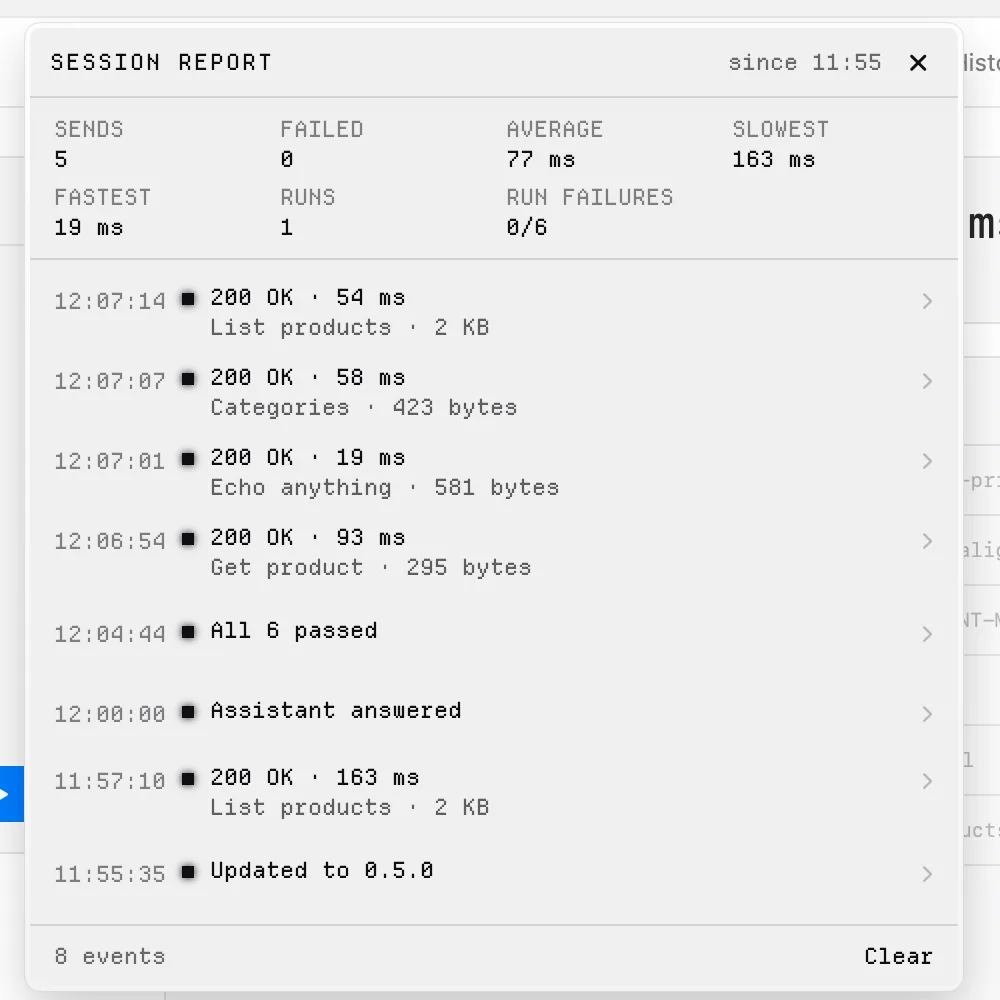
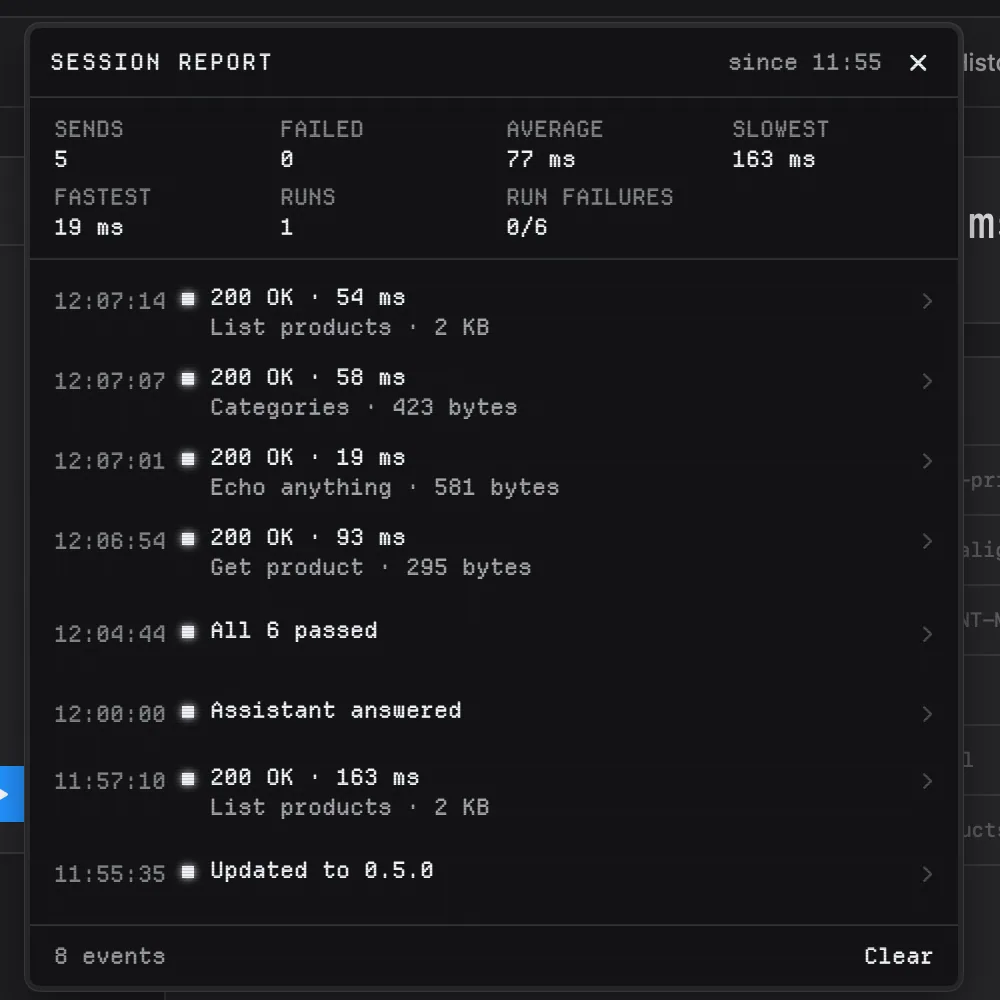
Click Echo, or Control-click it and choose Show Echo's Report. The SESSION REPORT unrolls from the screen with the facts of the session since it started:
| Readout | What it counts |
|---|---|
| SENDS, FAILED | Requests sent, and how many failed |
| AVERAGE, SLOWEST, FASTEST | Response times; hover over the slowest or fastest to see the request |
| RUNS, RUN FAILURES | Runner runs, and failed requests out of all the requests they ran |
| FLOWS | Flow runs, and how many failed |
| SESSIONS | WebSocket, Socket.IO and MQTT sessions |
| MOCK CALLS | Requests your mock servers answered |
| AGENT CALLS | Calls from agents |
Readouts for things that didn't happen stay out. Below them is the log of the session's events with their times. Clear starts the report afresh. Close it with the close button or Esc.
AI comments
Echo writes its own lines. If you like, a model can write some of its comments instead: turn on Let AI write some of Echo's comments in Settings › General › Echo. It is off by default, and not available with Facts only.
- On a Mac with Apple Intelligence (macOS 26), Apple's on-device model writes them, and nothing leaves the Mac.
- Otherwise the model checked in Settings › Assistant writes them. Written by shows which. The first time, Echolot asks the one-time permission for that provider. If you haven't allowed it, Written by says so with an Allow… button, and Echo writes its own lines meanwhile. A permission you already gave the Assistant covers Echo too. CLI agents never write Echo's comments.
A model writes at most one comment every 30 seconds, and only about failures and other notable moments: a failed or very slow (3 seconds or more) or very fast (under 30 ms) send, a failed check, a send to or a switch to a protected environment, a finished run or flow, an agent waiting for approval.
What the model hears
Only what happened, in a sentence: the kind of event, a request's kind and method, a status code, a duration, how many checks failed, why a send got no response (timeout, nothing listening, host name, TLS), that a run of so many requests had so many failures. For example: "A HTTP POST request got status 422 in 180 ms." or "A test run of 12 requests finished with 2 failures."
Never names, addresses, headers, bodies, variables or secrets.
Accessibility
- With Reduce Motion on (System Settings › Accessibility › Display), lines appear at once instead of typing out and scrolling, the screen only redraws when its text changes or a clock ticks, and the report opens with a short fade instead of unrolling.
- With Increase Contrast on, the screen draws with more contrast.
- VoiceOver reads Echo's current lines; the screen's label is "Echo".
External agents
Let Claude Code, Claude Desktop, Cursor, VS Code, Codex and other MCP clients work with a workspace through Echolot's MCP server, with your approval.
Quick Send
Send a saved request from any app with a keyboard shortcut or the menu bar, and see the response without switching to Echolot.