 Echolot
MCP Servers
Connect to MCP servers, see the tools, resources and prompts they offer, call them, and watch what changes.
The MCP Servers page is where you inspect and debug Model Context Protocol servers: the ones you build and the ones your AI clients use. Echolot connects, works out which protocol version the server speaks, checks that each step works, lists what it offers, and lets you call any tool, resource or prompt and save the call as a request.
Open it with MCP Servers in the sidebar's module switcher, or ⌘2. The sidebar lists the workspace's servers; the page shows the one you select.
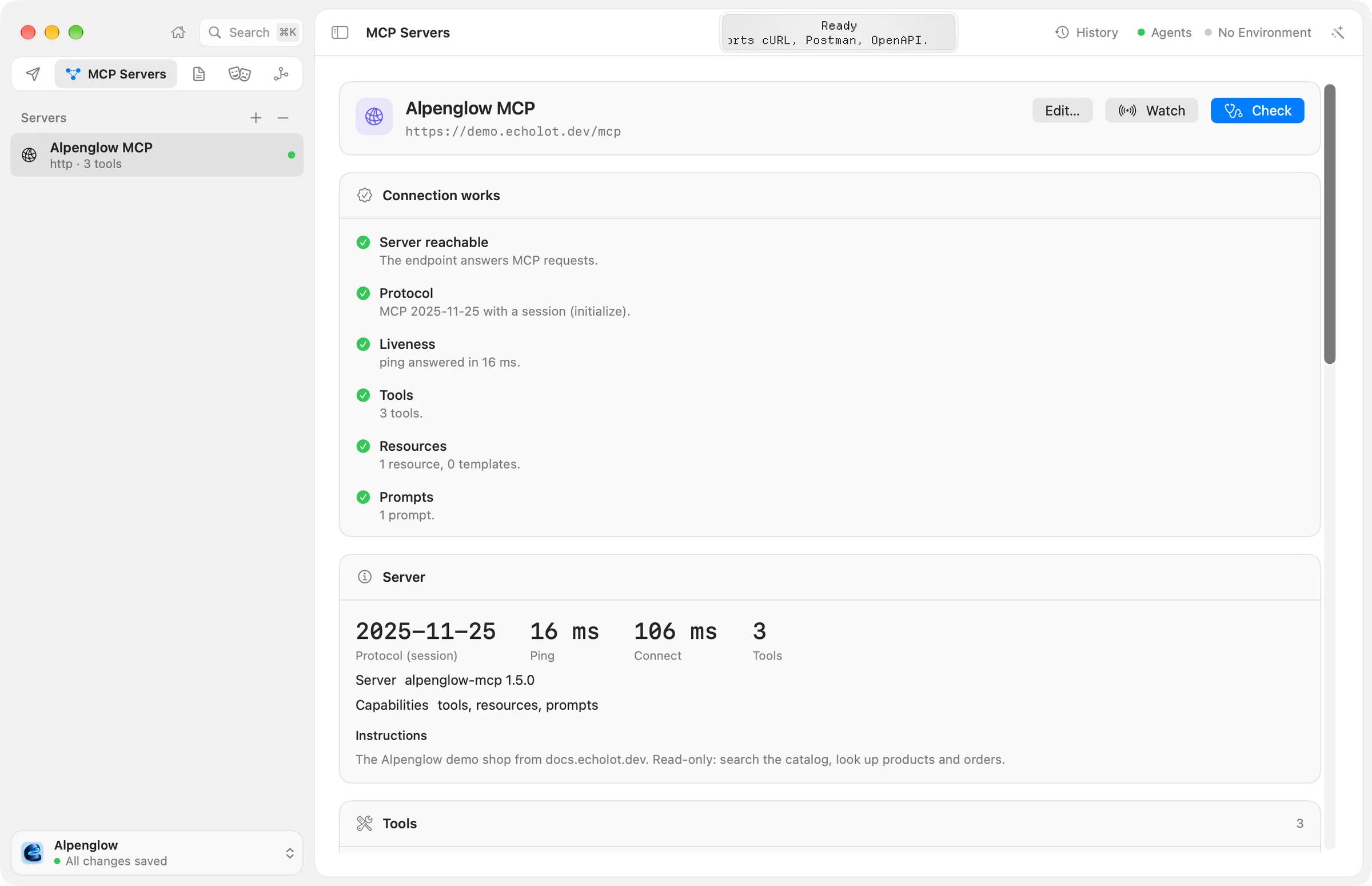
Try it with the demo server
The demo API runs an MCP server at https://demo.echolot.dev/mcp. The Alpenglow example workspace already has it as
Alpenglow MCP. To add it to another workspace:
- In the sidebar's Servers header, click + and choose Add MCP Server….
- Enter a Name, such as
Alpenglow MCP, and set Transport to HTTP (Streamable HTTP). - Enter the URL
https://demo.echolot.dev/mcpand click Add.
Echolot checks the server straight away. It offers three tools (search_catalog, get_product, order_status), a
resource and a prompt. Adding servers covers local servers, importing servers from
other apps, headers and OAuth.
The server list
Each row shows the server's name, how it connects and, once checked, how many tools it has: http · demo.echolot.dev
before the first check, http · 3 tools after it, stdio · npx for a local command. A green dot means the last check
passed, a red one that it failed.
Right-click a server for Edit…, Check Connection and Delete…. The − button in the header deletes the selected server. Echolot asks first, and the server's file goes to the Trash.
Each server is a file in the workspace's mcp-servers folder, so it travels with the workspace in Git. Secrets don't:
see Values and secrets.
Checking a server
Echolot checks a server when you open it, and again when you click Check. A check connects, detects the protocol, pings the server, and lists its tools, resources and prompts. Local servers that Echolot hasn't started before are the exception: they wait until you review their command (see Review before running).
The result appears in cards, top to bottom:
| Card | What it shows |
|---|---|
| Connection works or Connection problem | Each step of the check, passed or failed: Server starts (local servers), Server reachable, Authorization, Protocol, Liveness (the ping), Tools, Resources and Prompts. A failed step says what went wrong and suggests a fix. |
| Server | The protocol version (Protocol (stateless) or Protocol (session)), Ping and Connect times, the number of tools, the server's name and version, its Capabilities, the versions it Supports when it lists more than one, and its Instructions for models. |
| Tools, Resources, Prompts | What the server offers, with each item's description. Click one to call it. |
| How a model sees this server | What the tool list costs a model on every turn, and what a model would stumble over. See Tools and quality. |
| Try with a model | Which tool a model would pick for a prompt you type. See Tools and quality. |
| Live | What a watched server announced. See Watching a server. |
| Messages | Every message of the last check. See The message log. |
When a server asks for OAuth, a Sign in required card comes first. See Signing in with OAuth.
A tool whose definition the server got wrong is counted in the Tools step, which fails and names the tool and what is wrong with it.
Calling tools, resources and prompts
Click a tool, a resource or a prompt in its card. A panel opens with its name and its arguments:
- A tool with an input schema gets a form, one field per parameter. Required fields have a
*after the name. Resting on a field shows its description. Switch Arguments to JSON to write the arguments yourself; the JSON starts with every field of the schema. - A prompt gets a field for each of its arguments.
- A resource needs no arguments.
Click Call or press ↩. The answer appears below the arguments, with how long it took. A tool that reports an error shows it in red.
Save as Request saves the call with its arguments as an MCP request in the workspace, so you can run it again, add checks and run it in the runner. See MCP requests. Close (esc) leaves without saving.
Values in the arguments can use {{variables}} from the active
environment. Calls go through the same engine as every request, so the
workspace's proxy and certificate settings apply, and each call is kept in History.
When the server asks you something
While you call a tool, a server can ask for something in return. Echolot shows a sheet:
| The sheet says | What to do |
|---|---|
| The server asks for information | Fill in the form the server sent and click Submit, or choose Decline or Cancel. |
| The server asks you to open a page | Click Open in Browser, finish there, then click Done. |
| The server asks for a model reply | The sheet shows the messages the server wants a model to answer. Write the reply yourself and click Send Reply, or Decline. |
Only the server that asked receives your answer.
Watching a server
Click Watch to keep a connection open. The button turns into Watching, and a Live card shows, newest first, what the server announces: its tool, resource or prompt lists changing, and updates to resources. When a list changes, Echolot reads it again, so the cards stay current. Click Watching to stop.
The message log
The Messages card lists every JSON-RPC message of the last check, with the time since the check started: messages sent to the server, messages received, events of the connection, and, for a local server, what it wrote to its error output. The first 12 show; Show All lists the rest.
Rest the pointer on a message to see it whole and formatted, with its method, ID, whether it is a result, an error or a notification, and its size. Copy copies it.
When a check fails, this is the place to look: a local server's error output often says why it stopped, and an OAuth problem shows each discovery step.
Protected environments
When a protected environment is active, Check, Watch and every call ask you first, because the server may be a production one. Echolot doesn't check servers on its own while that environment is active; click Check when you want to.
Protocol versions
Echolot speaks both kinds of MCP:
- Stateless MCP, revision
2026-07-28, found throughserver/discover. The Server card says Protocol (stateless). - The handshake-based revisions
2025-11-25,2025-06-18,2025-03-26and2024-11-05, which start a session withinitialize. The card says Protocol (session).
Over HTTP, Echolot uses Streamable HTTP. When a server refuses it, Echolot tries the older HTTP+SSE transport of
2024-11-05 by itself. A URL ending in /sse is tried as HTTP+SSE first.
From the command line
echolot mcp check runs the same check in a terminal or in CI, and echolot mcp sign-in signs in to a server that
asks for OAuth. See echolot mcp.
To let AI clients use your workspace through Echolot's own MCP server, see Agents. The tutorial Inspect and debug an MCP server walks through this page step by step.