 Echolot
Adding servers
Add MCP servers over HTTP or as local commands, import them from other apps, and sign in with OAuth.
An MCP server is either reachable over HTTP or a program that Echolot starts on your Mac and talks to over stdio. You can enter one yourself, or import the servers another app already knows about.
Adding a server
In the sidebar's Servers header, click + and choose Add MCP Server…. On an empty MCP Servers page, the Add MCP Server… button does the same.
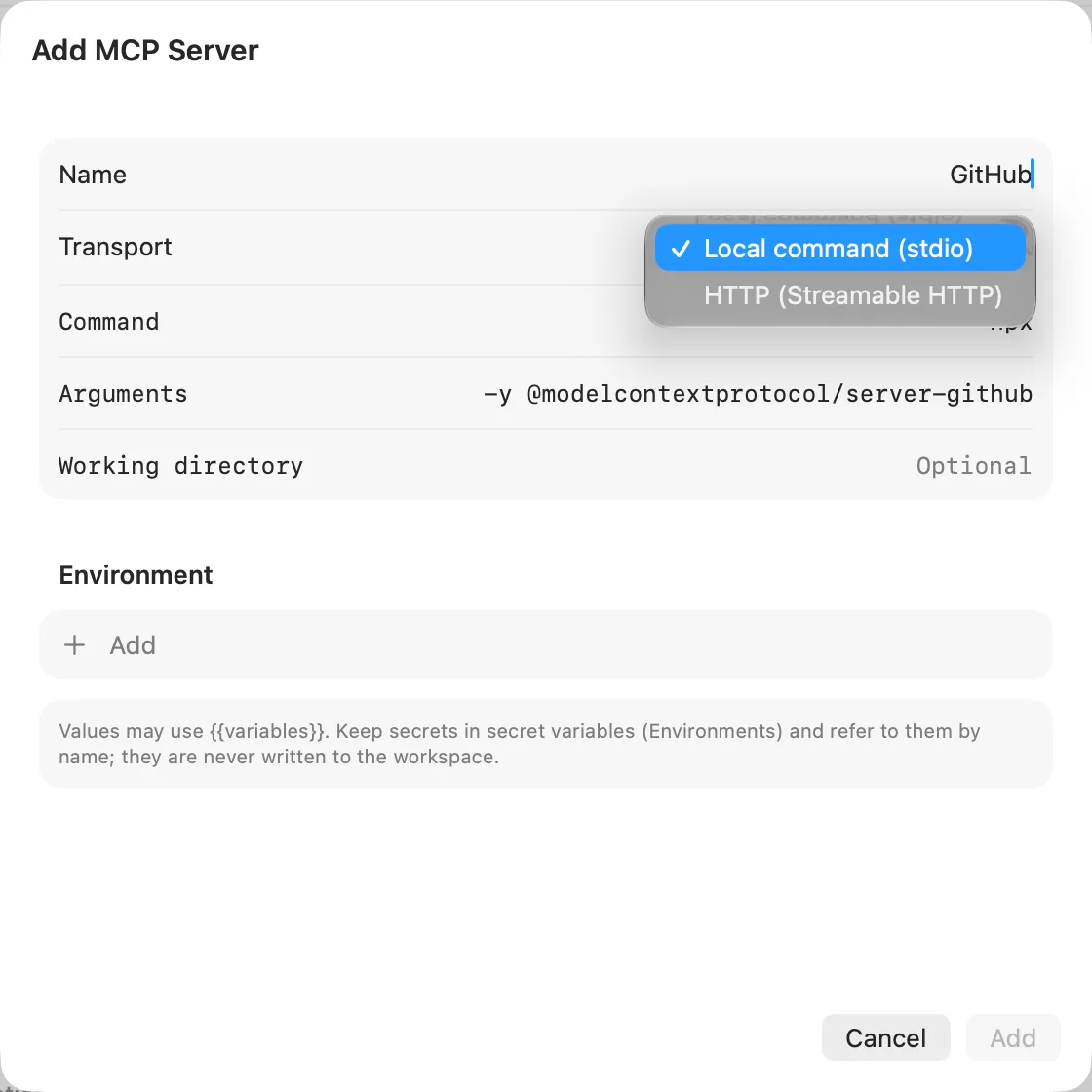
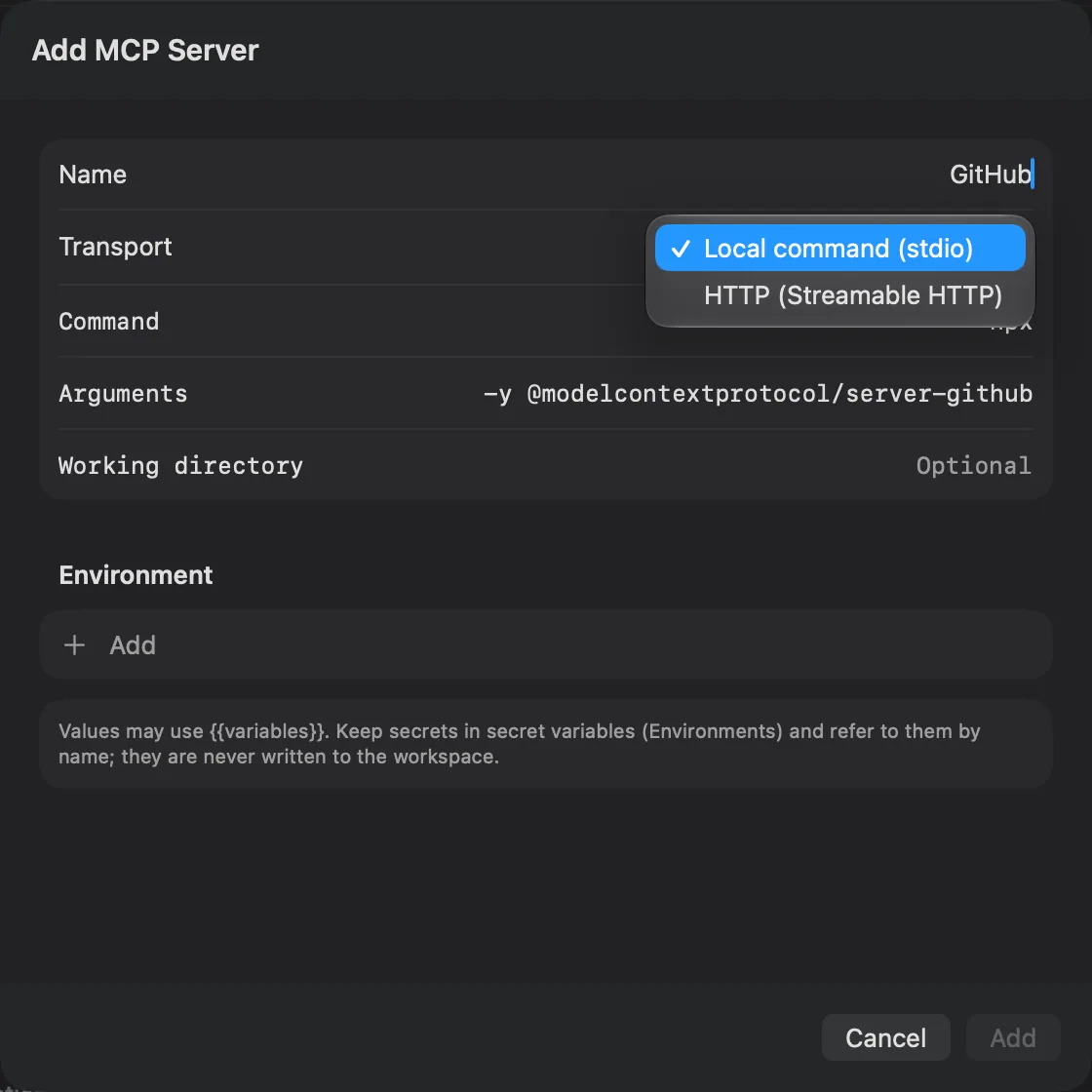
Give the server a Name, choose a Transport, fill in the fields below, and click Add. Echolot saves the server, selects it and checks it. Edit… in the server's header (or its right-click menu) opens the same sheet; Save keeps the changes and checks the server again. Edits can be undone with Edit › Undo.
Over HTTP
Choose HTTP (Streamable HTTP).
| Field | What goes in it |
|---|---|
| URL | The server's endpoint, such as https://demo.echolot.dev/mcp. MCP endpoints often end in /mcp. |
| Headers | Headers sent with every message, such as Authorization with Bearer {{token}}. Click Add for a row; the checkbox turns a row off without deleting it. |
| OAuth | Only for servers that sign in with OAuth and whose authorization server can't register Echolot by itself. See Signing in with OAuth. |
Servers that still speak the older HTTP+SSE transport need no setting of their own: enter their URL here, and Echolot
falls back to HTTP+SSE when Streamable HTTP is refused. A URL that ends in /sse is tried as HTTP+SSE first.
As a local command (stdio)
Choose Local command (stdio).
| Field | What goes in it |
|---|---|
| Command | The program to start, such as npx, uvx, node or the full path of a binary. |
| Arguments | Its arguments, separated by spaces, such as -y @modelcontextprotocol/server-everything. Put an argument with spaces in double quotes. |
| Working directory | Where the program starts. Optional. |
| Environment | Environment variables for the program, such as GITHUB_TOKEN with {{github_token}}. |
Echolot starts the program with the PATH your login shell has, so npx, uvx and tools installed with Homebrew,
nvm, mise or Volta are found even when you opened Echolot from the Finder or the Dock. If a check says Server
starts failed, it suggests checking that the command is installed and on the PATH, or giving its full path. The
program's error output is in the Messages card.
Direct download only
Local (stdio) servers run in the direct download. The App Store edition can't start programs: it keeps the server
in the workspace and shows Runs as a local program in its place. The direct download and the echolot
command-line tool run it. MCP servers over HTTP work in both editions.
Review before running
A local server that came from the workspace files (a colleague's commit, say) or from an import has not been started on this Mac. Echolot shows Review before running with the exact Command, Arguments, Working directory and environment, and starts nothing until you click Trust and Check.
Your approval belongs to that exact command on this Mac, and is never written into the workspace. If the command, its arguments or its environment change, Echolot asks again. Servers you add or edit yourself count as approved, since you wrote them.
Values and secrets
Every field can use {{variables}}, resolved from the active environment when
Echolot connects. Keep tokens and keys in secret variables and refer to them by name:
Bearer {{token}}, {{github_token}}. Secret values stay in the Keychain and are never written to the workspace, so
the server's file is safe to commit.
Importing servers from other apps
Echolot reads the MCP server lists of Claude Desktop, Claude Code, Cursor, VS Code, Windsurf and Codex.
Direct download only
The direct download finds these files by itself. When it finds any, a Found on this Mac box at the foot of the sidebar lists each app with an Import button. The + menu lists them under Import from too, and Choose Config File… takes any other file. Close the box with its ×; importing stays in the + menu.
Compare the editionsMac App Store edition
The App Store edition can't read other apps' files on its own. Under + › Import from, choose the app (for example Cursor…): an open panel starts in that app's folder, and you pick the file. Choose Config File… takes any other file.
Compare the editions| App | File |
|---|---|
| Claude Desktop | ~/Library/Application Support/Claude/claude_desktop_config.json |
| Claude Code | ~/.claude.json, or a project's .mcp.json |
| Cursor | ~/.cursor/mcp.json |
| VS Code | ~/Library/Application Support/Code/User/mcp.json, or a project's .vscode/mcp.json |
| Windsurf | ~/.codeium/windsurf/mcp_config.json |
| Codex | ~/.codex/config.toml |
You can also drop one of these files on the window, or choose it in File › Import…: Echolot recognises an MCP client config like any other import.
What an import does:
- Every server in the file becomes a server of the workspace, local or HTTP as in the original.
- Literal secrets (a token in an
Authorizationheader, a key in a secret-looking environment variable) are moved into secret variables of the workspace, and the server refers to them by name. The import report names those variables, never the values. - Placeholders become Echolot values:
${env:NAME}and${NAME}read the environment variableNAMEwhen Echolot connects, and VS Code's${input:id}becomes the variable{{id}}. The report says which variables to add. - Codex's
bearer_token_env_varbecomes anAuthorization: Bearerheader that reads that environment variable. - A server turned off in the original is imported, with a note in the report. One with neither a command nor a URL is skipped.
- Imported local servers wait for you in Review before running.
Signing in with OAuth
When a server answers that it needs OAuth, Echolot shows Sign in required at the top of the page, with the Authorization server and how Echolot gets a client:
| Client says | Meaning |
|---|---|
| Echolot registers itself | The authorization server takes new clients by itself. Nothing to set up. |
| From the server's OAuth settings | You entered a client ID in the server's OAuth section. |
| Needs a client ID (Edit…) | The authorization server doesn't register clients. Register one there, then enter it under Edit… › OAuth. |
Click Sign In…. Echolot opens your browser, waits for the sign-in to come back to 127.0.0.1, and checks the server
again. The token goes to the Keychain, never into the workspace. The card then reads Signed in, with the
authorization server, the scopes, when the token expires and, if Echolot registered itself, Registered by Echolot.
An expired token that can be refreshed is refreshed on the next call.
Sign Out forgets the token and the client Echolot registered. The token itself stays valid at the server until it expires.
The OAuth section of the server sheet is for the cases discovery can't handle:
| Field | Default when empty |
|---|---|
| Client ID | Registered automatically. |
| Client secret | None. Use a secret variable, such as {{client_secret}}. |
| Scopes | As the server asks. |
| Redirect URI | http://127.0.0.1:<any port>/callback. |
Leave the section empty to discover everything. An Authorization header in Headers takes precedence over OAuth.
The command-line tool signs in with echolot mcp sign-in, sharing the Keychain item with the app on a Mac, or printing
the sign-in as a secret for CI. See echolot mcp.
When a check fails
The Connection problem card names the step that failed and suggests a fix:
| Step | Common causes |
|---|---|
| Server starts | The command isn't installed or isn't on the PATH. Run it in Terminal to see why it stops; its error output is in Messages. |
| Server reachable | Nothing listens on that host and port, or the URL's path is wrong (MCP endpoints are often /mcp). |
| Authorization | Nobody is signed in, the credentials aren't allowed, or the server wants an Authorization header. |
| Liveness | The server didn't answer ping. It may be busy or not follow the specification. |
| Tools | One or more tool definitions are invalid; the step names them. |