 Echolot
Inspect an MCP server
Add the demo shop's MCP server, look at what it offers, call its tools, read how a model sees it, and save calls as requests with checks.
An MCP server gives AI agents tools, resources and prompts. Before you hand one to an agent, see what it offers,
call its tools yourself, and check what the tool list costs a model. In this tutorial you do that with the demo
shop's server, https://demo.echolot.dev/mcp, and save a tool call as a request with checks.
- Time: 15 minutes.
- You need: any workspace. Alpenglow already has this server as Alpenglow MCP; to follow along from scratch, use another workspace.
- You learn: adding a server, the check, calling tools, the How a model sees this server card, and MCP requests.
1. Add the server
- Switch to MCP Servers (⌘2).
- Choose Add MCP Server… (on the empty page, or in the sidebar's + menu).
- In Add MCP Server:
- Name:
Demo shop - Transport: HTTP (Streamable HTTP)
- URL:
https://demo.echolot.dev/mcp
- Name:
- Choose Add.
The server is saved as a file in the workspace's mcp-servers folder. The + menu can also import servers from
Claude Desktop, Claude Code, Cursor, VS Code or Codex.
Direct download only
Servers that run as a program on your Mac (Local command (stdio), such as npx or uvx servers) work in the
direct download. In the App Store edition, add a server over HTTP, or check it with echolot mcp check.
2. Check it
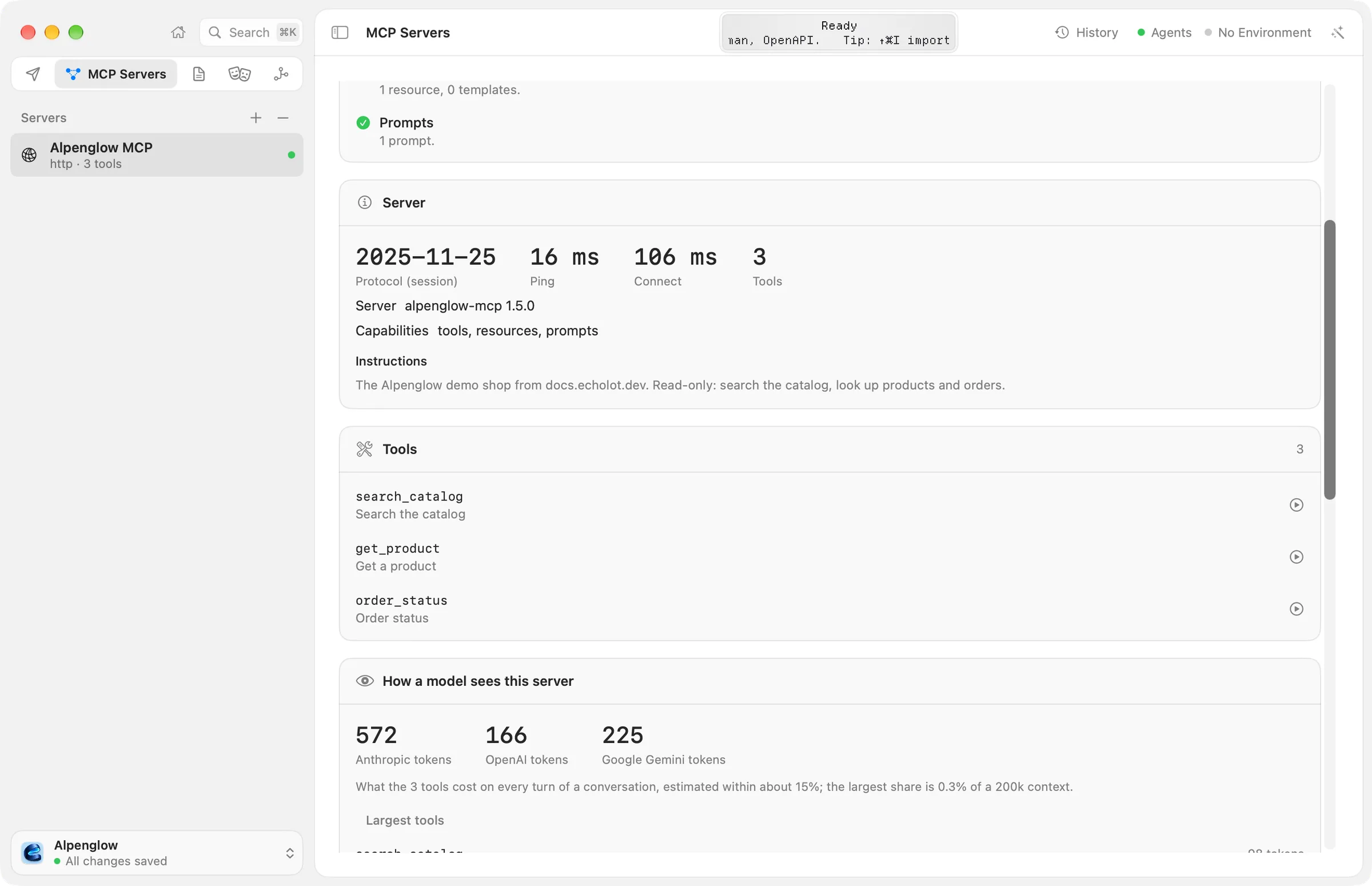
- Choose Check. Echolot connects, finds out which protocol version the server speaks, pings it, and lists its tools, resources and prompts.
- The page fills in, card by card:
- Connection works, then Server: the protocol (MCP 2025-11-25, with a session), the ping and connect times, the number of tools, its capabilities, and its Instructions: "The Alpenglow demo shop from docs.echolot.dev. Read-only: search the catalog, look up products and orders."
- Tools:
search_catalog,get_productandorder_status, with their descriptions. - Resources:
categories(alpenglow://catalog/categories). - Prompts:
pack_for_a_trip, which takes atrip. - Messages: every JSON-RPC message of the check. Choose Show All to see every one.
Watch keeps a connection open and shows list changes and resource updates as they happen. A server that needs OAuth shows Sign In… here; see adding servers.
3. Call a tool
- In the Tools card, choose
search_catalog. The call sheet opens. - Under Arguments, Form shows a field per parameter. Set
querytoultralight tentandlimitto3. JSON shows the same arguments as text. - Choose Call (↩).
The result appears under Result with the time it took: one line per product, with its name, SKU, price in CHF
and stock. A tool that fails shows Error and the text in red. Try order_status with order_id ord_7Hk2Lw, and
choose categories under Resources to read the resource the same way.
4. See how a model sees the server
Every tool's name, description and input schema go to a model on every turn of a conversation. The How a model sees this server card measures that:
- Anthropic tokens, OpenAI tokens and Google Gemini tokens: what the three tools cost per turn. For this server, a few hundred tokens.
- Largest tools: the tools that cost the most.
- A list of problems a model would stumble over, such as a missing description or a confusing schema, each with a suggested fix. For the demo server: Nothing a model would stumble over.
- The list as a provider receives it: the tool list exactly as each provider's API gets it, with Copy.
The Try with a model card below it sends a task you type to a model with these tools, to see which ones it picks. That needs an Assistant provider. The command-line tool prints the same measures:
echolot mcp check --quality --url https://demo.echolot.dev/mcpHow a model sees the tools (estimates)
Anthropic 572 tokens a turn, 0.3% of a 200k context
OpenAI 166 tokens a turn, 0.1% of a 200k context
Google Gemini 225 tokens a turn, 0.1% of a 200k context
largest: search_catalog 98, get_product 66, order_status 62
Nothing a model would stumble over.More in tools and quality.
5. Save the call as a request with checks
- Call
search_catalogagain and choose Save as Request. A request namedsearch_catalogappears under Requests, with the server, the tool and the arguments. - Open it. Operation is Tool; Call (⌘R) runs it like any request.
- In its Tests tab, open Add Test and add:
- MCP error equals
false: the tool didn't report an error. - Body contains
TNT-: the answer lists tents. - JSON value
$.content[0].textcontainsCHF.
- MCP error equals
- Call it. 3 passed.
Saved calls run in the Runner and in CI with echolot run, so a change in a server's tools
breaks a build instead of an agent. Alpenglow's Agent tools folder has two such requests. Tool output schema
checks a result against the tool's declared output schema, for servers that declare one. See
MCP requests.
Next steps
- Let an agent use your workspace safely: Echolot is an MCP server too.
- MCP servers: stdio servers, OAuth, importing other apps' configs.
echolot mcp:check,sign-inand the rest.
Automate with a flow
Build a flow on the canvas that signs in, lists orders, decides and notifies you; run it, schedule it and start it from a webhook.
Let an agent use your workspace safely
Connect Claude Code or another MCP client to a workspace, decide what it may do, approve its sends, protect an environment, and keep secrets out of its reach.