 Echolot
Test an API and run it in CI
Add checks to requests, run them in the Runner, then run the same workspace with the command-line tool in GitHub Actions with a JUnit report.
Checks turn requests into tests: every send says what passed and what didn't. In this tutorial you add checks to
Alpenglow's requests, run folders in the Runner, and then run the same workspace on every push with echolot run
in GitHub Actions.
- Time: 20 minutes.
- You need: the Alpenglow workspace, and a GitHub repository you can push to for the last part.
- You learn: checks, the Runner and its reports,
echolot run, and secrets in CI.
1. Look at the checks a request has
- Open Catalog › List products and choose its Tests tab.
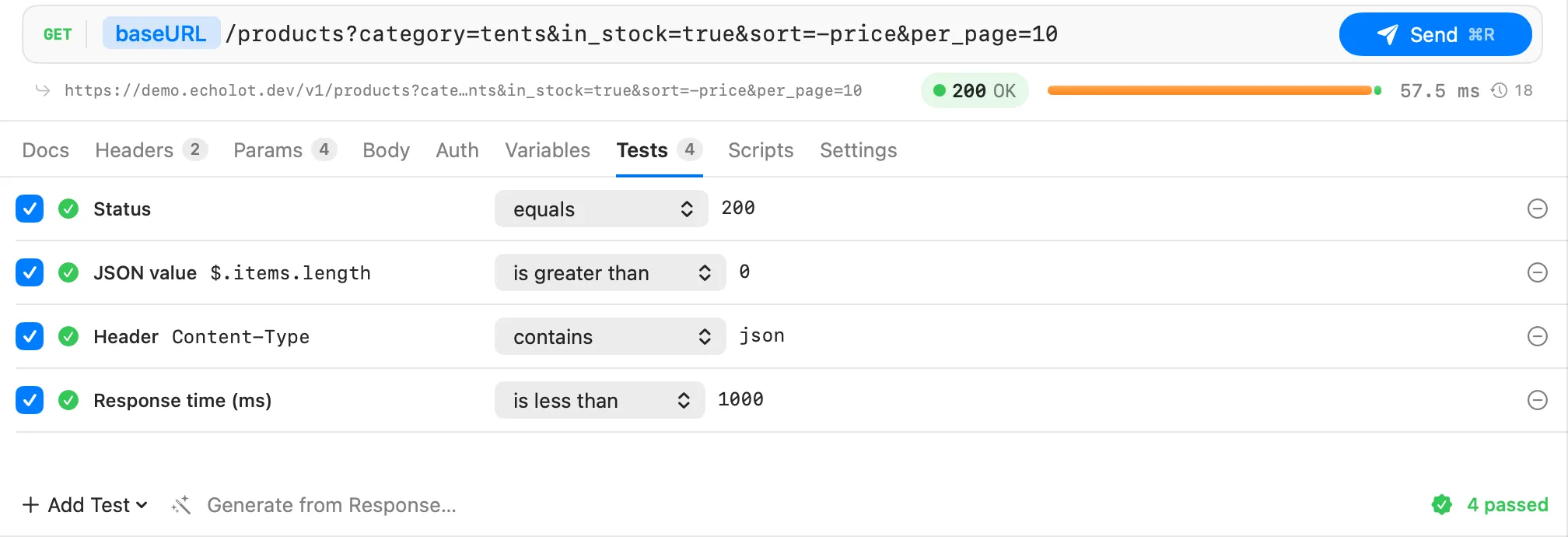
- It has four checks: Status equals
200, JSON value$.items.lengthis greater than0, HeaderContent-Typecontainsjson, and Response time (ms) is less than1000. - Send it. The tab reports 4 passed, and the response's Tests tab shows
4/4with each check under Checks.
2. Add your own checks
- In the Tests tab, open Add Test and choose JSON value.
- Set the path to
$.items[0].price.currency, the comparison to equals and the expected value toCHF. - Open Add Test again and choose Size (bytes), is less than,
65536. - Send. Six checks pass.
Two quicker ways to add checks:
- In the response's JSON Tree, right-click a value and choose Add Assertion. The check takes its path and value.
- Generate from Response… proposes checks from the latest response, including a JSON Schema of the body.
Now see a failure: change the response time check to is less than 1 and send. The tab says 1 of 6 failed,
and the response's Tests tab shows what came back under the failing check. Set it back to 1000.
For checks that need code, write a test script with pm.test() in the Scripts tab; see
scripts and tests.
3. Run folders in the Runner
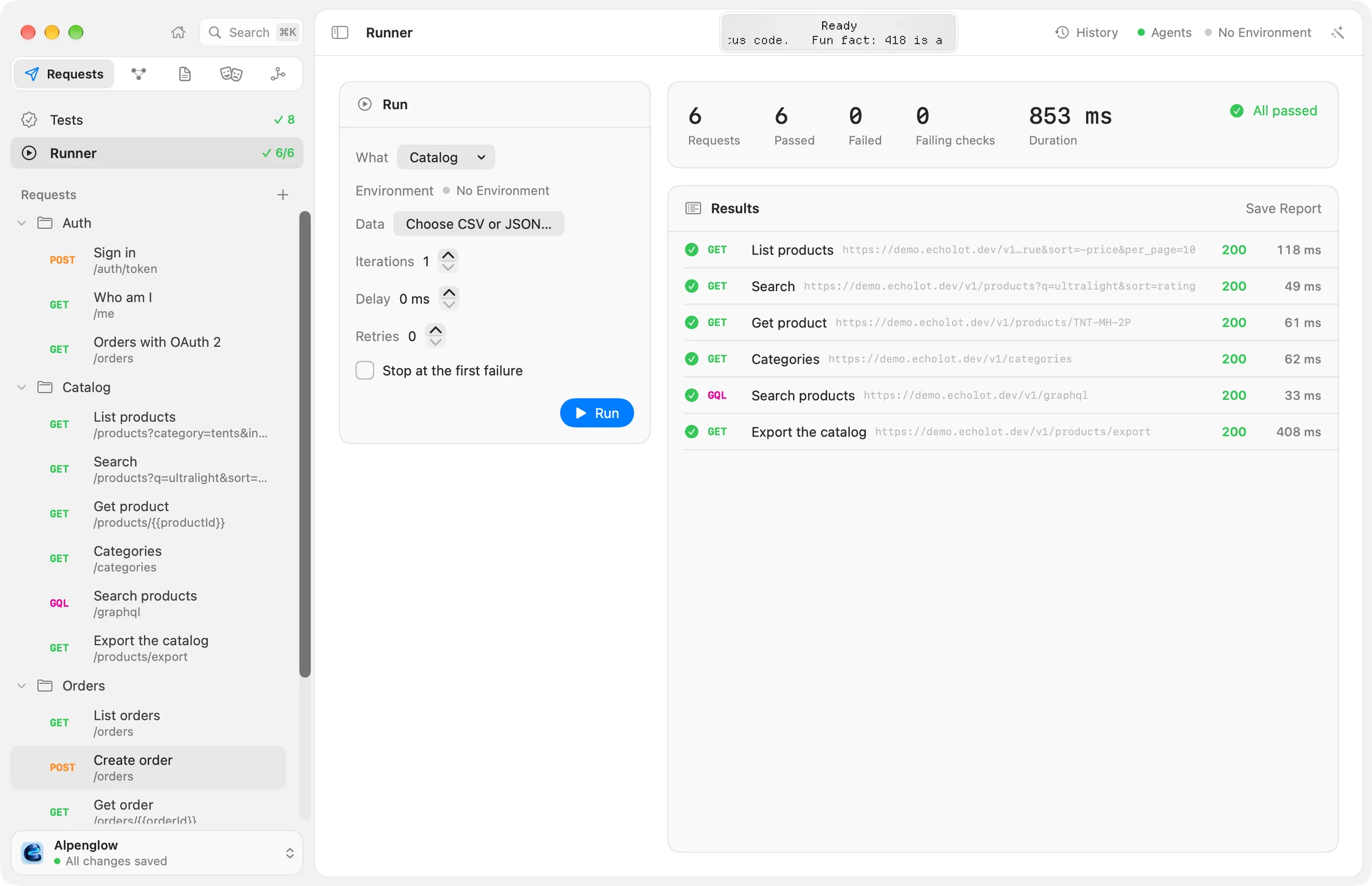
- Right-click the Catalog folder and choose Run Folder. The Runner page opens and runs every request in it, in order.
- The stats show Requests, Passed, Failed, Failing checks and Duration, and the Results card lists each request with its status, time and failing checks.
- To set a run up yourself, choose View › Runner (⌥⌘R). In the Run card:
- What: Whole workspace, one of the Folders, or One request. Choose Auth, run it, then Orders: the Orders requests send the token that Sign in stored.
- Environment, Iterations (try
3), Delay between requests in milliseconds, Retries for a request that fails, and Stop at the first failure. - Data: Choose CSV or JSON… runs once per row, with the row's columns as variables.
- Choose Run (⌘R).
- Open Save Report and choose JUnit XML…, JSON…, HTML… or HAR (every exchange)….
A run of the whole workspace also runs Realtime and Inventory. Their Socket.IO, MQTT and gRPC requests fail unless the local servers are running. More in the Runner.
4. Run it from Terminal
-
Install the command-line tool: choose Echolot › Install Command-Line Tool…, or turn it on in Settings › General. It puts
echoloton yourPATH.Mac App Store edition
The App Store edition doesn't include the command-line tool. Download
Compare the editionsecholot-<version>-macos.zipfrom the releases, unzip it, and putecholotin a folder on yourPATH. See the CLI. -
Check that every file reads and every variable resolves:
echolot validate Alpenglow.echolotIt prints
29 requests, 3 environments: no problems. -
Run the three folders that need nothing but the demo API:
echolot run Alpenglow.echolot --folder auth --folder catalog --folder orders✓ POST auth/sign-in 200 142 ms ✓ Status equals 200 ✓ JSON value $.access_token exists ✓ GET auth/who-am-i 200 87 ms ✓ Status equals 200 … All 13 requests passed 18/18 checks passed · 1.35 s--foldertakes a folder's or request's file name (auth,catalog/list-products). The exit code is1when a request gets no response or a check fails, so scripts and CI can stop on it. -
Write a JUnit report as well as the console output:
echolot run Alpenglow.echolot --folder auth --folder catalog --folder orders \
  --reporter junit --out results.xml --reporter console
Each request becomes a
testsuiteand each check atestcase. Every option is onecholot run.
5. Run it in GitHub Actions
-
Commit
Alpenglow.echolotto your repository. -
Add
.github/workflows/api.yml:name: API checks on: [push, pull_request] jobs: api: runs-on: macos-15 steps: - uses: actions/checkout@v4 - name: Install the Echolot CLI env: GH_TOKEN: ${{ github.token }} run: | gh release download --repo staticdreams/echolot-public --pattern 'echolot-*-macos.zip' --dir "$RUNNER_TEMP" unzip -q "$RUNNER_TEMP"/echolot-*-macos.zip -d "$RUNNER_TEMP/echolot" echo "$RUNNER_TEMP/echolot" >> "$GITHUB_PATH" - name: Validate run: echolot validate Alpenglow.echolot - name: Run run: > echolot run Alpenglow.echolot --folder auth --folder catalog --folder orders --reporter console --reporter junit --out results.xml - name: Keep the report if: always() uses: actions/upload-artifact@v4 with: name: echolot-results path: results.xml -
Push. The Run step prints the same lines as on your Mac, and the job fails when a check fails. The JUnit file is attached to the run as
echolot-results; any JUnit test-report action can show it as a table.
The command-line tool runs on macOS on Apple silicon, so the job uses a macOS runner.
6. Give CI its secrets
The Keychain on your Mac doesn't travel with the workspace. In CI, the command-line tool reads a secret variable
name from the environment variable ECHOLOT_SECRET_NAME, or from a file of NAME=value lines given with
--secrets.
Alpenglow's demo password is public, so it is a plain variable. For a real one:
-
Make it a secret variable in the workspace, say
password, and commit. -
In GitHub, add a repository secret
API_PASSWORD(Settings › Secrets and variables › Actions). -
Pass it to the step:
      - name: Run
        env:
          ECHOLOT_SECRET_PASSWORD: ${{ secrets.API_PASSWORD }}
        run: echolot run Alpenglow.echolot --env staging --reporter console --reporter junit --out results.xml
--env takes an environment's file name without .toml, or its name. More on CI in CI.
Next steps
- Design spec-first and mock it: check responses against an OpenAPI spec, in the app and in CI.
- The Runner: data files, iterations side by side, retries.
echolot run: every option, including--bail,--delayand the HTML report.