 Echolot
Scripts and tests
Check every response without code in the Tests tab, or with JavaScript in pre-request and test scripts.
Tests tell you whether a response is what you expect. Echolot gives you two ways to write them: checks you set up in a request's Tests tab, with no code, and scripts in JavaScript that run before a request is sent and after it is answered. Both run after every send, in the runner and on the command line.
Checks in the Tests tab
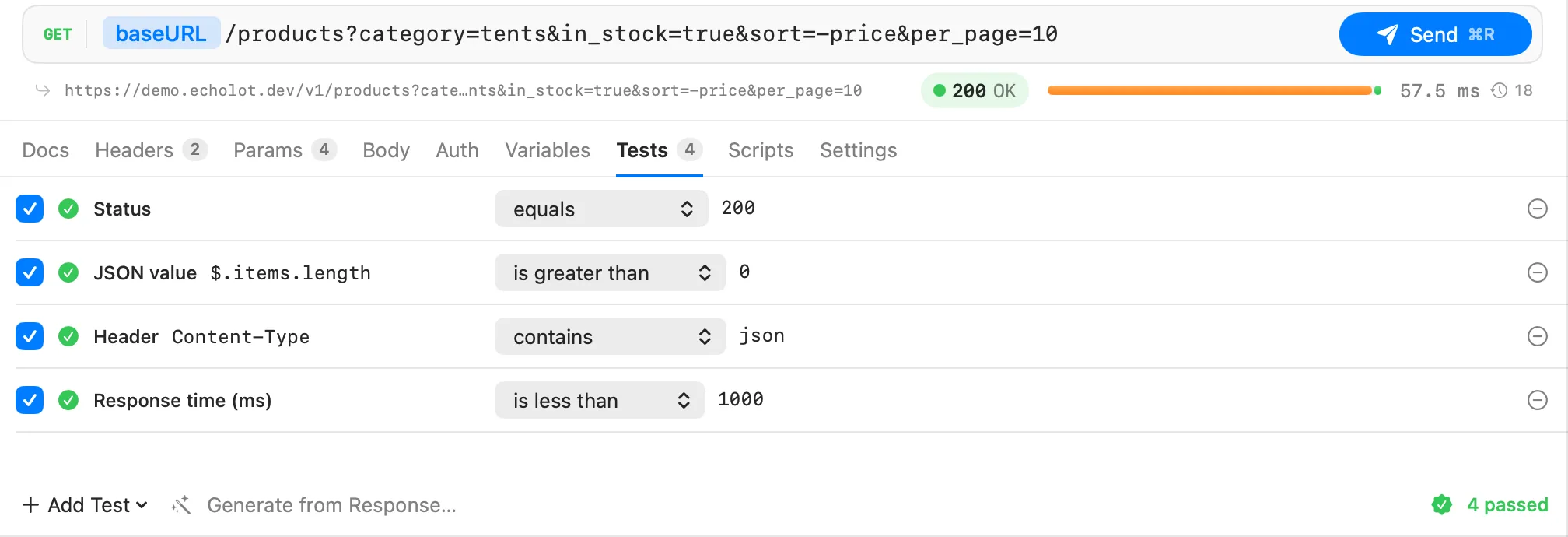
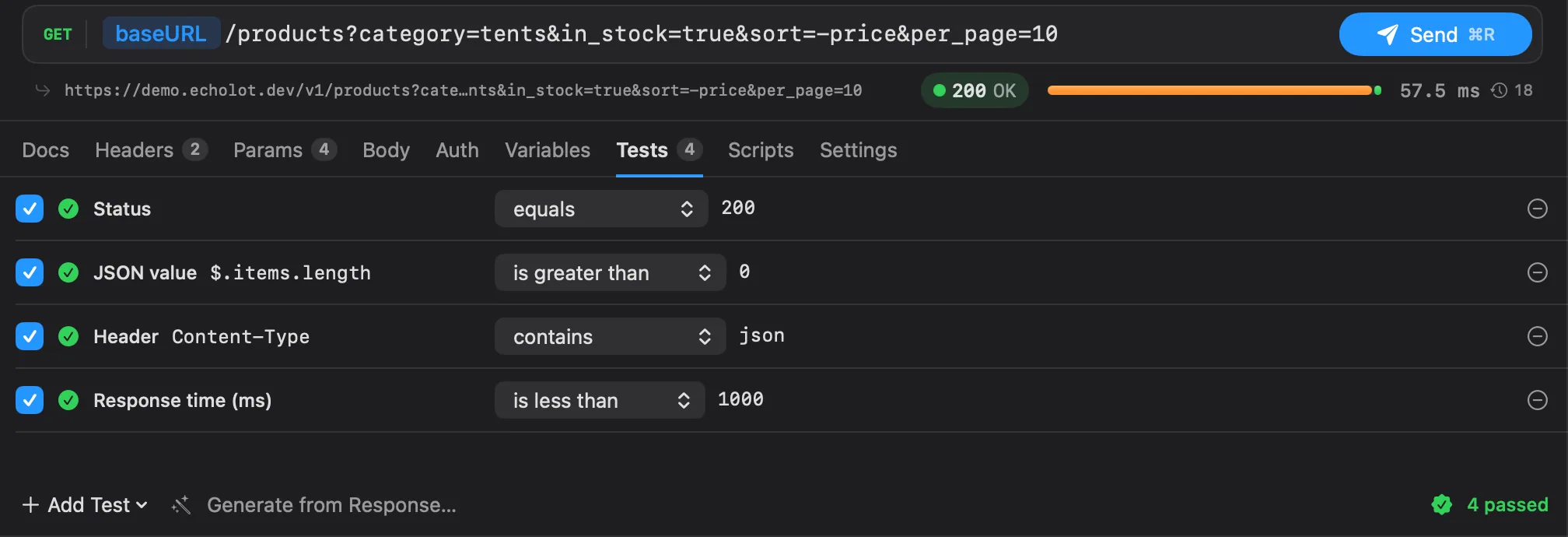
- Open a request, for example Catalog › List products in the Alpenglow workspace.
- Choose the Tests tab.
- Choose Add Test and pick what to check.
- Pick a comparison from the menu beside it and type the expected value.
- Send the request. Each check shows a green tick or a red cross, and a failed one says why under it.
Checks are saved with the request and run on every response from then on. The box at the start of a row turns a check off without removing it; the minus button removes it. The Tests tab's badge counts the checks, and the bottom of the tab shows how many passed, such as 4 passed or 1 of 4 failed.
The expected value is a template, so {{variables}} work in it: Catalog › Get product checks that $.sku
equals {{productId}}.
What you can check
| Check | What it reads | Comparisons |
|---|---|---|
| Status | The status code | equals, does not equal, is less than, is greater than, is one of |
| Header | A response header, by name | exists, does not exist, equals, does not equal, contains, does not contain, matches regex |
| JSON value | The value at a JSONPath in a JSON body | exists, does not exist, equals, does not equal, contains, does not contain, is less than, is at most, is greater than, is at least, matches regex, is of type, is one of |
| Body | The whole body as text | contains, does not contain, equals, matches regex |
| Response time (ms) | The total time of the exchange, in milliseconds | is less than, is at most, is greater than, is at least |
| Size (bytes) | The body's size in bytes | is less than, is at most, is greater than, is at least |
| JSON Schema | The body, against a JSON Schema you paste | matches |
| GraphQL errors | The errors array of a GraphQL response | equals, is less than, is greater than (their number); contains, does not contain (their messages) |
| MCP error | Whether an MCP call failed: true or false | equals |
| Tool output schema | An MCP tool result's structuredContent, against the tool's own outputSchema | matches |
| OpenAPI spec | The body, against the linked OpenAPI spec's schema for the response's status | matches |
| gRPC status | A gRPC call's status, by name or code | equals, does not equal, is one of |
A new check starts with a sensible value: Status equals 200, Response time (ms) is less than 1000,
GraphQL errors equals 0, MCP error equals false, gRPC status equals OK, and JSON Schema with
{"type": "object"}.
How values compare
- equals compares numbers as numbers, so
200equals200.0, and ignores spaces around the value. - is one of takes a comma-separated list:
200, 201, 204. - matches regex passes when the regular expression matches anywhere in the value.
- is of type takes
object,array,string,number,integer,booleanornull. - The number comparisons need numbers on both sides; anything else fails with a message saying so.
JSON values
The path is a JSONPath of keys and indexes, starting with $: $.items[0].sku, $.data.search.totalCount.
A negative index counts from the end: $.items[-1]. Add .length to count the items of an array or the keys of an
object: $.items.length is greater than 0. Echolot reads only the part of the body on the way to the value, so
JSON checks work on bodies of any size.
Body with contains or does not contain also works on bodies of any size. The other body comparisons, and JSON Schema and GraphQL errors, read the whole body and stop at 50 MB.
Checks for other kinds of request
- GraphQL: servers answer errors with status 200, so add GraphQL errors equals
0to catch them. Use contains to check that a particular message comes back. - MCP calls: MCP error equals
falsepasses when the call succeeded. It fails on a result marked as an error and on a JSON-RPC error, and the message shows what the server said. Tool output schema checks a tool result against the schema the tool declares; it fails when the tool declares none. See MCP requests. - gRPC: gRPC status takes names such as
OKandNOT_FOUNDor codes from 0 to 16;5,not_foundandNOT_FOUNDare the same status. A failed check shows the status message. See gRPC. - OpenAPI spec: the request's folder (or a folder above it) must be linked to a spec, and the request must follow one of its operations. The check then validates the body against the schema the spec documents for the status that came back. A status the spec documents without a JSON body passes; an undocumented status fails. See Specs.
Add checks from a response
You don't have to type every check:
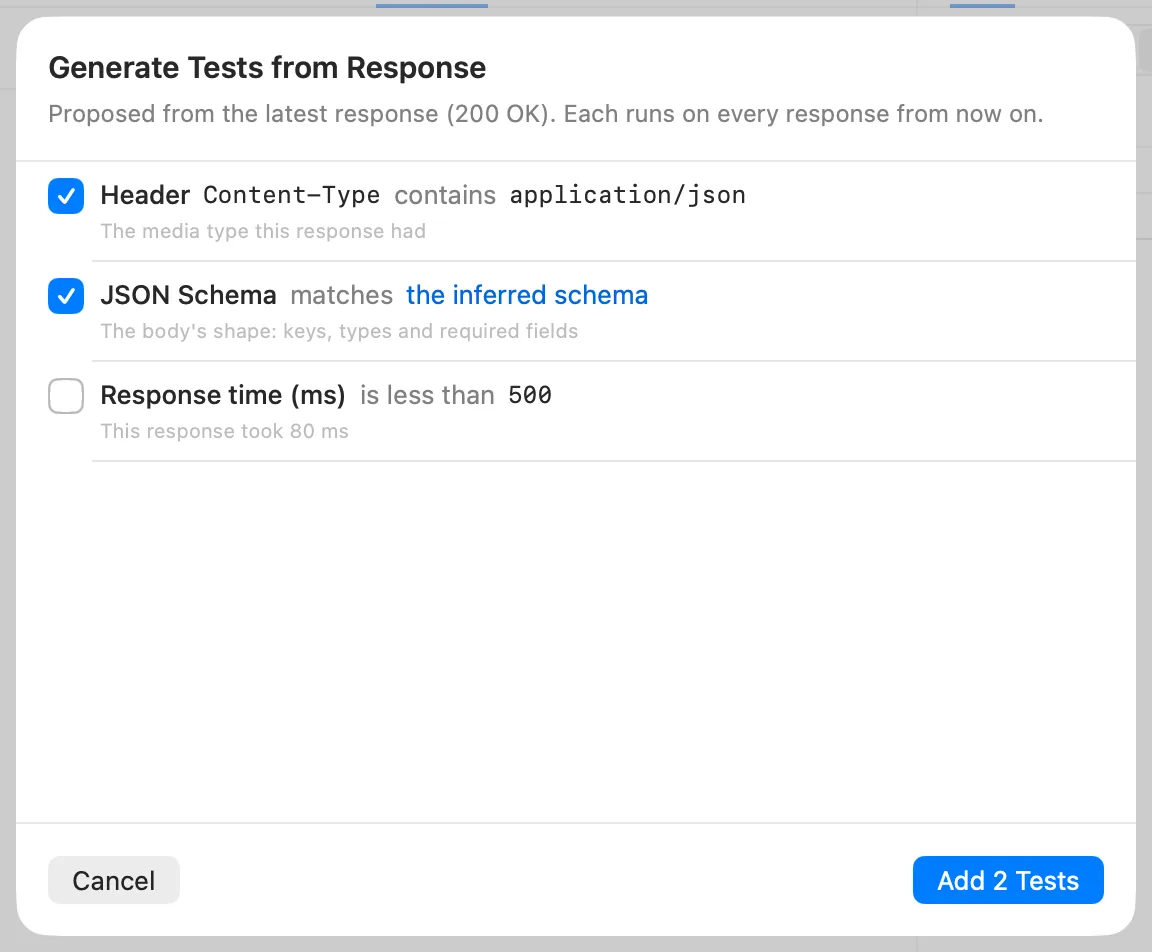
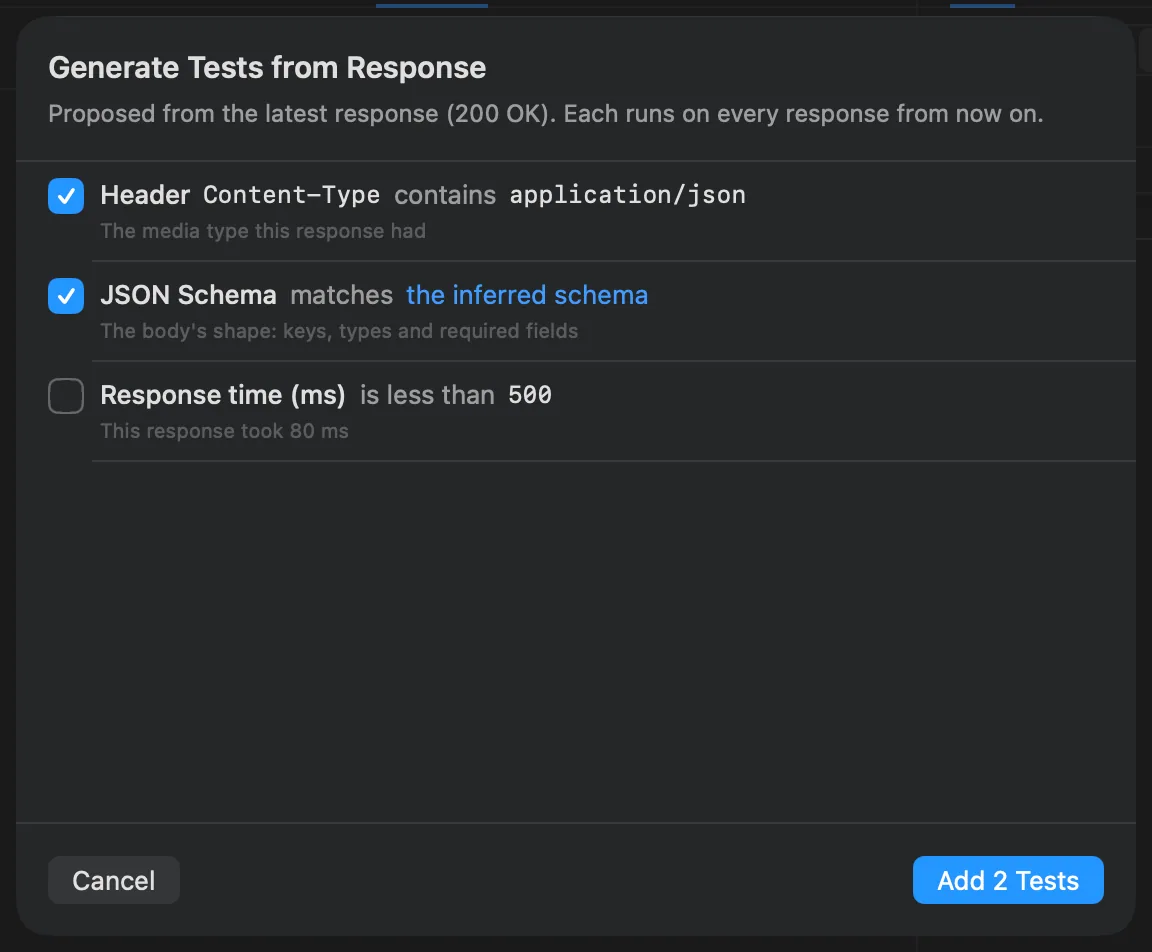
- Generate from Response… in the Tests tab proposes checks from the latest response. Checks that hold for any good response, such as the status, the content type and the shape of the body as a JSON Schema, are ticked already. Values that change between calls, and the time, are offered but not ticked. Choose the inferred schema to read a proposed schema. Choose Add 1 Test (or Add N Tests) to keep the ticked ones. Send the request first: the button needs a response.
- In the response's Body in the JSON tree view, right-click a value and choose Add Assertion: it adds a JSON value check that the path equals that value.
- In the response's Headers, right-click a header and choose Add Check: it adds a Header check that the header equals that value.
Results
The response pane's Tests tab lists each check with its outcome and the value found (got 200), then each test
from the scripts. The Tests page in the sidebar (View › Tests, ⌥⌘T) lists
every request that has checks, with how they stand in its latest response; click one to open the request.
Scripts
Scripts are JavaScript with Postman's pm.* API, so most Postman scripts run unchanged. A request can have two:
- A pre-request script runs before the request is sent. It can change the request, set variables, or skip the request.
- A test script runs after the response arrives. It checks the response with
pm.testand can save values for later requests.
- Open a request and choose the Scripts tab.
- Choose Pre-request or Tests at the top. A dot after the name, such as Tests •, marks a script that has code.
- Write the script. The editor colours JavaScript and completes
pm.paths as you type. Snippets adds a ready-made script for common cases. - Send the request.
For example, a test script for Catalog › List products:
pm.test("Status code is 200", () => {
  pm.response.to.have.status(200);
});

pm.test("Returns tents", () => {
  const body = pm.response.json();
  pm.expect(body.items.length).to.be.above(0);
});
And a pre-request script that adds a header to every request it runs for:
pm.request.headers.add({ key: "X-Request-Id", value: pm.variables.replaceIn("{{$guid}}") });Each pm.test appears in the response's Tests tab under Scripts, after the checks from the Tests tab. A
script that throws shows as Script error with its message. What scripts write with console.log,
console.info, console.warn and console.error appears in the response's Console tab, marked pre or
test; the tab is there once scripts have run.
Snippets
| Snippet | For |
|---|---|
| Status code is 200, Response time is below 500 ms, JSON value exists, Header is present, Body contains text | Tests |
| Save a value for later requests | Tests: pm.environment.set("token", pm.response.json().token) |
| Run another request next | Tests: pm.execution.setNextRequest("Request name") |
| Set a variable, Add a header, Sign the request with HMAC-SHA256, Get a token first, Skip this request | Pre-request |
Scripts on folders and the workspace
A folder and the workspace can have scripts too, for every request inside them. Open them from the folder's context menu in the sidebar (Folder Settings…) or from Workspace Settings…, on the Scripts tab.
For each request, Echolot runs the workspace's script first, then each folder's from the outside in, then the request's own. The same order holds for pre-request and test scripts. Only saved requests run scripts.
MCP calls have no Scripts tab and run no scripts. Every other kind of request has one.
The pm API at a glance
The full list is in the scripting API reference.
| Object | What it does |
|---|---|
pm.test(name, fn), pm.expect(value) | A named test and Chai-style assertions: pm.expect(x).to.equal(1) |
pm.response | The response in test scripts: code, status, headers, responseTime, responseSize, json(), text(), and pm.response.to.have.status(200), .header(), .body(), .jsonBody(), pm.response.to.be.ok, .success, .json, .clientError, .serverError, .notFound |
pm.request | The request: url, method, headers, body; a pre-request script can add, replace and remove headers and query parameters |
pm.variables | Every scope, closest first: get, set, has, unset, replaceIn, toObject |
pm.environment, pm.collectionVariables, pm.globals | The active environment, the workspace's variables, and global variables |
pm.iterationData | The data row of a run: get, has, toObject |
pm.info | requestName, requestId, iteration (from 0), iterationCount, eventName |
pm.execution | setNextRequest(name) (null ends the run) and skipRequest() |
pm.cookies | The response's cookies |
pm.sendRequest | Sends another request |
console | log, info, warn, error |
CryptoJS | MD5, SHA1, SHA256, SHA512, HmacSHA1, HmacSHA256, HmacSHA512, and CryptoJS.enc (Hex, Base64, Utf8, Latin1) |
require gives lodash, ajv, tv4, crypto-js, uuid, atob and btoa. _ (lodash), tv4, btoa,
atob and setTimeout are also there without it. Postman's older globals (postman.setEnvironmentVariable,
tests[...], environment, globals, data, iteration) still work. Any other module fails with "The module …
is not available in Echolot scripts."
Variables that scripts set
What pm.environment.set, pm.collectionVariables.set and pm.globals.set write is a current value: it lives as
long as the window, overrides the saved value of that scope when requests resolve, and is never written to the
workspace files. So a token a script saves reaches later requests without ending up in Git. To keep a value from a
response in the workspace, use a capture instead.
pm.variables.set sets a value for the current run only: a run starts without the values scripts set this way.
Sending another request
pm.sendRequest sends a request from a script, such as one that fetches a token first. It takes a URL or an
object with url, method, header and body, and either a callback or the promise it returns:
pm.sendRequest({
  url: pm.variables.replaceIn("{{baseURL}}/auth/token"),
  method: "POST",
  header: { "Content-Type": "application/json" },
  body: { mode: "raw", raw: JSON.stringify({ email: "heidi@alpenglow.ch", password: "alpenglow" }) },
}, (error, response) => {
  if (!error) pm.environment.set("token", response.json().access_token);
});
The request goes out like any other send from Echolot, with the same proxy and certificates, but without the workspace's or folder's auth. Scripts wait up to 30 seconds for the answers.
Skipping requests and choosing the next one
pm.execution.skipRequest() in a pre-request script stops the request from being sent; the response pane and the
runner say it was skipped. pm.execution.setNextRequest("Get order") in a run jumps to that request next, and
setNextRequest(null) ends the run. See the runner.
Scripts from outside Echolot
Scripts are code, so Echolot runs only the ones you trust on this Mac. Scripts you write in Echolot are trusted as you save them. Scripts that arrive another way, from an import, from Git, or from an edit in another editor, wait:
- The Scripts tab shows These scripts came from outside Echolot, with Trust Scripts.
- Sending the request stops with Review Scripts…. It opens Run these scripts?, with each script that has not run yet and where it comes from (the request, a folder or the workspace). Read them, then choose Trust and Send, or Cancel.
Trust is kept on this Mac, per workspace, for the exact code: when the script changes outside Echolot, it asks again. The trust never travels with the workspace, so a shared workspace cannot trust its own scripts.
The command-line tool runs every script of the workspace you give it. echolot mcp serve runs only the scripts the
workspace had when it started.
The sandbox and its limits
Scripts run in a JavaScript sandbox inside Echolot. They have no file system, no network of their own and no
access to the Mac: the only ways out are pm.sendRequest, console and the variables. Every send starts a fresh
sandbox.
| Limit | Value |
|---|---|
| JavaScript time for all the scripts of one event (pre-request or test) | 5 seconds |
| Memory | 128 MB |
Waiting for pm.sendRequest answers | 30 seconds |
| Response body a script sees | The first 32 MB |
A script that runs too long fails with "the script took longer than 5 s"; one that uses too much memory fails with
"the script used more memory than allowed". Scripts can still read the workspace's variables, secrets included, and
send them with pm.sendRequest, which is why scripts from outside wait for your trust.
Troubleshooting
- Generate from Response… is greyed out: send the request first. It works for HTTP and GraphQL requests.
- "no OpenAPI spec is linked to this request's folder": link the folder to a spec, or remove the OpenAPI spec check.
- "“…” is not a JSONPath this version understands": use keys and indexes only, such as
$.items[0].sku. - A script doesn't run: check that the request is saved, that it isn't an MCP call, and that the script isn't waiting for your trust.