 Echolot
Storage and encryption
Where Echolot keeps workspaces, response bodies and history, how much it keeps, and how to encrypt response bodies on disk.
Echolot keeps two kinds of data apart. Your workspaces are folders you put where you like. Echolot's own data (response bodies, history, crash reports) lives in its storage folder on your Mac. Deleting that folder loses history, never a request.
Where things are
| What | Where |
|---|---|
| Workspaces | Wherever you create or keep them. |
| Secret values, OAuth tokens, the encryption key | Your login Keychain. |
| Response bodies and wire captures | Payloads in Echolot's storage folder. |
| History | History in Echolot's storage folder: one file per workspace. |
| Assistant conversations you haven't shared | Assistant in Echolot's storage folder. |
| Crash reports, if you allow them | Crash Reports in Echolot's storage folder. |
| Your own code templates | Code Templates in Echolot's storage folder. See exporting. |
| The Examples workspace | Examples.echolot in Echolot's storage folder. |
| Settings, global variables, the active environment of each workspace | Echolot's preferences. |
Echolot's storage folder is ~/Library/Application Support/Echolot. To open it, go to Settings › About and click
Show in Finder beside Responses and history.
Mac App Store edition
The App Store edition keeps the same data in its own container instead of ~/Library/Application Support/Echolot.
Settings › About › Show in Finder opens the right folder in either edition. Workspaces stay wherever you keep
them in both, and open in both.
Response bodies
Every response body goes straight to a file as it arrives, never into memory, so a response of several gigabytes is fine. A body is stored once, however often it arrives: sending the same request ten times with the same answer keeps one copy.
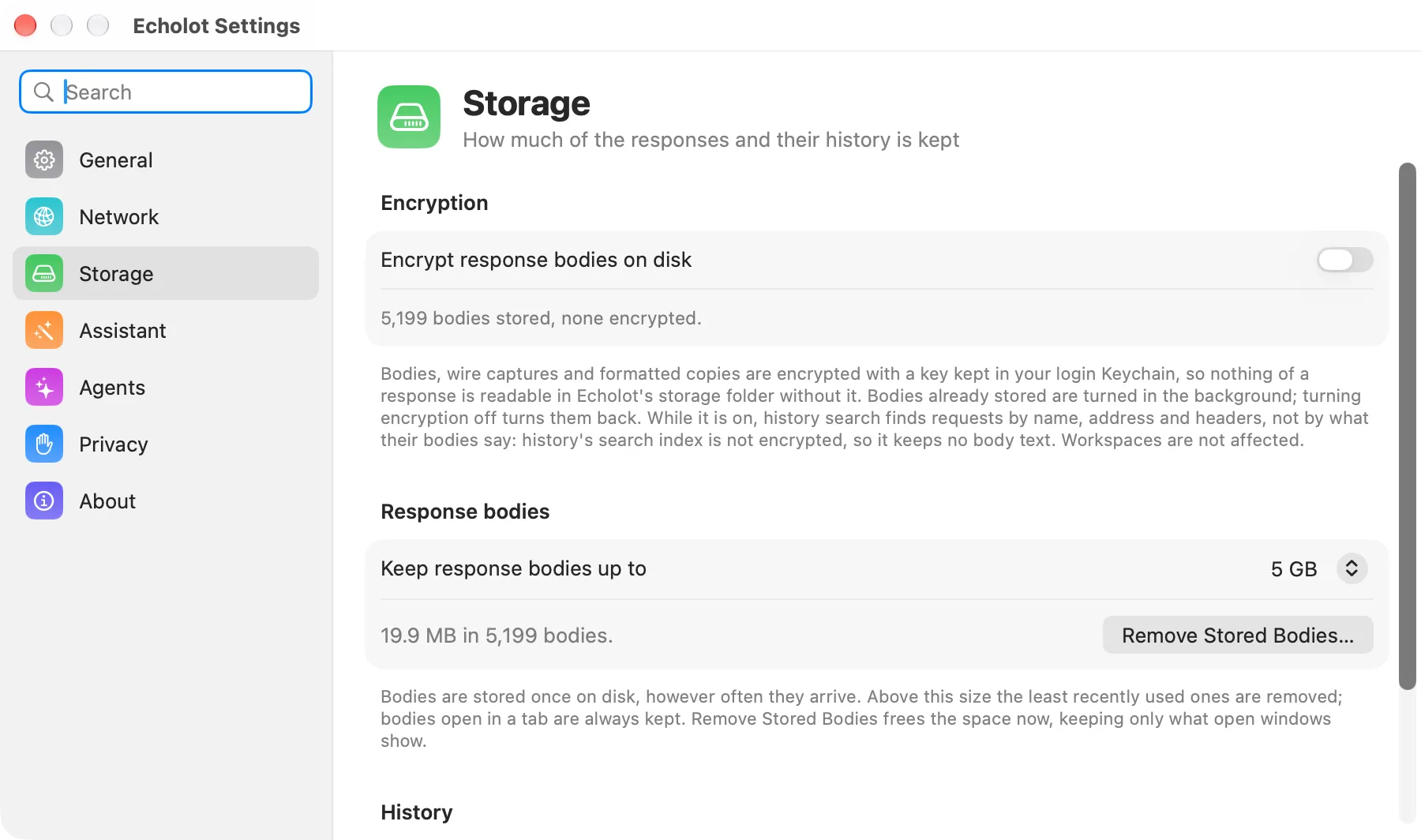
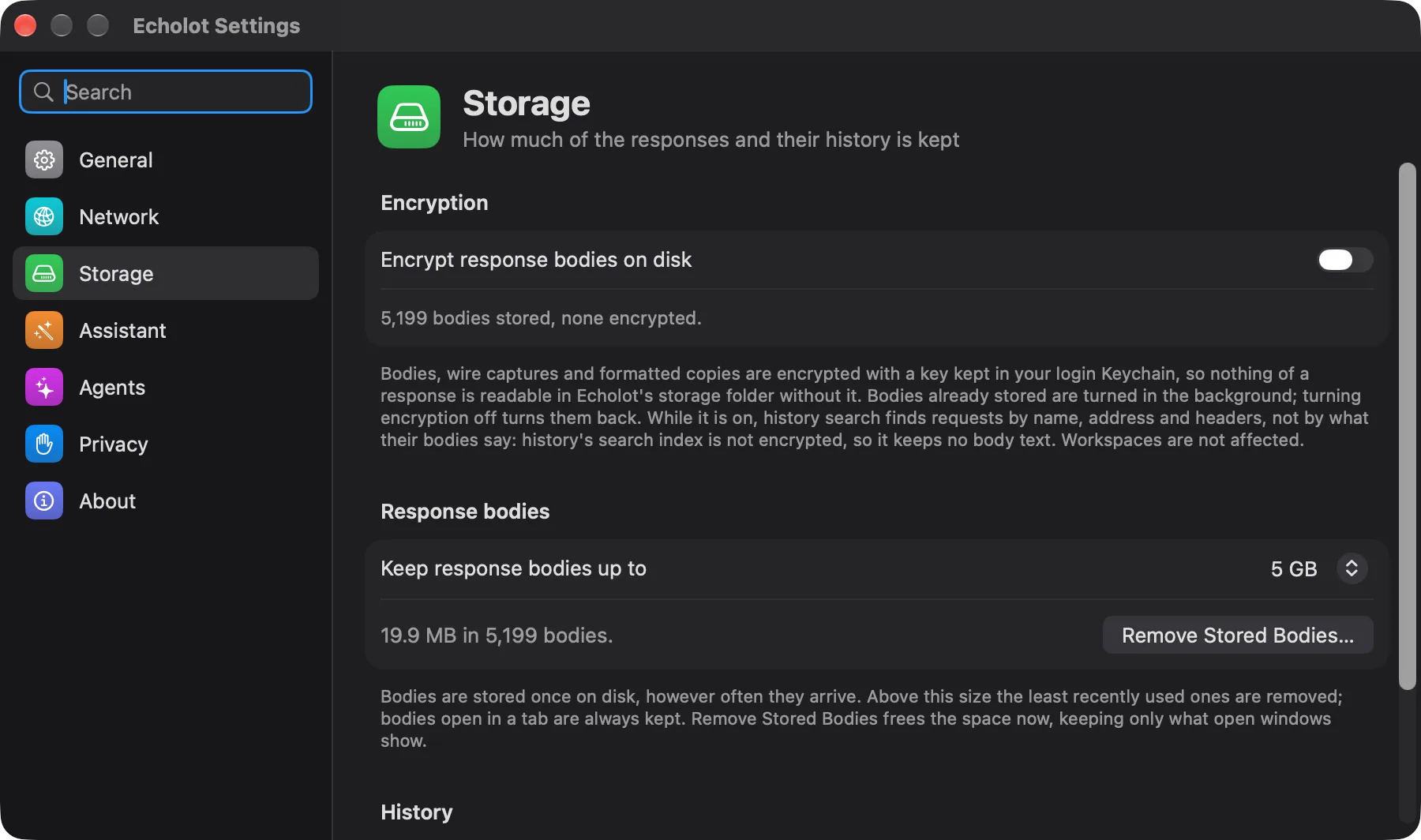
Set how much room bodies may take in Settings › Storage › Response bodies: Keep response bodies up to 1, 2, 5 (the default), 10, 20 or 50 GB. Above that size, Echolot removes the bodies used least recently. It always keeps:
- bodies shown in an open tab,
- the newest response of each saved request, so it shows again after a restart,
- bodies other requests read through dynamic values such as
$responseJSONPath.
The line below the limit shows how much the stored bodies take on disk. To free that space now, click Remove Stored Bodies… and confirm. Echolot keeps only what open windows need: bodies shown in an open tab and the newest response of each request in open workspaces. Every other body goes, including those of workspaces that aren't open, and can't be brought back. Requests and their history stay; old responses show without their bodies.
History keeps the request each exchange sent. A request body larger than 256 KB isn't kept in history; the wire capture still has its beginning.
History
Settings › Storage › History sets how many responses history keeps per request: 10, 25, 50 (the default), 100 or 200. Older entries go first. Every send is kept with who made it: you, a run or an agent. To clear a workspace's history, use Clear History… in the ⋯ menu of its History page; a request's own history clears from the same menu in its history list.
Encrypt response bodies on disk
Responses can hold personal data, tokens and anything else an API returns. With encryption on, nothing of a response is readable in Echolot's storage folder without a key from your Keychain.
- Open Settings › Storage.
- Turn on Encrypt response bodies on disk.
Echolot makes a key the first time and keeps it in your login Keychain, as Echolot response storage key. New bodies are written encrypted at once. Bodies already stored are encrypted in the background; the setting shows how far it has got ("Encrypting 120 of 860…") and then the state, such as "All 860 stored bodies are encrypted."
Bodies are encrypted with AES-256 in counter mode, which lets Echolot read any part of a body without decrypting the rest: viewers, search inside a response and large bodies work as before.
What it covers
| Encrypted | Not encrypted |
|---|---|
| Response bodies | Workspace files (they hold no secret values anyway) |
| Wire captures (the raw bytes sent and received) | History's file: names, addresses, headers, status and timing |
| Formatted copies of bodies | Echolot's preferences |
History's file isn't encrypted, so while encryption is on it keeps no body text. Search then finds requests by name, address and headers, not by what their bodies say. Turning encryption on removes the body text history had already indexed. Secret values are masked in history whether encryption is on or off.
Turning it off
Turn off Encrypt response bodies on disk. New bodies are written in the clear again, and Echolot decrypts the stored ones in the background ("Decrypting 120 of 860…"). The key stays in the Keychain, so bodies not yet decrypted still read.
Responses recorded while encryption was on stay out of history's body search. Responses after that are searchable by body again.
Keep the Echolot response storage key item in your Keychain. Echolot needs it to read bodies that are encrypted.
If the key can't be made or read, the setting says so ("The encryption key could not be kept in the Keychain…") and bodies stay as they are.
Free up room
- Lower Keep response bodies up to in Settings › Storage. Echolot removes the least recently used bodies shortly after.
- Clear history on the History page, for one request or the whole workspace.
- Quit Echolot and delete
PayloadsorHistoryin its storage folder. You lose past responses and history; requests, environments and every workspace file stay.